Recycle Bin
The Recycle Bin centrally collects resources you have deleted in the AI Compute Development Platform, supporting recovery or permanent deletion to prevent accidental data loss.
Access path: Left sidebar AI Compute Development > Recycle Bin, route
/admin/ai/deployer/trash.
The Recycle Bin is divided into 4 sub-pages by resource type:
| Sub-page | Route | Description |
|---|---|---|
| Container Instances | /admin/ai/deployer/trash/instances | Deleted container instances |
| Training Jobs | /admin/ai/deployer/trash/training | Deleted training jobs |
| Fine-tuning Jobs | /admin/ai/deployer/trash/finetuning | Deleted fine-tuning jobs |
| Inference Services | /admin/ai/deployer/trash/inference | Deleted inference services |
The top of the page displays the automatic cleanup retention period for Recycle Bin resources (e.g., "Recycle Bin resources will be automatically cleaned after 30 days"). The retention period is determined by the platform deployment configuration — refer to the actual prompt displayed on the page. Resources past the retention period will be automatically cleaned by the system and cannot be recovered.
Common Operations
The four sub-pages share identical operations:
- Recover: Click "Recover" in the row, and after confirmation, the resource returns to its original list (e.g., a container instance returns to Compute Services > Container Instances).
- Permanent Delete: Click "Permanent Delete" in the row. After a second confirmation, the resource is permanently deleted. This operation cannot be undone — proceed with caution.
- Batch Operations: After selecting multiple rows, batch "Recover" and "Permanent Delete" buttons will appear on the left side of the toolbar.
- View Details: Click the name column to enter the detail page and view the resource's full configuration before deletion. Click the back button in the upper-left corner to return to the Recycle Bin.
Sub-page Fields and Filters
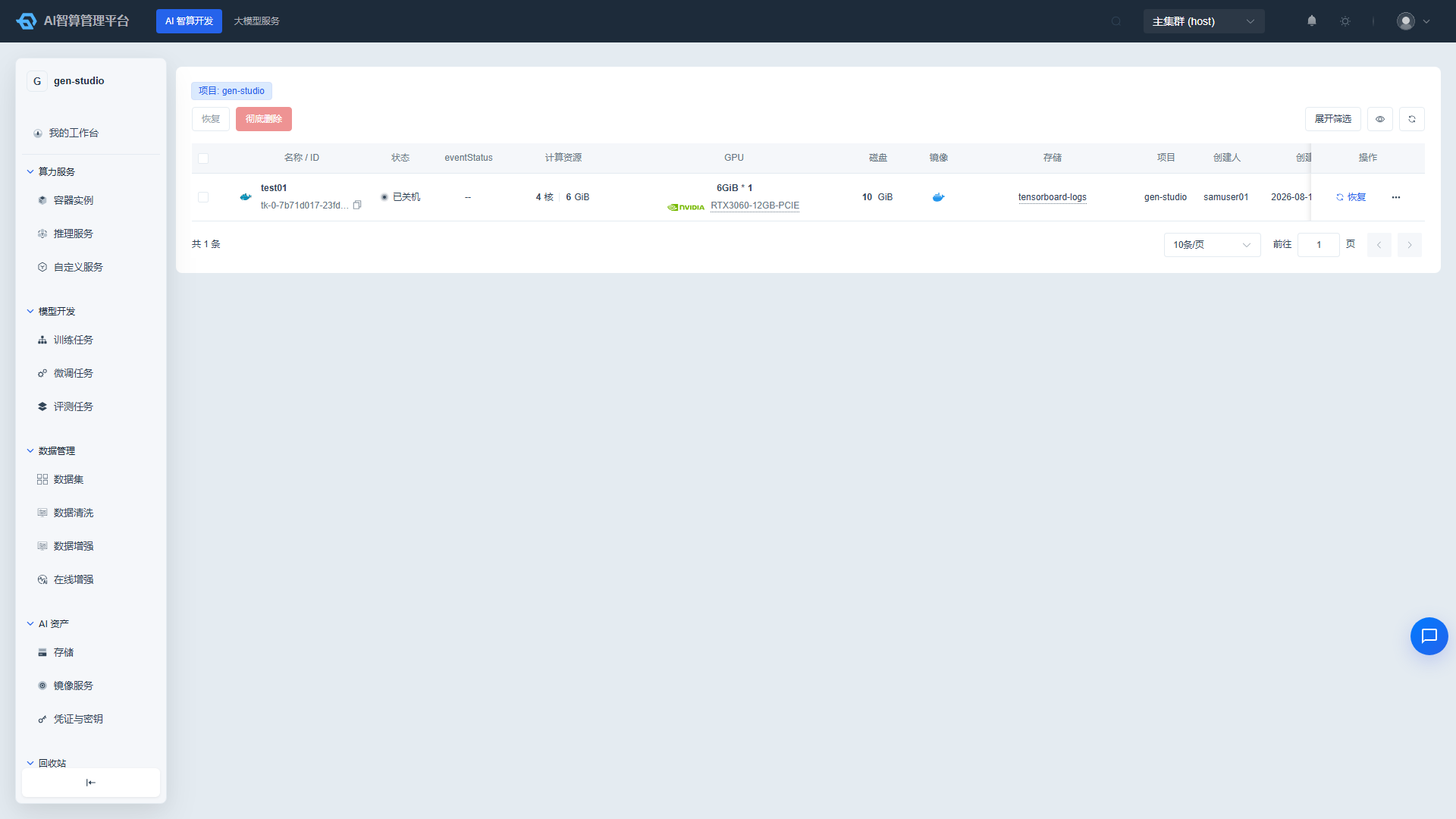
Container Instances
- List Fields: Name/ID, Status, Event Status, Compute Resources (CPU/Memory), GPU, Disk, Image, Storage, Associated Project, Creator, Creation Time.
- Filters: Instance Name, Associated Project, Creator.
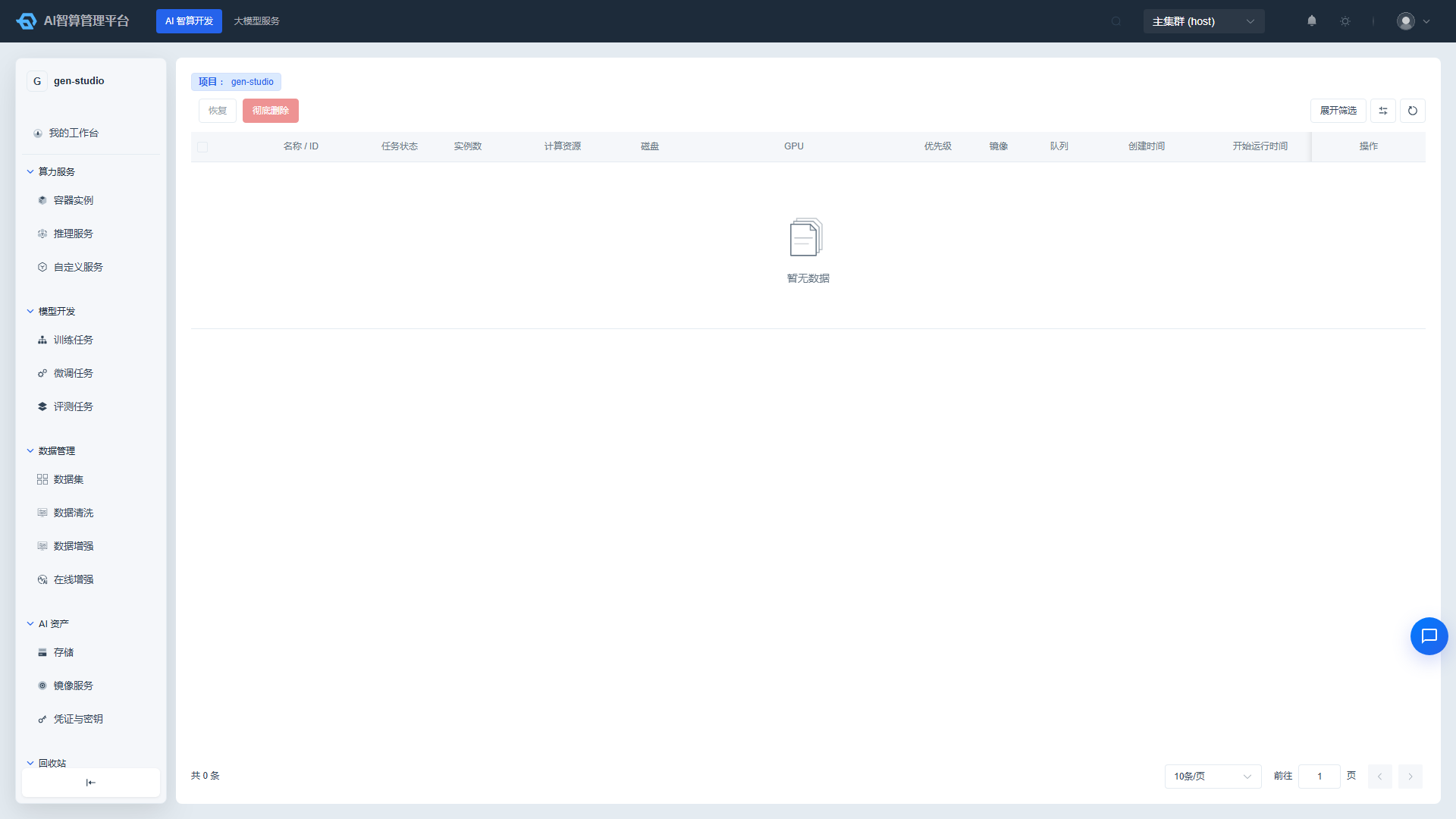
Training Jobs
- List Fields: Name/ID, Job Status, Instance Count, Compute Resources, Disk, GPU, Priority, Image, Queue, Creation Time, Start Time, Completion Time, Runtime, Associated Workspace, Associated Project, Creator.
- Filters: Name, Associated Project, Queue, Priority, Creator.
Fine-tuning Jobs
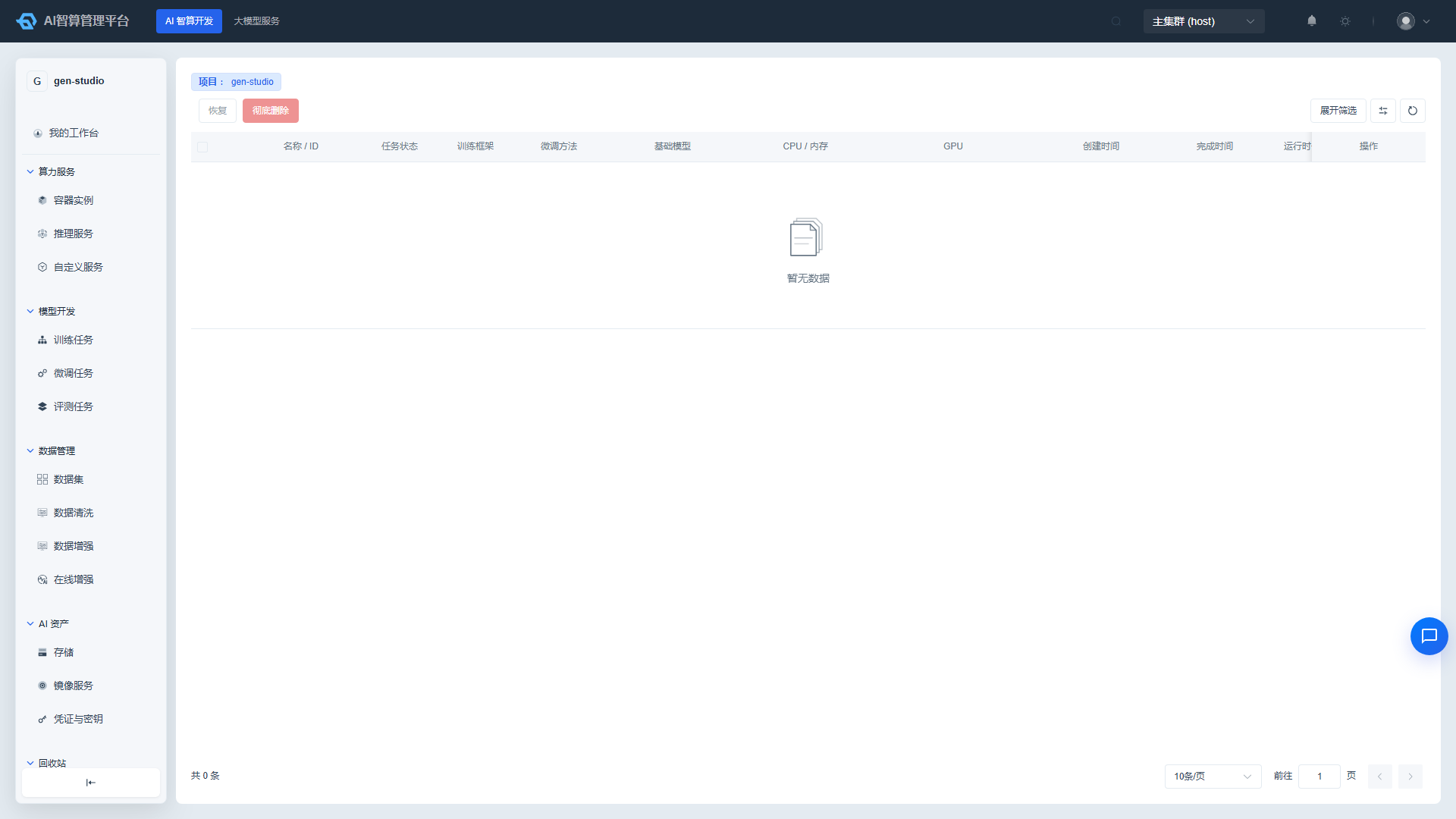
- List Fields: Name/ID, Status, Framework, Fine-tuning Method, Base Model, CPU/Memory, GPU, Creation Time, Completion Time, Runtime, Associated Workspace, Associated Project, Creator.
- Filters: Name, Associated Project, Creator.
Inference Services
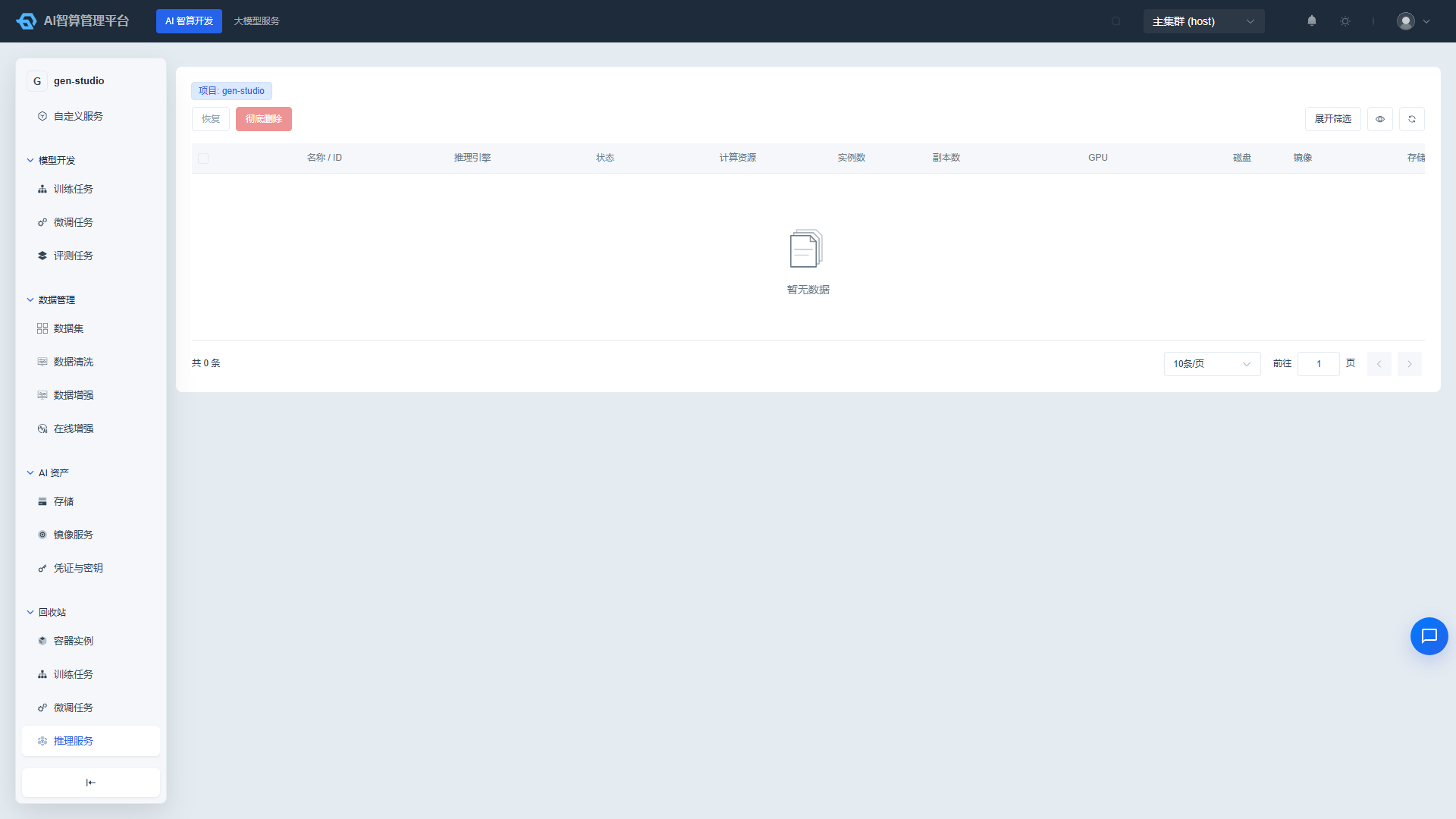
- List Fields: Name/ID, Inference Engine, Status, Compute Resources, Instance Count, Replicas, GPU, Disk, Image, Storage, Associated Project, Creator, Creation Time.
- Filters: Instance Name, Associated Project, Creator.
FAQ
Q: Why don't my deleted resources appear in the Recycle Bin? A: Only "Release" operations enter the Recycle Bin. Some direct deletion operations bypass it. Additionally, resources past the retention period have already been automatically cleaned.
Q: Will recovered resources retain their original configuration? A: Yes. Recovery restores the soft-deleted resource. Specifications, image, storage, startup command, and other configurations remain identical to before deletion. However, the running state requires restarting.
Q: Can permanent deletion be undone? A: No. Permanent deletion removes the resource and its data irreversibly. Please confirm you no longer need the resource before proceeding.
Q: Are resources in the Recycle Bin still billed? A: Resources in the Recycle Bin have released compute resources and no longer occupy GPU/CPU quota. Storage usage follows the platform billing policy — see Billing Details for more information.