Workspaces & Projects
Workspaces & Projects is the core module for multi-tenant management on the Rise Compute Platform. Platform admins use workspaces (tenants) to manage resource pools, quotas, members, queues, and recycling policies at scale. Tenant admins further refine resources and permissions at the project and member level, enabling fine-grained compute governance.
Entry path: Left sidebar AI Compute Management > Workspaces & Projects, page route
/admin/tenant-project.
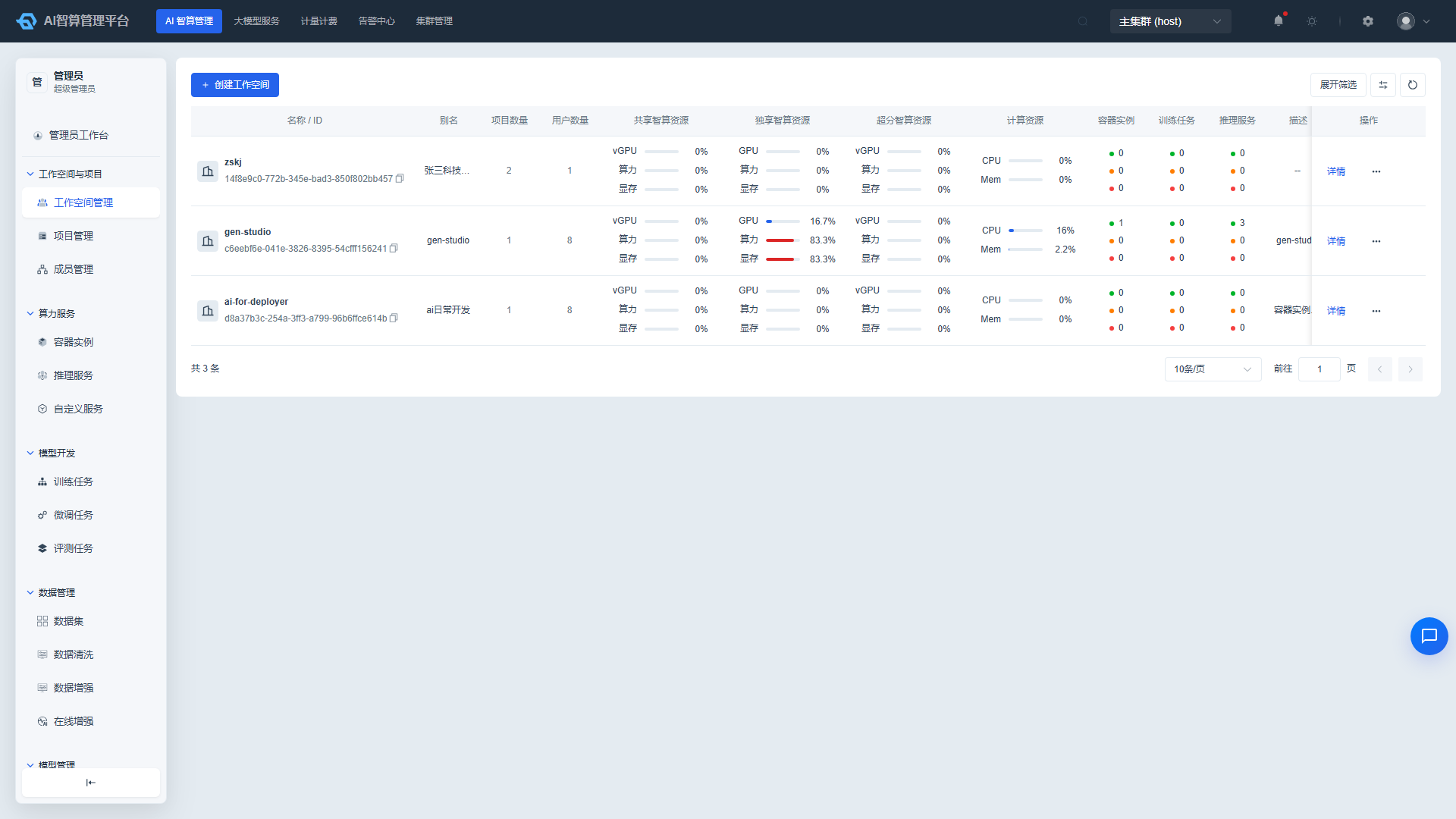
Page Menu
| Page | Route | Description |
|---|---|---|
| Workspace Management | /admin/tenant-project/tenant | Tenant list and overview |
| Workspace Details | /admin/tenant-project/tenant/details/:uuid | Tenant resource / member / policy management |
| Project Management | /admin/tenant-project/project | Project list and overview |
| Project Details | /admin/tenant-project/project/details/:uuid/:workspaceUUID | Project resource / member / policy management |
| Member Management | /admin/tenant-project/member | Cross-tenant / cross-project member management |
Workspace Management
View Workspaces
- Navigate to AI Compute Management > Workspaces & Projects > Workspace Management.
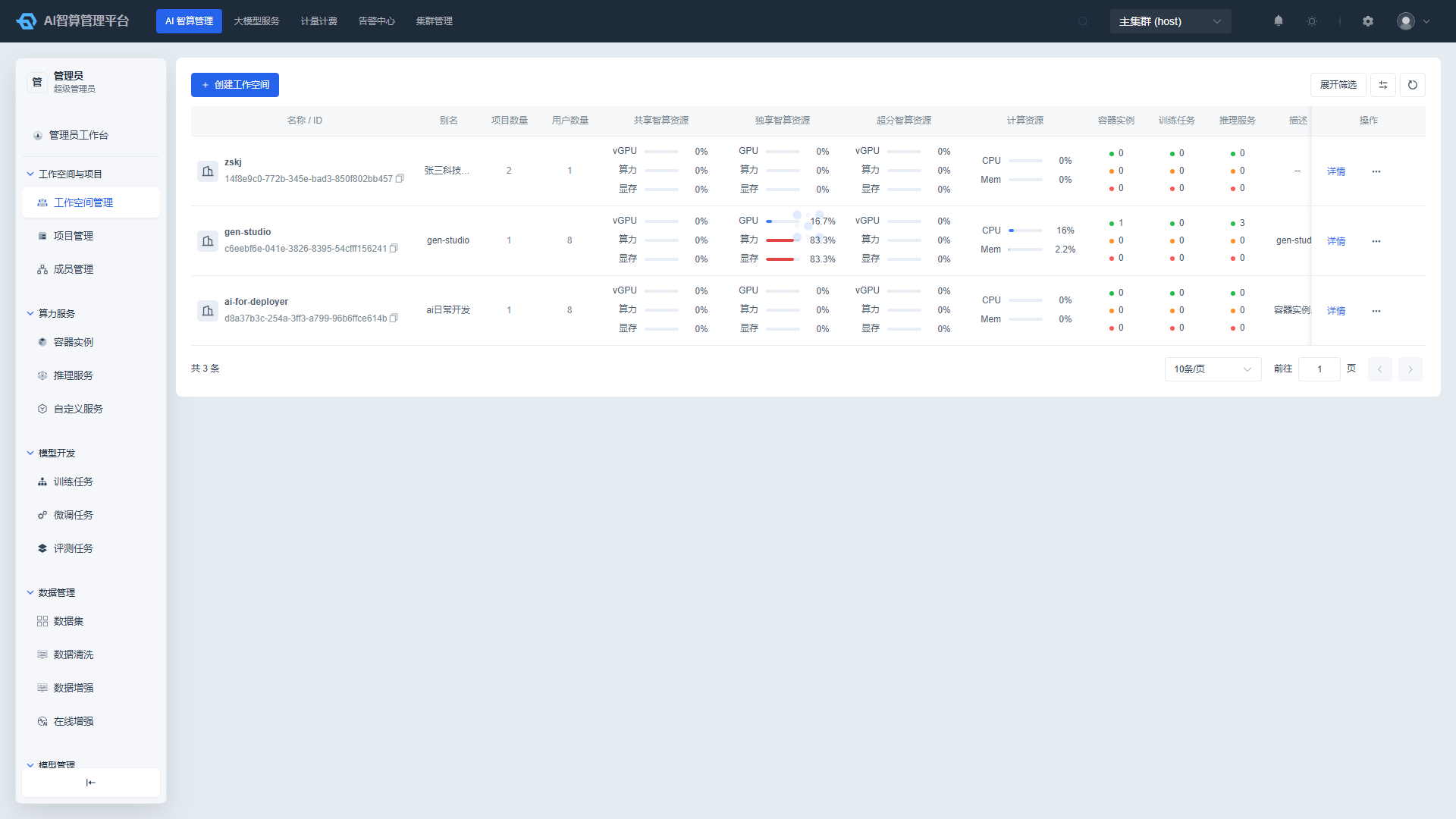
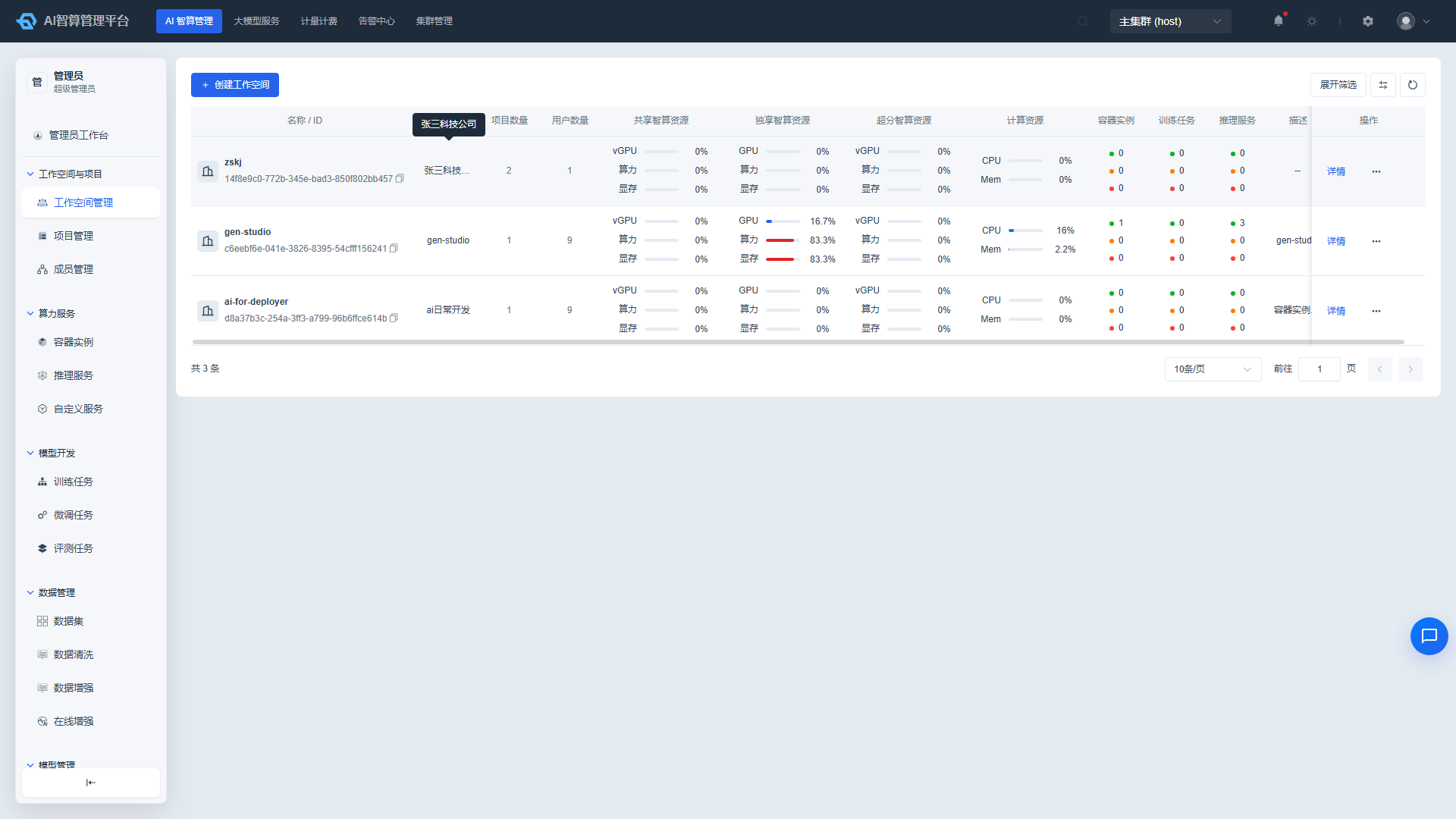
- The list displays: Name / ID, Alias, Project Count, User Count, Dedicated Compute Resources, Shared Compute Resources, Overcommit Compute Resources, Compute Resources, Container Instance / Training Job / Inference Service status indicators, Description.
- Use the top filter bar to search by name or alias.
- Click a workspace name to enter the detail page, which contains seven tabs: Overview, Resource Pool Management, Quota Management, Member Management, Queue, Recycling Strategy, and Priority.
Create a Workspace
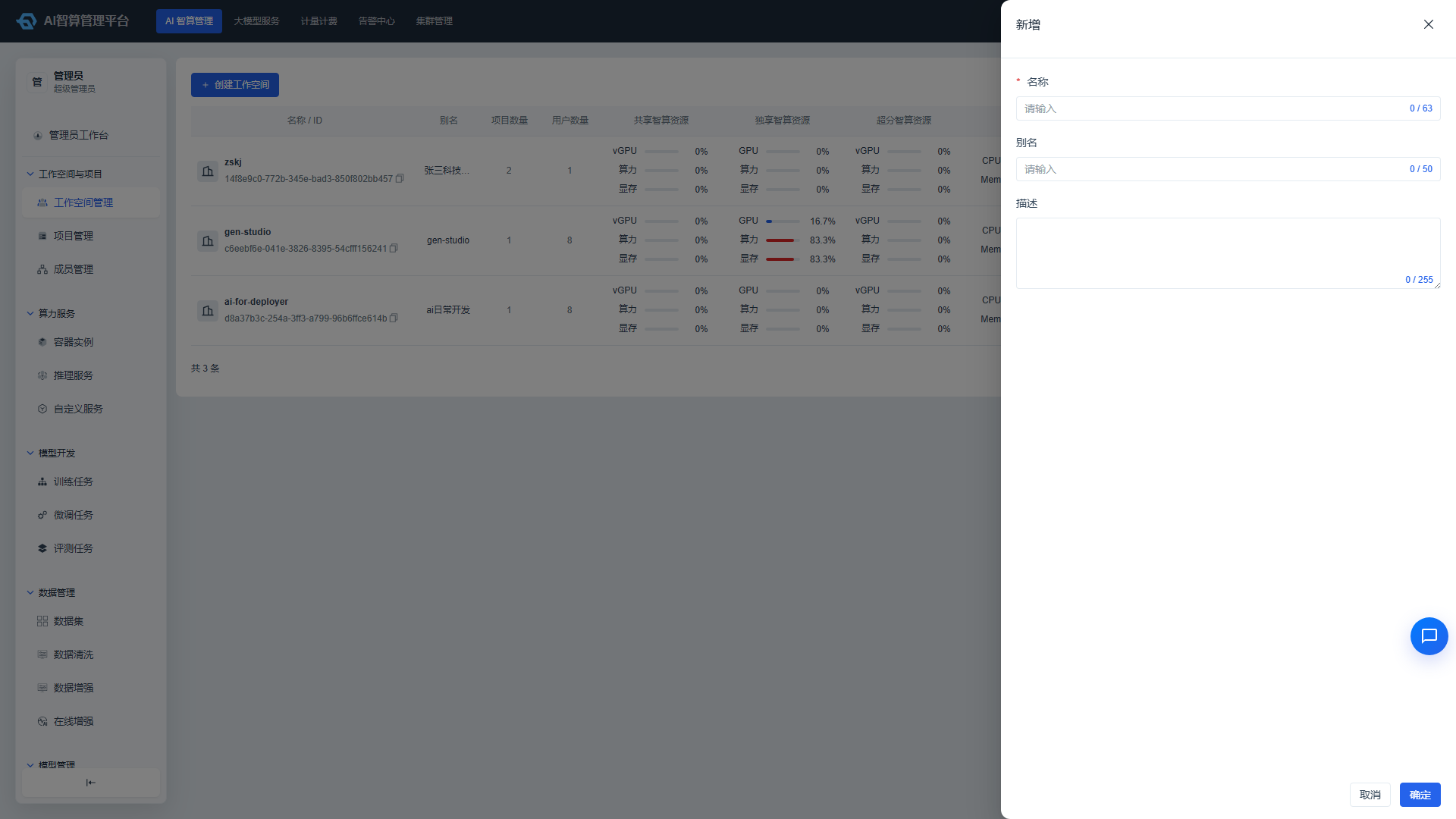
- Click "Create Workspace" on the Workspace Management list page.
- Fill in the dialog:
- Name: Unique tenant identifier; cannot be modified after creation.
- Alias: Display name.
- Description: Optional.
- Click "Create."
Workspace Overview
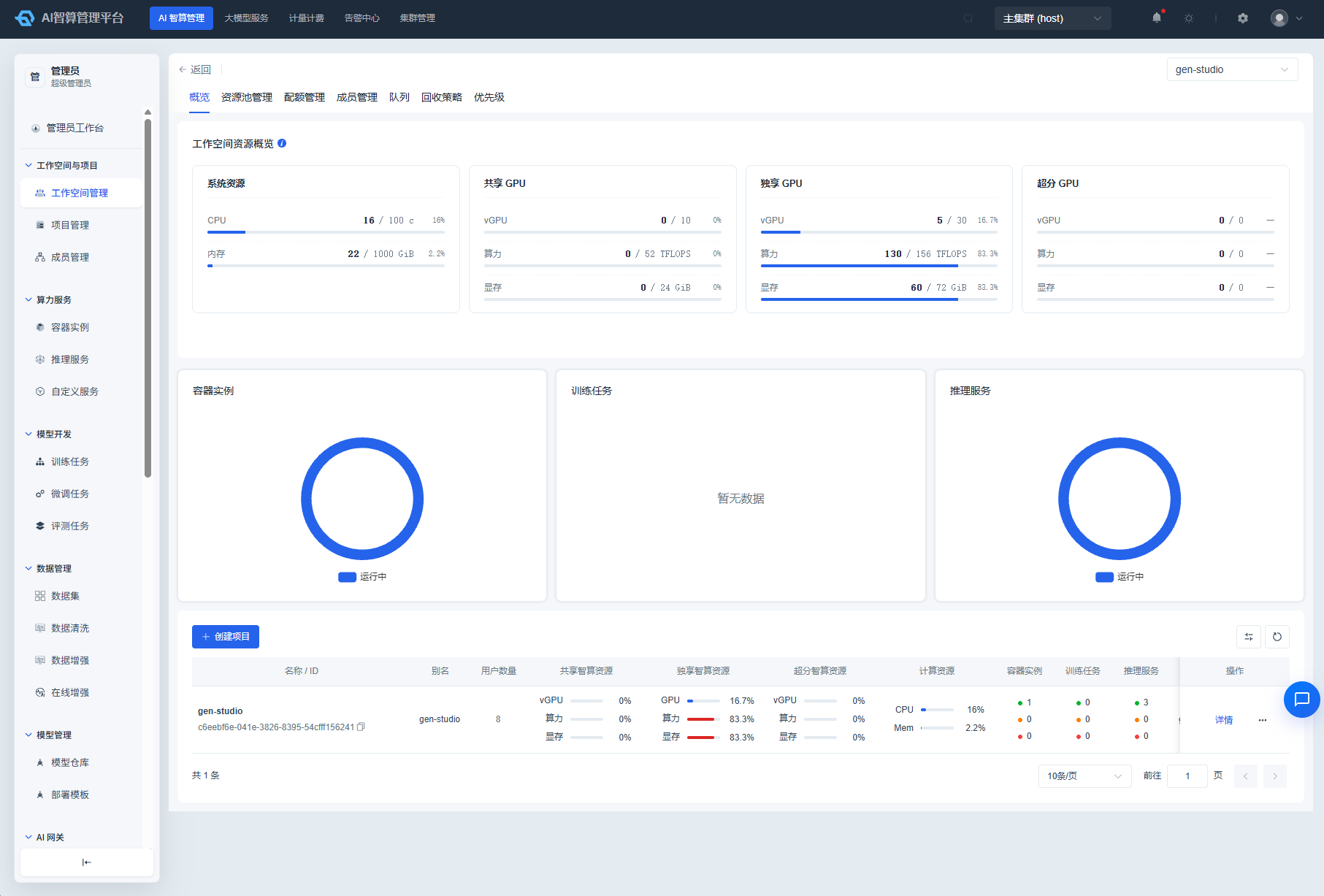
- Enter the "Overview" tab of the workspace detail page.
- The top displays resource overview cards:
- System Resources: CPU / Memory used / total progress bars and percentages.
- Shared GPU Pool, Dedicated GPU Pool, Overcommit GPU Pool: vGPU / Compute / Memory used / total progress bars and percentages for each.
- The middle shows donut charts for the status distribution of container instances, training jobs, and inference services.
- The bottom contains a built-in project list showing resource usage under each project; click "New Project" to create a project directly under the current tenant.
- Click "Batch Add Members" in a project list row to batch-add users and assign roles to multiple projects.
Resource Pool Management
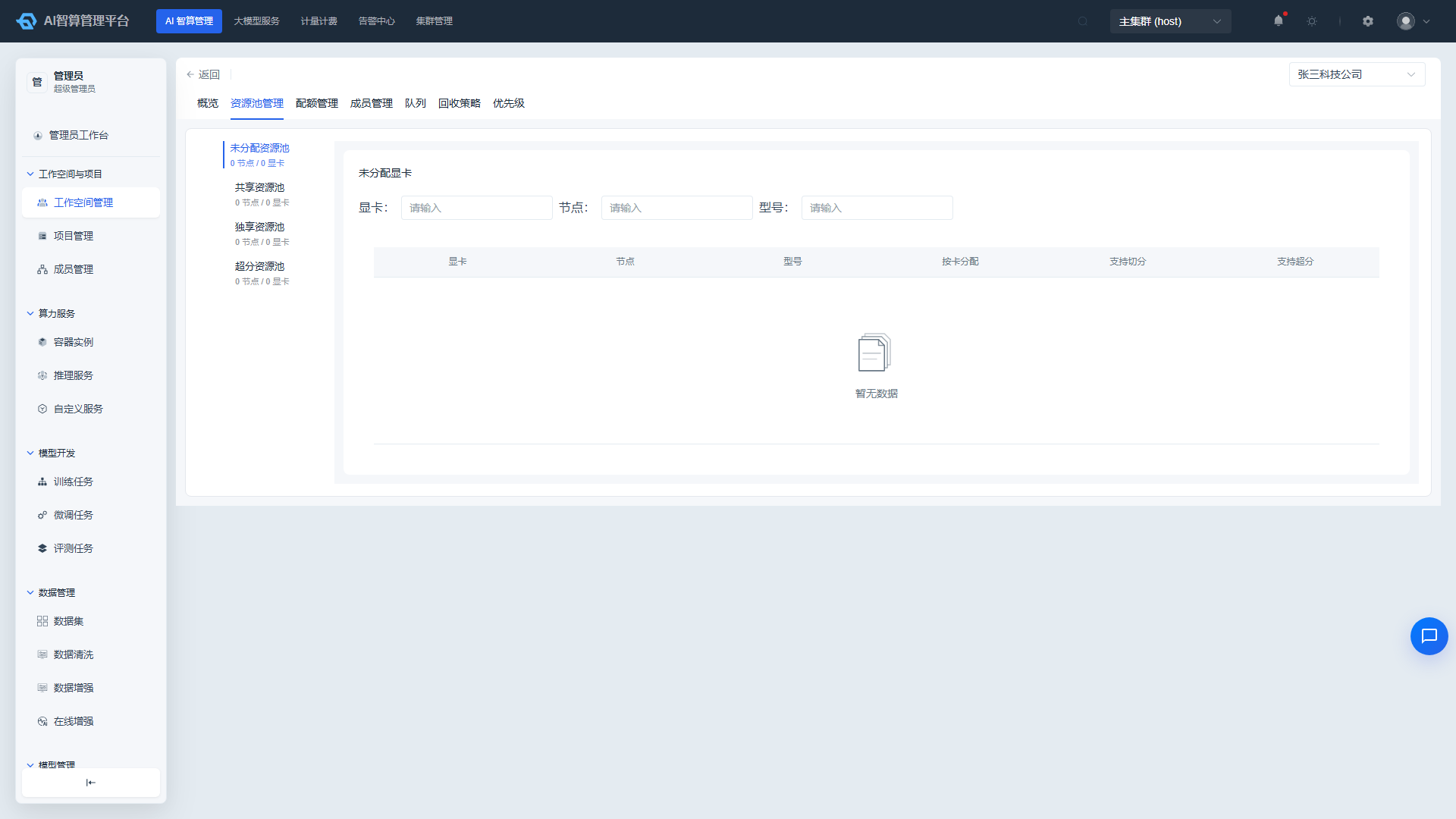
- Enter the "Resource Pool Management" tab of the workspace detail page.
- The page is divided into four tabs: Unassigned Resource Pool, Shared Resource Pool, Dedicated Resource Pool, and Overcommit Resource Pool, each showing node / GPU card count statistics.
- Unassigned Resource Pool: Displays a table of unassigned GPUs (columns: GPU Card, Node, Model, Per-Card Allocation, Supports Splitting, Supports Overcommit), with local filtering by GPU card, node, and model keywords.
- Shared / Dedicated / Overcommit Resource Pools: Displays a table of GPUs within the pool (columns: GPU Card, Node, Model, Overcommit Ratio, Sharing Mode, In Use), with filtering by GPU card, node, model, and in-use status.
- Add GPU Cards:
- Click "Add GPU Cards" in the upper-right corner of the pool.
- Select the card type, then choose GPUs to add by node / GPU card.
- Shared / overcommit pools require selecting a compute template; MIG cards can only be added to the shared pool.
- Click "Confirm."
- Remove GPU Cards:
- Select multiple GPUs and click "Remove GPU Cards" for batch removal; in-use cards cannot be removed.
- Or click "Remove GPU Cards" in the row and confirm the action.
- Adjust Overcommit Ratio: Click "Adjust Overcommit Ratio" in the row of a shared / overcommit pool to rebind the compute template (disabled for in-use cards).
Quota Management
- Enter the "Quota Management" tab of the workspace detail page.
- Compute Resource Quota: Fill in the total CPU and total memory (GiB), then click "Save" to apply.
- Compute Resource Quota: View quota cards for shared / dedicated / overcommit resource pools displayed by card type (manufacturer icon, vGPU / compute / memory quota headroom donut charts).
- To adjust a card type quota, click "Adjust" in the card row, enter the new vGPU count, compute, and memory (must not exceed the cluster's available headroom), then click "Save."
Member Management
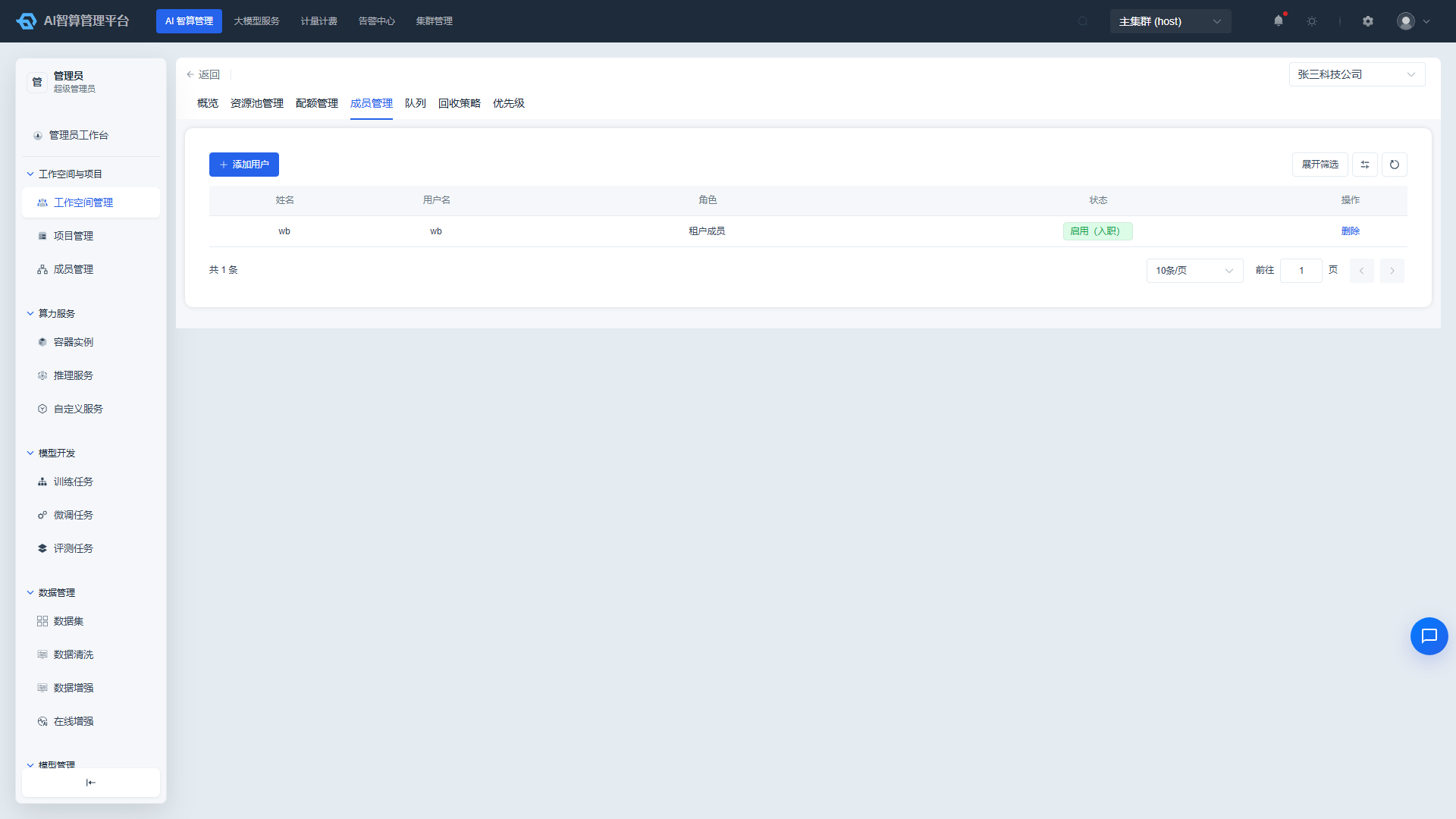
- Enter the "Member Management" tab of the workspace detail page.
- The list displays: Name, Username, Role, Status (Enabled / Disabled / Pending Activation).
- Click "Batch Add Members," select users in the drawer (multi-select from department tree) and assign roles, then submit to add them to the tenant.
- Click "Delete" in the row to remove a member.
Queue
- Enter the "Queue" tab of the workspace detail page.
- The list auto-syncs with Volcano queues before each load, displaying: Name + UUID, Alias, Weight, Recyclable, Status, Inqueue, Allocated (CPU / Memory / VGPU), Associated Workspace, Jobs (Running / Total).
- Hover over the job count to view a summary of associated jobs; click a specific number to navigate to the training job list for that status.
Recycling Strategy
- Enter the "Recycling Strategy" tab of the workspace detail page.
- The list displays workspace-level recycling strategies: Type, Name, Scope, Memory Utilization, Compute Utilization, Duration.
- Click "Create Strategy," fill in the scope (Container Instance / Training Job / Inference Service / Fine-tuning Job), utilization thresholds, and duration, then click "Save."
- Edit or Delete actions are available in each row.
Project Management
View Projects
- Navigate to AI Compute Management > Workspaces & Projects > Project Management.
- The list displays: Name / ID, Alias, Parent Workspace, User Count, Dedicated / Shared / Overcommit Compute Resources, Compute Resources, Container Instance / Training Job / Inference Service status indicators.
- Use the top workspace / project dropdown to quickly switch to other projects.
- Click a project name to enter the detail page, which contains five tabs: Overview, Quota Management, Member Management, Policy Management, and Priority.
Create a Project
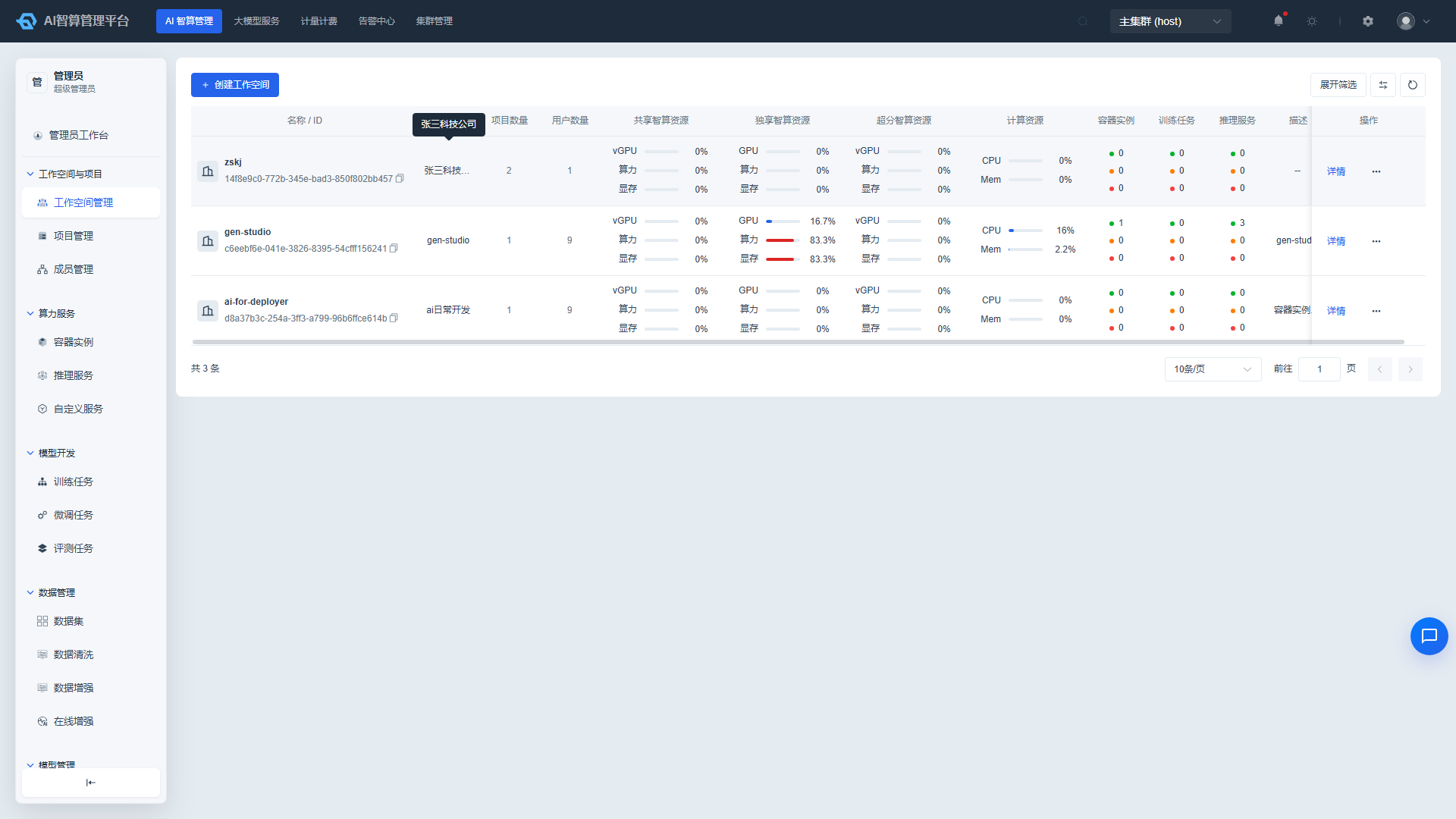
- Click "Create Project" on the Project Management list page, or click "New Project" in "Workspace Detail > Overview."
- Fill in:
- Workspace: Select the parent tenant.
- Name: Unique project identifier.
- Alias: Display name.
- Description: Optional.
- Click "Create."
Project Overview
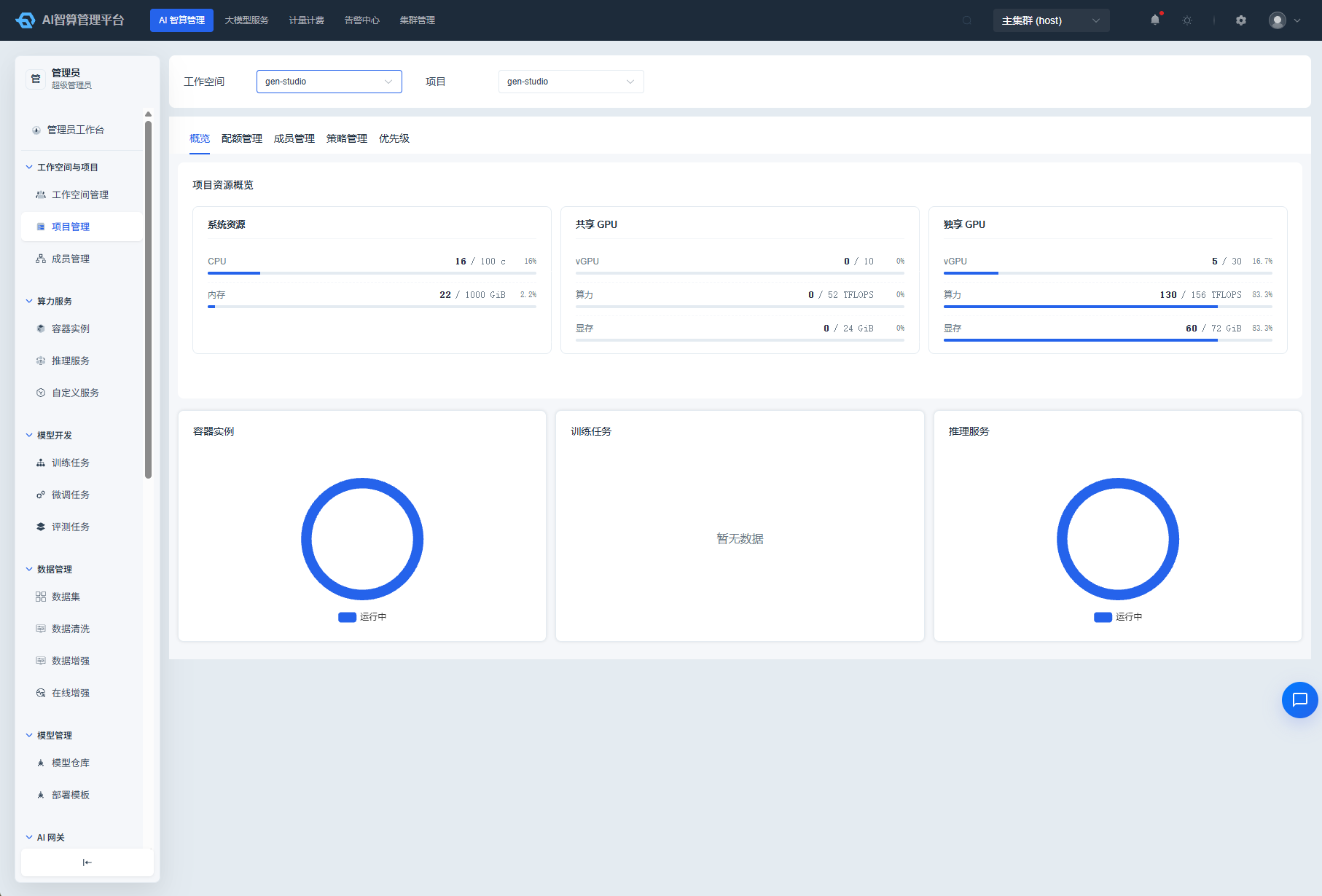
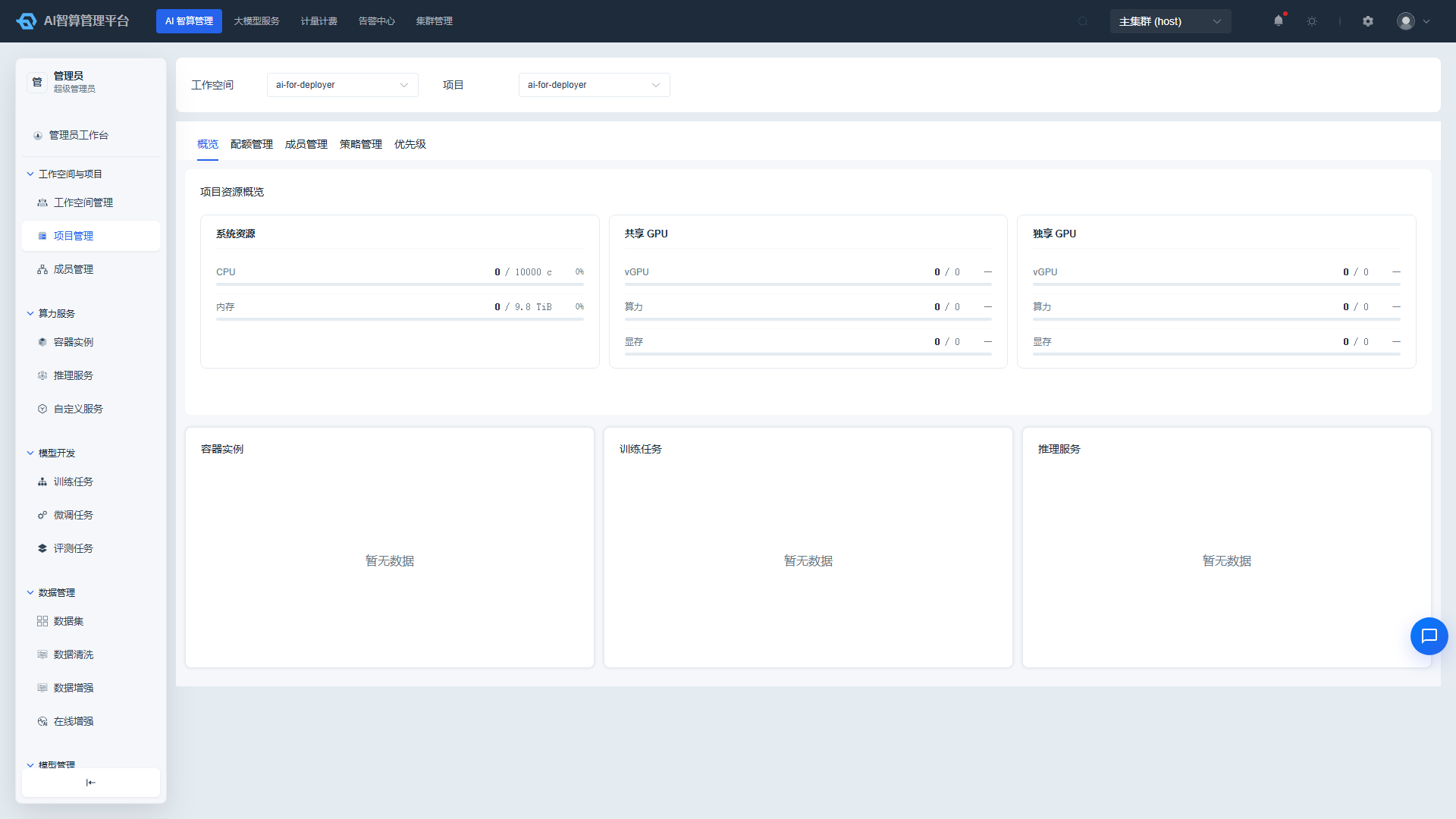
- Enter the "Overview" tab of the project detail page.
- The top displays resource overview cards: System resources (CPU / Memory) and shared / dedicated / overcommit GPU pool vGPU, compute, memory used / total progress bars and percentages.
- The middle shows donut charts for the status distribution of container instances, training jobs, and inference services (Running / Deploying / Failed).
Project Quota Management
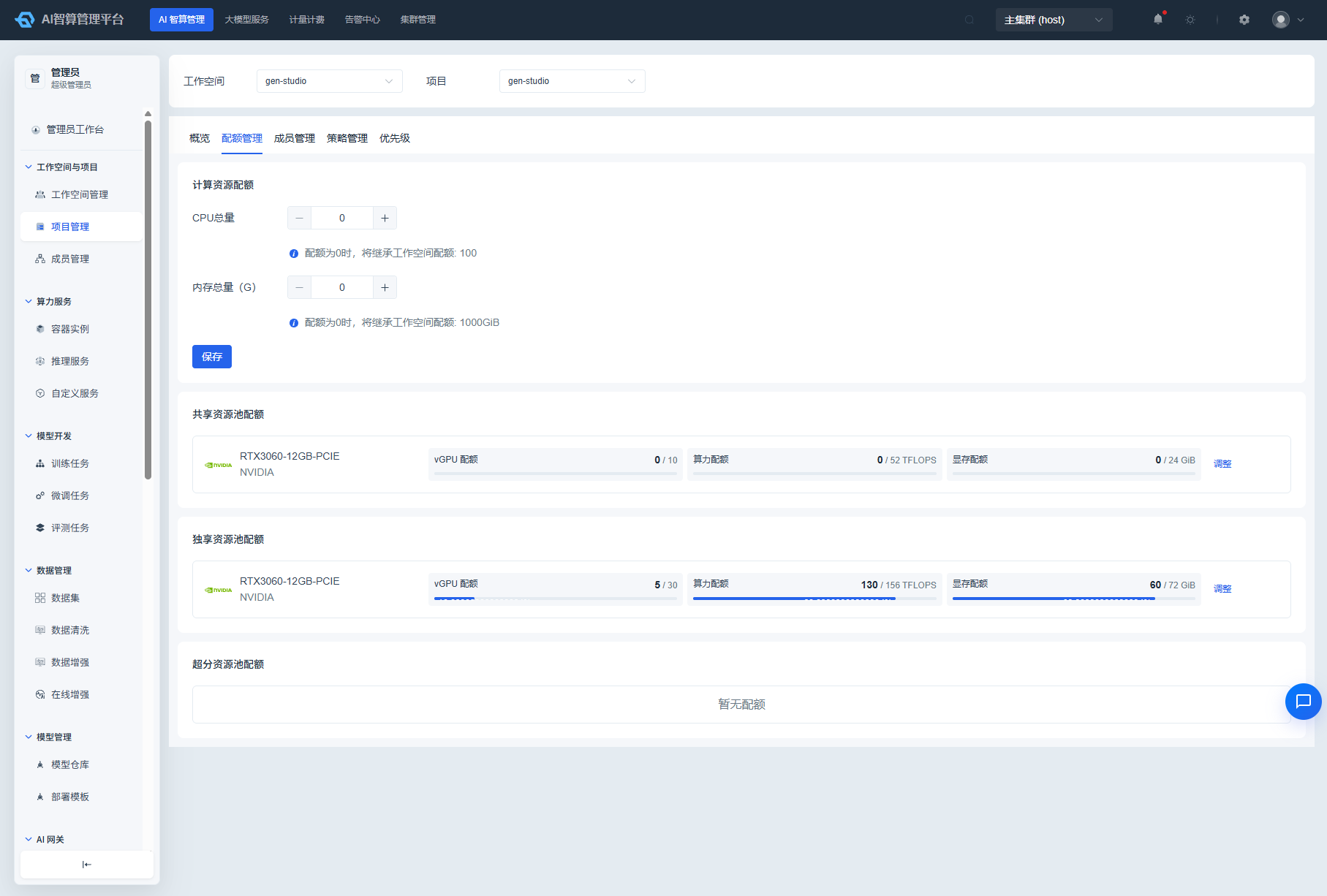
- Enter the "Quota Management" tab of the project detail page.
- Compute Resource Quota: Fill in the total CPU and total memory (GiB); check "Inherit Workspace Quota" to match the workspace settings.
- Compute Resource Quota: View quota cards for shared / dedicated / overcommit resource pools displayed by card type.
- Click "Adjust" in a card type row, enter the vGPU count, compute, and memory (must not exceed the workspace's available headroom), then click "Save."
Project Member Management
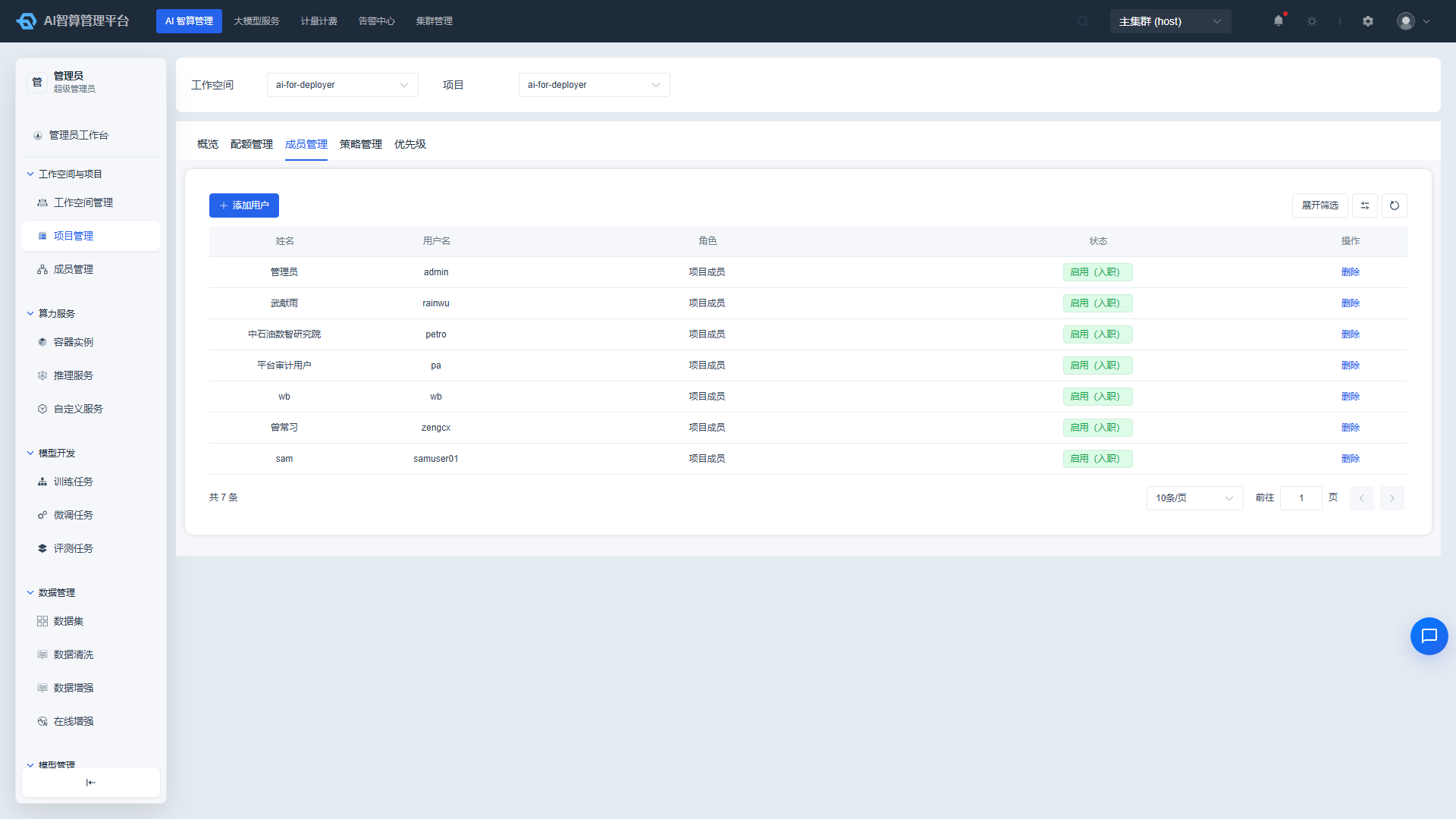
- Enter the "Member Management" tab of the project detail page.
- The list displays: Name, Username, Role, Status (Enabled / Disabled / Pending Activation).
- Click "Add User," select users in the drawer (multi-select from department tree; users already in the project are disabled) and assign project-scoped roles, then submit to add them to the project.
- Click "Change Role" in the row to change a role, or click "Delete" to remove a member (with confirmation).
Project Policy Management
- Enter the "Policy Management" tab of the project detail page.
- The top provides a "Compute Preemption Strategy" toggle; when enabled, lower-priority container instances can be preempted by higher-priority jobs.
- Below is the project-level recycling strategy table; click "Create Strategy" to fill in scope, utilization thresholds, and duration, then save.
- Edit or Delete actions are available in each row.
Project Priority
- Enter the "Priority" tab of the project detail page.
- View the project-level default priority configuration; lower-priority container instances can be preempted by higher-priority jobs.
Member Management
View Members
- Navigate to AI Compute Management > Workspaces & Projects > Member Management.
- The list displays: Name, Username, Workspace, Project (workspace admins show "All Projects"), Workspace Role (Admin / Member), Project Role, Status (Enabled / Disabled / Pending Activation).
- Use the top filter bar to filter by workspace, project, role, and name / username keywords; project and role support multi-select.
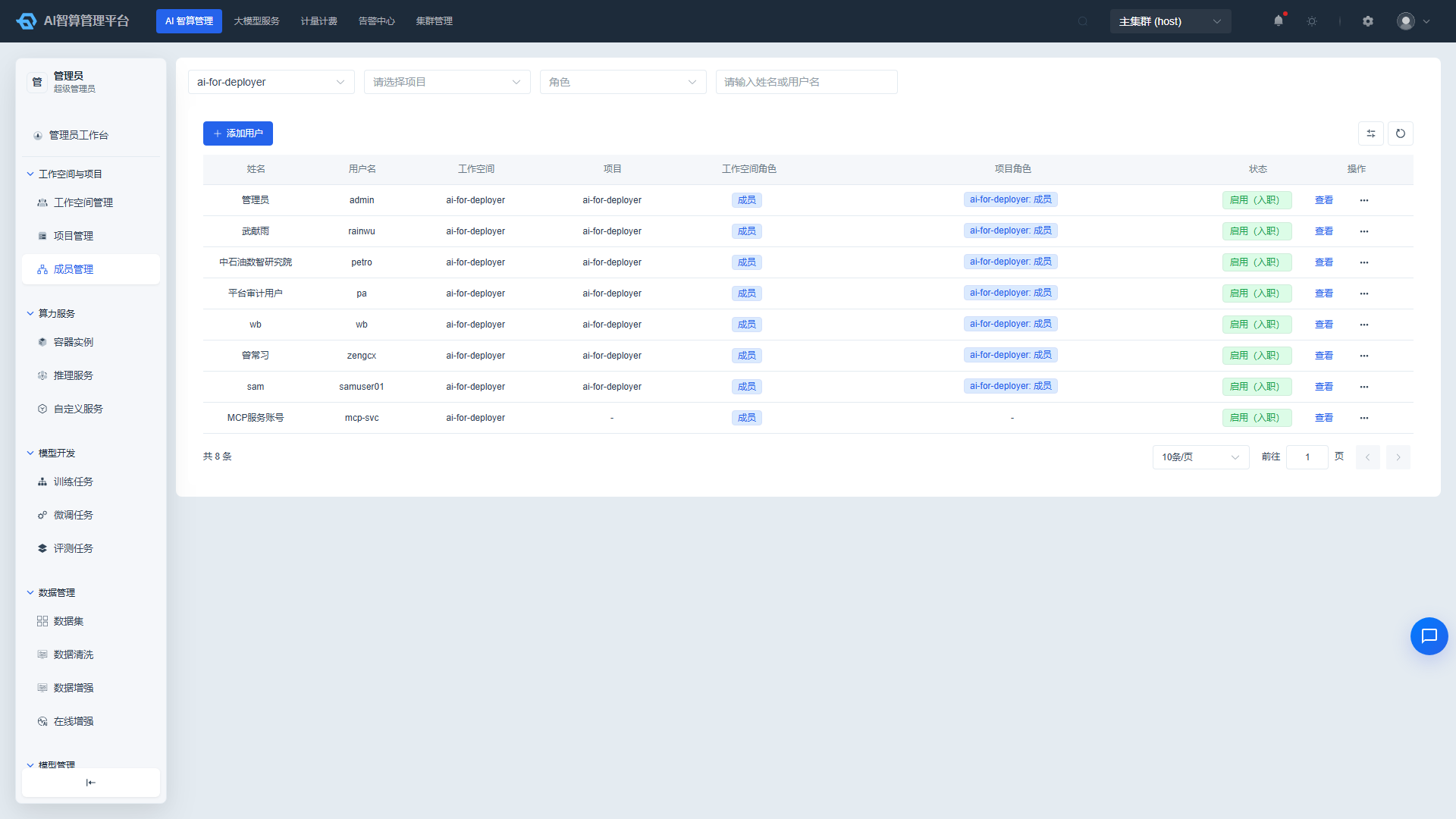
Add Users
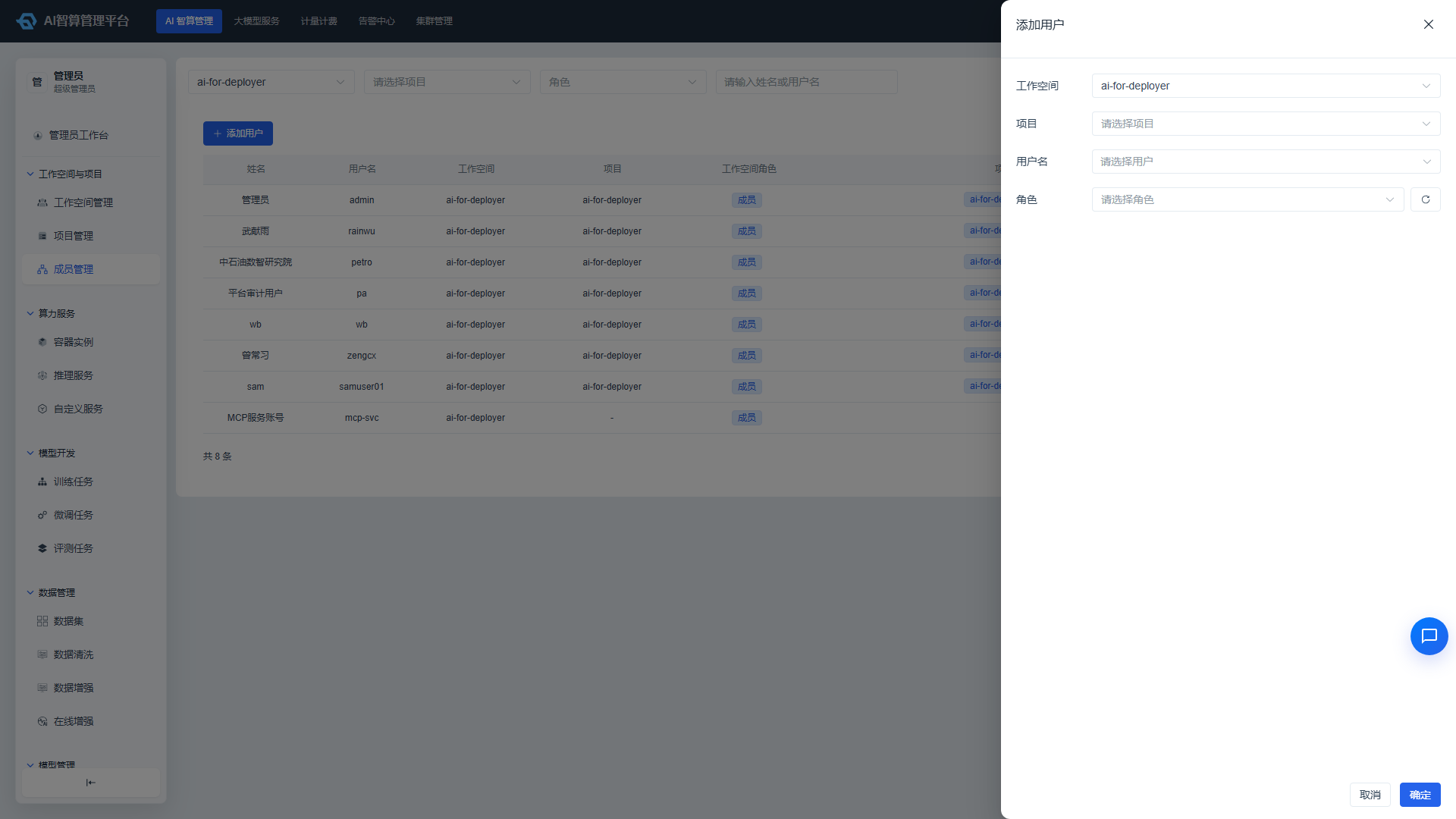
- Click "Add User" on the Member Management list page.
- Select in order:
- Workspace: Target tenant.
- Project: Target project.
- Users: Multi-select users from the department tree; users already in the project are disabled.
- Role: Project-scoped role.
- Click "Submit"; the system will automatically switch to the corresponding workspace to display the results.
Manage Member Bindings
- Click a member row in the member list to enter the detail drawer.
- Click "Add Role" to append a new binding row, then select scope / project / role in order.
- Click "Change Role" in the row to change a role, or click "Remove" to delete a single binding.
FAQ
Q: Deleting a project shows associated resources exist? A: The platform prevents deletion of projects that still have associated jobs, instances, or members. Please first clean up container instances, training jobs, and inference services under the project, and remove project members.
Q: Unable to add GPUs after workspace creation? A: Please confirm that unassigned GPUs exist in the cluster; if all GPUs have been allocated to other tenants, you must first remove or adjust from other tenant resource pools.
Q: Why can't the project quota exceed the workspace quota? A: The project quota is constrained by the workspace's available headroom. To expand the project quota, first go to the workspace detail page to adjust the corresponding card type's tenant quota.
Q: What does the member status "Pending Activation" mean? A: It means the user has been added but has not yet completed their first login to activate the account; once activated, the status automatically changes to "Enabled."