User Quick Start
This guide is intended for algorithm engineers, data engineers, and AI application developers who use the AI Compute Development Platform. It covers logging in, creating your first container instance, using large model services, and completing your personal profile configuration.

1. Log In to the AI Compute Development Platform
- Open your browser and navigate to
https://<camp-domain>/camp/login. - Choose a login method: username/password, DingTalk/Feishu/LDAP SSO, OAuth application, or OIDC third-party login.
- After your first login, follow the prompts to change your initial password and bind required information.
- If you belong to multiple workspaces, you can switch the current workspace from the top navigation bar after logging in.
The login page distinguishes two entries at the top: "Management Console" and "Developer Platform", each with its corresponding platform identity badge. Log in via the entry matching your account. On login failure, the page distinguishes between "incorrect username or password" and "account disabled" to help you locate the issue. After login, you are directed to AI Compute Development > Resource Overview > My Workbench by default.
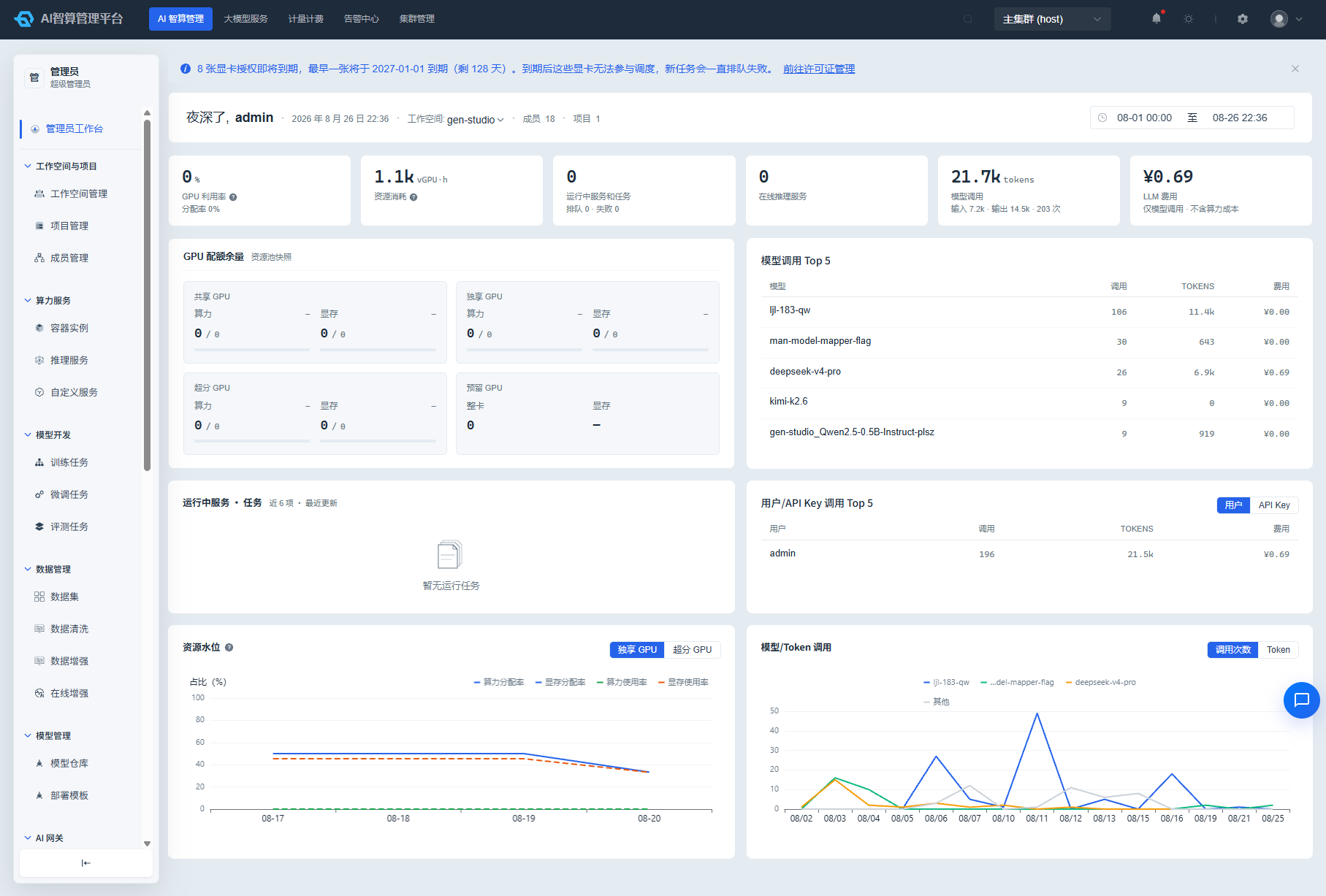
2. Get to Know My Workbench
"My Workbench" is your personal homepage, displaying:
- Resource quota levels for your current workspace and project.
- Quick-access shortcuts for recently run tasks, services, and instances.
- Platform announcements and personal messages.
If the page shows insufficient quota, contact your workspace administrator for an upgrade or switch to a project with more available resources.
3. Create Your First Container Instance
Container instances are interactive development environments ideal for writing code, debugging models, and running notebooks.
- In the left menu, navigate to AI Compute Development > Compute Services > Container Instances.
- Click "Create Container Instance."
- Follow the wizard and fill in:
- Name: Custom; we recommend using a semantic name such as
zhangsan-jupyter. - Workspace / Project: Select a project you have access to.
- Compute Flavor: Choose CPU/memory/GPU configuration (shared / dedicated / oversubscribed).
- Image: Select a public image (e.g., Jupyter/PyTorch) or a custom image.
- Storage: Mount required shared storage or tenant data storage.
- Development Tools: Select Jupyter / VS Code / SSH.
- Name: Custom; we recommend using a semantic name such as
- Click "Submit" and wait for the instance status to change to Running.
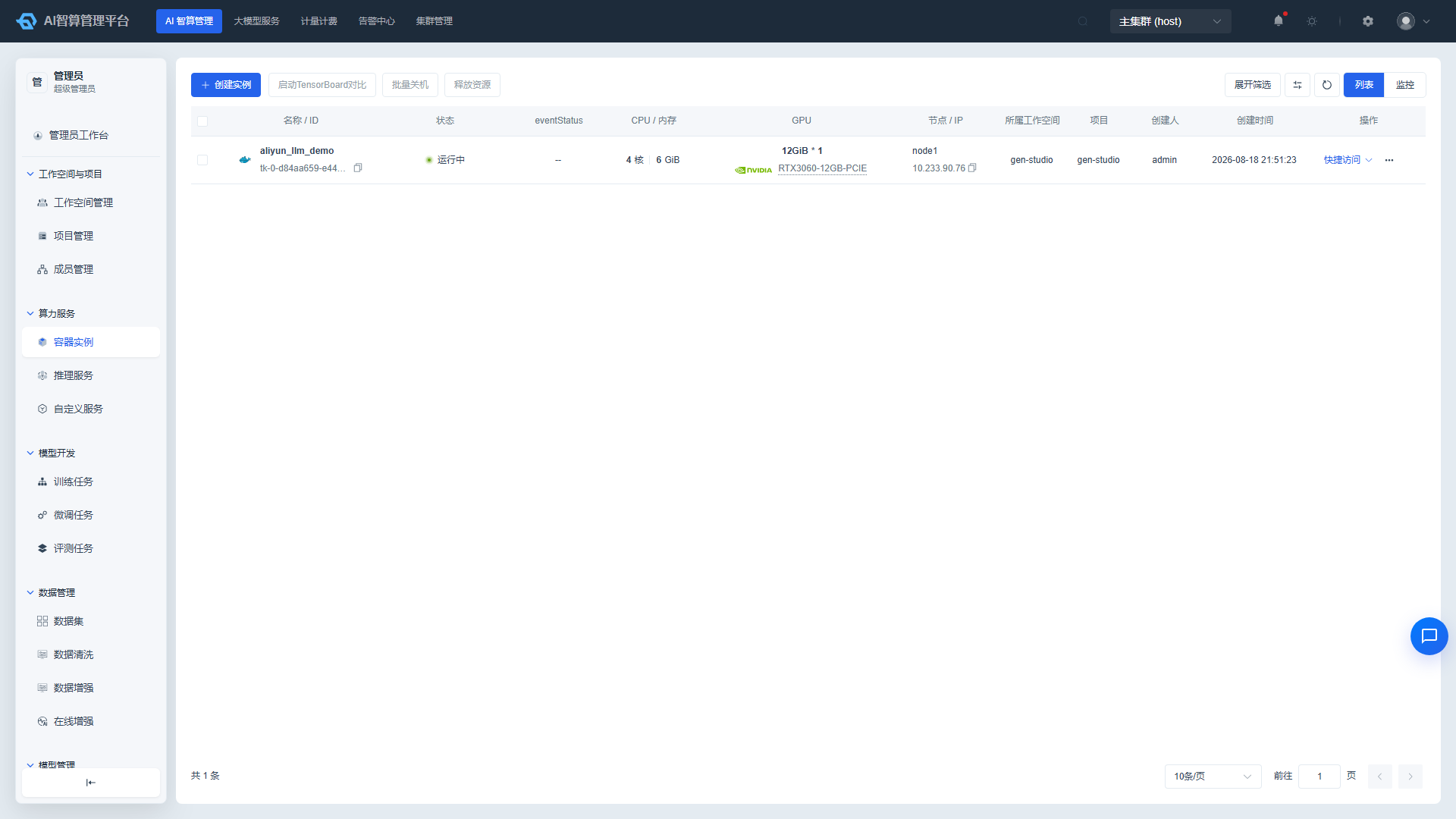
Access the Development Environment
After the instance is running, click the "Jupyter" or "VS Code" icon in the list to open the interactive development environment.
- Execute commands via the web terminal.
- Write training code via the Notebook.
- Use "Save Image" to save the current environment as a custom image for reuse in subsequent tasks.
4. Try Large Model Services
If you primarily use large model APIs, you can skip container instances and start directly from the model marketplace:
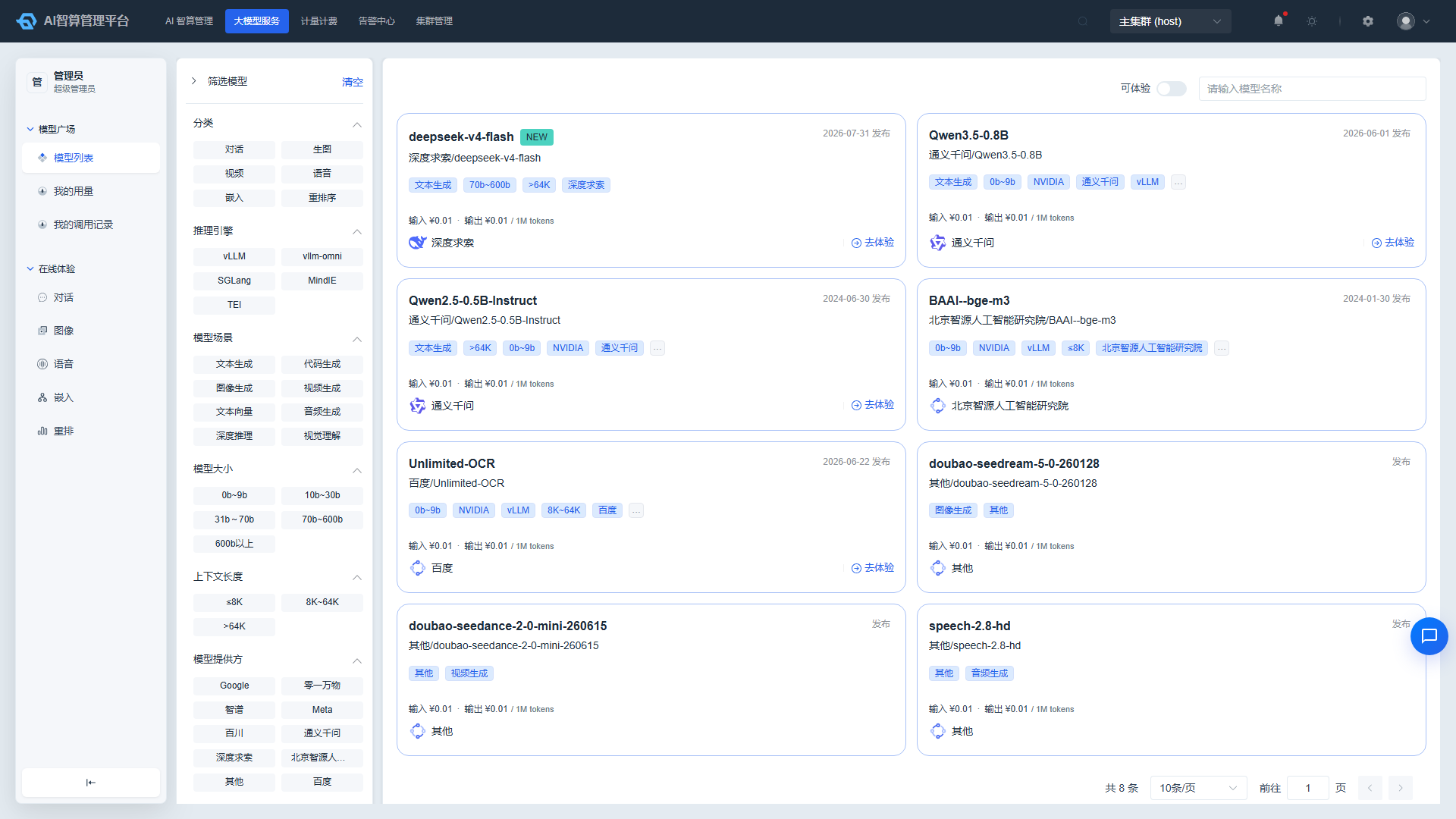
- In the left menu, navigate to Large Model Services > Model Marketplace.
- Filter target models by category, tags, or price.
- Find a model that supports the online Playground, and click "Try It Out."
- On the Online Playground page, select an API Key and start chatting/image generation/voice testing.
API Keys must be created and enabled under Profile Center > Account Security > API Keys.
5. View Personal Usage and Call Records
After using large model services, you can view your personal data at the following entry points:
- Large Model Services > My Call Records: View request and response summaries for each model call.
- Large Model Services > My Usage: View personal Token usage and cost trends.
Resource-based costs (container instances, training jobs, etc.) can be viewed by administrators under Metering & Billing > Tenant Resource Overview; regular users who need to understand their personal resource costs can contact an administrator.
6. Complete Profile Center Configuration
Click the avatar in the top navigation bar and select "Profile Center" to complete the following basic configurations:
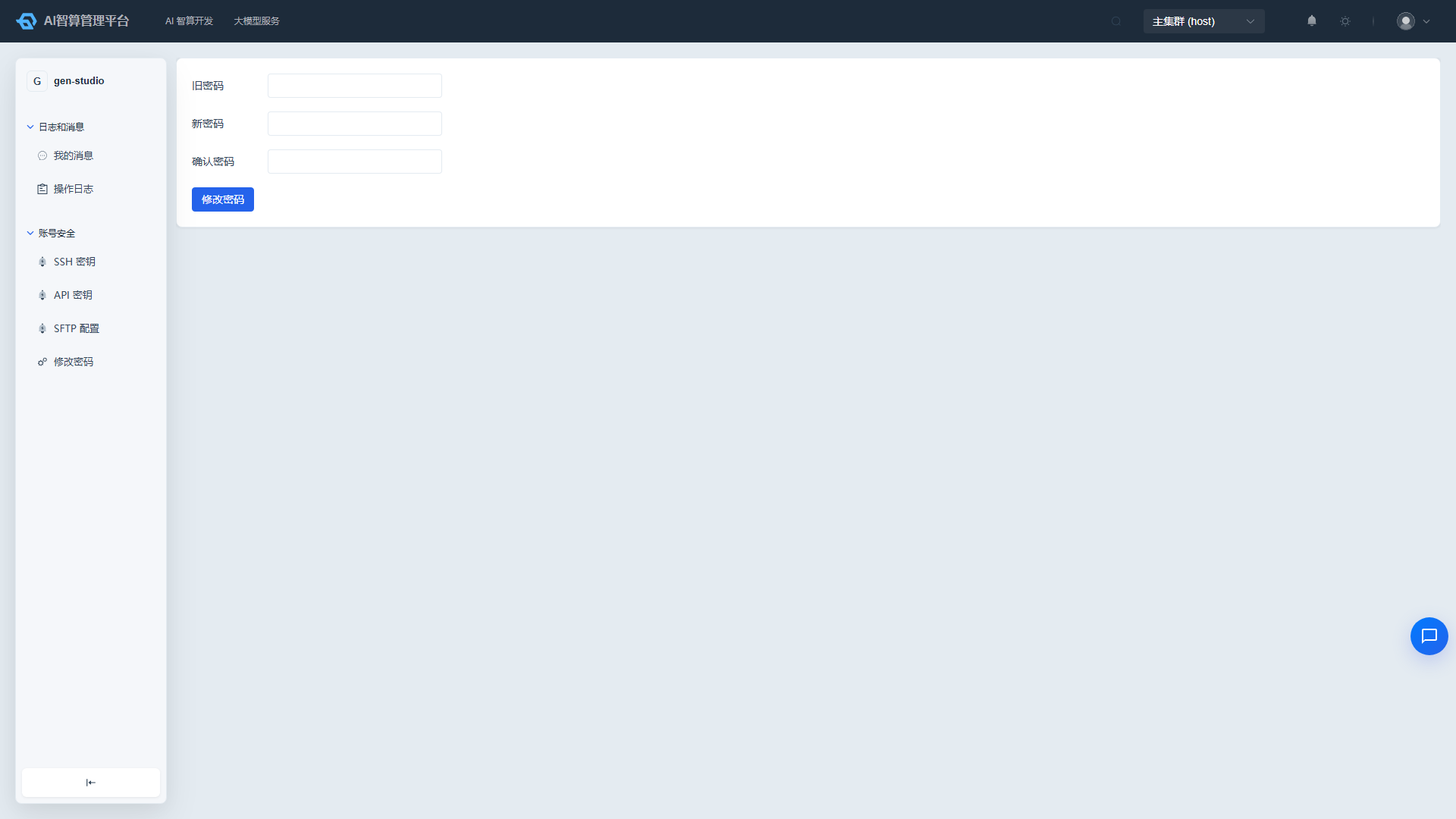
- Account Security > Change Password: We recommend changing your initial password immediately after first login.
- Account Security > SSH Keys: After adding a public key, you can connect to container instances directly via SSH.
- Account Security > API Keys: Create and enable API Keys for invoking large model service interfaces.
- Account Security > SFTP Configuration: Initialize your SFTP account for large file uploads and downloads.
- Logs & Messages: View system notifications and personal operation records.
Next Steps
- Continue developing: See AI Compute Development / Compute Services and AI Compute Development / Model Development.
- Explore more models: See Large Model Services / Model Marketplace and Large Model Services / Online Playground.
- Understand billing: See Billing and Metering & Billing / Token Governance.