Container Instance Development Environment
Container instances are GPU-equipped interactive development environments suited for code debugging, Notebook development, custom tool deployment, single-node inference, or fine-tuning validation. This guide covers the complete workflow from image preparation to daily usage. For field-level documentation, see Compute Services.
1. Prepare the Development Image (Administrator)
- Push the development image to an image registry accessible by the platform:
# Example: vLLM development image (replace the registry address as needed)
docker load -i vllm-openai-v0.8.5.tar.gz
docker tag swr.cloud.com/vllm/vllm-openai:v0.8.5 harbor.rise.io/camp/vllm-openai:v0.8.5
docker push harbor.rise.io/camp/vllm-openai:v0.8.5- Navigate to AI Computing Management > AI Asset Management > Image Service, sync the image, then enter the image detail page and click "Modify Tags." Select the required Development Tools:
- VS Code: the platform can install this automatically; the image does not need it pre-installed.
- SSH / Jupyter: the image must have the corresponding components pre-installed.
- After tagging, users can select these development tools when creating instances. Once the instance starts successfully, they can be accessed directly from the list.
2. Create an Instance (Developer)
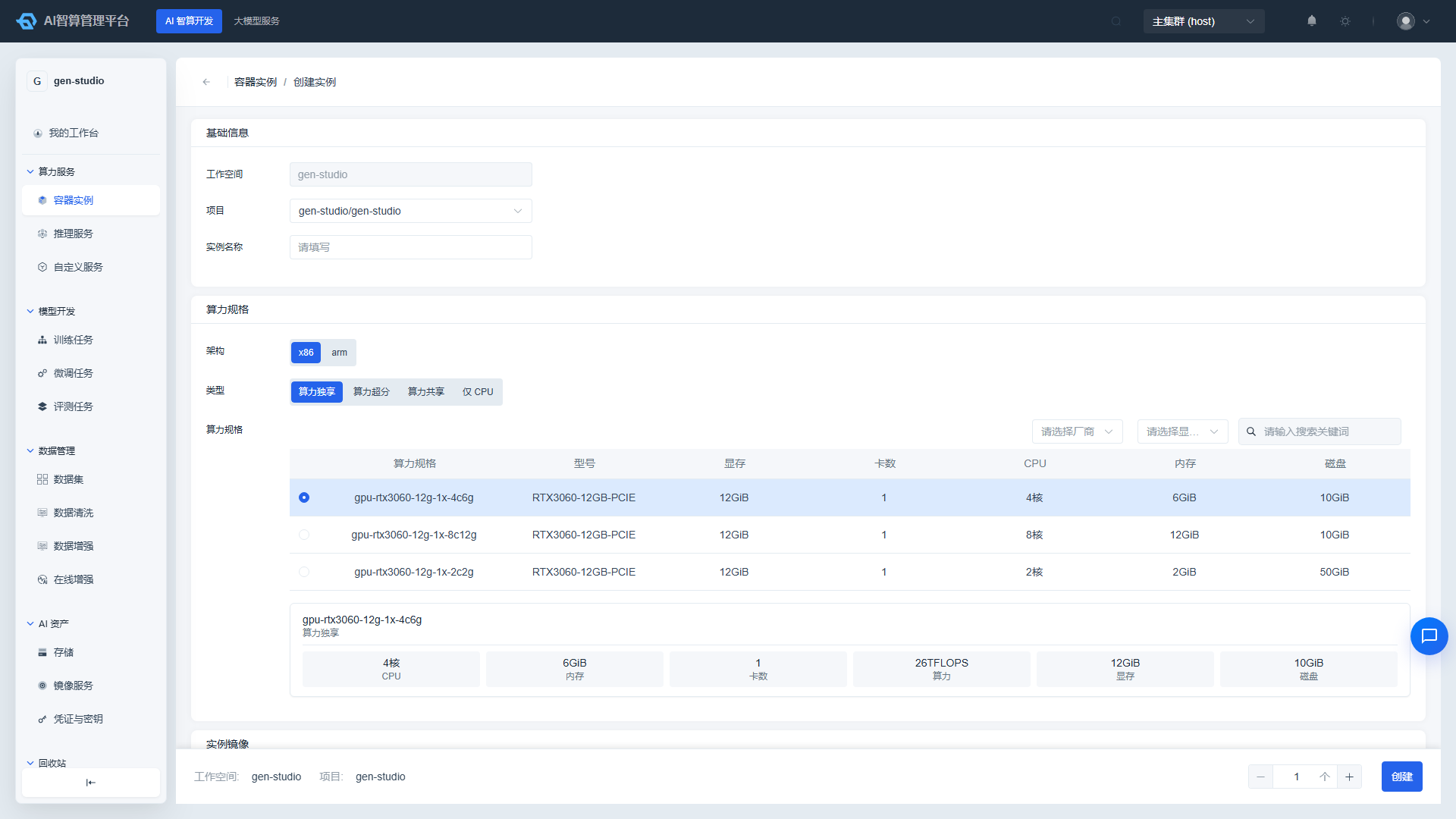
- Navigate to AI Computing Development > Compute Services > Container Instances and click "Create Container Instance."
- Fill in the name, select the workspace/project, compute spec, and image.
- Configure as needed:
- Web Service Configuration: If running a callable service inside the container, configure port mapping — HTTP mode generates a ClusterIP access address, TCP mode generates a NodePort address; the service can be called externally once the container's service starts listening.
- Start Command: defaults to an infinite sleep loop to keep the container alive; customize as needed.
- SSH Key: select an SSH key for passwordless terminal login to the instance.
- Auto-Shutdown / Auto-Release: stop automatically after a scheduled time or after N hours of runtime (auto-release also deletes the instance, so use with caution).
- Click "Create" and wait for the status to change to Running.
3. Using the Instance
3.1 Web Terminal
In the instance list under "Quick Access," click Web Terminal to open a webshell inside the container. Operations are identical to a standard command line. Ideal for installing dependencies, checking GPU status (nvidia-smi), and debugging code.
3.2 VS Code / Jupyter
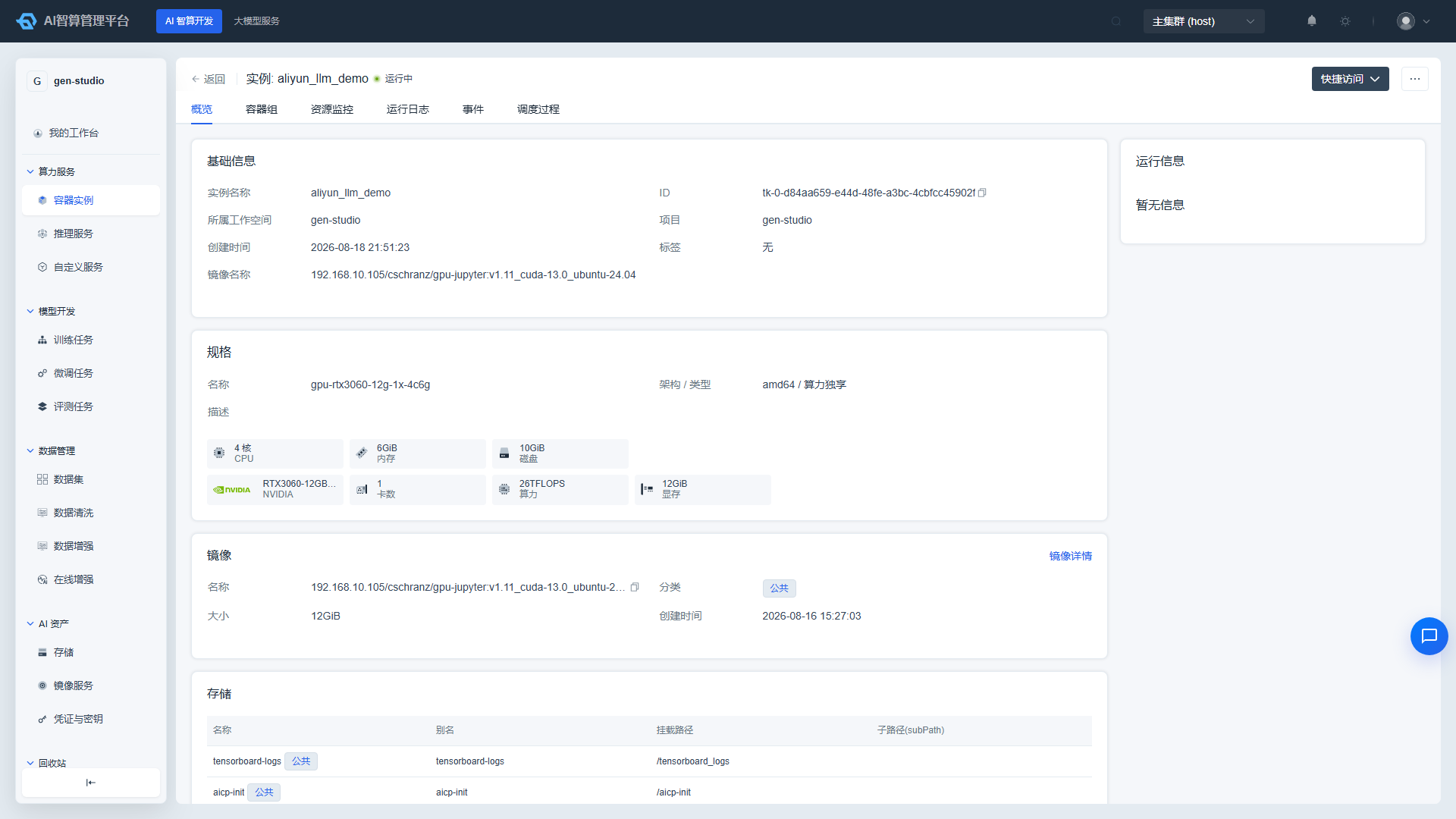
For instances where a development tool was selected at creation time, click VS Code or Jupyter under "Quick Access" in the list to open the corresponding development environment in a new tab. For local IDE remote connections, use the address and port from the "SSH Info" section.
3.3 Save Image
After installing dependencies or configuring the environment inside an instance, click "Save Image" in the row actions to package the current container state into a new image tag. When creating an instance next time, select that tag and the installed dependencies will be preserved, avoiding repetitive setup. Saved images can be viewed under AI Assets > Image Service.
4. Instance Management
The list page supports quick Shutdown / Startup / Clone / Release operations (release requires shutdown first; after release, the instance enters the recycle bin and can be recovered within the retention period — see Recycle Bin).
Detail page features:
- Overview: Instance info, status events, resource spec, image, storage, and advanced configuration at creation time.
- Pod Groups: Pod IP, node, GPU node and GPU ID, web terminal, YAML, describe events, restart Pod.
- Resource Monitoring / Runtime Logs / Events / Scheduling Process: resource utilization, logs, and scheduling troubleshooting.
- TensorBoard: create a
/tensorboard_logs/<project-name>/<container-instance-id>directory inside the container, install tensorboard dependencies, and set theTENSORBOARD_LOG_PATHenvironment variable to point to that directory. Click the TensorBoard icon on the detail page to open it (allow browser pop-ups). - Adjust Compute (NVIDIA only): dynamically adjust GPU memory and compute limits for the instance.
- Suspend (NVIDIA only): when multiple tasks share a single GPU, suspended tasks automatically pause compute usage and resume automatically when other tasks become idle.
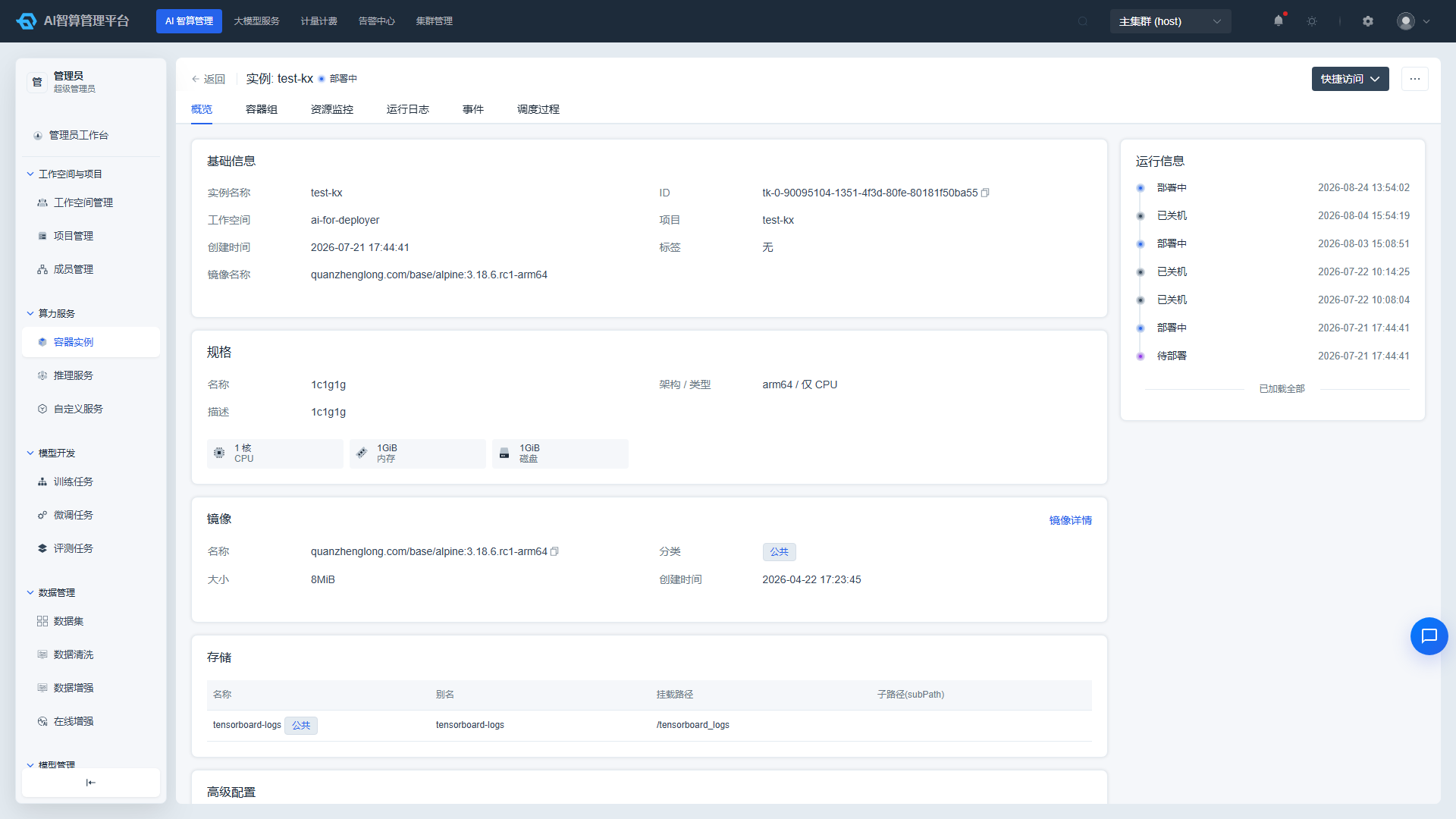
Administrator View: Administrators can view all instances platform-wide under AI Computing Management > Compute Services > Container Instances. Click an instance name to enter its detail page (Overview / Pod Groups / Resource Monitoring / Runtime Logs / Events / Scheduling Process tabs) to assist with troubleshooting.
FAQ
Q: The desired development tool is not available during creation? A: The image has not been tagged with the corresponding development tool label (SSH/Jupyter also requires the image to have the components pre-installed). Please contact the administrator to modify the image tags in the Image Service.
Q: Web service is configured but cannot be accessed? A: Verify that the service inside the container is listening on the correct port. For HTTP mode, use the ClusterIP address; for TCP mode, use the NodePort address.
Q: Is data preserved after shutting down the instance? A: Shutdown preserves the disk and configuration, and does not incur billing. Only "Release" deletes the instance and reclaims resources.