Model Development
Model Development is designed for algorithm engineers, providing three pipelines — training jobs, fine-tuning jobs, and evaluation jobs — covering the full loop from distributed training to model performance evaluation.
Access path: Left sidebar AI Compute Development > Model Development, route
/admin/ai/deployer/model.
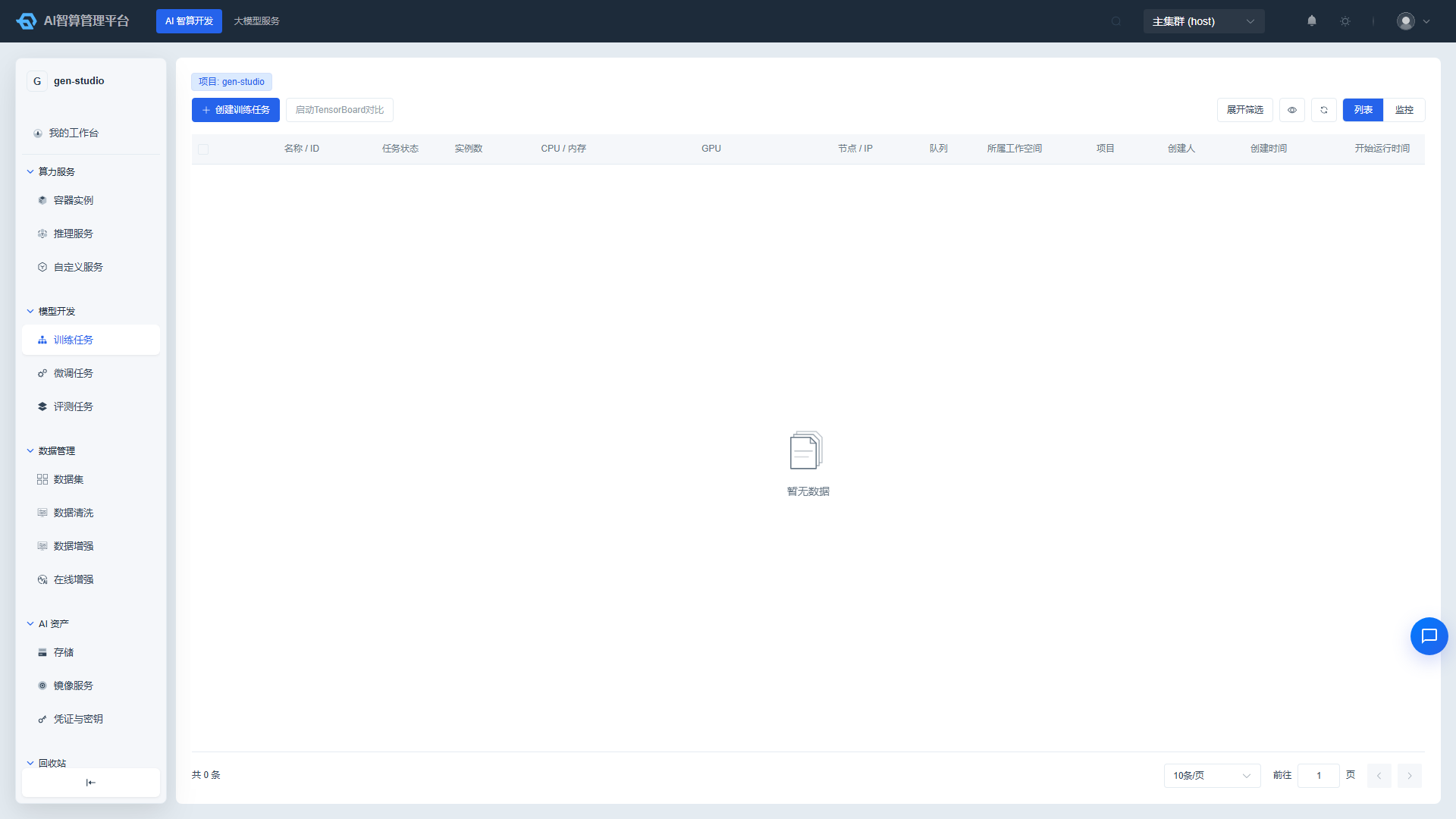
Training Jobs
Training jobs are scheduled via Volcano and support distributed frameworks including PyTorch / TensorFlow / MPI / DeepSpeed.
Creating a Training Job
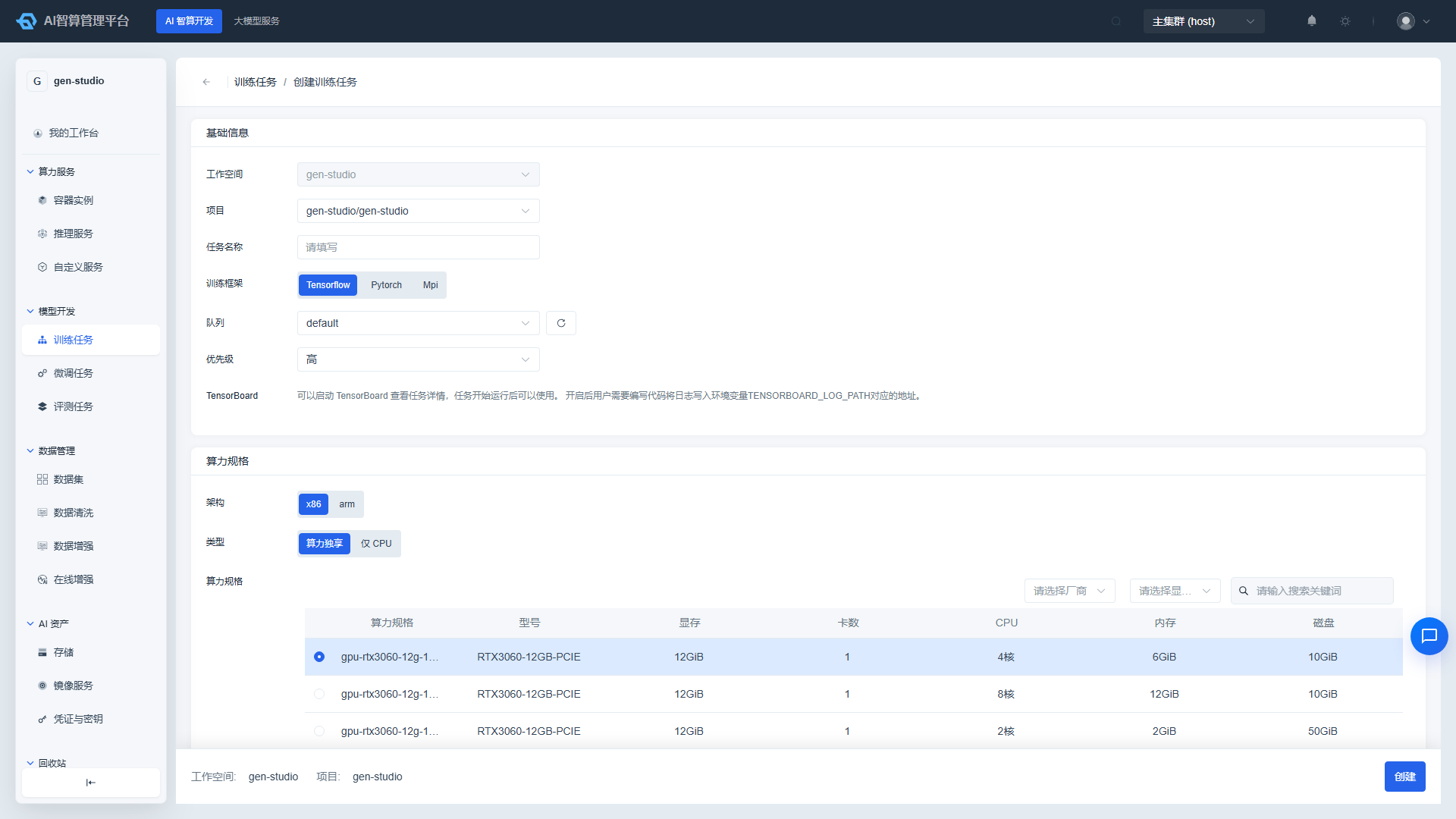
- Navigate to AI Compute Development > Model Development > Training Jobs and click "Create Training Job".
- Basic Information
- Workspace/Project: Defaults to the current tenant and project.
- Job Name: 2–50 characters, for easy identification.
- Training Framework: PyTorch / TensorFlow / MPI / DeepSpeed.
- Queue: Select a Volcano training queue. Different queues have different weights and reclaim policies.
- Priority: High / Medium / Low, affecting scheduling order.
- TensorBoard: The platform automatically mounts TensorBoard log storage for training jobs.
- Job Flavor
- Select architecture and GPU type.
- Select CPU, memory, GPU card count / compute / VRAM configuration from the flavor list.
- Job Image
- Base Image: Platform-prebuilt training images.
- Custom Image: Tenant-saved images.
- External Image Address: Enter the full image address and registry credentials.
- Storage Configuration
- Mount public storage (e.g., pre-trained model repository).
- Mount custom storage (e.g., code, data, output directories).
- Job Configuration
- Master/Worker Replica Count: Displayed with framework-specific names (e.g., master/worker for PyTorch).
- Minimum Available Instances: Minimum instances that must be satisfied during scheduling; the job will not start if this threshold is not met.
- Startup Command / Startup Arguments: One command or argument per line.
- Annotations, environment variables.
- Advanced Configuration (Optional)
- Timeout: Maximum hours the job can run.
- Auto Retry: Maximum retry count after failure.
- workingDir, startup user, shared memory.
- Click "Create" and return to the list to view the job status.
Viewing Training Progress
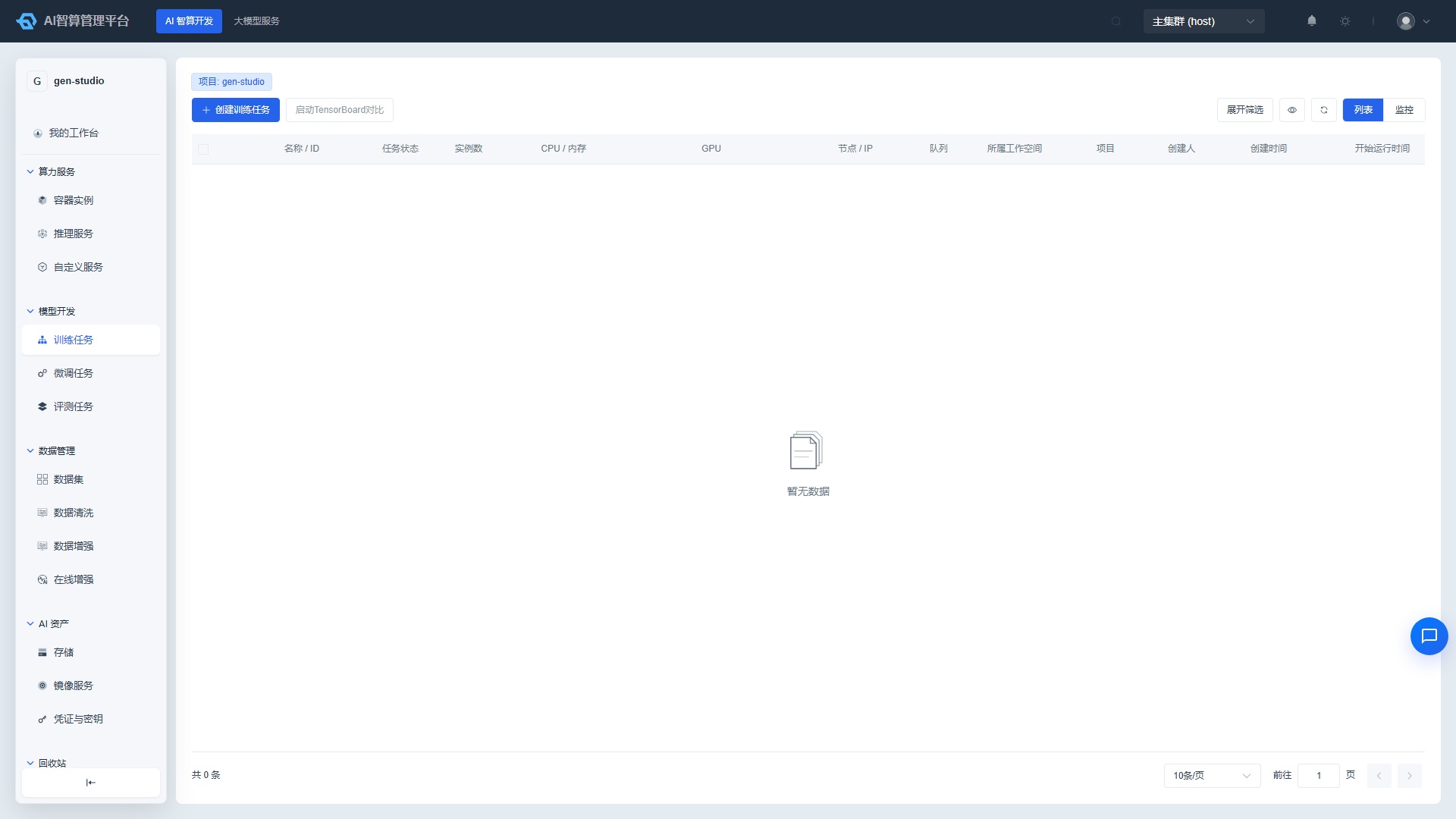
- The list page displays status, runtime, framework, and priority.
- Enter the detail page to view:
- Basic Information: Flavor, image, storage, startup command.
- Run Logs: Real-time container standard output.
- Events: Scheduling, image pulling, storage mounting, and other events.
- Training Progress: Supported by some frameworks with progress bar display.
- TensorBoard: Click the icon to open the visualization page and view loss / learning rate curves.
Common Operations
| Operation | Description |
|---|---|
| Resubmit | Run again with the same configuration, commonly used to quickly reuse after modifying code or parameters. |
| Enable / Disable | Disabling a job releases resources while preserving configuration; enabling it reschedules the job. |
| Release | Permanently delete the job and reclaim resources. Accidentally deleted jobs can be recovered from the Recycle Bin. |
| Download Logs | Copy or download full logs from the Logs tab on the detail page. |
Fine-tuning Jobs
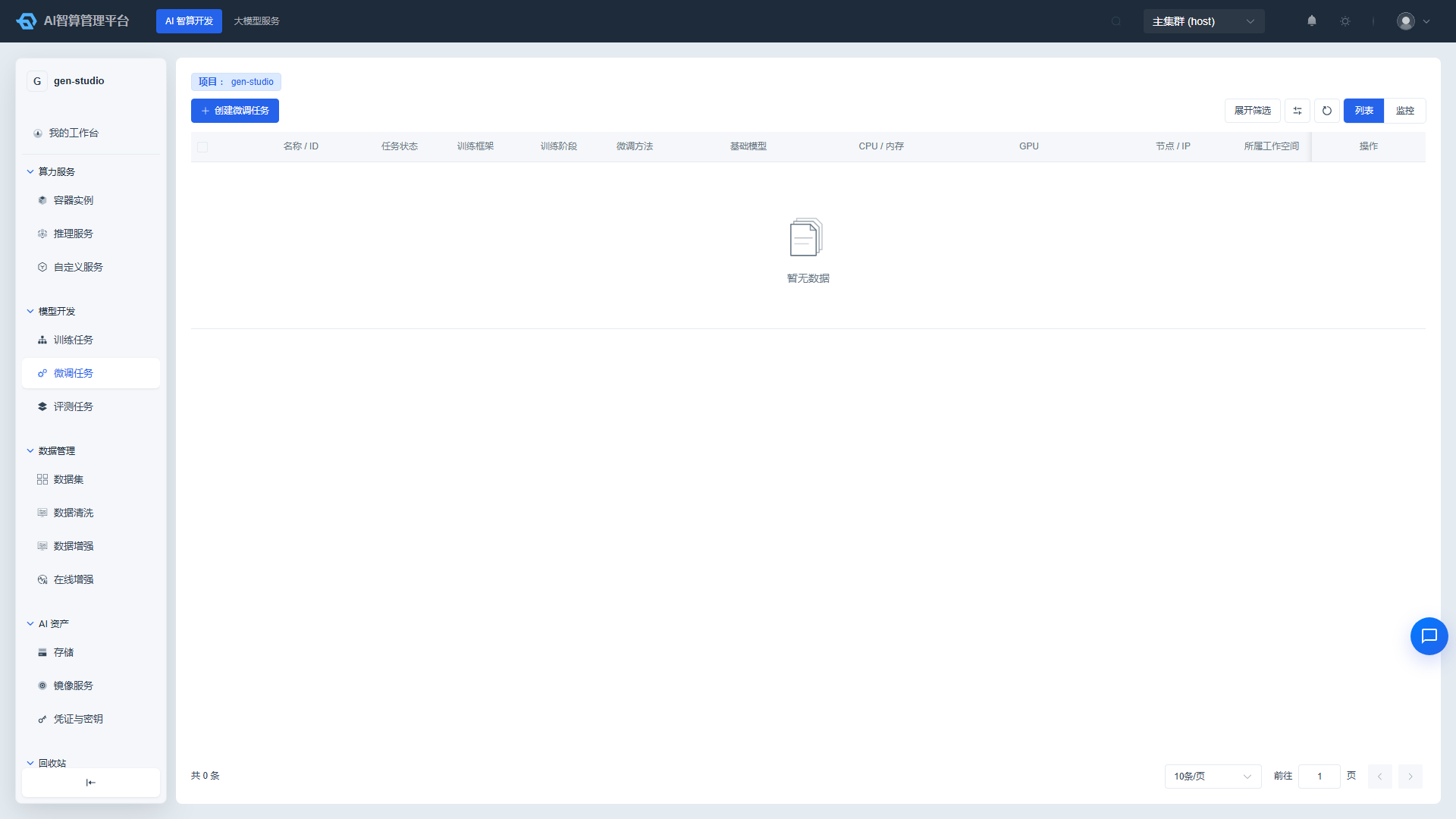
Fine-tuning jobs are based on LLaMA-Factory, supporting multiple fine-tuning methods including LoRA / Full / QLoRA, as well as training stages such as SFT / DPO / KTO / RM / PPO.
Creating a Fine-tuning Job
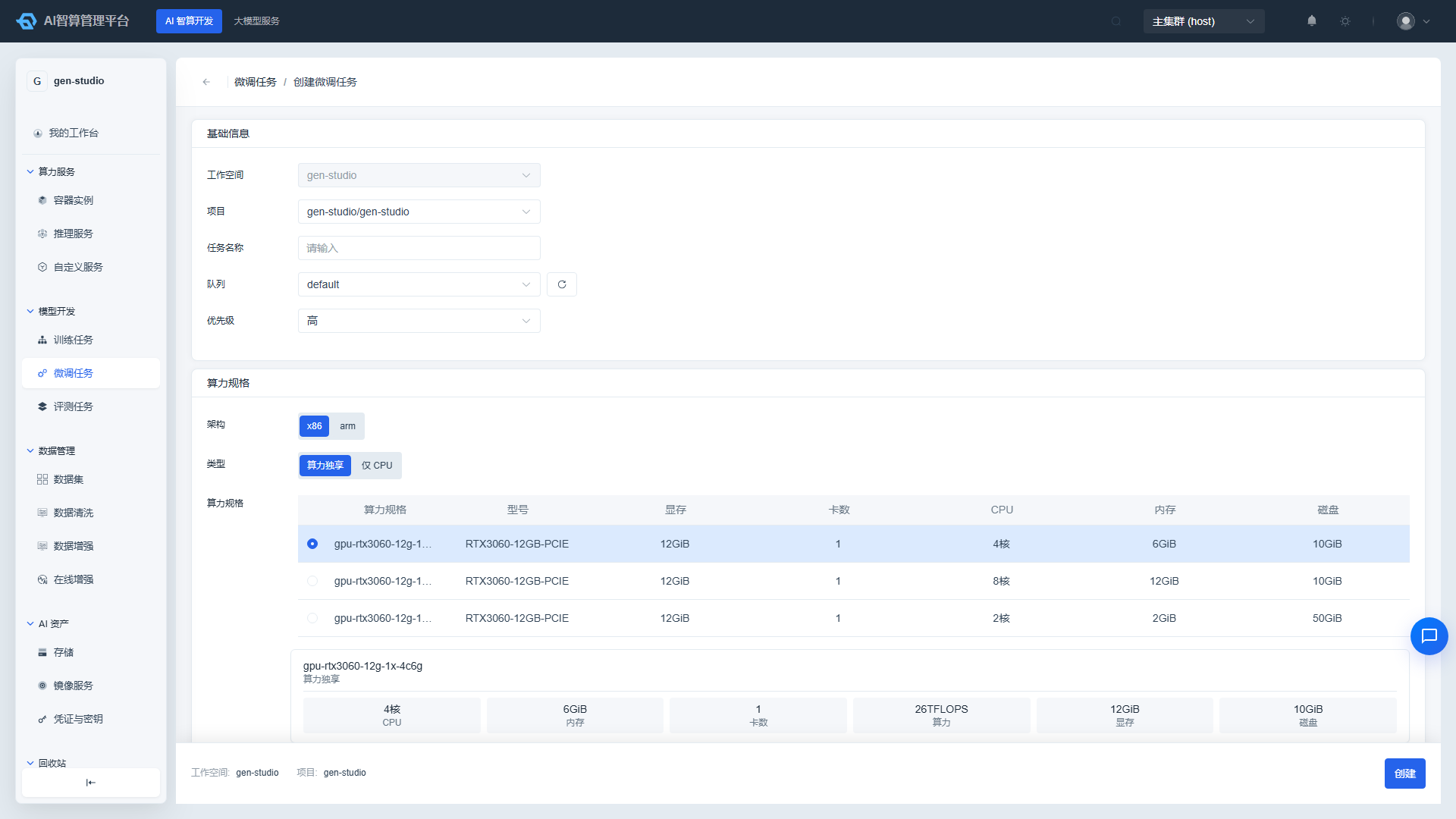
- Navigate to AI Compute Development > Model Development > Fine-tuning Jobs and click "Create Fine-tuning Job".
- Basic Information
- Workspace/Project, Job Name.
- Training Stage: SFT / DPO / KTO / RM / PPO.
- Fine-tuning Method: LoRA / Full / QLoRA. PPO/RM stages only support LoRA/QLoRA.
- Dataset
- Select a previously created training dataset and version.
- If auto-evaluation is enabled, select an evaluation dataset.
- Model
- Base Model Path: Enter the model's absolute path in storage (e.g.,
/models/qwen2-7b), or a HuggingFace/ModelScope repository ID. - If entering a local absolute path, you must first mount storage that covers that path in "Storage Configuration".
- Base Model Path: Enter the model's absolute path in storage (e.g.,
- Compute Flavor & Image
- Select a GPU flavor. The platform automatically filters available images based on the GPU vendor.
- Select or enter a fine-tuning image.
- Storage Configuration
- Mount public/custom storage covering the model path, dataset path, and output directory.
- Output Directory: Must be under a mounted writable custom storage path, used to save LoRA adapters or the full model.
- Training Parameters
- Select a preset template (Fast / Standard / Quality) or configure manually:
- epochs, learning rate, batch size, gradient accumulation steps
- cutoff len, val size, lora rank, lora alpha
- Advanced users can override any LLaMA-Factory parameter in
yamlOverride.
- Select a preset template (Fast / Standard / Quality) or configure manually:
- Click "Create" to start the job.
Post Fine-tuning Operations
- Export Model: After fine-tuning is complete, merge the LoRA adapter with the base model and export as a deployable complete model.
- Comparative Inference: Launch a temporary inference service after export to compare performance before and after fine-tuning.
- Auto Evaluation: Automatically trigger an evaluation job after training is complete and view the evaluation report.
Evaluation Jobs
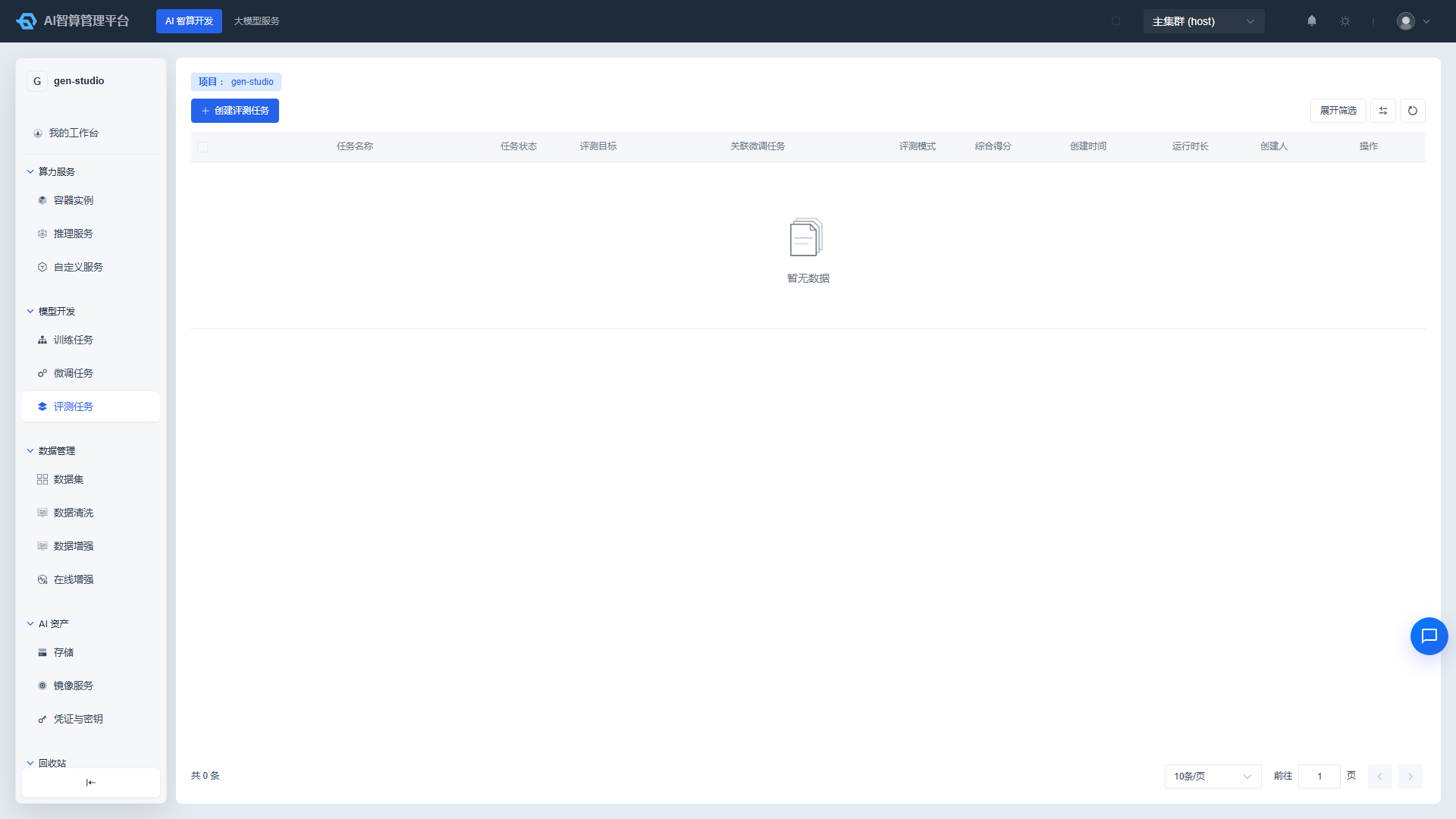
Evaluation jobs assess model performance on standard datasets, supporting two modes: Auto-Eval (built-in LLaMA-Factory metrics) and LLM-as-Judge (judge model scoring).
Creating an Evaluation Job
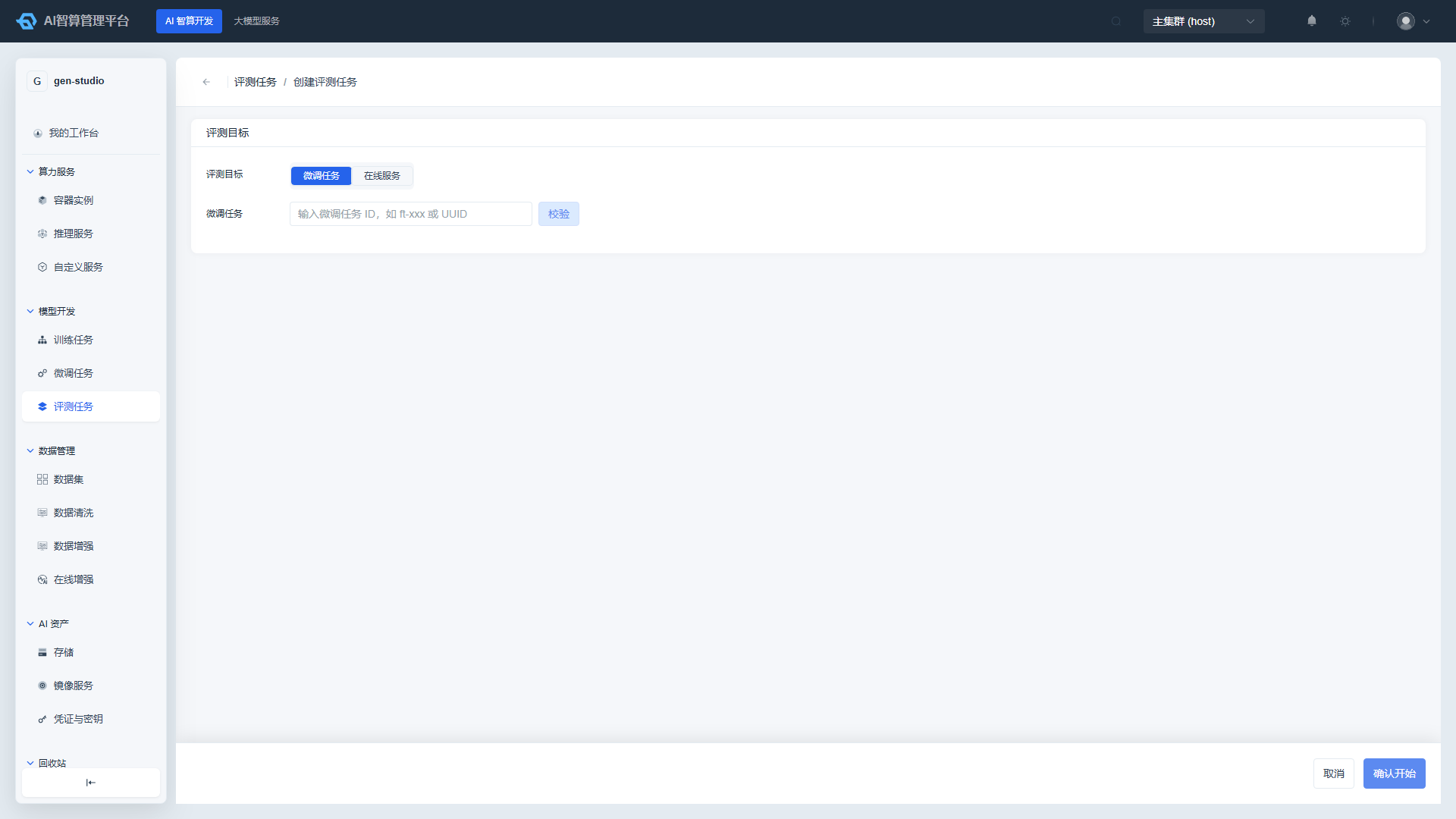
- Navigate to AI Compute Development > Model Development > Evaluation Jobs and click "Create Evaluation Job".
- Link Fine-tuning Job: Select an existing fine-tuning job. The system will automatically import the model path and dataset. You can also create one independently.
- Evaluation Mode
- Auto-Eval: Uses built-in LLaMA-Factory metrics (e.g., perplexity, bleu, rouge).
- LLM-as-Judge: Select a judge model and scoring template to score generated results.
- Dataset & Model: Select the evaluation dataset version and confirm the model path.
- Compute Flavor: Select a GPU flavor. Some lightweight evaluations can use CPU.
- Click "Create" and wait for the job to complete, then view the evaluation report.
FAQ
Q: Training job stays in Pending state for a long time? A: Check the "Events" section on the detail page. Common causes include insufficient queue resources, slow image pulls, or the minimum available instances being set too high.
Q: Fine-tuning job reports "Model path not mounted"? A: If the base model path is a local absolute path, you must mount storage that includes that path in "Storage Configuration". For example, /models/qwen2-7b requires mounting /models.
Q: Evaluation job fails but the log doesn't show the cause? A: Check whether the judge model is reachable, whether the evaluation dataset format meets requirements (e.g., ShareGPT format), and whether the output directory has write permissions.