Admin Workbench
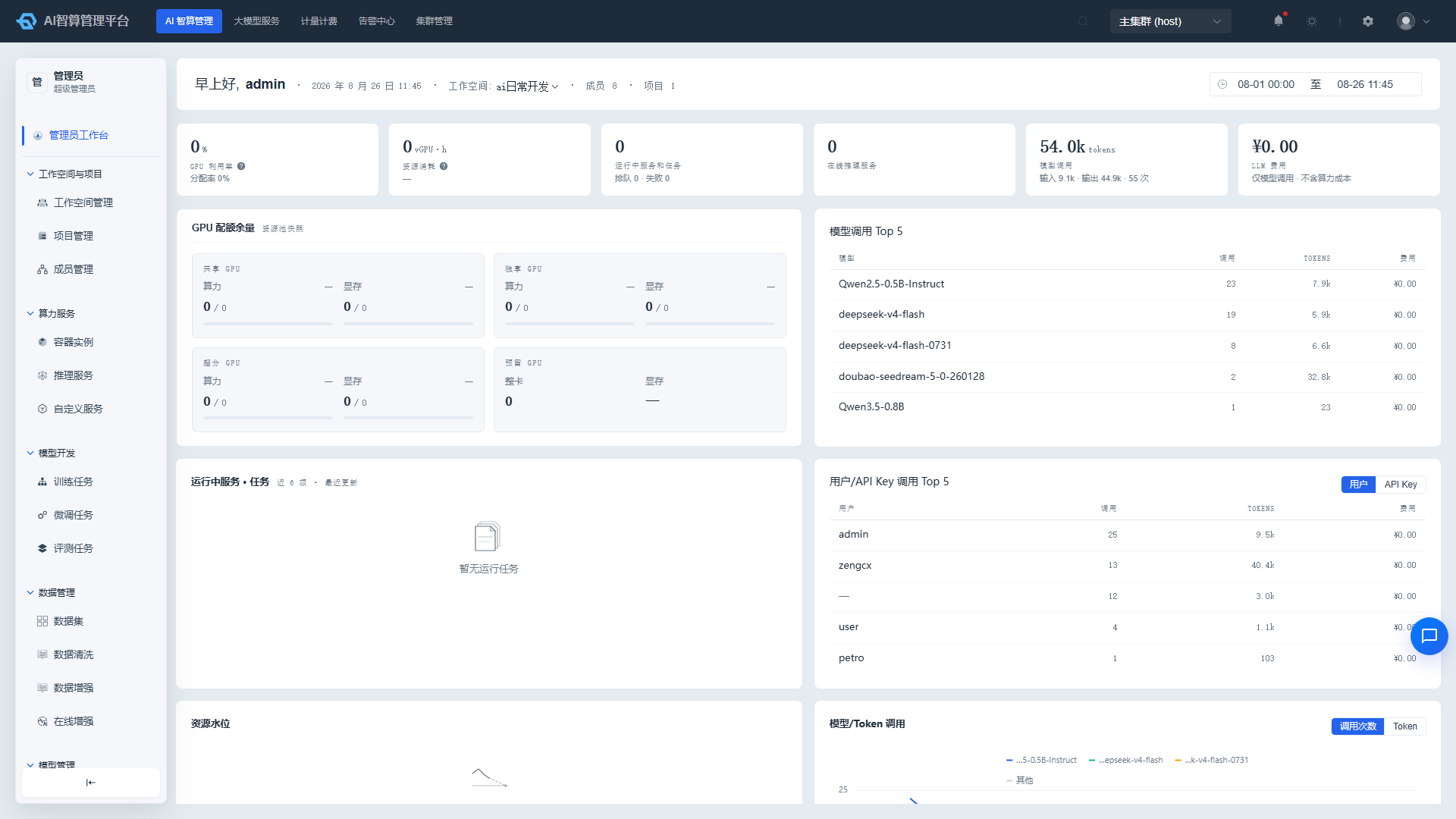
The Admin Workbench serves as the operational cockpit for platform administrators, displaying core KPIs such as GPU utilization, resource consumption, model calls, and LLM costs, along with resource pool quotas, running workloads, Top charts, and resource / call trend graphs.
Entry path: Left sidebar AI Compute Management > AI Asset Management > Admin Workbench, page route
/admin/ai/manage/workbench.
Page Features
| Area | Description |
|---|---|
| Core KPIs | GPU utilization, resource consumption, running services and jobs, online inference services, model calls, LLM costs |
| GPU Quota Headroom | Compute and memory water levels for shared / dedicated / overcommit / reserved resource pools |
| Running Services & Jobs | Real-time running list of 8 workload types |
| Model Call Top 5 | Popular models ranked by call count |
| User / API Key Call Top 5 | Call rankings by user or API Key dimension |
| Resource Trend Graphs | Compute / memory allocation and utilization rate trends per resource pool |
| Model / Token Call Trends | Call count and token usage trends by model dimension |
View Core KPIs
- Navigate to AI Compute Management > AI Asset Management > Admin Workbench.
- The top of the page displays 6 core KPI cards:
- GPU Utilization: Overall GPU utilization across the cluster.
- Resource Consumption: Cumulative resource consumption by billing metrics.
- Running Services & Jobs: Total number of currently running services and jobs.
- Online Inference Services: Number of currently online inference services.
- Model Calls: Total model call count within the statistical period.
- LLM Costs: LLM call costs within the statistical period.
- Hover over KPI values to see detailed metric descriptions or period-over-period changes on some cards.
View GPU Quota Headroom
- In the "GPU Quota Headroom" panel in the middle of the page, resources are grouped by pool type:
- Shared: GPU resource pools shared across multiple tenants.
- Dedicated: GPU resource pools assigned to a single tenant.
- Overcommit: GPU resource pools with superscaling enabled.
- Reserved: Reserved whole-GPU resource pools.
- Each group displays compute and memory used / total with progress bars; the reserved group additionally shows whole-GPU count and memory.
- Click a resource pool card to drill down into GPU card details or tenant quota distribution (if supported).
View Running Workloads
- In the "Running Services & Jobs" table, 8 workload types are aggregated:
- Training jobs, fine-tuning jobs, evaluation jobs, inference services, custom services, container instances, data cleaning, data augmentation.
- Table columns: Type / Chip, Name, Creator, Status, Runtime.
- Click a name in the table row to navigate to the corresponding resource detail page for management.
- Use the type filter or search box above the table to quickly locate a specific workload type.
View Call Top Charts
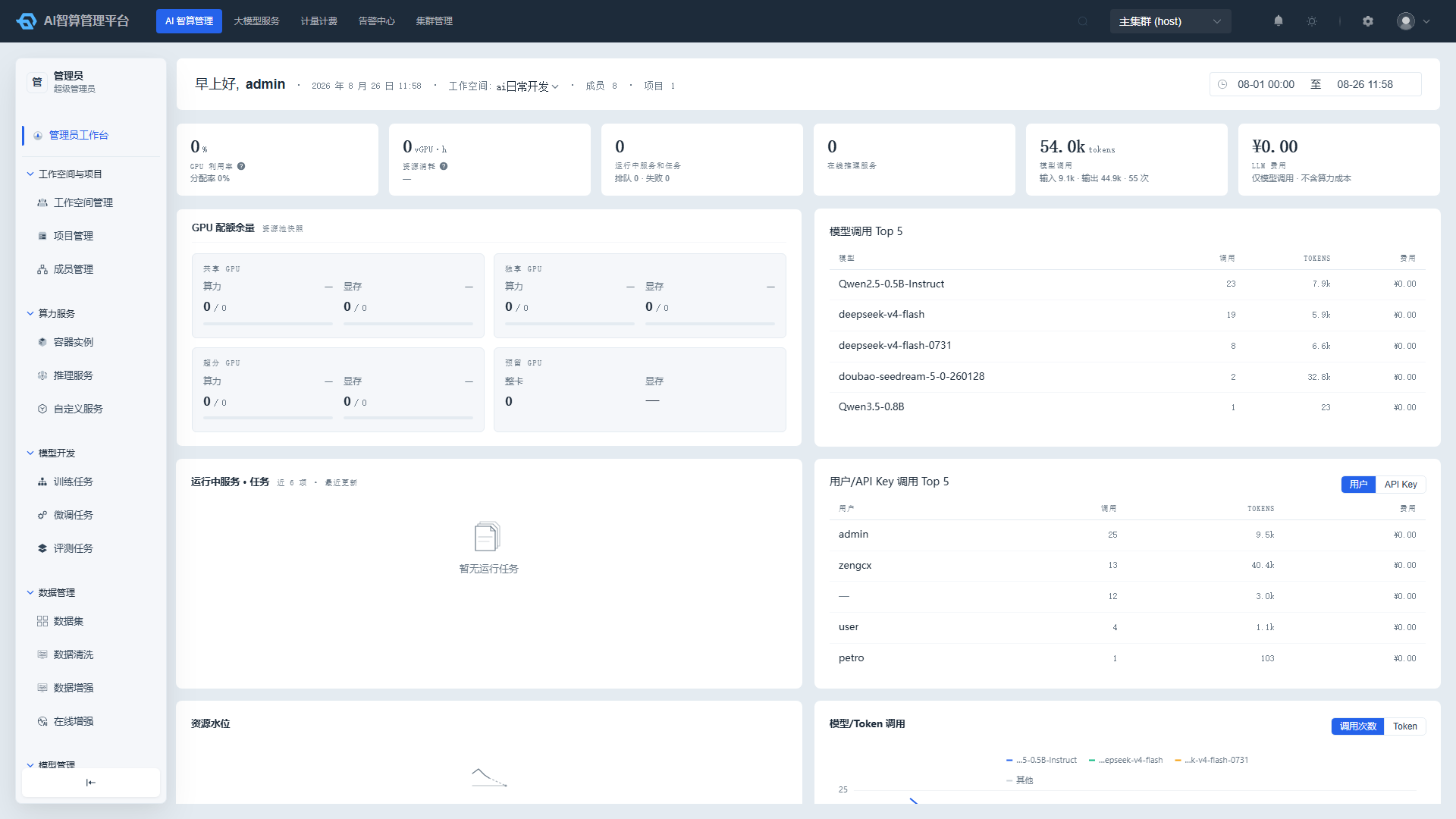
Model Call Top 5
- In the "Model Call Top 5" table, results are ranked by actual call count based on ClickHouse call logs.
- Table columns: Model, Call Count, Tokens, Cost.
- Click a model name to navigate to the model detail or call history page.
User / API Key Call Top 5
- Above the "User / API Key Call Top 5" table, switch dimensions:
- User: Aggregate call volume by user.
- API Key: API Keys are masked as
sk-••••last 8 digits.
- Table columns: User or API Key, Call Count, Tokens, Cost.
- Click a user name or API Key to navigate to call history details.
View Resource Trends
- In the "Resource Trend Graphs" area, use tabs to switch between shared / dedicated / overcommit resource pools.
- Each pool displays 4 curves:
- Compute allocation rate
- Compute utilization rate
- Memory allocation rate
- Memory utilization rate
- Data is displayed at daily granularity; hover to view values for a specific date.
- Use the legend to hide / show individual curves.
View Model / Token Call Trends
- In the "Model / Token Call" trend graph area, use tabs to switch:
- Call Count: Call count trend by model dimension.
- Token Usage: Token usage trend by model dimension.
- Charts display Top 3 models plus Others in a stacked format, making it easy to identify the primary call models.
- Tab switching on the client does not re-fetch data, ensuring smooth interaction.
FAQ
Q: How often is the Admin Workbench data refreshed? A: KPI cards and Top charts are typically refreshed at minute-level intervals; resource trends and call trends are aggregated daily and updated each day.
Q: Why do some KPIs show 0 or "--"? A: Possible reasons include: GPU monitoring not connected to the current cluster, LLM call billing not enabled, or no relevant data within the statistical period.
Q: Is the Admin Workbench only visible to platform admins? A: By default, it is visible only to platform admins and tenant admins; specific permissions can be configured in "Cluster Management > Users & Roles."
Q: Can I stop jobs directly from the running workload table? A: The workbench is primarily for viewing. To stop or release a job, click its name to navigate to the corresponding management page to perform the action.