AI Gateway
The AI Gateway is the model call traffic entry point for the Rise Compute Platform. It routes upstream requests (Playground, API Key, OpenAI-compatible calls) to the correct backend services and provides governance capabilities including channel management, access authorization, rate limiting, and quotas.
Entry path: Left sidebar AI Compute Management > AI Gateway, page route
/admin/ai/gateway.
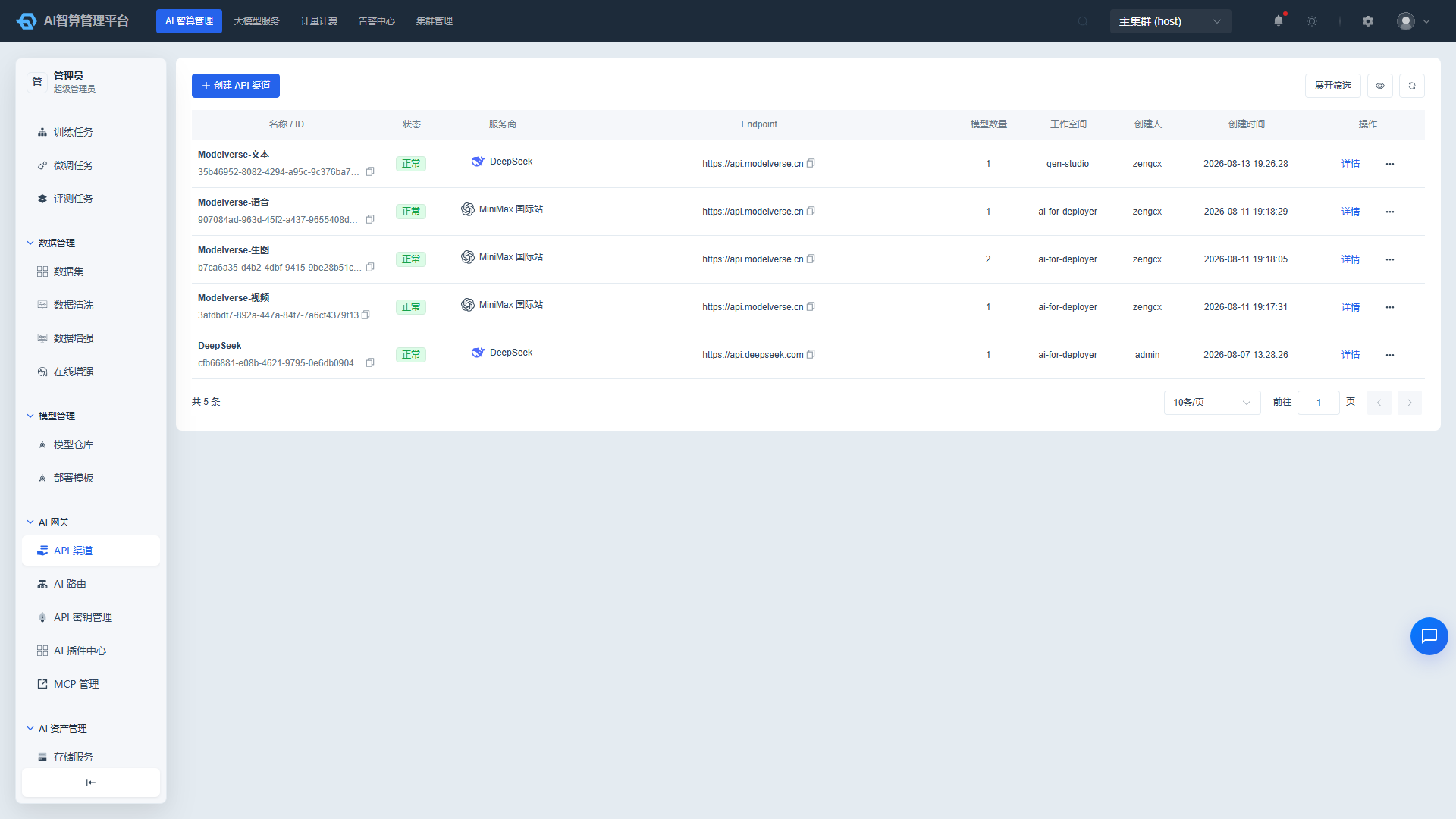
Page Menu
| Page | Route | Description |
|---|---|---|
| API Channels | /admin/ai/gateway/ai-provider | Connect external model providers or private inference services |
| Create API Channel | /admin/ai/gateway/ai-provider/create | Create a new channel |
| API Channel Details | /admin/ai/gateway/ai-provider/:uuid | View and edit channel |
| AI Routes | /admin/ai/gateway/ai-route | Model call routing rules |
| Create AI Route | /admin/ai/gateway/ai-route/create | Create a new route |
| AI Route Details | /admin/ai/gateway/ai-route/:name | View and configure route |
| Route Configuration | /admin/ai/gateway/route-config | Higress native route configuration |
| Domain Management | /admin/ai/gateway/domain | AI Gateway domain binding and path prefix management |
| Certificate Management | /admin/ai/gateway/certificate | AI Gateway TLS certificate management |
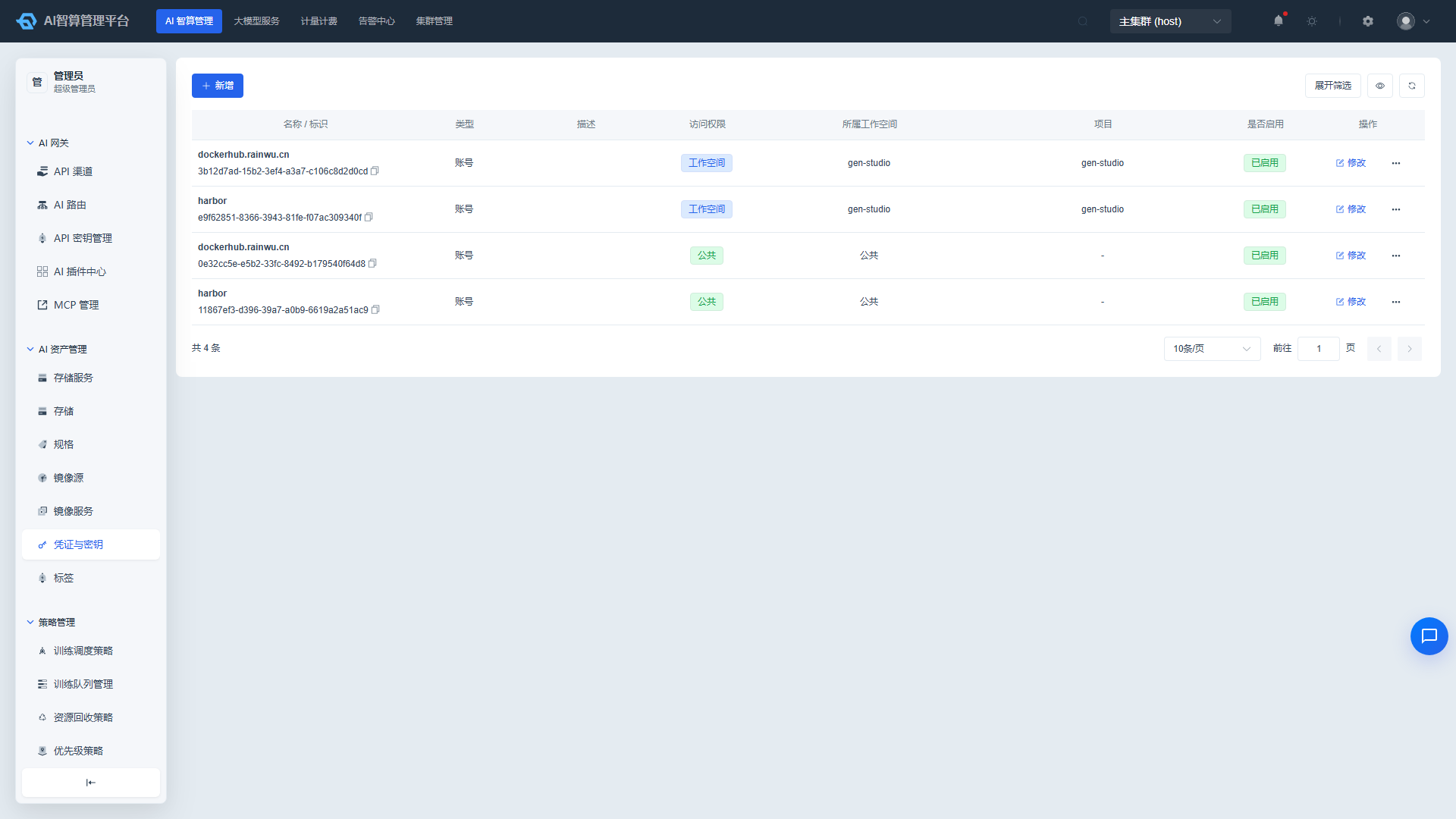
| API Key Management | /admin/model-x/api-key | API Key lifecycle management |
| MCP Management | /admin/model-x/mcp | MCP Server management |
| AI Plugin Center | /admin/model-x/ai-plugin | Higress Wasm plugins |
API Channels
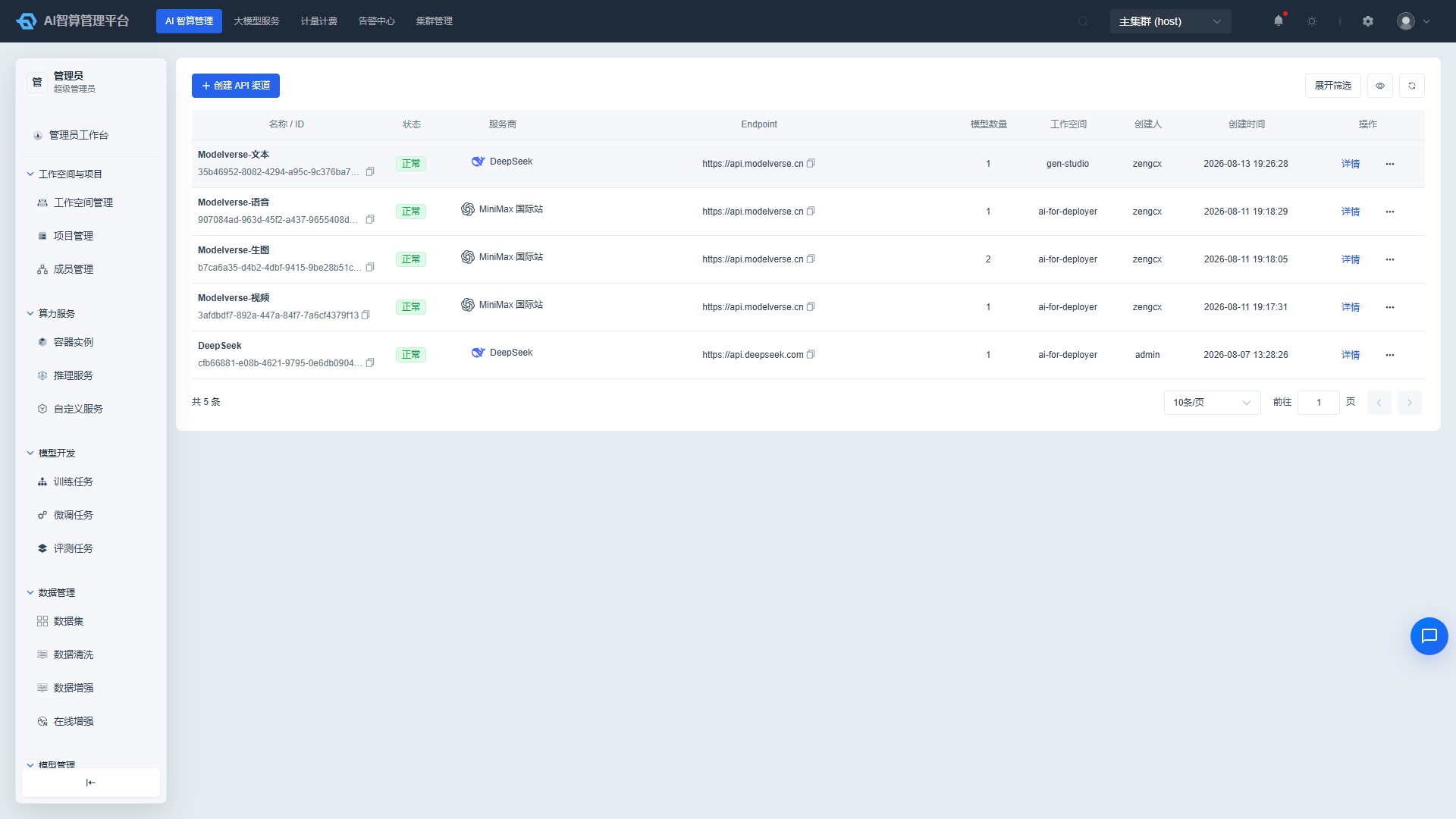
API channels are used to connect external model providers (OpenAI, Anthropic, Zhipu, etc.), or manage system channels automatically generated by the platform's private inference services.
View API Channels
- Navigate to AI Compute Management > AI Gateway > API Channels.
- The list displays: Channel Name, Provider, Endpoint, Status (Enabled / Disabled), Parent Workspace, Associated Model Count, Creation Time.
- Use the top filter bar to query by workspace, status, provider, and name.
- Click a channel name to enter the detail page, which shows basic info, API Key list, supported models, and call statistics.
Create an API Channel
- Click "Create API Channel" on the API channel list page.
- Basic Information
- Channel Name: E.g.,
OpenAI Production. - Parent Workspace: Leave empty for a platform-level channel; after selection, only that tenant can see it.
- Provider: Select a provider entry (e.g., OpenAI, Anthropic, Zhipu, OpenAI-compatible service, etc.).
- Endpoint: API root address, without path suffixes like
/chat/completions; leave empty to use the provider's default endpoint. - API Key: Fill in at least one; click "Verify" to test whether the key is valid. Supports configuring multiple keys for load rotation.
- Channel Name: E.g.,
- Advanced Settings (collapsed by default)
- Native Pass-through: When enabled, the protocol is set to
original, suitable for providers that natively support/v1/messages. - Notes: Record the channel's purpose.
- USD → CNY Exchange Rate: Used for channel cost conversion.
- Proxy Server: If the upstream requires access through a forward proxy, select a configured proxy.
- Custom Request Headers: E.g.,
X-Api-Keyrequired by Volcano TTS.
- Native Pass-through: When enabled, the protocol is set to
- Supported Models
- Detect from Upstream: After filling in the Endpoint and Key, click the detect button to automatically pull the available model list, then select the models to connect.
- Manual Entry: Directly enter model name, category, and upstream model name (if different from the user-requested name).
- Click "Create."
Manage API Channels
- On the API channel list page, click "More Actions" in the row or the corresponding button on the detail page:
- Enable / Disable: When disabled, associated AI routes no longer forward requests to it.
- Edit: Modify Endpoint, Key, model list, exchange rate, etc.
- Delete: Before deletion, the system displays a cascade impact list (associated AI routes); the action is executed after confirmation.
- Click the "Model Name List" tab in the channel details to view all connected model names.
AI Routes
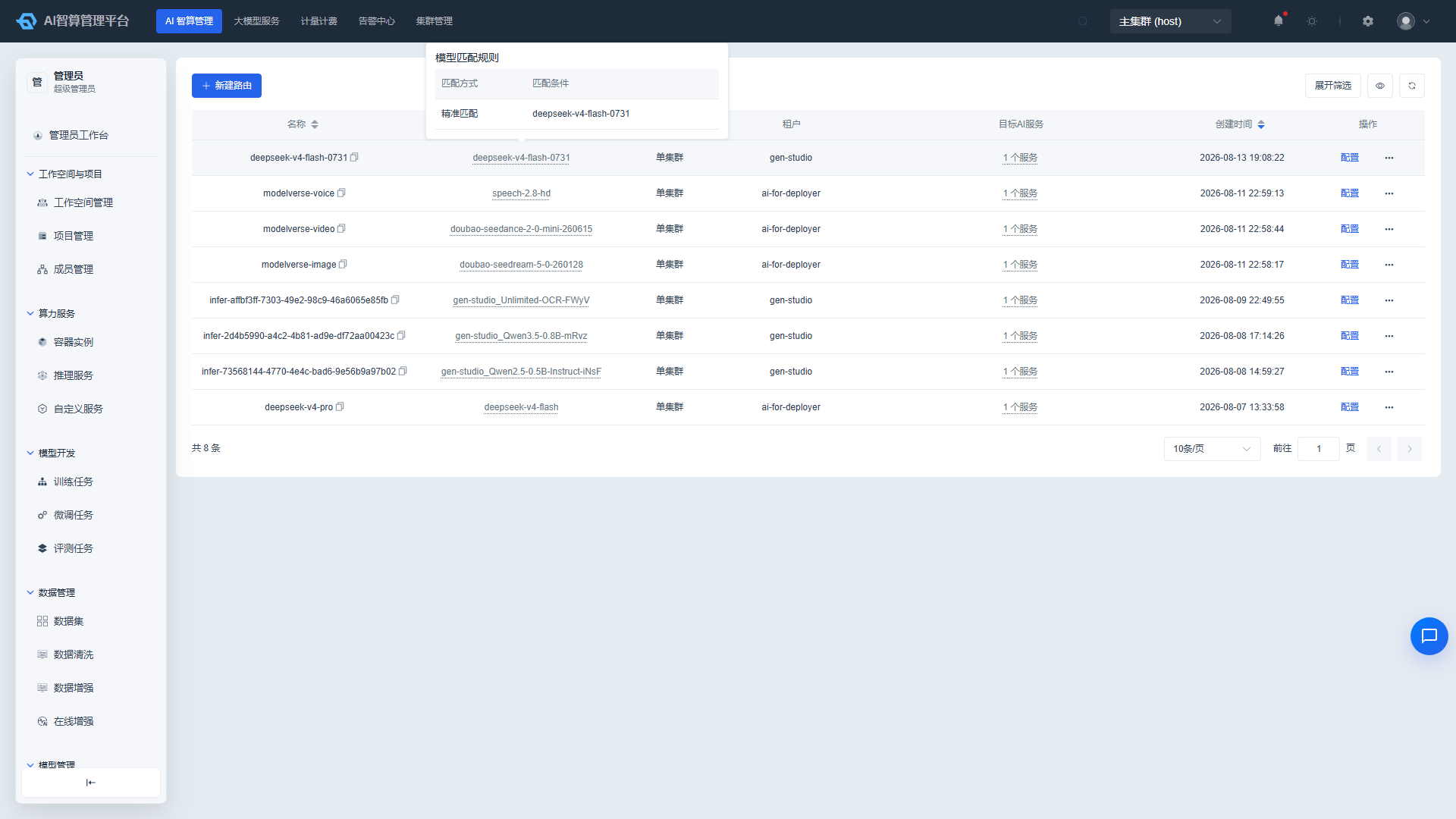
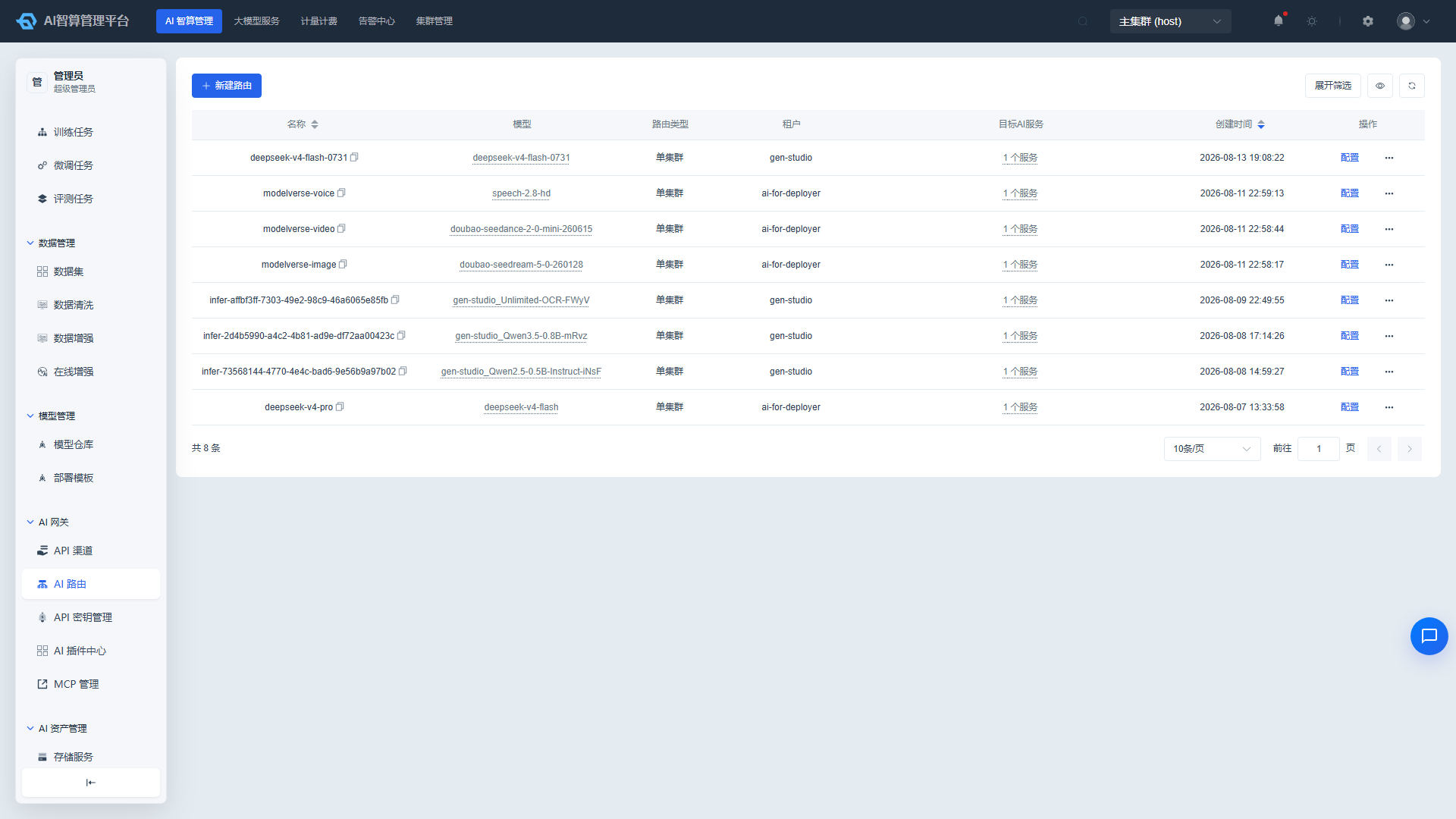
An AI route defines a model call rule: when a request matches certain conditions (model name, request headers, request parameters), traffic is forwarded to specified upstream services, with configurable weight, degradation, rate limiting, and quotas.
View AI Routes
- Navigate to AI Compute Management > AI Gateway > AI Routes.
- The list displays: Route Name, Model Match, Target Service, Parent Workspace, Status, Creation Time.
- Use the top filter bar to query by workspace, status, and name.
- Click a route name to enter the detail page, which shows match conditions, target services, Fallback, rate limiting, quota, access authorization, and other configurations.
Create an AI Route
- Click "Create AI Route" on the AI route list page.
- Basic Information
- Name: Unique route identifier.
- Parent Workspace: Leave empty for a platform-level route; otherwise only that tenant can see it.
- Match Conditions
- Request Headers: Exact match by Key-Value.
- Request Parameters: Exact match by URL parameters.
- Model Match: Select or enter model names; supports multi-select and manual addition.
- Model Category: Used to automatically infer the API path (e.g., chat/completions, images/generations).
- API Path: The actual access path; supports automatic inference or manual entry.
- Path Prefix: Path prefix for custom path routing configured in Domain Management.
- Traffic Control
- Route Type: Single-cluster / Cross-cluster.
- Single-cluster: Add target AI services (API channels or private inference services), set request ratios and model mappings.
- Cross-cluster: Configure sub-cluster gateway endpoint pools (address:port + weight).
- Click "Save" to activate the route; after saving, you can view a complete curl call example on the detail page.
Configure Degradation and Rate Limiting
Navigate to the route detail page:
- Fallback Configuration: When the primary upstream is abnormal, automatically switch to a backup model or channel; supports triggering by error rate or latency threshold.
- Rate Limiting Configuration: Set QPS / Token rate limits by API Key or platform dimension.
- Quota Configuration: Set token usage ceilings by API Key.
- Access Authorization: Configure which API Keys can access this route.
- Click "Save" after modifications to take effect.
Route Configuration
Route Configuration is used to manage Higress native route configuration items, suitable for admins who need to directly operate the gateway's native capabilities.
- Navigate to AI Compute Management > AI Gateway > Route Configuration.
- The list displays native route names, domains, paths, target services, status, etc.
- Click "Create" or "Edit" in the row to open the drawer, then fill in the route name, domain, matching path, rewrite rules, target services, etc.
- After saving, the route takes effect.
Domain Management
Domain Management is used to bind custom domains to the AI Gateway, supporting HTTP and HTTPS protocols, TLS certificate configuration, and forced HTTPS redirects.
Entry path: Navigate to AI Management > AI Gateway > Domain Management.
View Domains
- Navigate to AI Management > AI Gateway > Domain Management.
- The list displays: Domain, Protocol (HTTP / HTTPS / Forced HTTPS), Associated Certificate, Creation Time.
- Supports filtering by domain name.
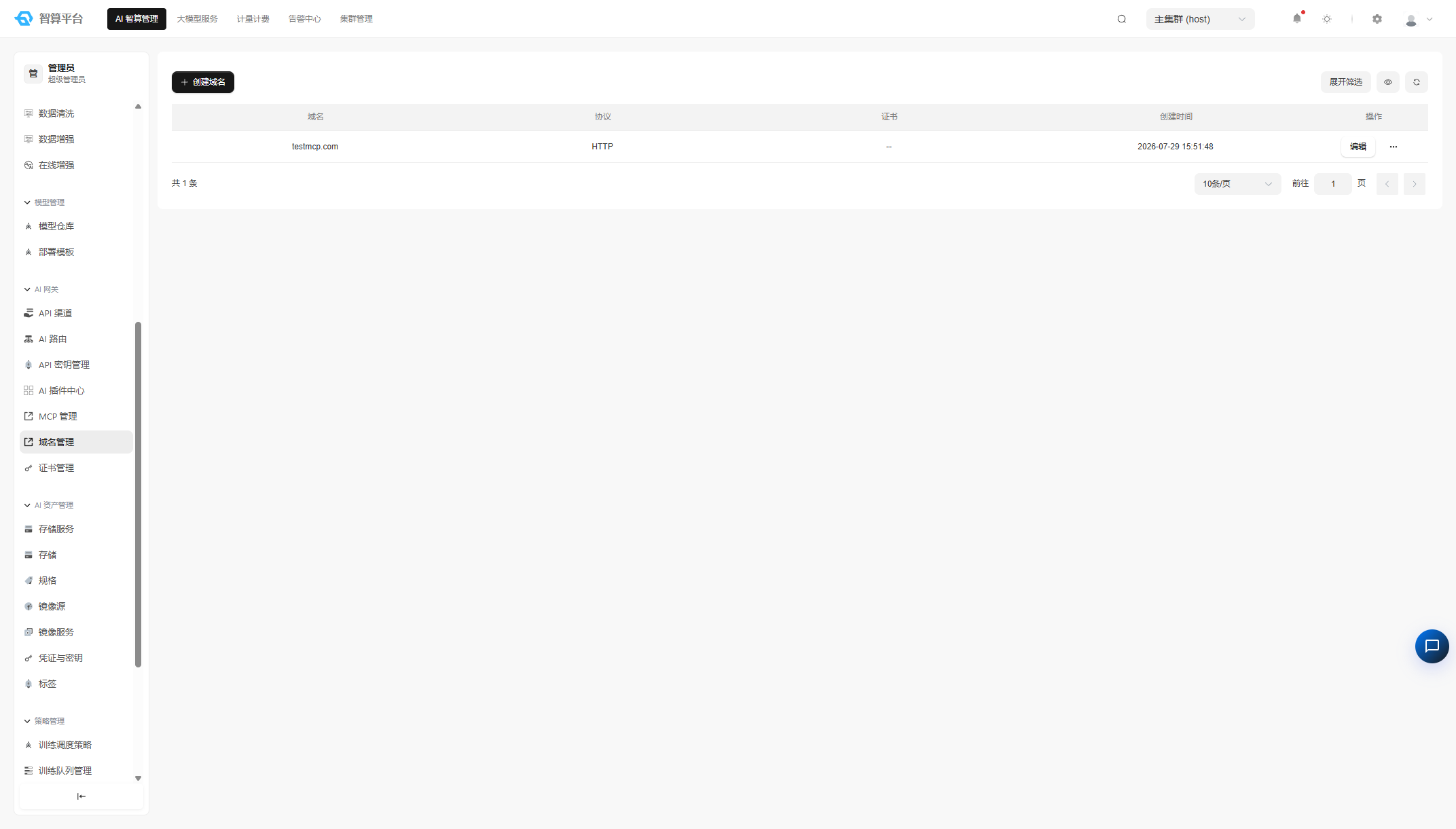
Create a Domain
- Click "Create Domain" on the domain management list page.
- Fill in the form fields:
- Domain: Enter a domain (e.g.,
api.example.comor*.api.example.com). Lowercase letters, digits, and hyphens only. Wildcard*.prefix is supported. Maximum length is 253 characters. - Protocol: Select HTTP or HTTPS.
- Certificate (shown only for HTTPS): Select from uploaded TLS certificates. The dropdown displays certificate names and the list of domains covered, helping you identify the right match.
- Force HTTPS (shown only for HTTPS): When checked, HTTP requests are automatically redirected to HTTPS.
- Domain: Enter a domain (e.g.,
- Click "Create."
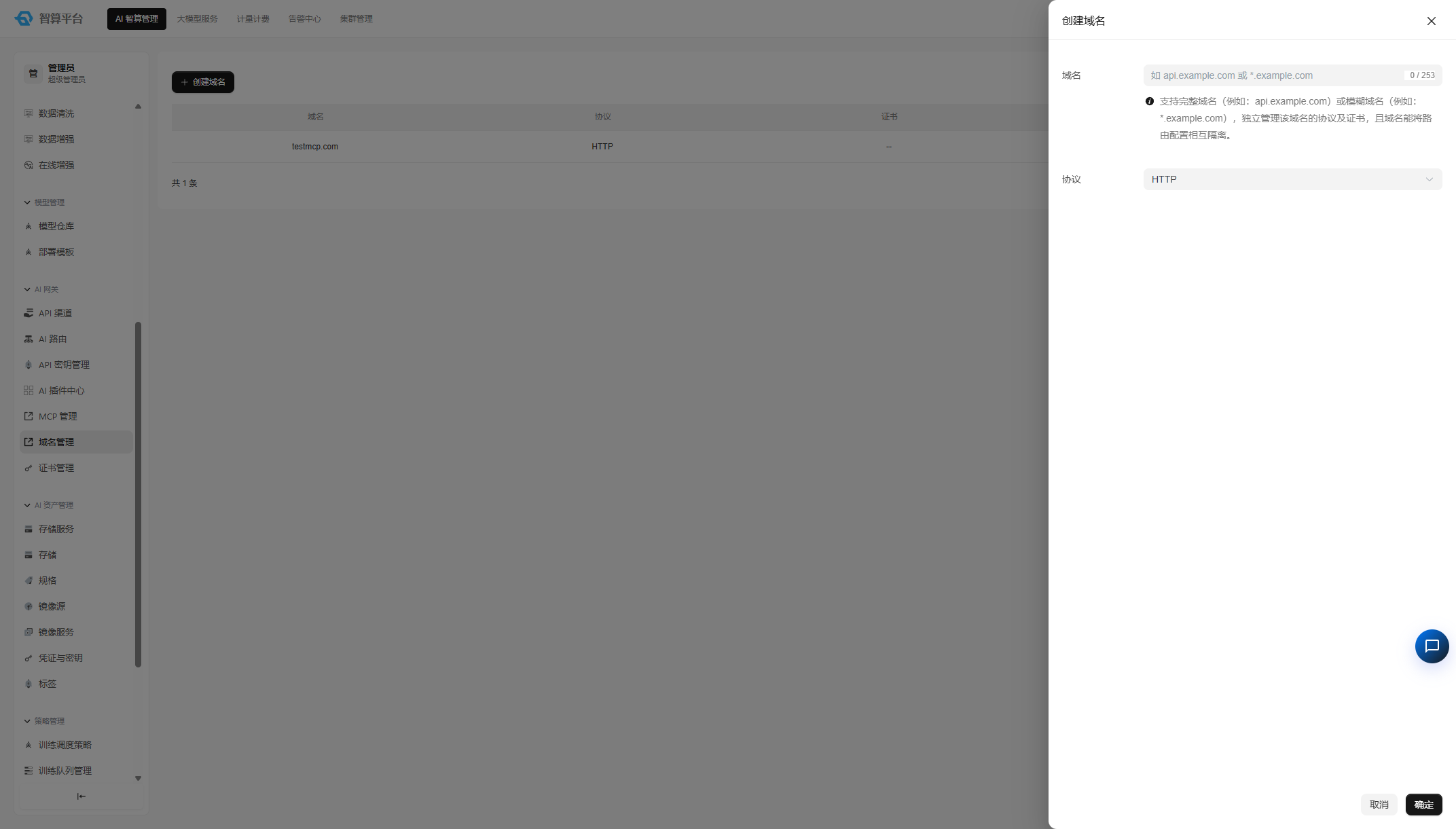
Manage Domains
- On the domain management list page, click "More Actions" in the row:
- Edit: Modify protocol, certificate, and force HTTPS settings. The domain name itself cannot be changed after creation.
- Delete: You must manually type the domain name to confirm deletion. If the domain is referenced by an AI route, that route's TLS will fall back to a self-signed certificate after deletion.
Certificate Management
Certificate Management is used to upload and manage TLS certificates for HTTPS domains configured in Domain Management. Certificates are stored as Kubernetes Secrets.
Entry path: Navigate to AI Management > AI Gateway > Certificate Management.
View Certificates
- Navigate to AI Management > AI Gateway > Certificate Management.
- The list displays: Certificate Name, Covered Domains (CN + SAN), Validity Period (start and end dates), Creation Time.
- Supports filtering by certificate name.
- When editing, only the certificate content can be replaced (the name cannot be modified).
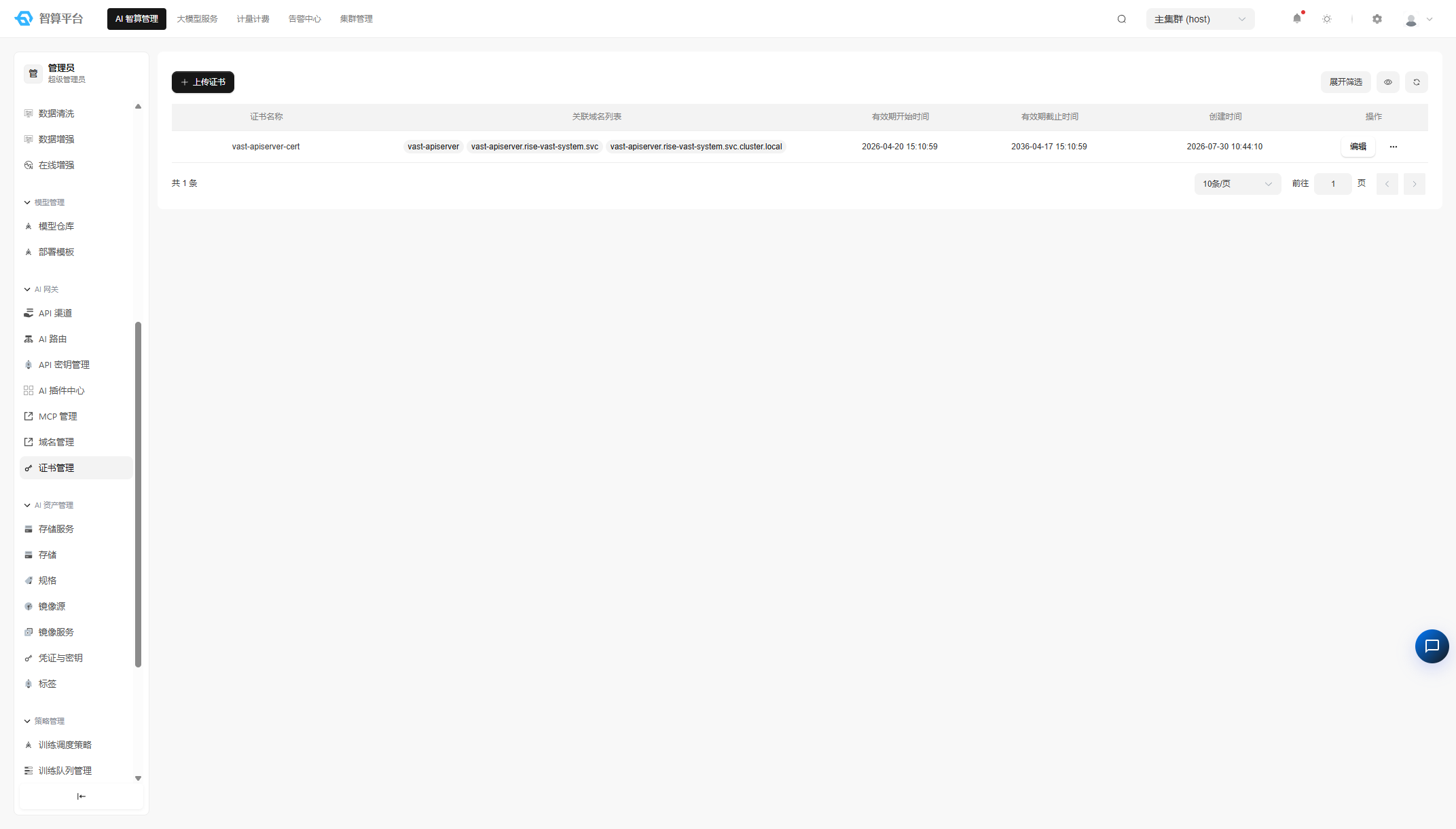
Create a Certificate
- Click "Create Certificate" on the certificate management list page.
- Fill in the form fields:
- Certificate Name: A valid Kubernetes resource name (lowercase letters, digits, hyphens; must start and end with a letter or digit). The name cannot be changed after creation.
- Certificate Content: Paste the PEM-formatted certificate body.
- Private Key Content: Paste the PEM-formatted private key.
- Click "Create."
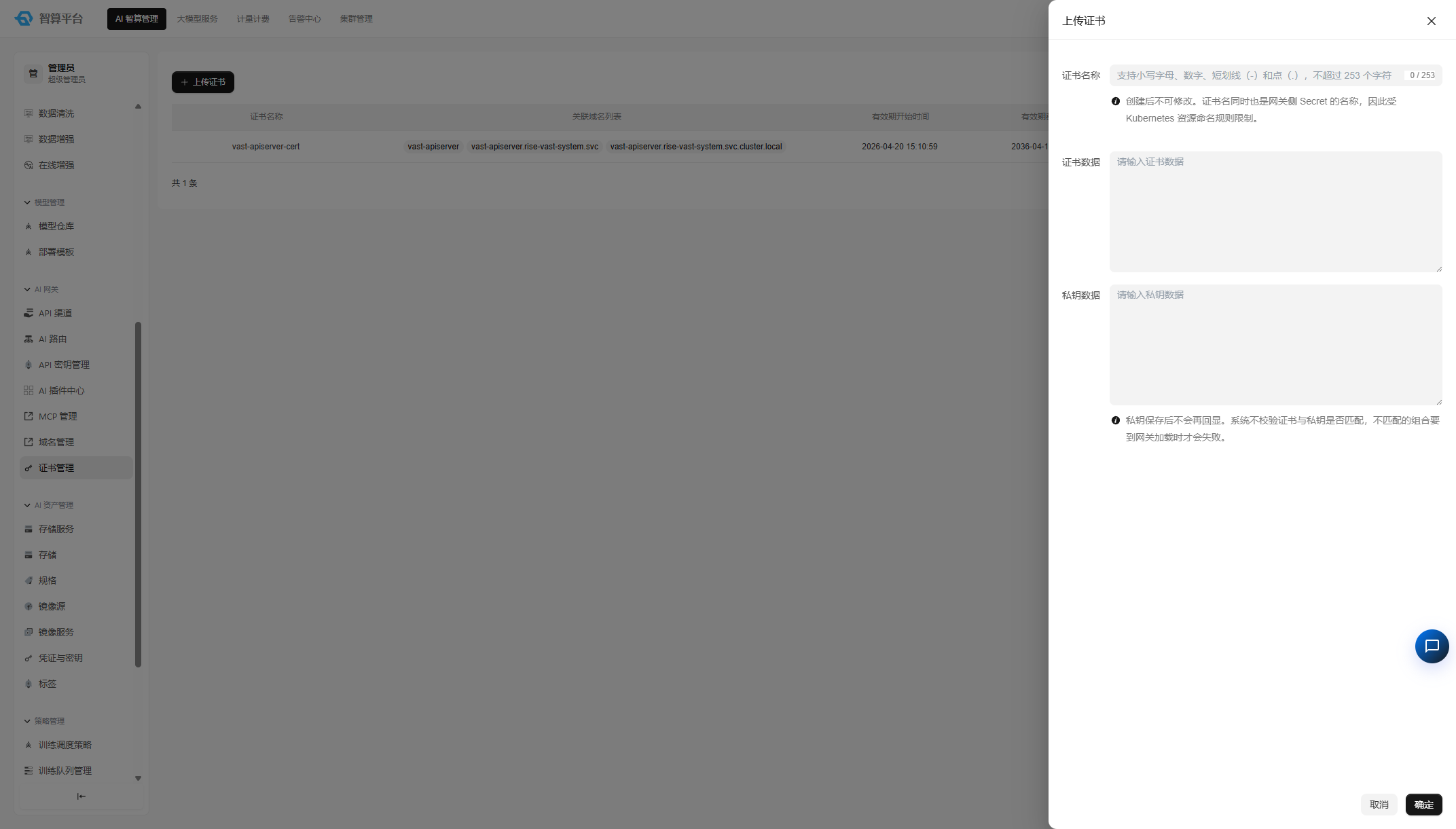
Important Notes
- Certificate content and private keys are only transmitted at submission time and are not returned by the backend on query (for security reasons).
- Certificate validity (expiration, public/private key pairing) is verified by the gateway (Envoy) when loading the certificate.
- Deleting a certificate that is referenced by a domain will cause that domain's TLS to fall back to a self-signed certificate.
API Key Management
API Key management is used to create, enable / disable, and delete API Keys, and to configure the model scope and quota accessible by each key.
- Navigate to AI Compute Management > AI Gateway > API Key Management.
- Click "Create API Key" and fill in:
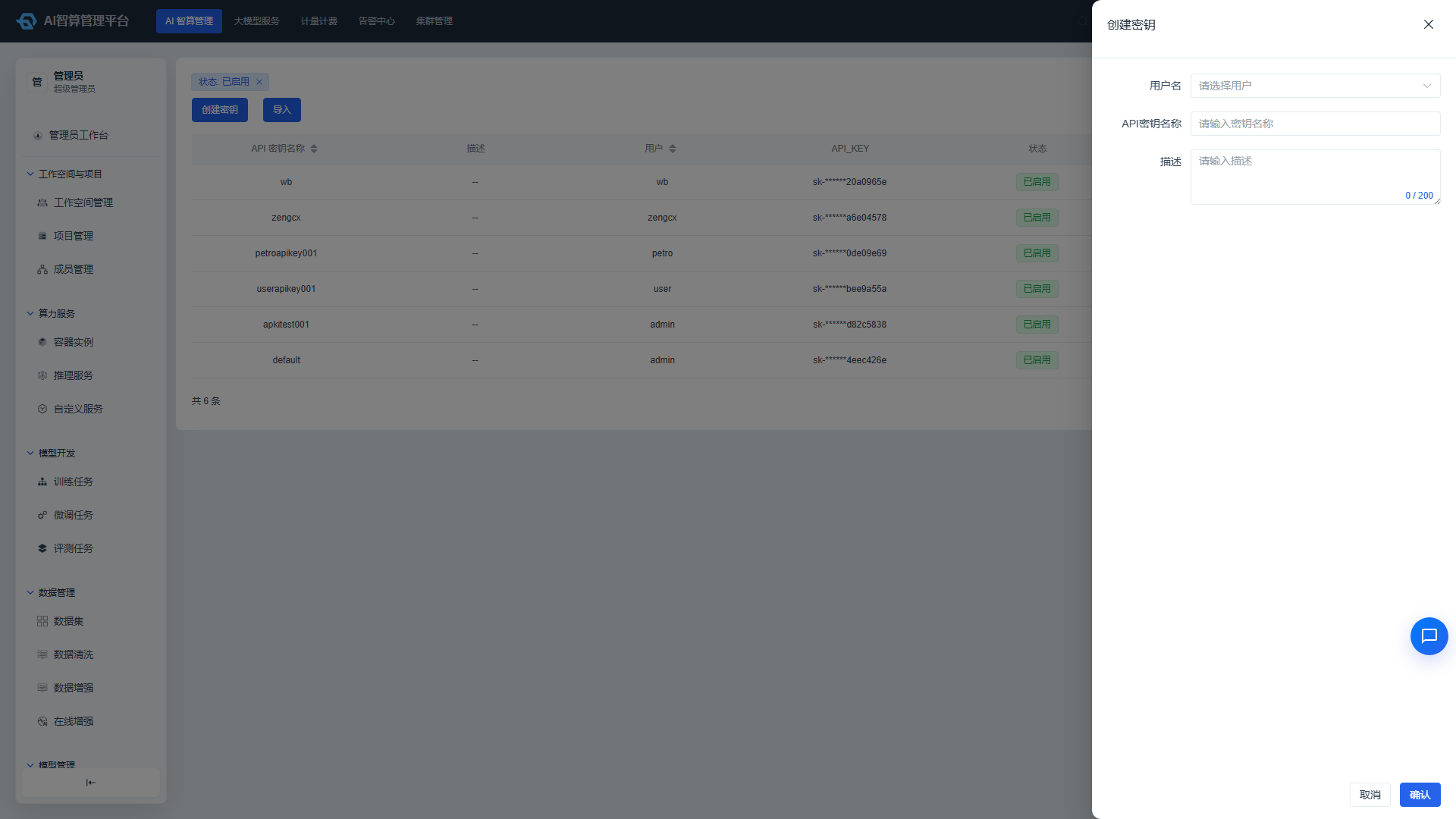
- Name: An easy-to-identify key name.
- Parent Workspace: Leave empty for a platform-level key; after selection, only that tenant can see it.
- Accessible Models: Select the model range this key is allowed to call.
- Quota: Set token usage ceilings or call count limits.
- After successful creation, copy the key value; the key value is only displayed once at creation — please save it securely.
- In the list, you can perform Enable / Disable / Delete operations on keys.
MCP Management
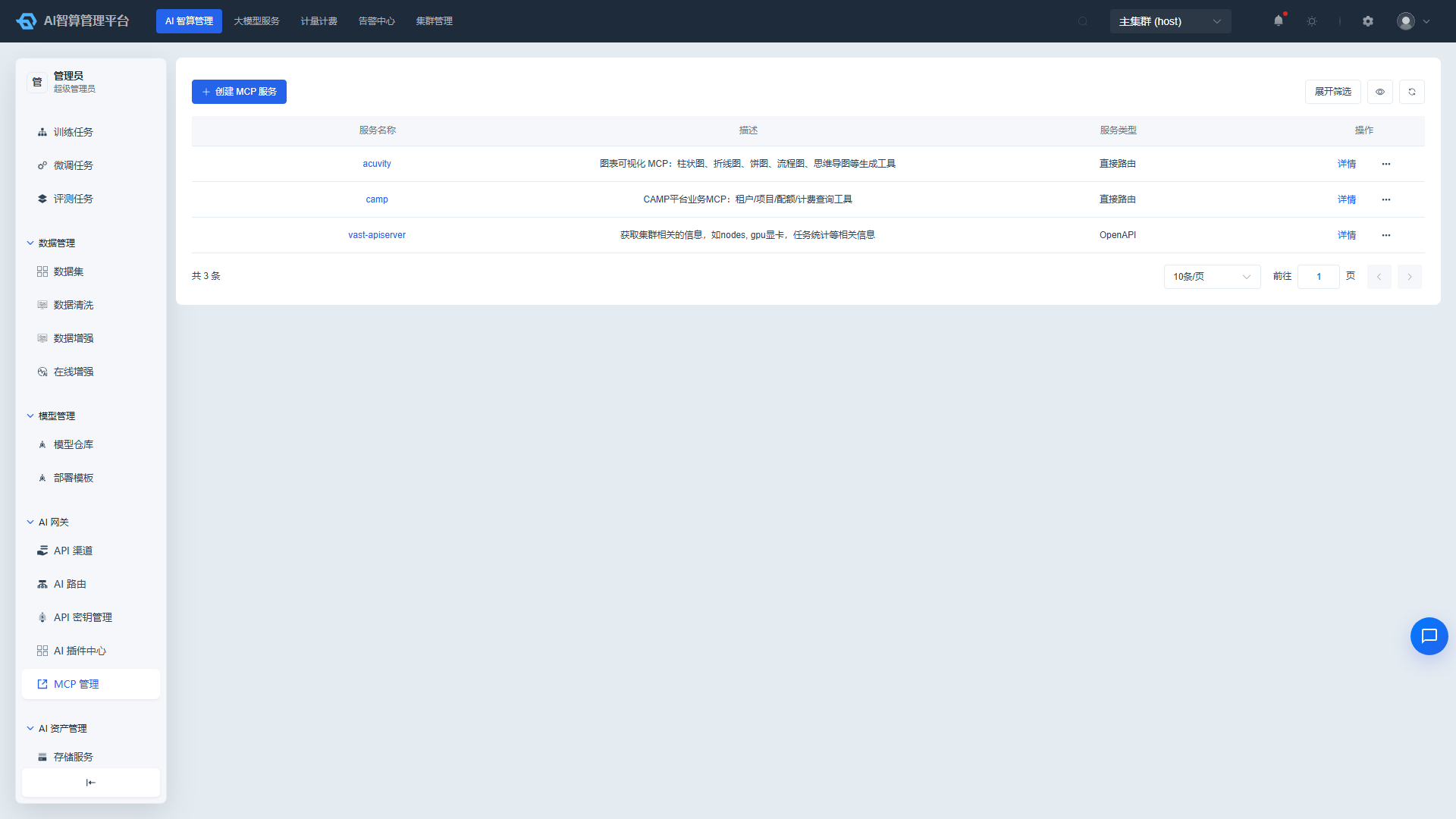
MCP management is used to create MCP Servers and configure tool-level authorization.
- Navigate to AI Compute Management > AI Gateway > MCP Management.
- Click "Create MCP Server" and select a type:
- OPEN_API: Upload a Swagger file or fill in an OpenAPI specification; the system automatically converts it to tools YAML.
- DIRECT_ROUTE: Directly configure a streamable / SSE route address.
- Fill in name, description, Endpoint, authorization information, etc.
- On the detail page, configure tool-level authorization to determine which API Keys can call which tools.
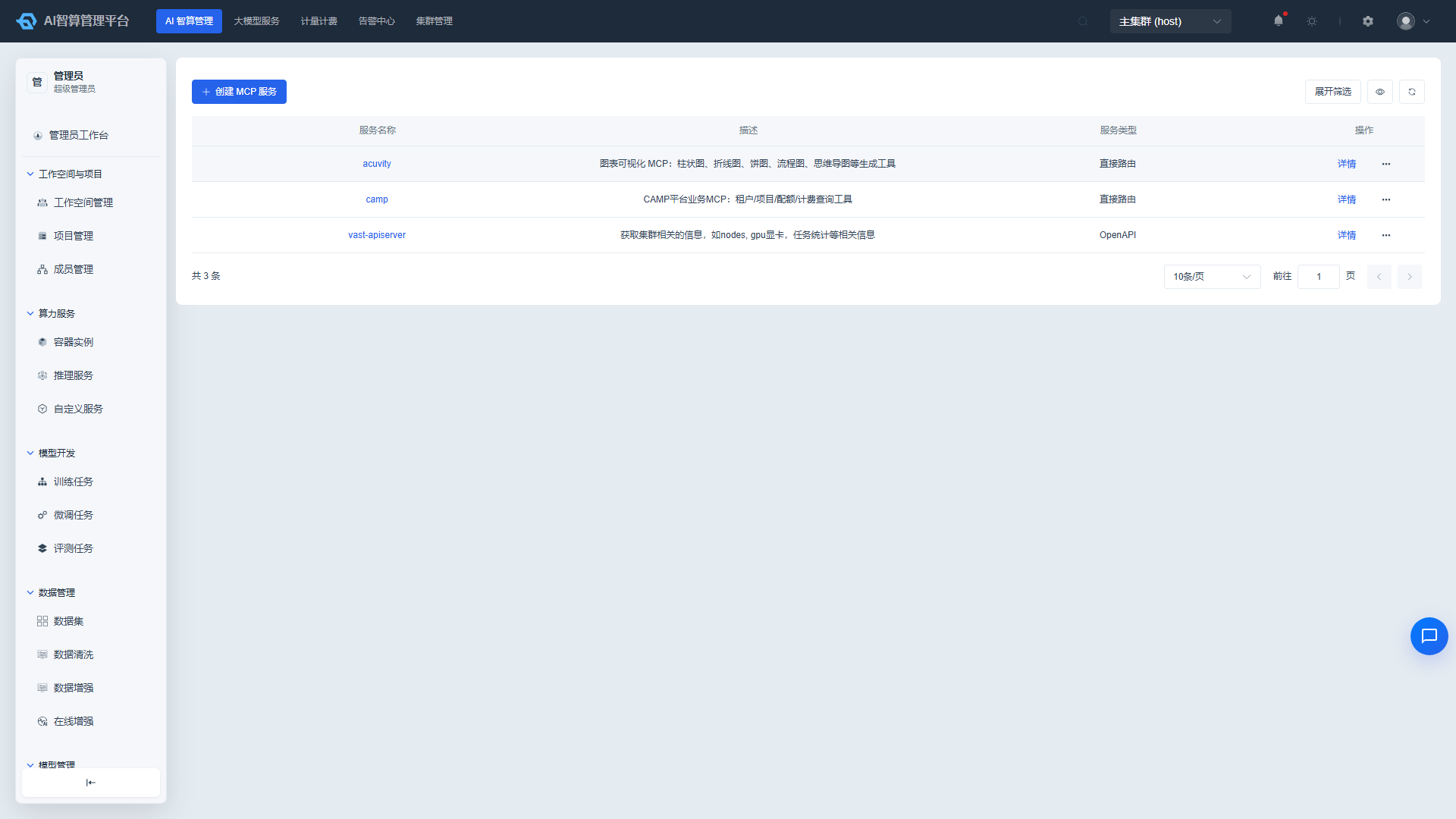 5. After saving, the MCP Server can be called by upper-layer applications through the AI Gateway.
AI Plugin Center
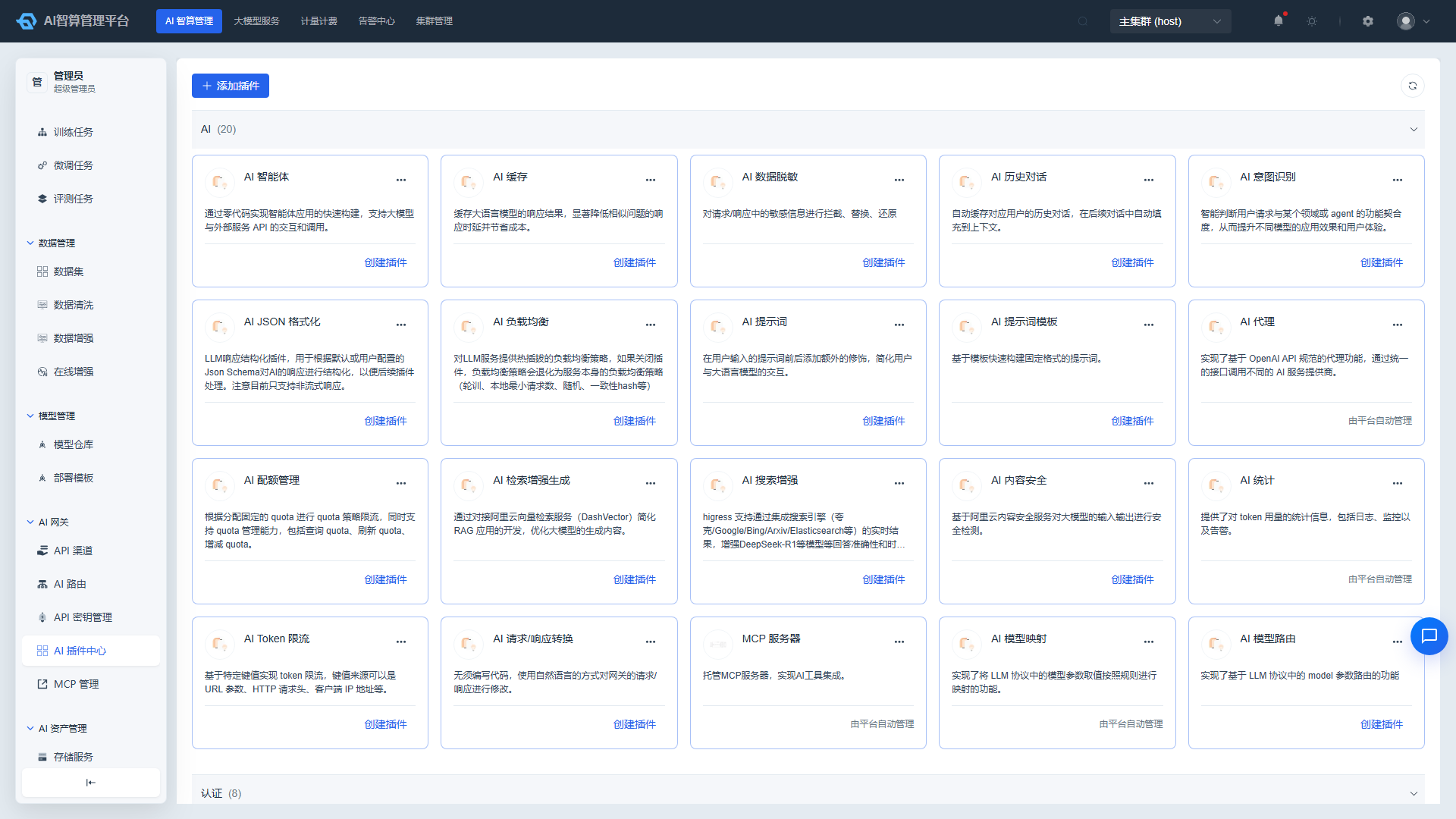
The AI Plugin Center is used to browse and configure Higress Wasm plugins (e.g., ai-proxy, model-mapper, ai-statistics, etc.).
- Navigate to AI Compute Management > AI Gateway > AI Plugin Center.
- The list displays plugin names, types, versions, and status.
- Click a plugin name to enter the detail page to view the plugin configuration documentation.
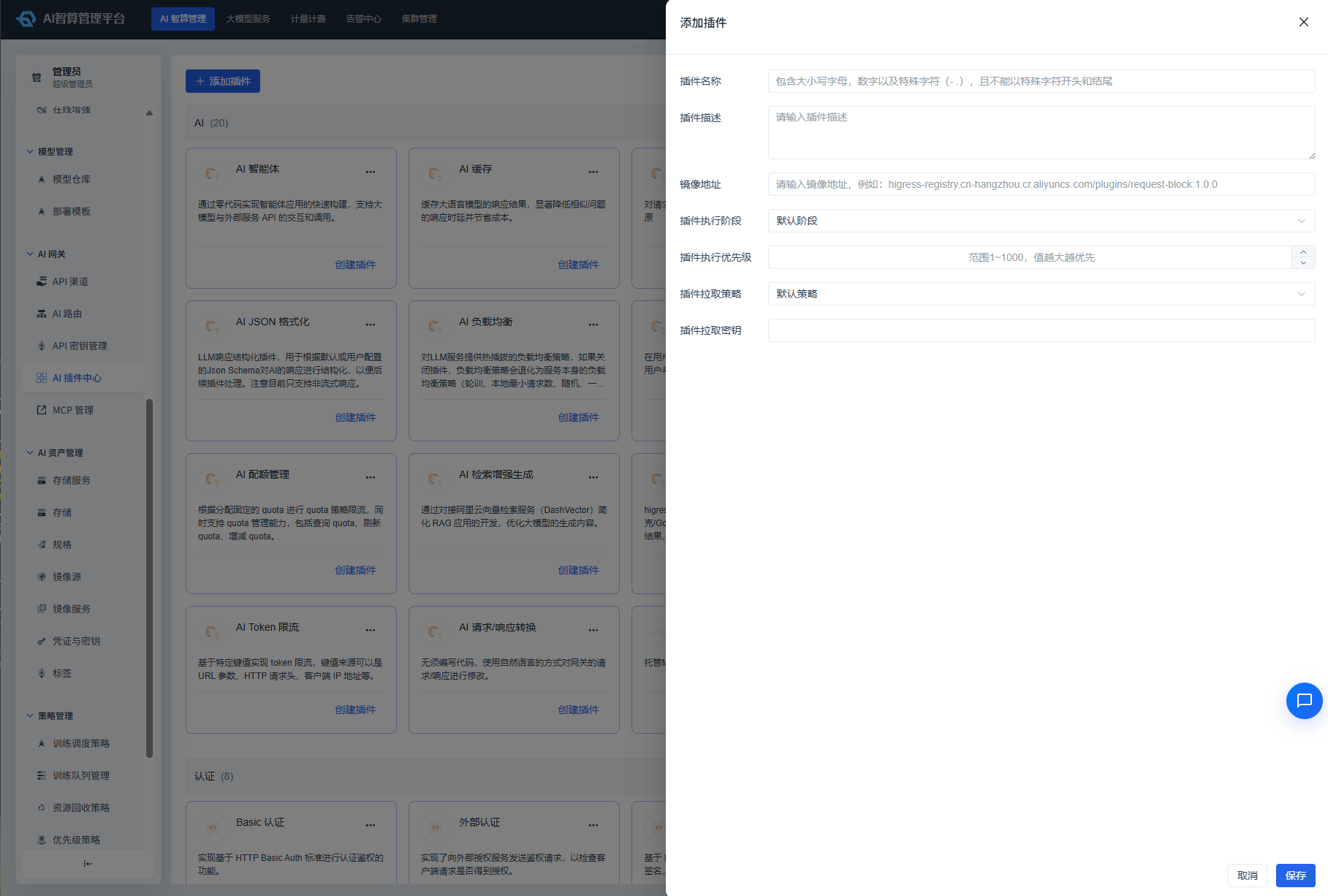
- Click "Configure" to modify plugin parameters; system plugins are protected to prevent overwriting real configurations.
- After saving, the plugin takes effect immediately.
FAQ
Q: A certain external model doesn't appear in the Playground? A: Confirm that the model has been added to an API channel, and that an AI route exists to match its model name to that channel; additionally, the API Key must have access authorization for that route.
Q: Call returns 429? A: Check whether the API Key has triggered rate limiting rules or token quota limits; also check whether the upstream channel is rate-limited.
Q: How do I switch a model to a backup channel? A: Configure Fallback on the AI route detail page; it will automatically switch when the primary channel's error rate or latency exceeds the threshold.
Q: What's the difference between platform-level and tenant-level channels? A: Platform-level channels (with Parent Workspace left empty) are visible to all tenants; tenant-level channels are only visible to the specified tenant, suitable for connecting the tenant's private model services.