Model Development (Admin View)
Model Development (Admin View) is designed for platform / tenant admins to view and manage training jobs, fine-tuning jobs, and evaluation jobs across workspaces and projects. Admins can create jobs on behalf of a project and perform batch operations on all jobs.
Entry path: Left sidebar AI Compute Management > Model Development, page route
/admin/ai/model.
Page Menu
| Page | Route | Description |
|---|---|---|
| Training Jobs | /admin/ai/manage/training | Cross-tenant training job list and management |
| Create Training Job | /admin/ai/manage/training/create | Create training job on behalf of a specified project |
| Training Job Details | /admin/ai/manage/training/detail/:uuid | View job details, logs, TensorBoard |
| Fine-tuning Jobs | /admin/ai/manage/finetuning | Cross-tenant fine-tuning job list and management |
| Create Fine-tuning Job | /admin/ai/manage/finetuning/create | Create fine-tuning job on behalf of a specified project |
| Fine-tuning Job Details | /admin/ai/manage/finetuning/detail/:uuid | View job details, loss curves, export model |
| Evaluation Jobs | /admin/ai/manage/evaluation | Cross-tenant evaluation job list and management |
| Create Evaluation Job | /admin/ai/manage/evaluation/create | Create evaluation job on behalf of a specified project |
| Evaluation Job Details | /admin/ai/manage/evaluation/detail/:uuid | View evaluation reports and metrics |
Training Jobs
View and Filter Training Jobs
- Navigate to AI Compute Management > Model Development > Training Jobs.
- In the top filter bar, select query conditions:
- Workspace: Select the target tenant; leave empty for all.
- Project: After selecting a workspace, the project list appears.
- Status: Filter by Running, Completed, Failed, Pending, etc.
- Queue: Filter by Volcano training queue.
- Creator / Name: Supports keyword search.
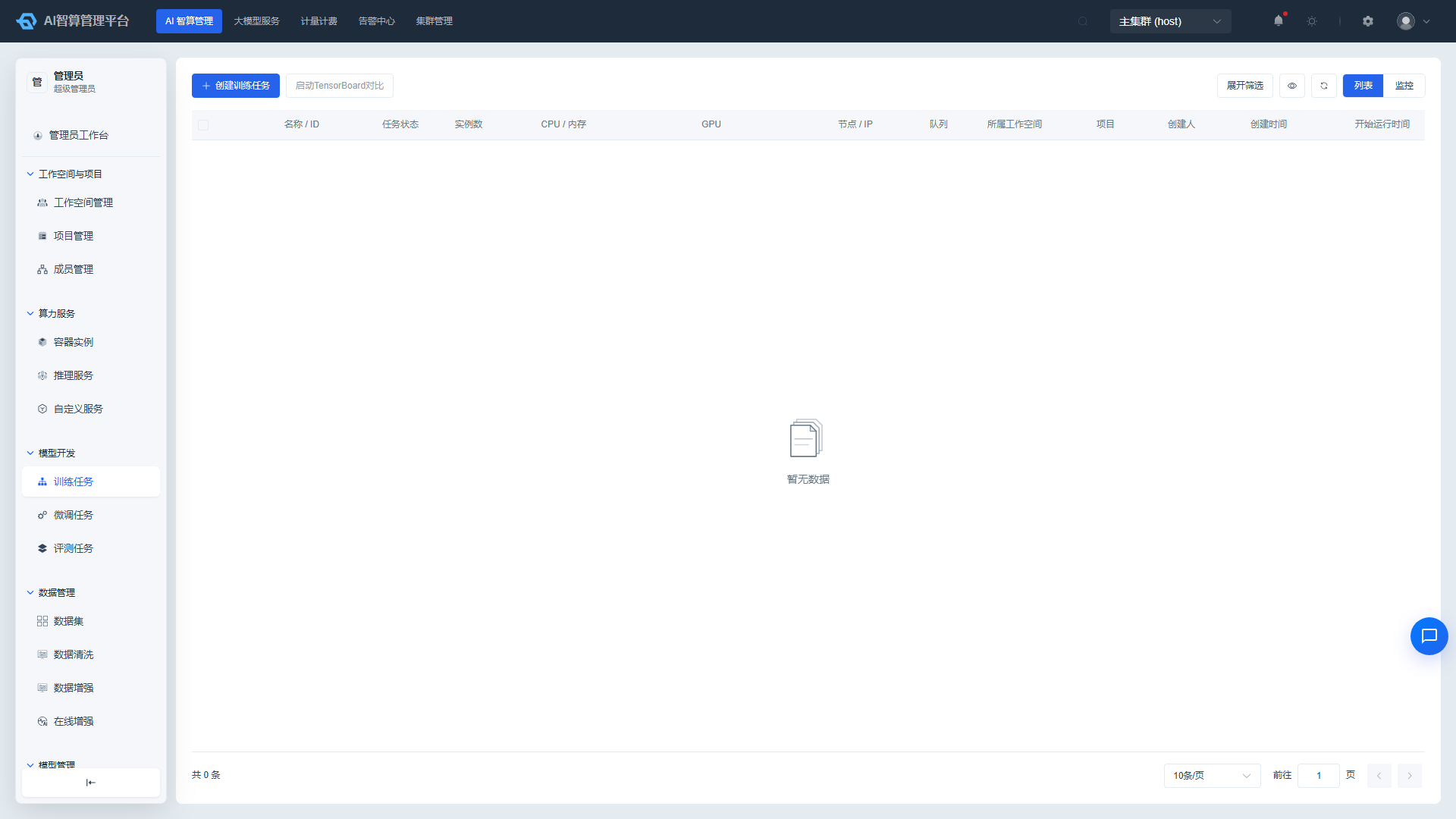
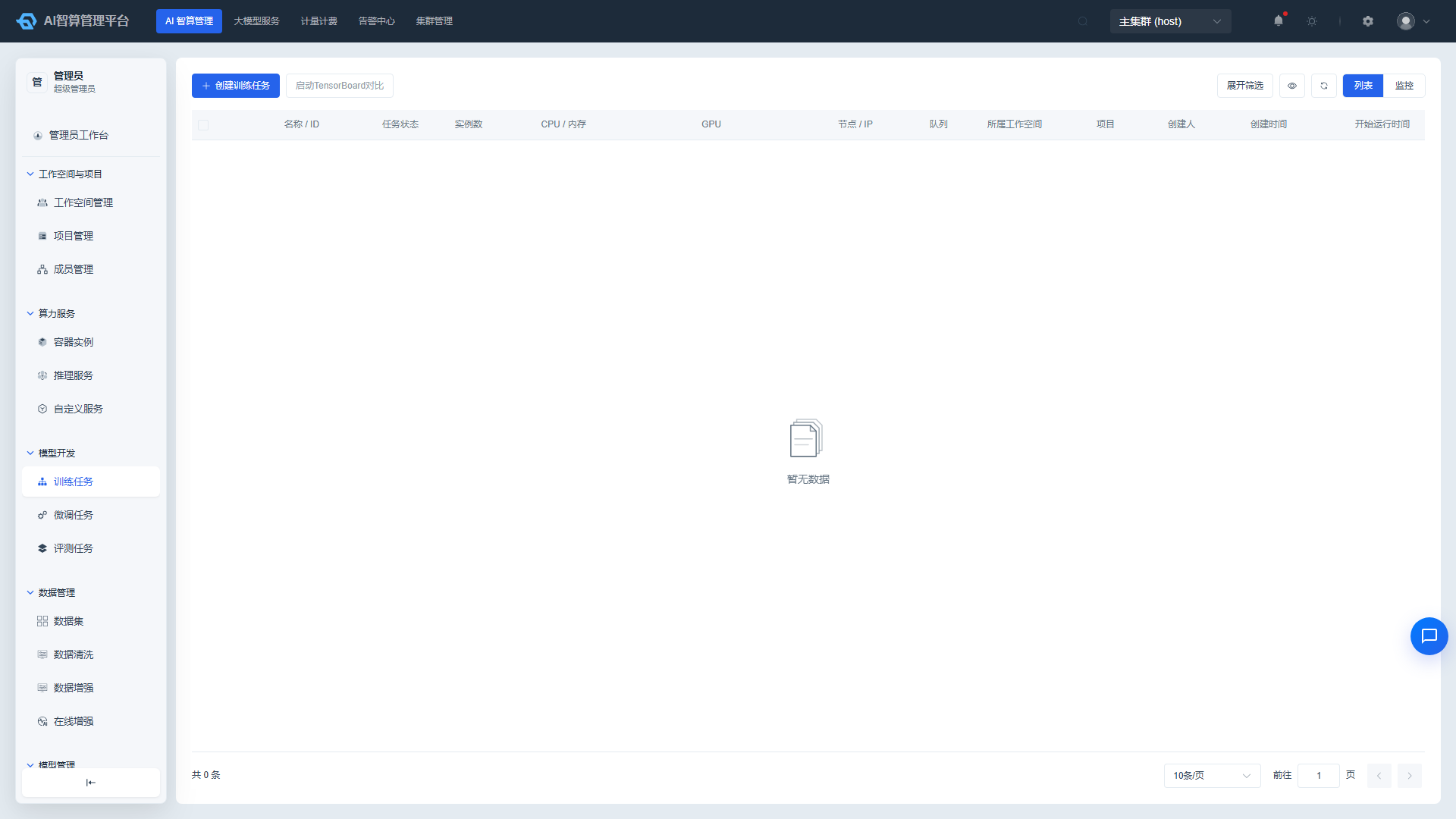
- The list displays by default: Name / ID, Job Status, Instance Count, CPU / Memory, GPU (including physical compute flavor), Node / IP, Queue, Parent Workspace, Parent Project, Creator, Creation Time, Runtime.
- Click "Monitoring View" in the upper-right corner to switch to a real-time resource utilization view showing CPU, memory, GPU, and GPU memory utilization.
- Click a job name to enter the detail page, which contains tabs: Basic Info, Pod Group, Running Logs, Events, Training Progress, TensorBoard.
Create Training Job on Behalf of a Project
- Click "Create Training Job" on the training job list page.
- Basic Information
- Workspace / Project: Select the target tenant and project.
- Job Name: 2-50 characters.
- Training Framework: PyTorch / TensorFlow / MPI / DeepSpeed.
- Queue: Select a Volcano training queue.
- Priority: High / Medium / Low, affecting scheduling order.
- TensorBoard: The platform automatically mounts TensorBoard log storage for training jobs.
- Job Flavor
- Select architecture (x86 / ARM) and GPU type (Shared / Dedicated / Overcommit).
- In the flavor list, select CPU, memory, GPU card count / compute / memory configuration.
- Job Image
- Base Image: Platform-preset training images.
- Custom Image: Tenant-saved images.
- External Image Address: Enter the full image address and repository password.
- Storage Configuration
- Mount public storage (e.g., pre-trained model repository).
- Mount custom storage (e.g., code, data, output directories).
- Job Configuration
- Master / Worker replica count: Displays different names by framework (e.g., PyTorch uses master / worker).
- Minimum Available Instances: The minimum instance count the scheduler must satisfy; the job will not start running if below this value.
- Startup Command / Startup Arguments: One command or argument per line.
- Annotations, environment variables.
- Advanced Configuration (Optional)
- Timeout: Maximum hours the job can run.
- Auto Retry: Maximum retry count after failure.
- workingDir, startup user, shared memory.
- Click "Create" and return to the list to view the job status.
Batch Manage Training Jobs
- Select multiple stopped training jobs on the left side of the list.
- A batch action bar appears above the list:
- Batch Delete: Deletes terminal-state jobs and reclaims VcJob resources; requires confirmation before deletion.
- After selecting multiple running jobs, click "Share TensorBoard" to launch a shared TensorBoard instance for cross-job training metric comparison.
Fine-tuning Jobs
View and Filter Fine-tuning Jobs
- Navigate to AI Compute Management > Model Development > Fine-tuning Jobs.
- Use the top filter bar to query by workspace, project, status, framework, creator, and job name.
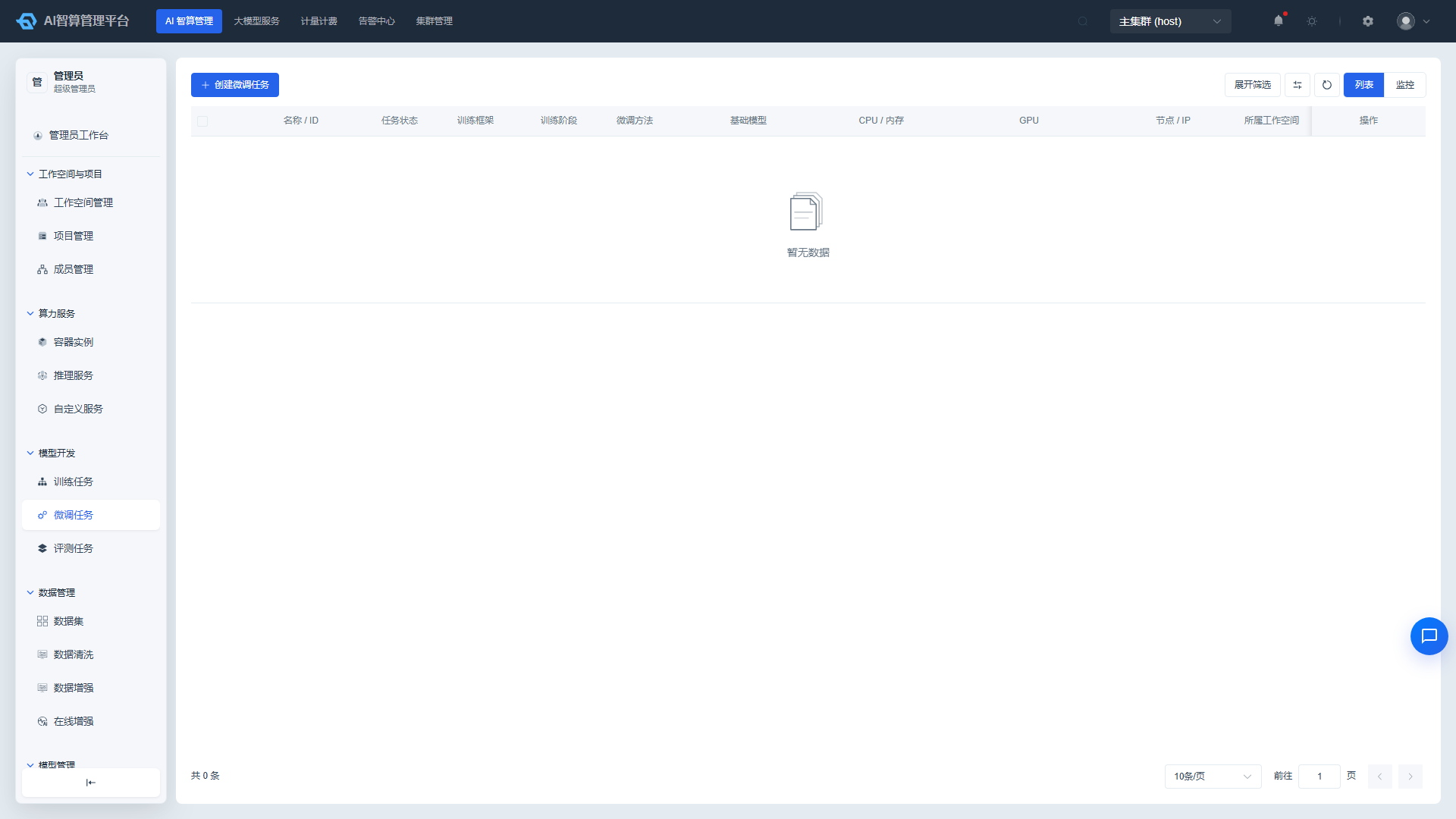
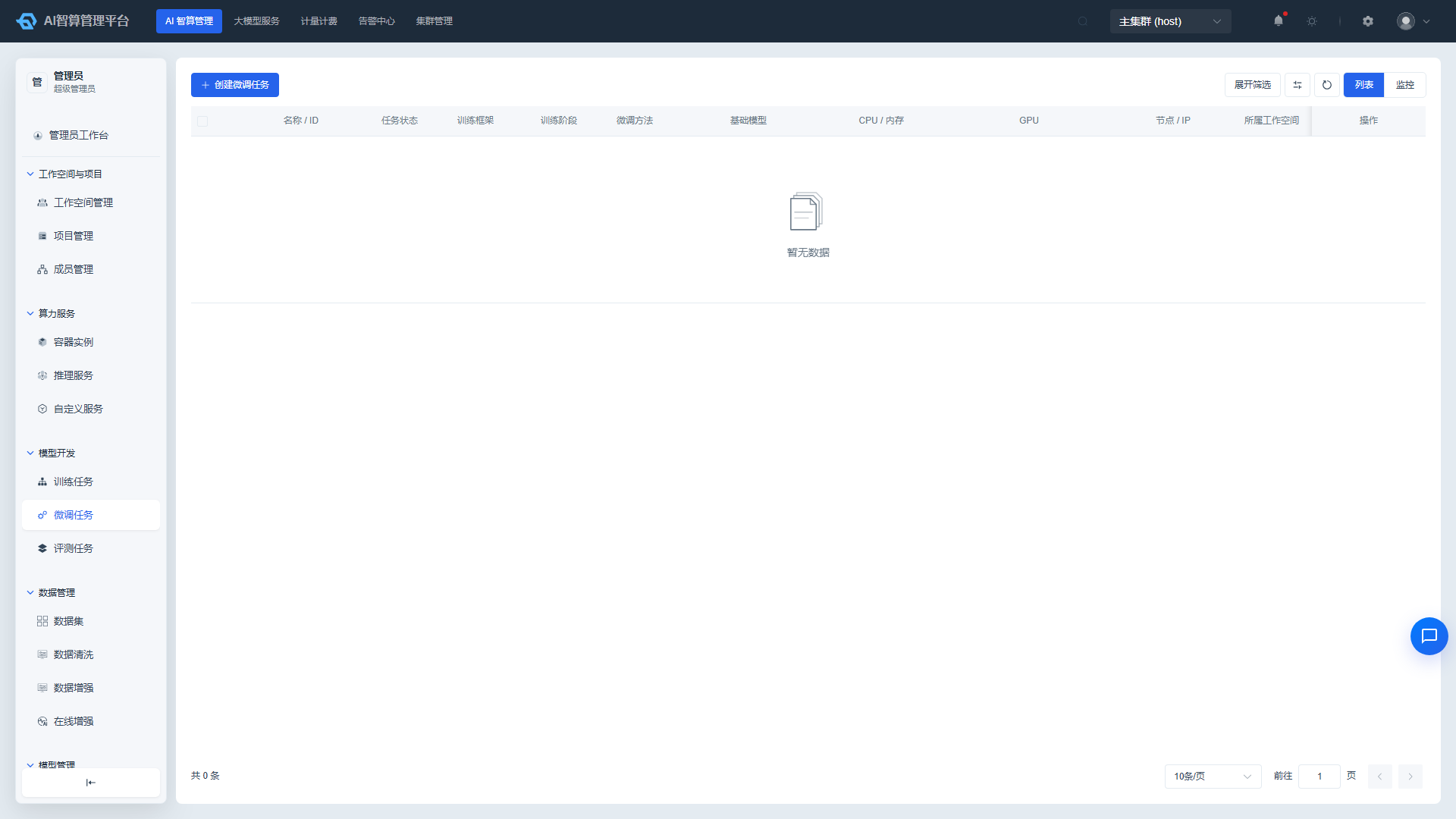
- The list displays: Name / ID, Status, Framework, Fine-tuning Method (LoRA / QLoRA / Full), Base Model, CPU / Memory, GPU, Parent Workspace, Parent Project, Creator, Runtime.
- Click a job name to enter the detail page to view the training loss curve, metric changes, and full training parameter configuration list.
Create Fine-tuning Job on Behalf of a Project
- Click "Create Fine-tuning Job" on the fine-tuning job list page.
- Basic Information
- Workspace / Project: Select the target tenant and project.
- Job Name: 2-50 characters.
- Training Stage: SFT / DPO / KTO / RM / PPO.
- Fine-tuning Method: LoRA / Full / QLoRA; PPO / RM stages only support LoRA / QLoRA.
- Dataset
- Select an existing training dataset and version.
- If automatic evaluation is enabled, select an evaluation dataset.
- Model
- Base Model Path: Enter the model's absolute path in storage (e.g.,
/models/qwen2-7b), or a HuggingFace / ModelScope repository ID. - If entering a local absolute path, you must first mount storage covering that path in "Storage Configuration."
- Base Model Path: Enter the model's absolute path in storage (e.g.,
- Compute Flavor & Image
- Select a GPU flavor; the platform automatically filters available images based on the GPU manufacturer.
- Select or enter a fine-tuning image.
- Storage Configuration
- Mount public / custom storage to cover the model path, dataset path, and output directory.
- Output Directory: Must be within a mounted writable custom storage path, used to save LoRA adapters or the full model.
- Training Parameters
- Select a preset template (Quick / Standard / Quality) or configure manually:
- epochs, learning rate, batch size, gradient accumulation steps
- cutoff len, val size, lora rank, lora alpha
- Advanced users can override any LLaMA-Factory parameter in
yamlOverride.
- Select a preset template (Quick / Standard / Quality) or configure manually:
- Click "Create" to start the job.
Post Fine-tuning Operations
- Export Model: After fine-tuning completes, click "Export Model" in the detail page to merge the LoRA adapter with the base model and export a deployable complete model.
- Comparative Inference: After export, launch a temporary inference service to compare before and after fine-tuning effects.
- Automatic Evaluation: After training completes, automatically trigger an evaluation job to view the evaluation report.
- Manual Evaluation: Manually trigger an evaluation on completed / stopped fine-tuning jobs via the More Actions menu in the detail page.
Evaluation Jobs
View and Filter Evaluation Jobs
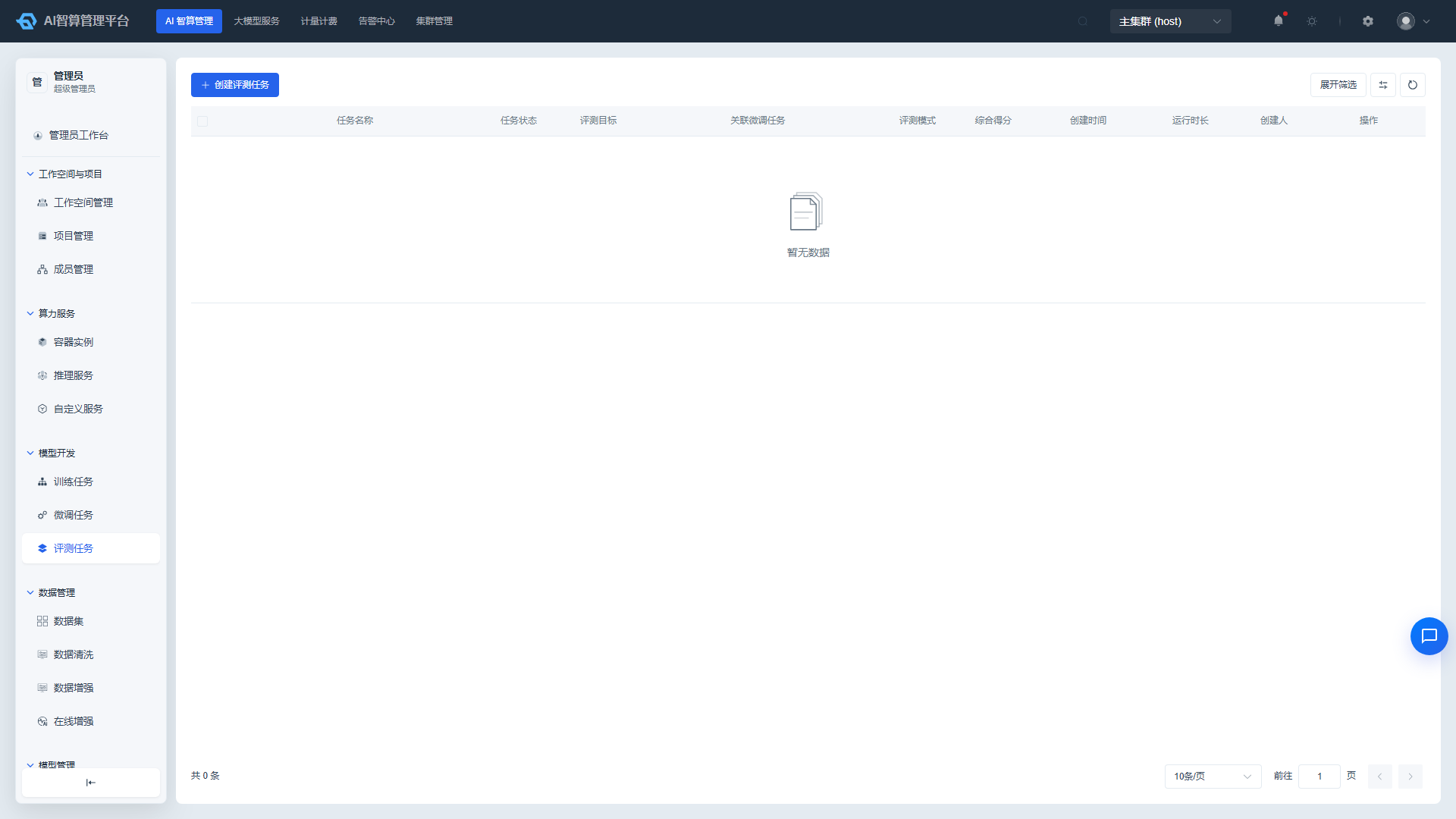
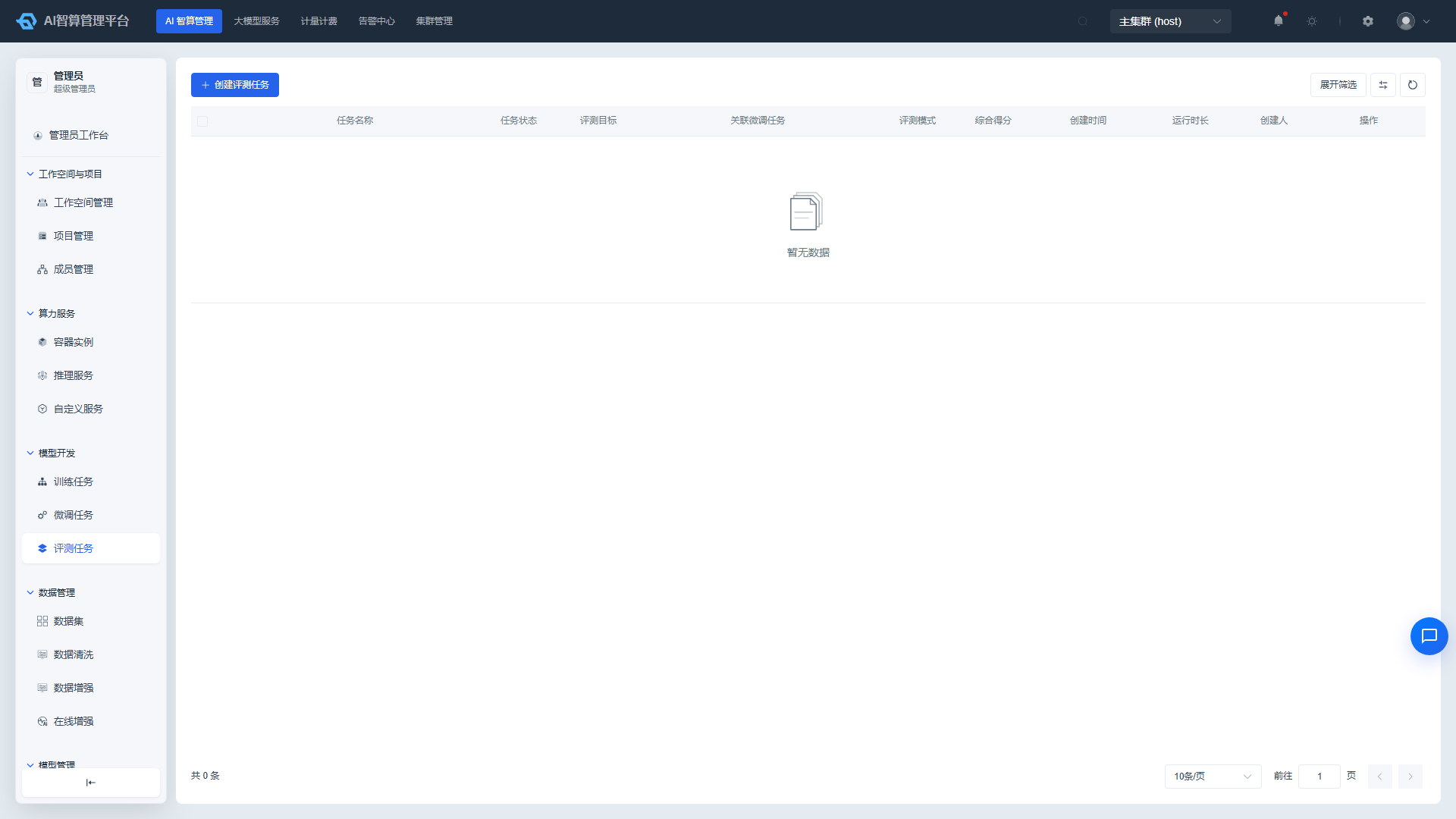
- Navigate to AI Compute Management > Model Development > Evaluation Jobs.
- Use the top filter bar to query by workspace, project, status, and job name; the list supports SSE real-time push to refresh status.
- The list displays: Name / ID, Status, Associated Fine-tuning Job, Evaluation Mode, CPU / Memory, GPU, Parent Workspace, Parent Project, Creator, Runtime.
- Click a job name to enter the detail page to view the evaluation results table (dimensional metric scores, model output vs. reference output comparison).
Create Evaluation Job on Behalf of a Project
- Click "Create Evaluation Job" on the evaluation job list page.
- Basic Information
- Workspace / Project: Select the target tenant and project.
- Job Name: 2-50 characters.
- Associated Fine-tuning Job
- Select an existing fine-tuning job; the system will automatically populate the model path and dataset. You can also create independently.
- Target Type: Select "Fine-tuning Job" or "Online Service" for evaluation.
- Evaluation Mode
- Auto-Eval: Uses LLaMA-Factory built-in metrics (e.g., perplexity, bleu, rouge).
- LLM-as-Judge: Select a judge model and scoring template to score generated results.
- Dataset & Model: Select the evaluation dataset version and confirm the model path.
- Compute Flavor: Select a GPU flavor; some lightweight evaluations can use CPU.
- Click "Create" and wait for the job to complete, then view the evaluation report.
FAQ
Q: Training job status is Pending for a long time? A: Check the "Events" tab on the detail page; common reasons include insufficient queue resources, slow image pulling, or the minimum available instance count being set too high.
Q: Fine-tuning job shows "Model Path Not Mounted"? A: If the base model path is a local absolute path, you must mount storage covering that path in "Storage Configuration"; for example, /models/qwen2-7b requires mounting /models.
Q: Evaluation job failed but the log doesn't show the cause? A: Check whether the judge model is reachable, whether the evaluation dataset format meets requirements (e.g., ShareGPT format), and whether the output directory has write permissions.
Q: Can admins create jobs for other users? A: Yes. After selecting the target workspace and project in the creation form, the job will be assigned to that project; the Creator field in the list will show the current admin account.