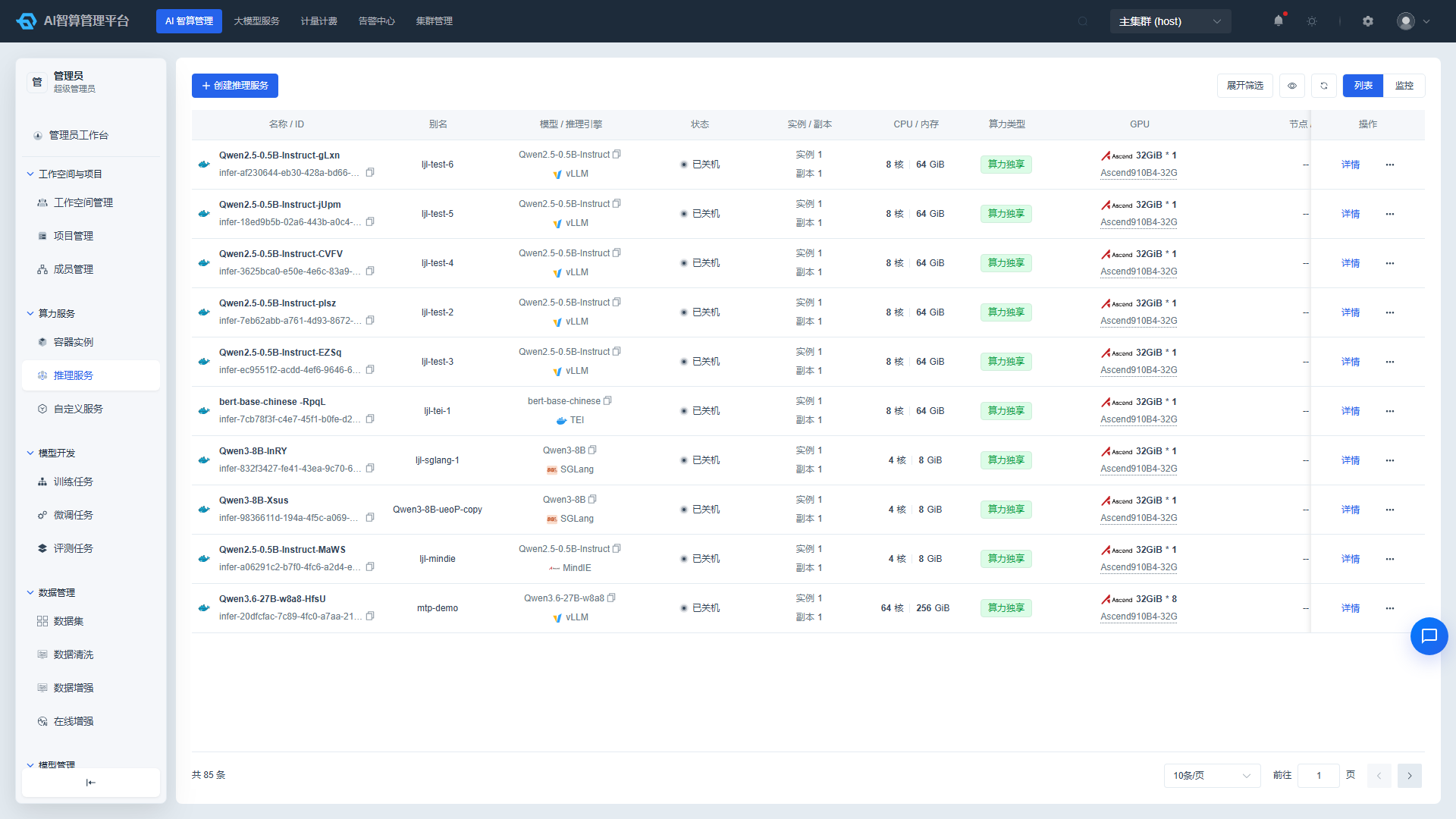
Inference Service Go-Live
This guide walks through the end-to-end process of deploying a model into a callable, billable, and testable inference service, covering the complete workflow for both administrators and developers. For detailed field-level documentation, see Compute Services and Model Management.
Role split: The "Preparation" steps are mostly performed by administrators in the management console; "Launch & Access" steps are performed by developers in the user interface.
1. Preparation (Administrator)
1.1 Upload the Inference Engine Image
Push the inference engine image (e.g., vLLM, SGLang, vllm-ascend) to an image registry accessible by the platform:
# Offline environment: import the image package
docker load -i vllm-ascend:v0.22.1rc1.tar.gz
# Internet environment: pull directly
docker pull m.daocloud.io/quay.io/ascend/vllm-ascend:v0.22.1rc1

# Re-tag to the internal registry address (replace harbor.rise.io with your actual registry)
docker tag m.daocloud.io/quay.io/ascend/vllm-ascend:v0.22.1rc1 \
  harbor.rise.io/ascendhub/vllm-ascend:v0.22.1rc1

# Log in and push
docker login harbor.rise.io
docker push harbor.rise.io/ascendhub/vllm-ascend:v0.22.1rc1
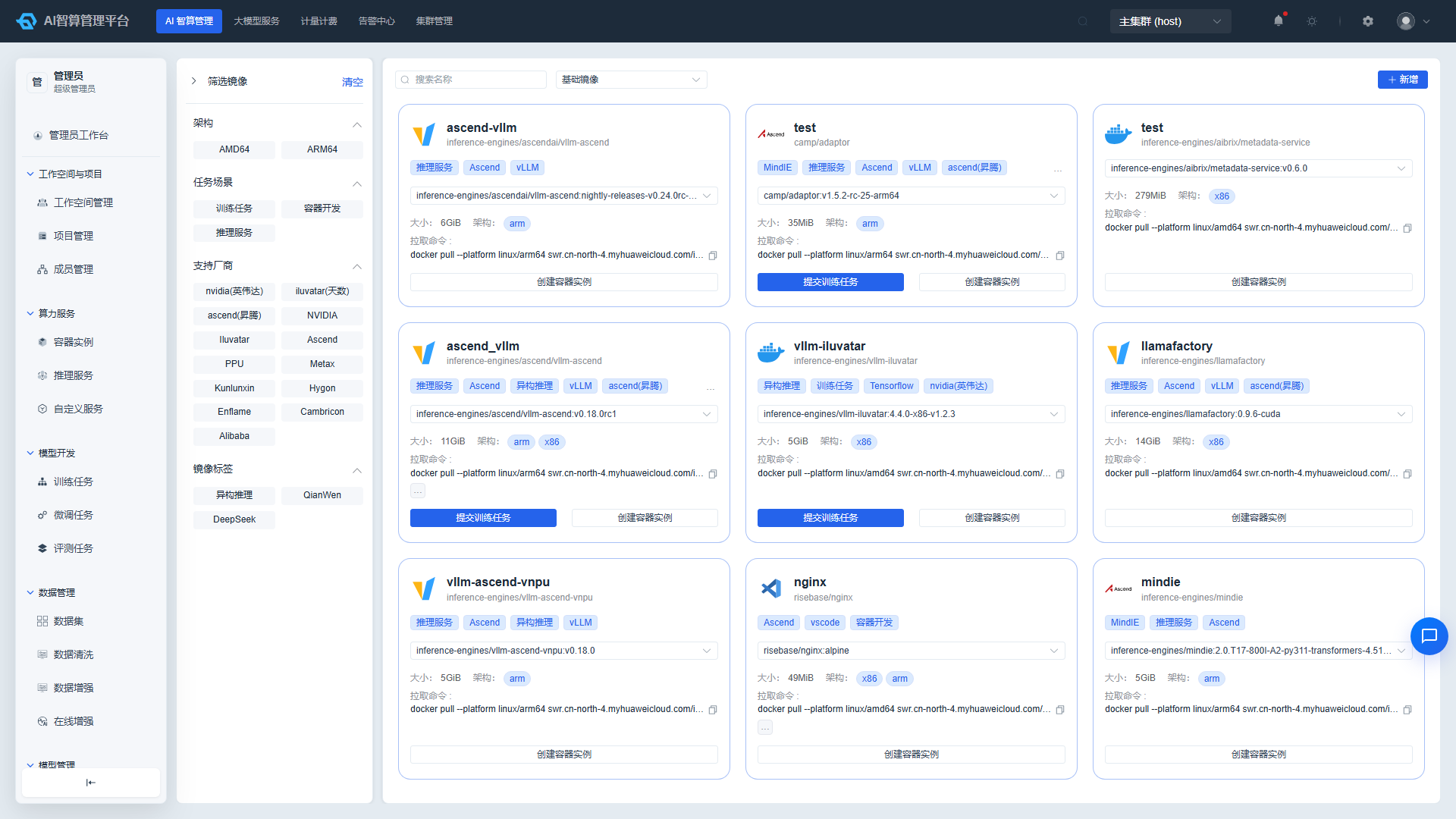
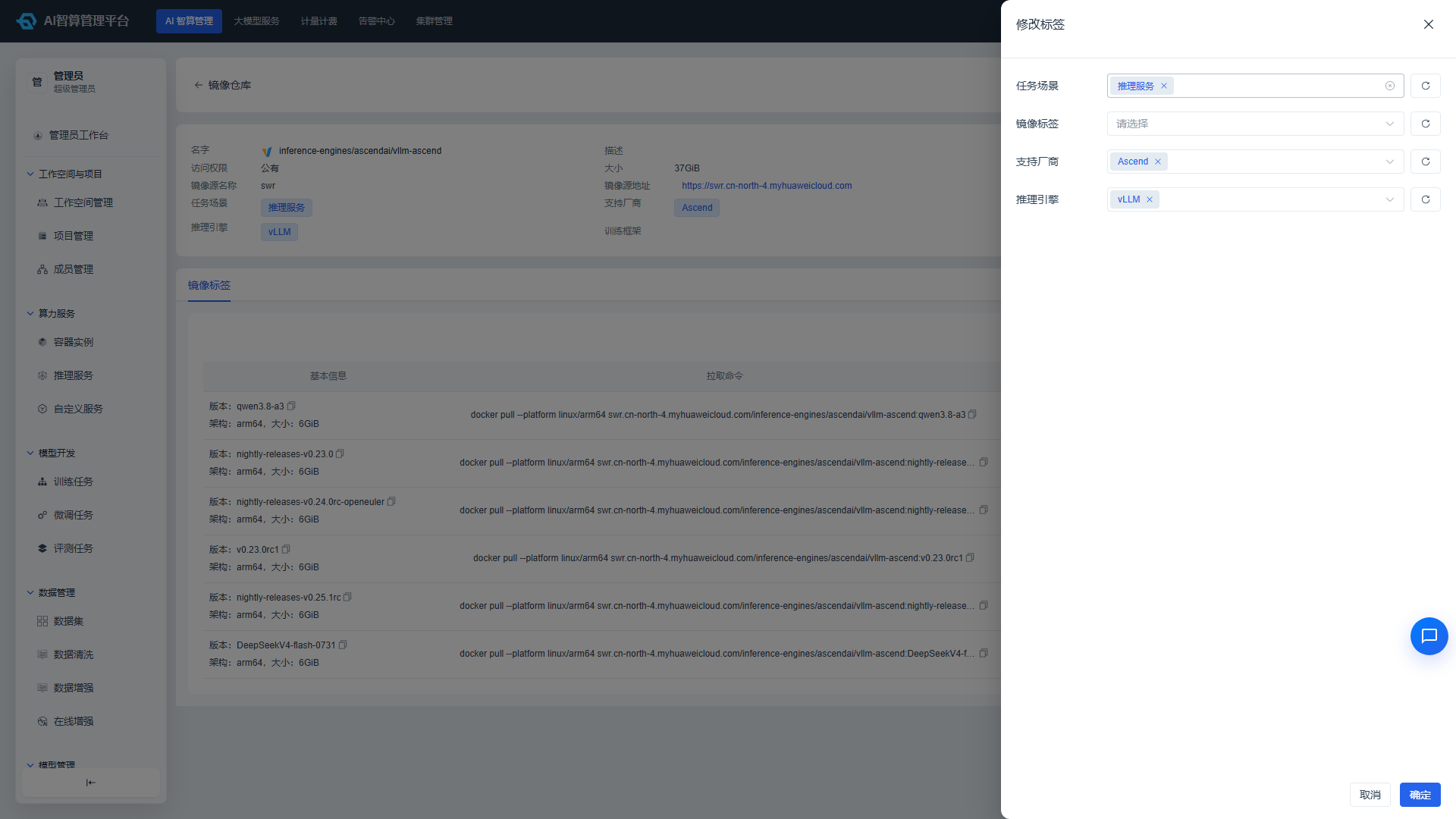
Then, under AI Computing Management > AI Asset Management > Image Service, sync the image. In the image detail page, click "Modify Tags" and select the Inference Service task scenario — only images tagged for inference can be selected when creating an inference service.
1.2 Download Model Files to Shared Storage
# Public internet download (using ModelScope as an example); replace the shared path as needed
cd /data/share/models/
git lfs install
GIT_LFS_SKIP_SMUDGE=1 git clone https://www.modelscope.cn/deepseek-ai/DeepSeek-R1-Distill-Qwen-1.5B.git
cd DeepSeek-R1-Distill-Qwen-1.5B/
git lfs pull

# Or sync from local storage
rsync -ah --progress --stats /opt/Deepseek-R1-bf16-hfd-w8a8 /data/share/models/
You can also upload files using an SFTP client (XFTP, WinSCP, etc.) to the corresponding models directory on storage. For SFTP service initialization, see Account Security > SFTP Configuration.
1.3 Configure Deployment Templates
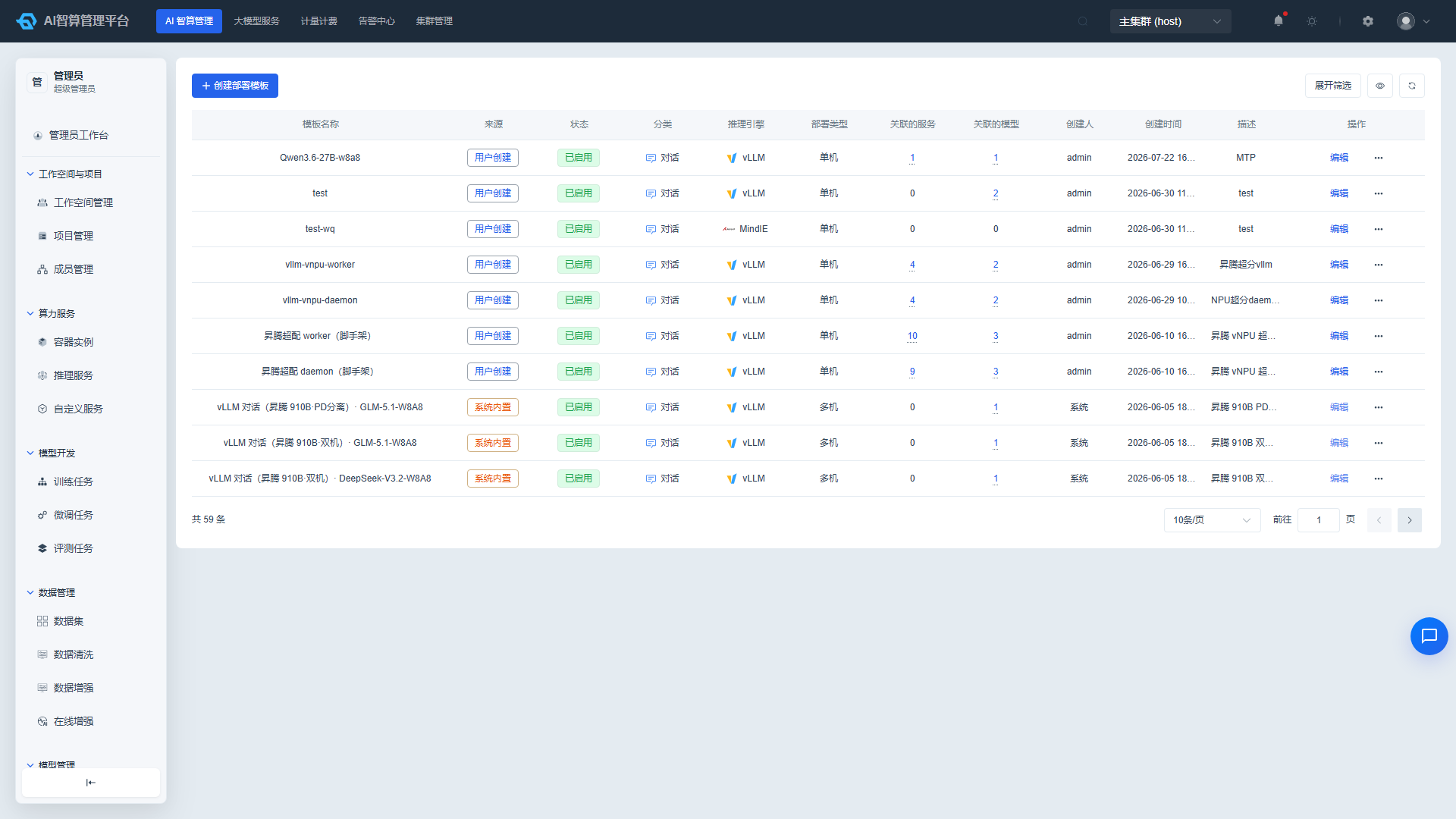
Navigate to AI Computing Management > Model Management > Deployment Templates and confirm that a deployment template matching the inference engine already exists (templates define default startup parameters and engine tags). If none exists, create one. Note: make sure the inference engine image has been synced and engine tags are configured first.
1.4 Configure Model Information
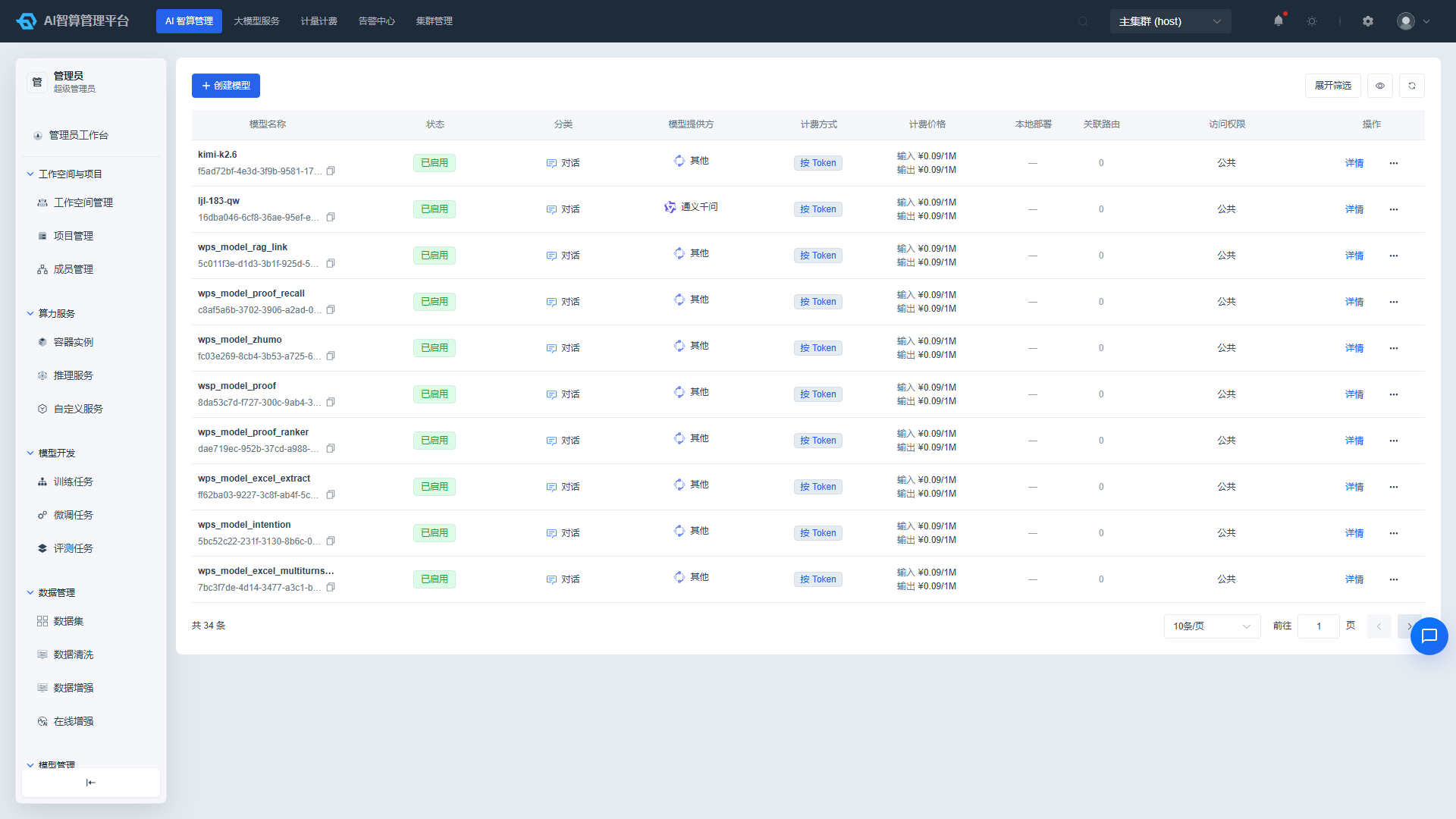
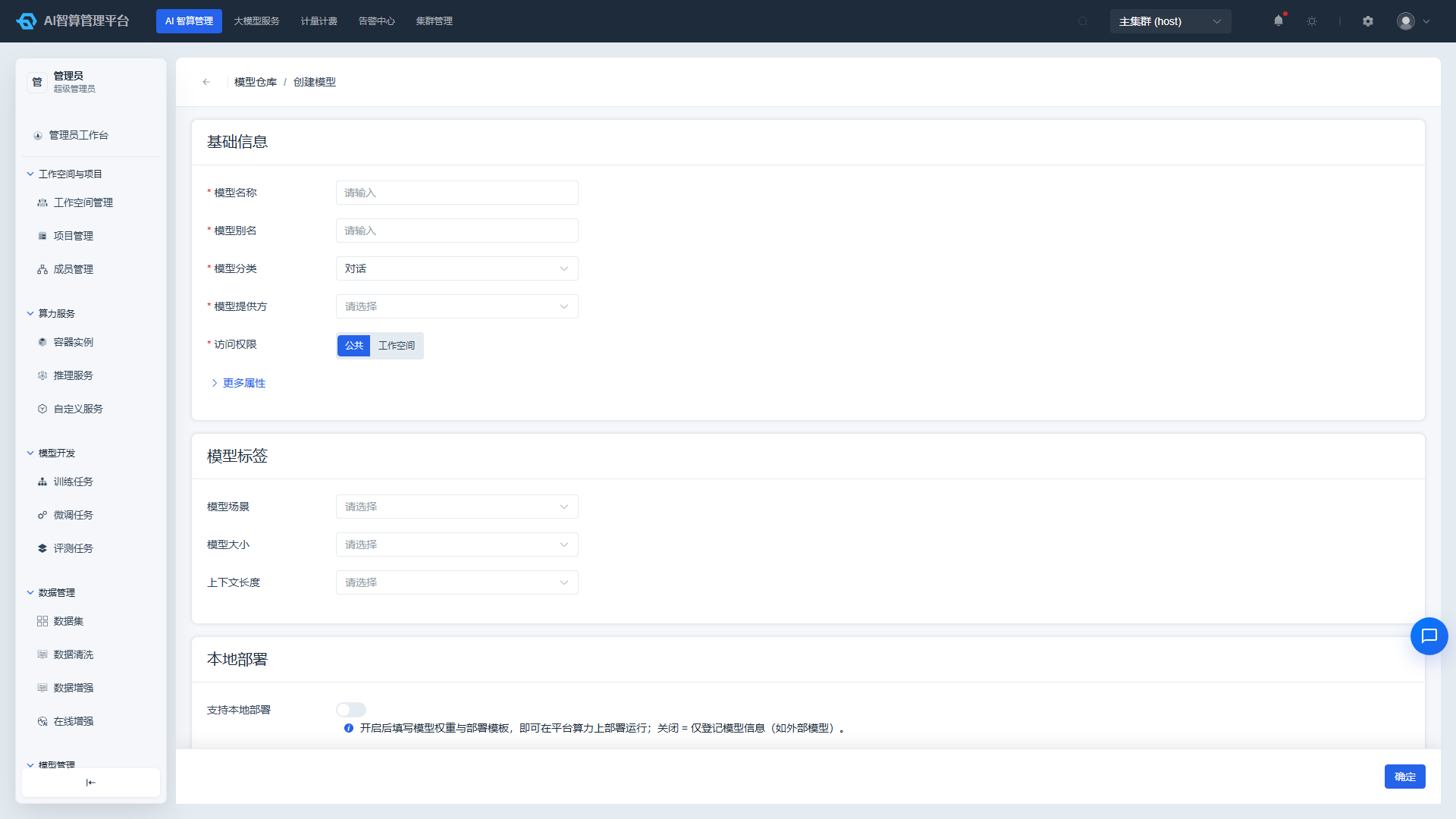
Navigate to AI Computing Management > Model Management > Model Registry and click "Create Model": fill in the model name, category, context length, and the path to the model files in storage. After configuration, the model will appear in the Model Marketplace and in the model dropdown when creating an inference service.
2. Launch the Inference Service (Developer)
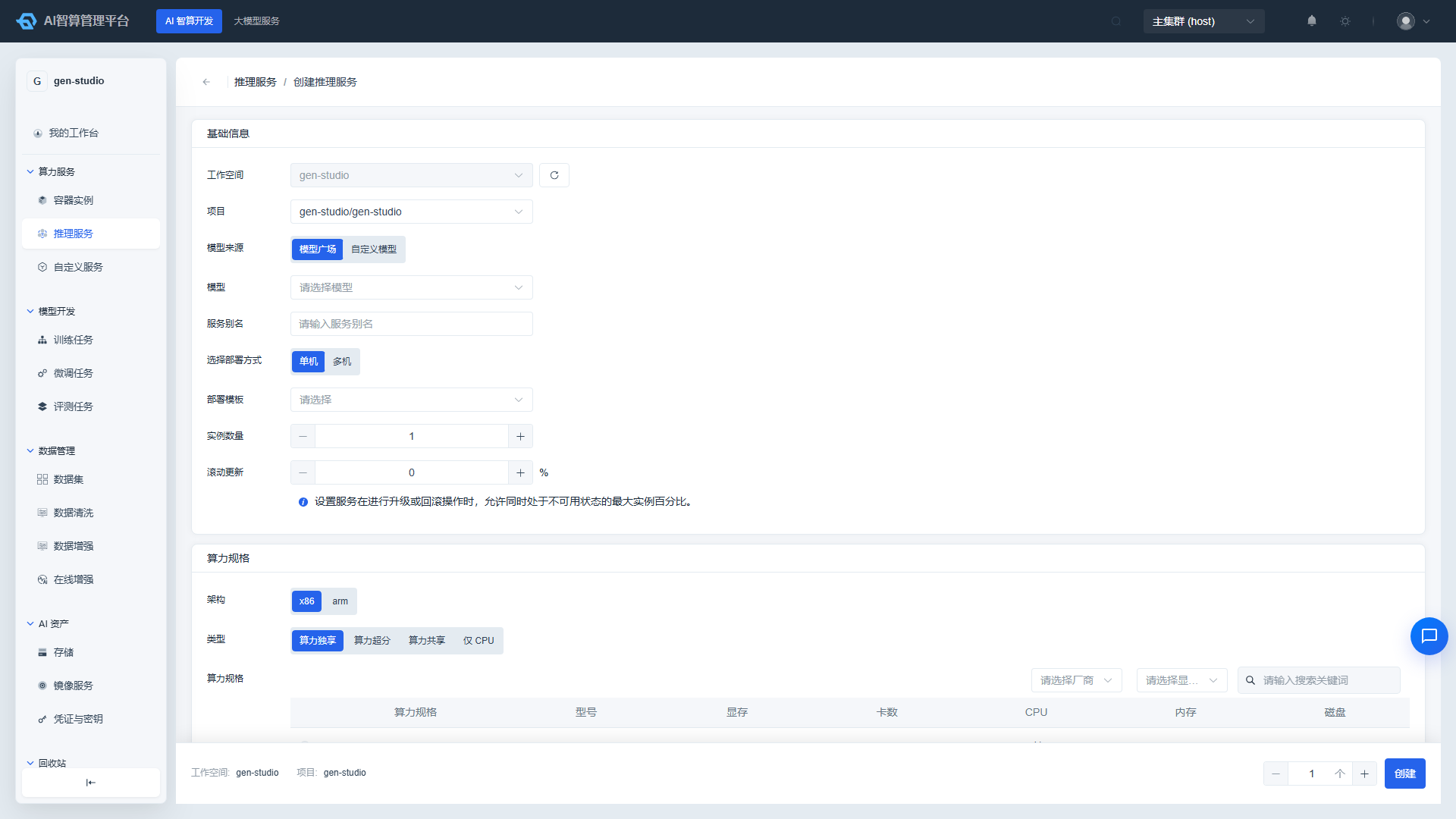
- Navigate to AI Computing Development > Compute Services > Inference Service and click "Create Inference Service."
- Select "Model Marketplace" as the model source and choose the model configured in the previous step; the deployment template will auto-fill default values.
- Select the compute spec and instance count, and mount the storage containing the model files.
- Customize the start command and parameters as needed; keep other settings at their defaults.
- Click "Create" and wait for the status to change to Running.
Tip: Before deploying to a built-in workspace (e.g., gen-studio), verify that the workspace has been allocated GPU quota. See Platform Initialization for details.
3. Access the Inference Service
3.1 Web Chat
- Online Playground: Navigate to LLM Services > Online Playground. The page automatically lists running models; switch models from the top-left corner to start chatting. See Online Playground for details.
- OpenWebUI Chat: If you selected an OpenWebUI-integrated service during deployment, click "Chat" in the top-right corner of the inference service detail page to open the chat interface.
3.2 API Calls
- In Personal Center > Account Security > API Keys, create an API Key and confirm it has been granted call permissions for the target model (authorization syncs in about 1 minute).
- On the inference service detail page, copy the call example (curl), select your API Key, and paste it directly into a terminal to test.
- Token usage and costs from API calls can be viewed under My Calls & Usage.
4. Service Management & Troubleshooting
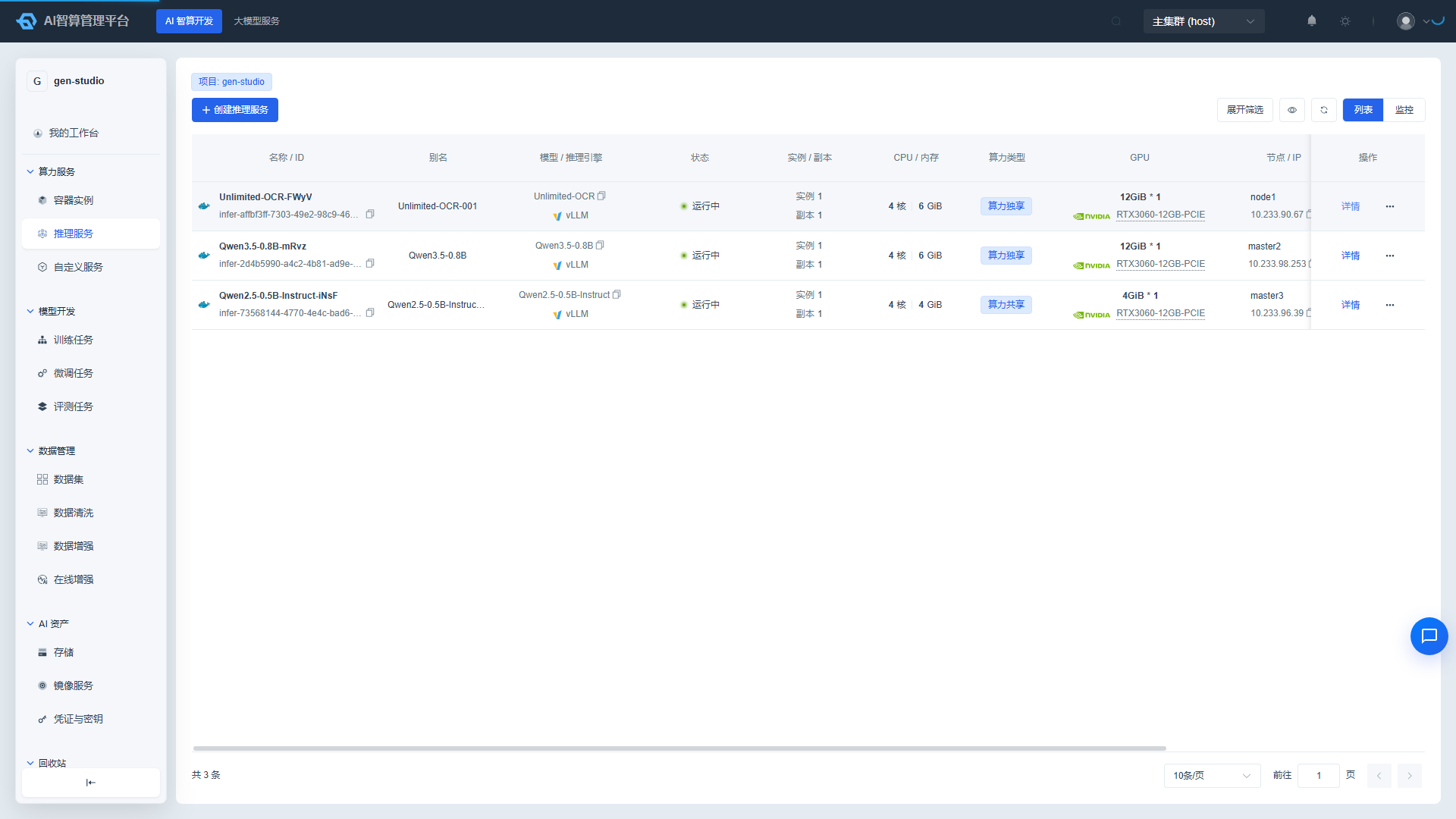
The inference service list page supports quick stop, start, upgrade, replica scaling, and authorization adjustments. The detail page tabs serve the following purposes:
| Tab | Purpose |
|---|---|
| Overview | Model info, image version, spec, advanced configuration at creation time |
| Pod Groups | Replica pod list: Pod IP, node, GPU ID, web terminal, YAML, describe, single-pod restart |
| Service Monitoring | Inference engine metrics: time-to-first-token, end-to-end latency, token counts |
| Resource Monitoring | GPU memory, compute, CPU, memory, network |
| Runtime Logs | Pod group stdout logs |
| Events | Platform, controller, and Pod events |
| Scheduling Process | Per-node scheduling scores and failure reasons (primary entry for Pending troubleshooting) |
| Version History | Upgrade history with YAML review and one-click rollback |
Common Issues:
- Service stuck in Pending: check "Scheduling Process" and "Events" — most likely due to insufficient quota or image pull failure.
- Status is Running but calls return 503: verify health check configuration and model file mount path.
- Model not visible in Online Playground: confirm the service is Running and the current account's API Key has permissions for that model.
5. Administrator View (Optional)
Administrators can view inference services across all workspaces under AI Computing Management > Compute Services > Inference Service for centralized start/stop and troubleshooting.