Tenant Resource Overview
"Tenant Resource Overview" is used to view GPU/CPU/memory resource costs at four levels: platform, tenant, project, and user. It serves as the primary entry point for physical resource billing, helping platform administrators, tenant administrators, and finance personnel with cost accounting, allocation, and drill-down analysis.
Entry path: Left sidebar Billing > Tenant Resource Overview, page route
/admin/billing/admin.
Page Menu
| Page | Route | Description |
|---|---|---|
| Cluster Resources | /admin/billing/admin/overview | Platform-wide costs, aggregated by workspace/creator |
| Workspace Resources | /admin/billing/tenant/overview | Individual tenant costs, drill down by project |
| Workspace Resource Details | /admin/billing/tenant/overview/detail | GPU card-level allocation tracking |
| Project Resources | /admin/billing/project/overview | Individual project costs, drill down by task |
| User Resources | /admin/billing/user/overview | Individual user costs, aggregated by project |
| Resource Billing Strategy | /admin/billing/strategy | Configure CPU/memory/GPU unit prices |
Cluster Resources: View Platform-Wide Costs
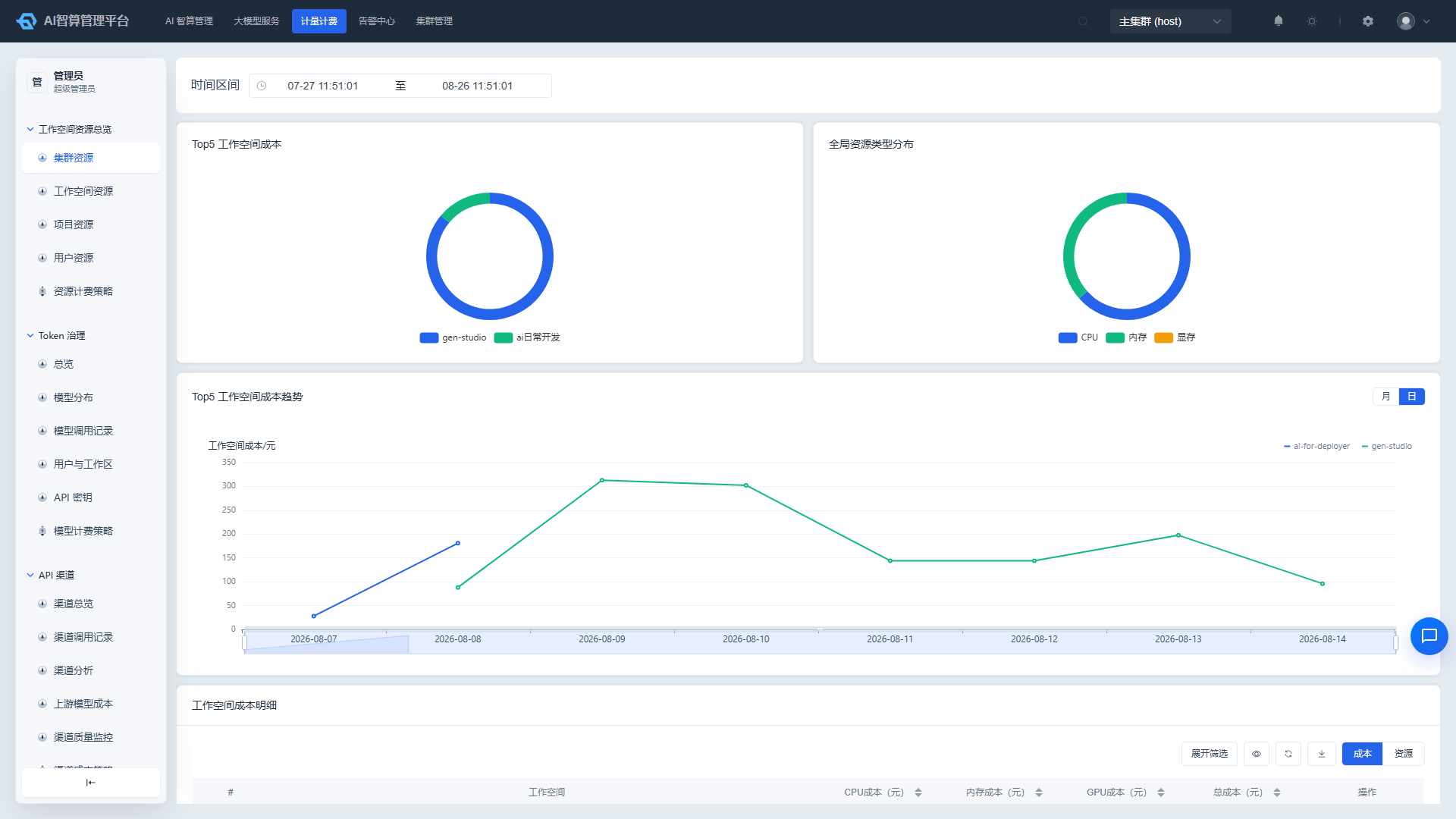
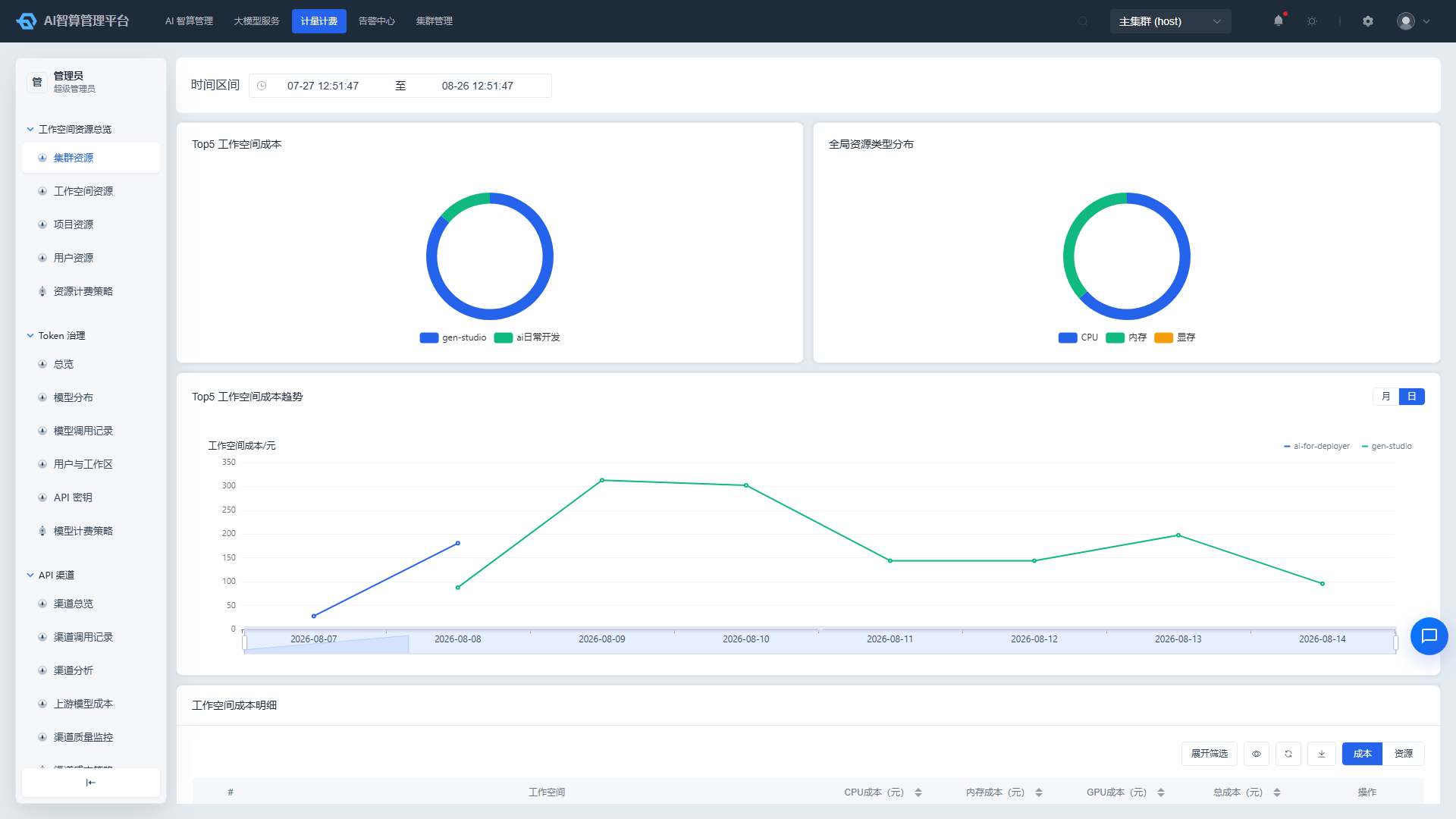
- Navigate to Tenant Resource Overview > Cluster Resources.
- At the top of the page, select a time range (typically up to 60 days).
- Review the resource type cost proportion pie chart (CPU / Memory / GPU).
- Review the Workspace Cost Trend Line Chart to observe cost changes across tenants.
- Review the Workspace Cost Detail Table below:
- Switch between the Cost and Resource tabs:
- Cost Tab: CPU cost, memory cost, GPU cost, total cost, with sorting support.
- Resource Tab: CPU allocation, memory allocation, GPU card allocation, GPU memory allocation, GPU compute allocation.
- Click "Details" to navigate to that workspace's resource detail page.
- Switch between the Cost and Resource tabs:
- The page also provides a Creator-Dimension user amount detail table, allowing independent viewing of resource costs generated by each user, with CSV export support.
The Cluster Resources page is ideal for platform administrators to quickly review the platform-wide cost structure each morning.
Workspace Resources: Drill Down by Tenant
- Navigate to Tenant Resource Overview > Workspace Resources.
- Select a time range and workspace.
- The page displays:
- Top 5 project cost pie chart.
- Resource type distribution pie chart.
- Stacked trend of resource allocation over time (can be broken down by project).
- Review the Project Cost Detail Table, with CSV export support.
- Click "Details" on a project row to enter the Workspace Resource Details page:
- View the GPU Card Count Trend Line Chart (hourly granularity).
- View the GPU Card Change Event Log Timeline: resource pool, add/remove status, card model, memory size, change quantity.
- View the GPU Card List: resource pool, GPU card model, card count, memory size, timestamp, cost.
- This details page only includes records containing GPUs.
The Workspace Resources page is the primary tool for tenant administrators to verify monthly costs and identify high-consumption projects.
Project Resources: View Costs by Task
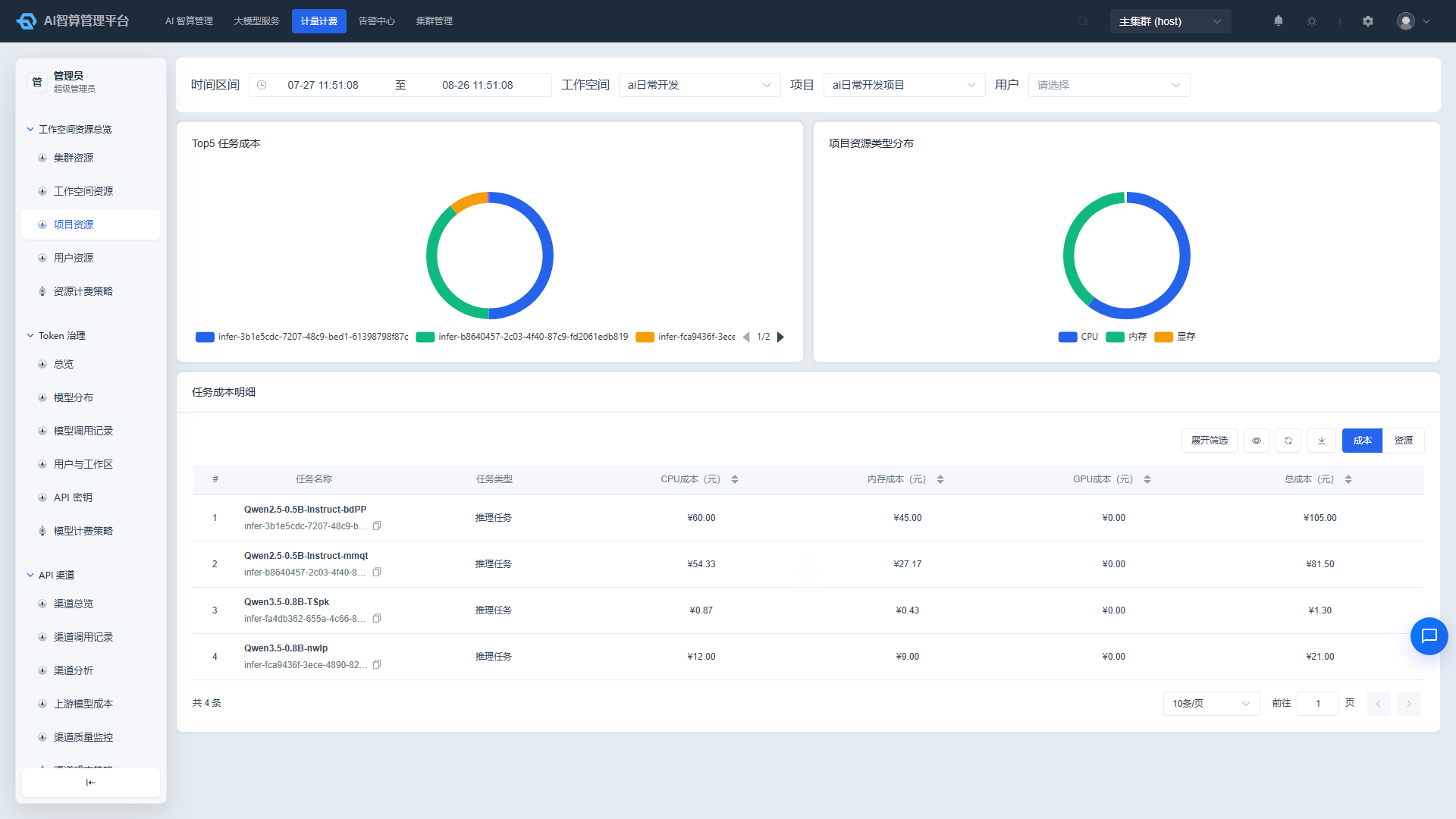
- Navigate to Tenant Resource Overview > Project Resources.
- Use the top Workspace + Project + User three-level cascading dropdown filters.
- The page displays:
- Top 5 task cost pie chart.
- Project resource type distribution pie chart.
- Review the Task Cost Detail Table:
- Switch between the Cost and Resource tabs.
- Cost Tab: CPU cost, memory cost, GPU cost, total cost, with server-side sorting.
- Resource Tab: CPU allocation, memory allocation, GPU card allocation, GPU memory allocation, GPU compute allocation (converted to TFLOPS by card model; falls back to percentage when no mapping exists).
- CSV export is supported.
The Project Resources page provides finer granularity than the Workspace page, showing the cost of each training/inference/instance task directly.
User Resources: Focus on Individual Users
- Navigate to Tenant Resource Overview > User Resources.
- Select a time range, workspace, and user.
- The page displays:
- Top 5 project cost pie chart.
- User resource type distribution pie chart.
- Resource allocation trend chart: switchable by resource type (Total/CPU/Memory/VRAM) and time granularity (Month/Day).
- Review the User Cost Detail Table:
- Switch between the Cost and Resource tabs.
- The project column displays aliases; unmanaged projects fall back to a default display.
- Click "Details" to drill down to the project-level overview.
Resource Billing Strategy: Configure Physical Resource Unit Prices
Resource billing strategy is used to configure unit prices for CPU, memory, and GPU, serving as the foundation for Tenant Resource Overview to calculate costs.
Create a Resource Billing Rule
- Navigate to Tenant Resource Overview > Resource Billing Strategy.
- Click "New Rule".
- Enter a Rule Name.
- Select a Resource Type: CPU / Memory / GPU. Cannot be changed after creation.
- (GPU only) Select a GPU Dedicated/Shared Mode and the corresponding card model/vendor.
- Enter the Billing Price and Billing Cycle (in minutes).
- Select the Application Scope:
- Platform-wide: Applies to the entire platform.
- Workspace-level: Select a specific workspace.
- Enter a Rule Description.
- Click "Confirm" to save.
GPU rules typically distinguish between dedicated and shared modes with different unit prices; configure the corresponding rules according to your actual resource pools.
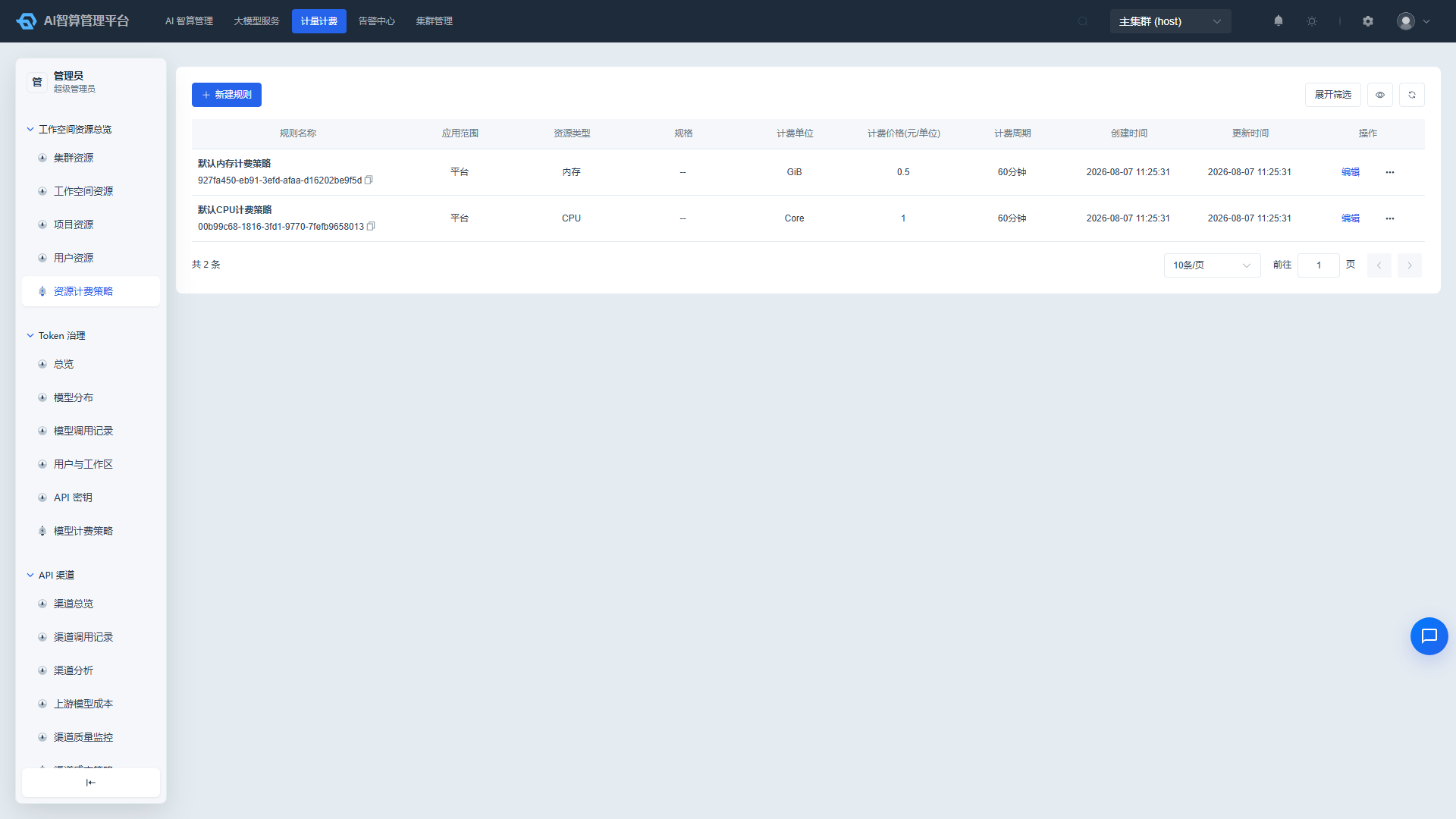
Edit, Delete, and Filter
- The list displays rule name, application scope, resource type, specification, billing unit, price, cycle, and time.
- Supports fuzzy search by rule name and filtering by resource type/application scope.
- Row actions: Edit, Delete (requires confirmation before deletion).
FAQ
Q: Why can't I see certain workspaces on the Cluster Resources page? A: Please confirm that the current account has view permissions for the corresponding workspace; platform administrators can typically view all workspaces.
Q: How is GPU compute allocation converted? A: The system maps to TFLOPS based on the GPU card model; if no mapping exists for that model, it falls back to displaying a percentage.
Q: Why do some records show a cost of 0? A: The resource type may not have a billing strategy configured, or the resource may be exempt under a quota/strategy during that time period.
Q: Why does the Workspace Resource Details page only show GPU records? A: This details page is specifically designed for GPU card-level tracking; for CPU/memory records, refer to the Project/User Resources page.
Q: How far back does the time range selector cover? A: The time range selector on the Tenant Resource Overview page is linked to charts and tables; the maximum range may be subject to product limitations. Refer to the page prompt for specifics.