Analytics Dashboard
"Analytics Dashboard" is designed for operations administrators to centrally display alert posture, severity trends, and notification channel delivery metrics, helping to quickly understand the platform's overall alert situation and optimize notification strategies.
Entry path: Left sidebar Alert Center > Analytics Dashboard, page route
/admin/duty/statistics/index.
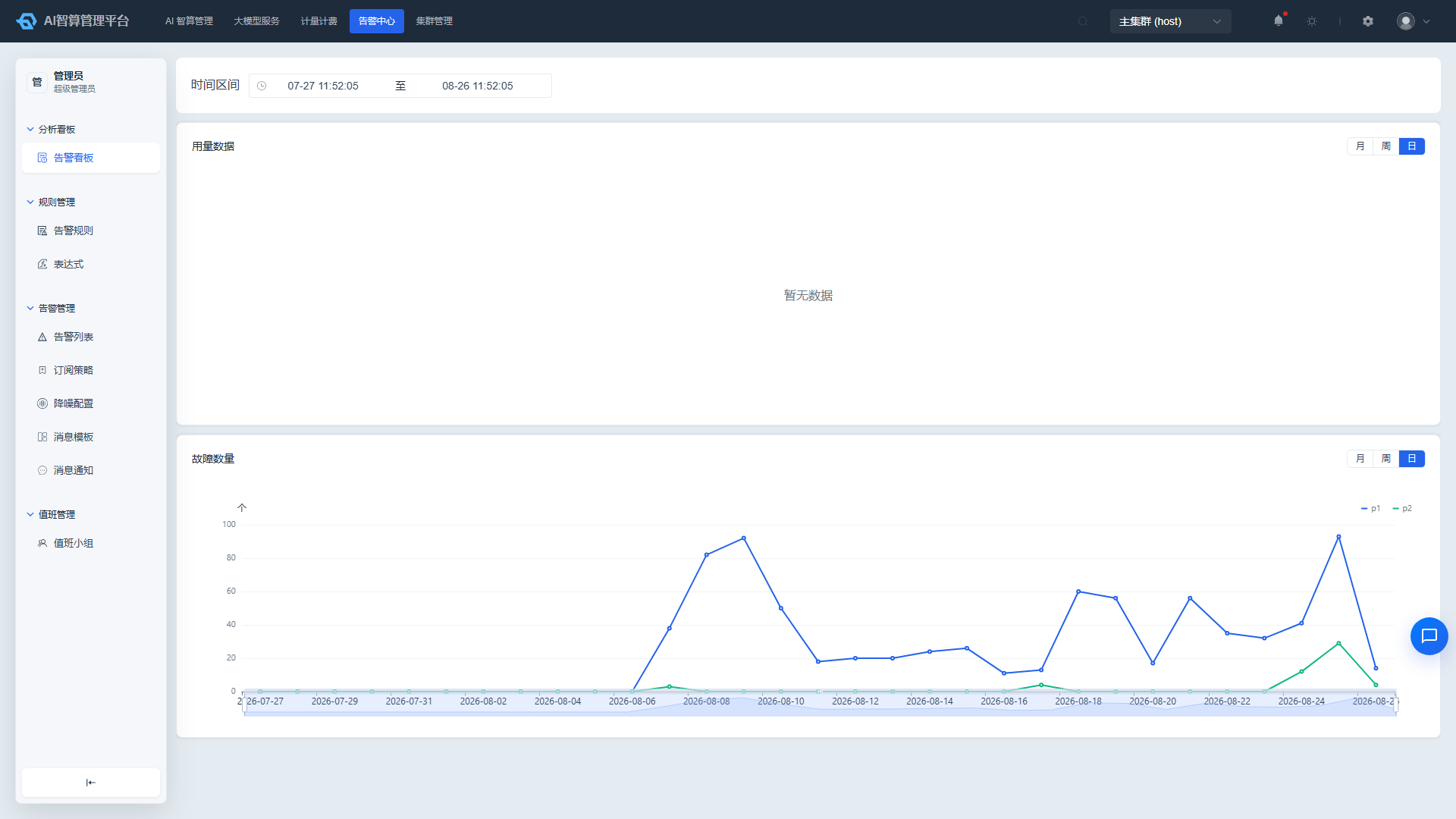
Page Menu
| Page | Route | Description |
|---|---|---|
| Alert Dashboard | /admin/duty/statistics | Alert posture and trend analysis |
View Alert Posture
- Navigate to Alert Center > Analytics Dashboard > Alert Dashboard.
- The top of the page displays core metric cards:
- Current total alert count
- Alert severity distribution (Critical / Warning / Info, etc.)
- Notification channel delivery volume
- Alert processing status distribution
- Hover over a metric card to view detailed calculation methodology.
View Notification Channel Trends
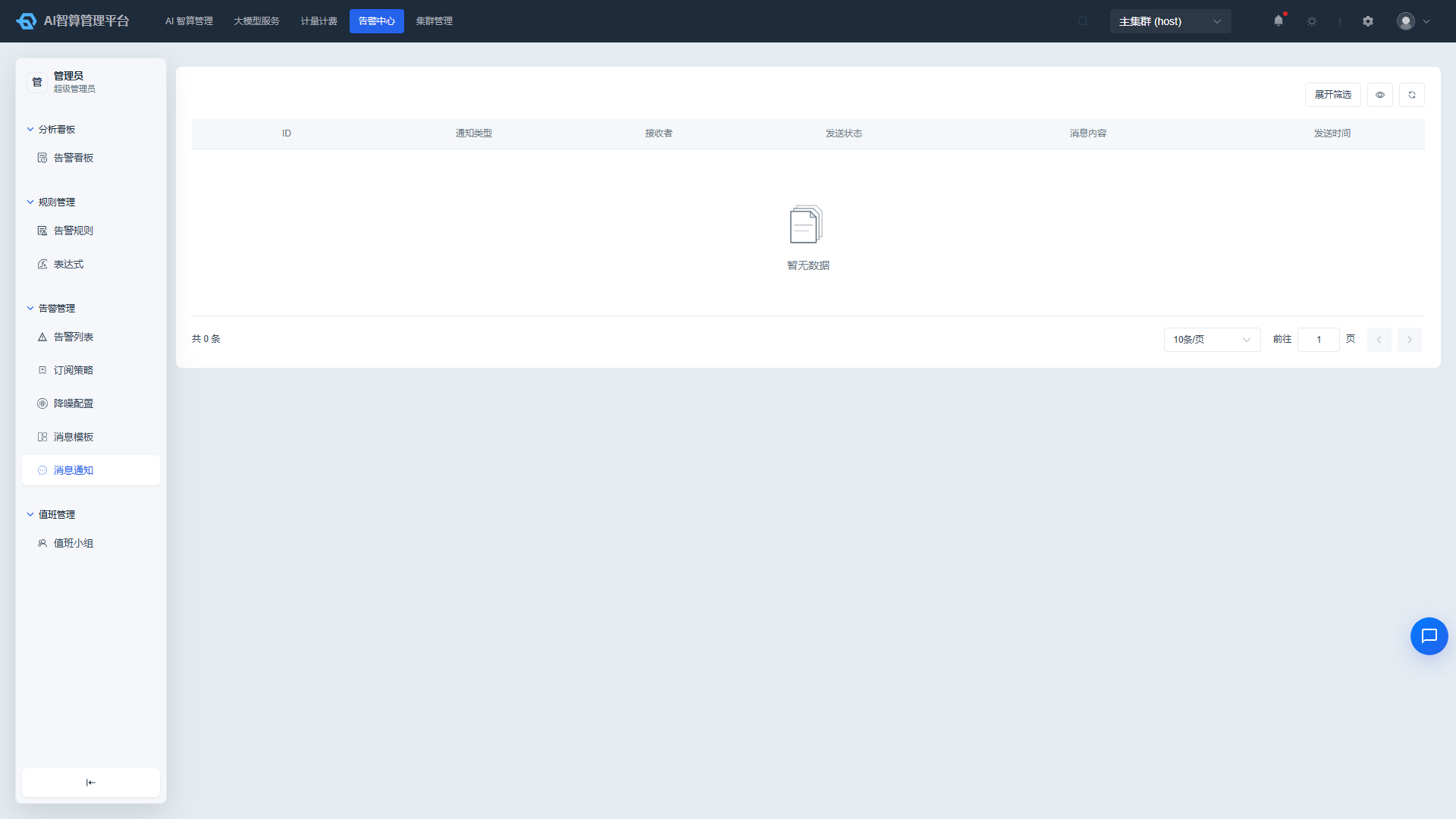
- Locate the "Notification Channel Message Delivery Volume Trend Chart" in the middle of the page.
- Switch the time dimension: Month / Week / Day.
- The chart displays delivery volume curves or bar charts for each notification channel (e.g., SMS, email, Feishu, DingTalk, etc.) at different time points.
- Hover over a data point to view the specific channel and delivery volume.
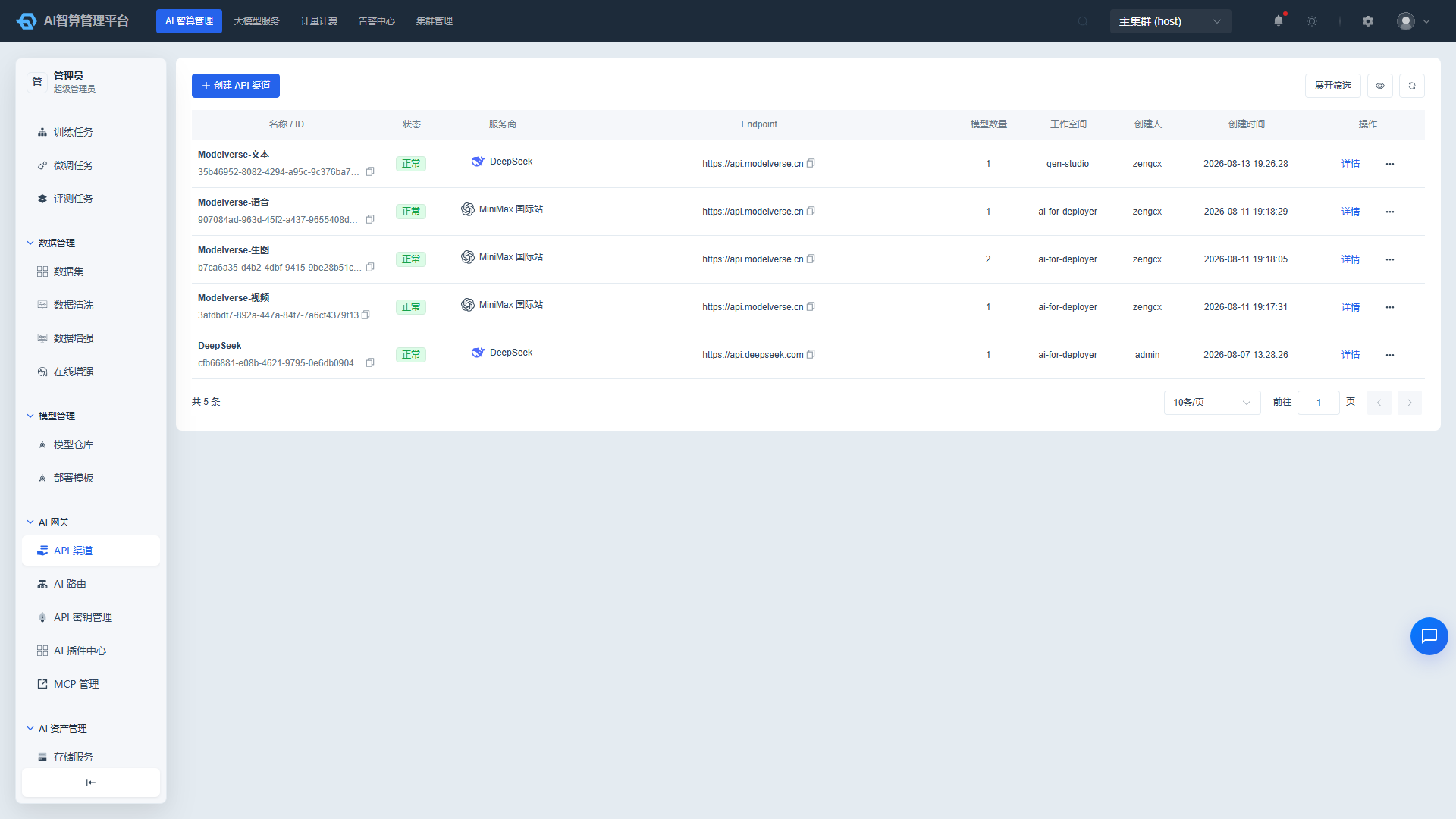
View Alert Severity Trends
- Locate the "Alert Severity Count Trend Chart" in the middle of the page.
- Switch the time dimension: Month / Week / Day.
- The chart displays alert count trends for each severity level (Critical / Warning / Info) at different time points.
- Click legend entries to hide/show a specific severity curve.
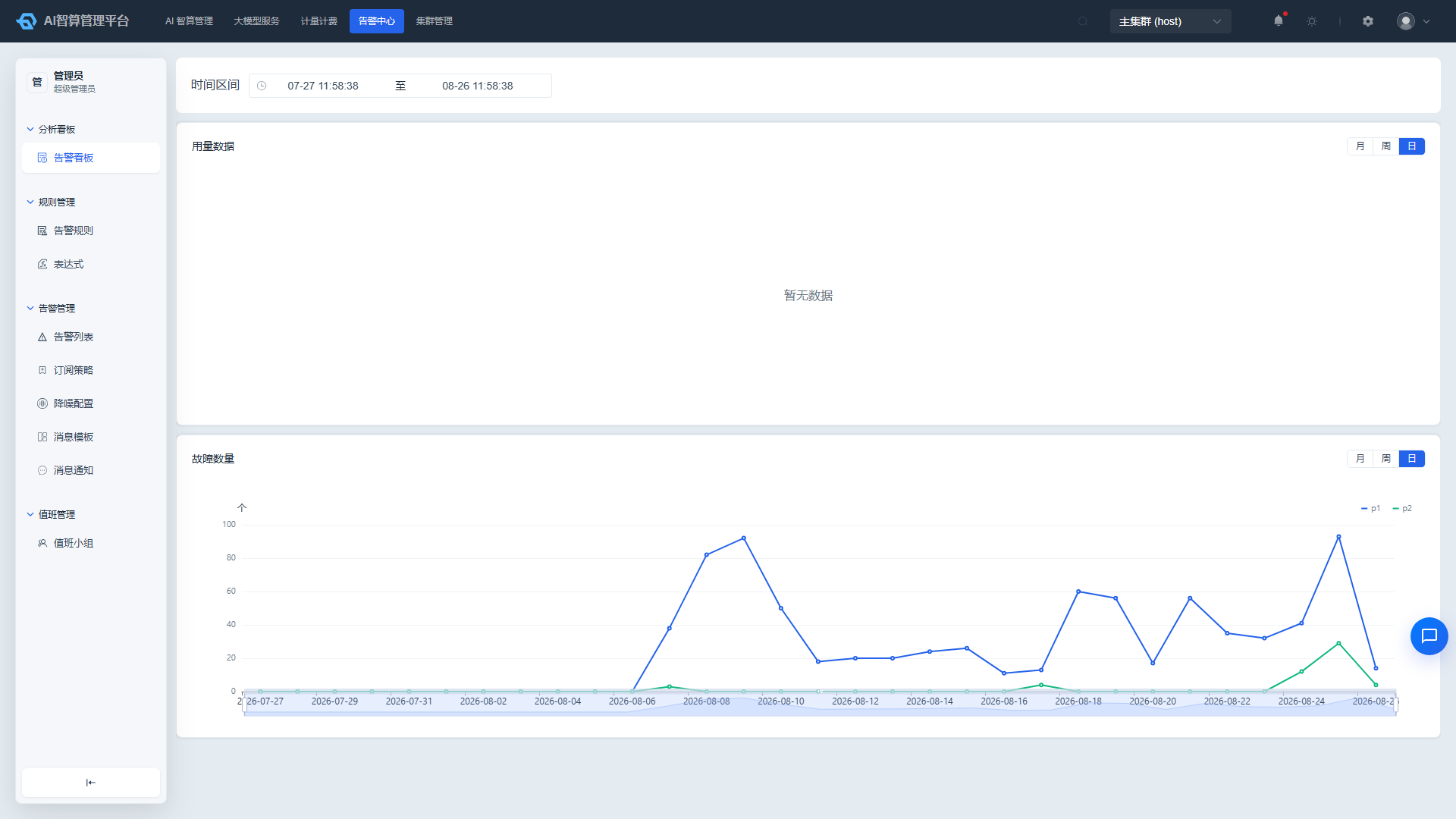
Custom Time Range
- Locate the time range selector in the upper-right corner of the page.
- The default display is the last 30 days.
- Select a preset range (Today / Last 7 Days / Last 30 Days) or set custom start and end dates.
- All charts and metrics refresh in real time according to the selected time range.
FAQ
Q: How often is the Analytics Dashboard data updated? A: Core metrics and trend charts are typically refreshed at minute-level intervals; the exact frequency depends on the Alert Center's data collection frequency.
Q: Why are some notification channels showing no data? A: Please confirm that the channel has been correctly configured in "Alert Center > Alert Management > Message Notifications" and that at least one alert rule is associated with that channel.
Q: What is the difference between the time dimensions in the trend charts? A: "Month" aggregates by day to display the full month's trend; "Week" displays by day for the last 7 days; "Day" displays by hour for detailed fluctuations within the current day.