Alert Management
"Alert Management" covers the full lifecycle of alerts from creation to closure, including alert list viewing, claiming/silencing/closing, subscription dispatch, noise reduction, message templates, and notification record auditing.
Entry path: Left sidebar Alert Center > Alert Management, page route
/admin/duty/alert/index.
Page Menu
| Page | Route | Description |
|---|---|---|
| Alert List | /admin/duty/alert | View and handle alerts |
| Alert Details | /admin/duty/alert/:uuid | Individual alert details and event tracking |
| Subscription Strategies | /admin/duty/subscript-rules | Configure alert notification scope and dispatch escalation |
| Create Subscription Strategy | /admin/duty/subscript-rules/create | New subscription strategy |
| Edit Subscription Strategy | /admin/duty/subscript-rules/edit/:uuid | Modify subscription strategy |
| Noise Reduction | /admin/duty/noise | Aggregate similar alerts to suppress alert storms |
| Message Templates | /admin/duty/template | Standardize notification content format |
| Message Notifications | /admin/duty/message | View notification delivery records |
Alert List: Handle Alerts
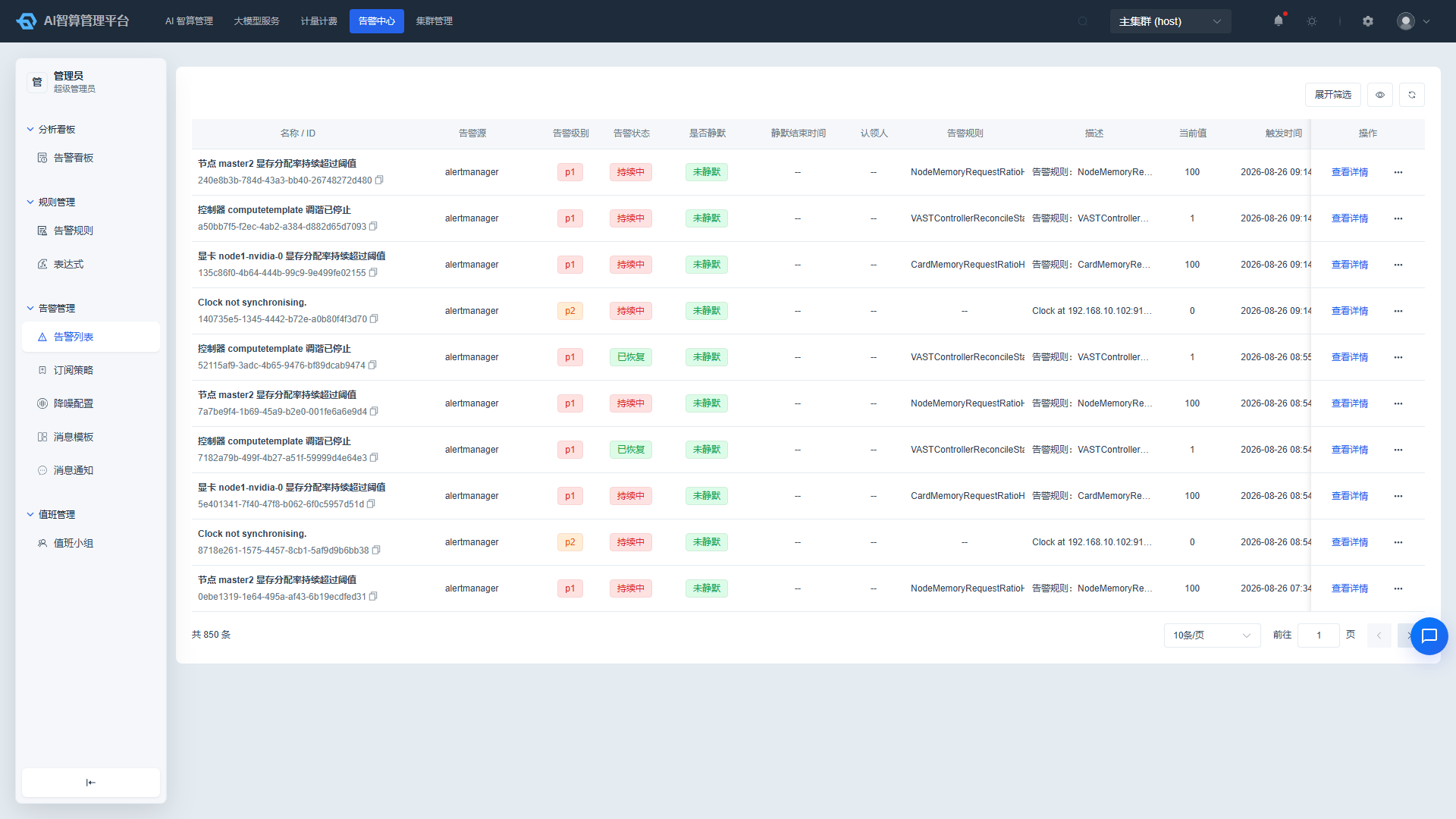
- Navigate to Alert Management > Alert List.
- Use the top filters: Alert ID, title, claimant, source, alert severity (P1/P2/P3), status, silenced status, and trigger time range.
- The list displays: Name/ID, source, severity, status, silenced status, silence end time, claimant, associated rule, description, current value, trigger time, duration, and end time.
- Click the alert name or "View" to enter the alert details page.
- Click "Edit Associated Rule" to navigate directly to the corresponding alert rule's edit page.
Alert Details Page Operations
After entering the alert details page, the header provides the following actions:
- Claim: Claim the alert to yourself, with an optional note.
- Unclaim: Remove the current claimant.
- Manual Close: Close the alert after confirming the issue has been resolved, with an optional note.
- Silence: Select a silence duration (2/4/12 hours), during which duplicate notifications are suppressed.
- Unsilence: End the silence period early.
The details page has two tabs below:
- Overview: Displays basic alert information and label details.
- Event Tracking: Shows the alert's full lifecycle operation records in timeline format, including operator, operation time, and notes.
It is recommended to claim the alert before handling it to avoid duplicate investigations by multiple people. After resolving, close the alert promptly and add notes for future review.
Subscription Strategies: Notify the Right People
Subscription strategies determine which alerts are sent to whom, how they are sent, and how unhandled alerts are escalated.
Create a Subscription Strategy
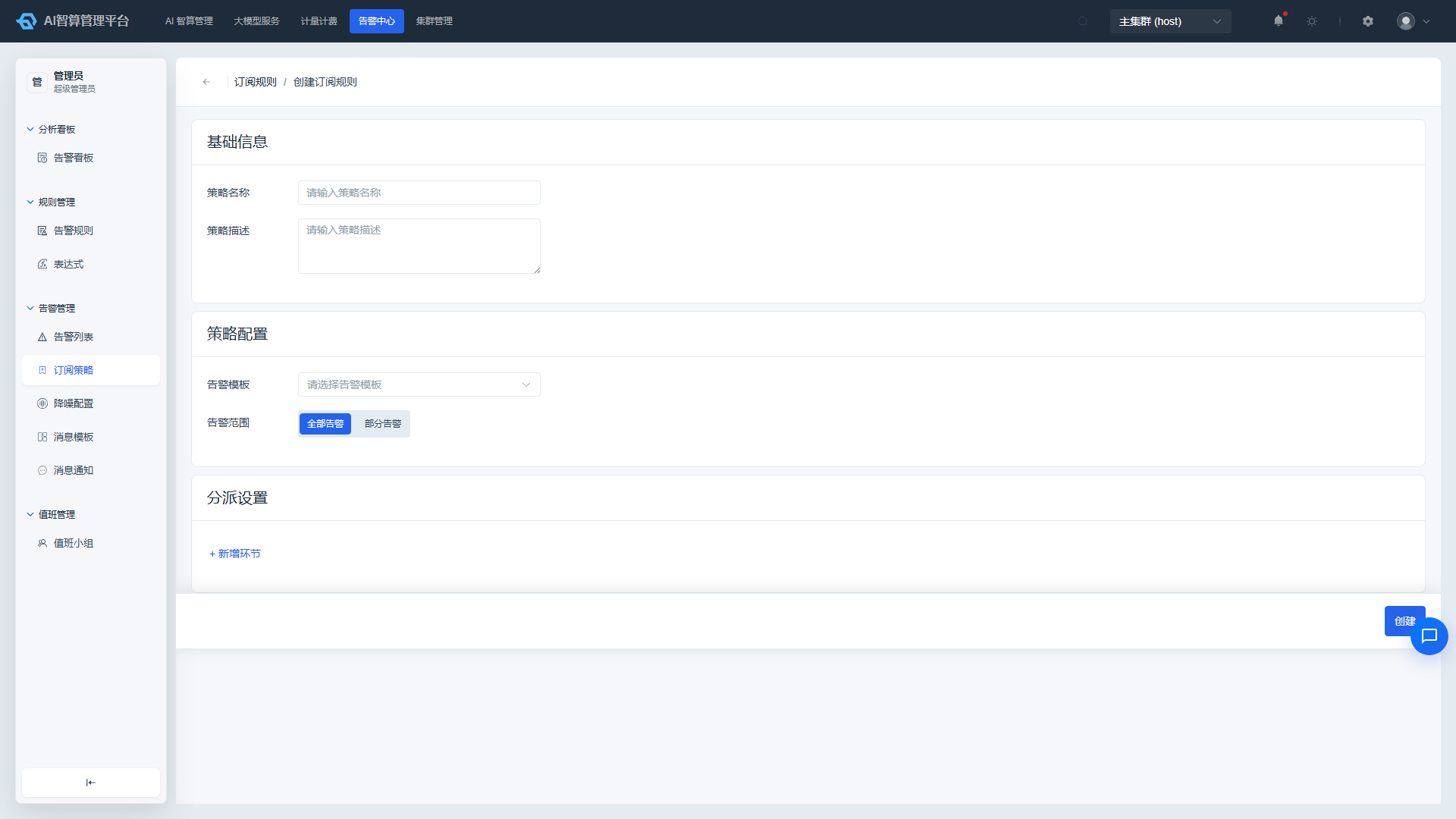
- Navigate to Alert Management > Subscription Strategies.
- Click "New Subscription Strategy".
- Fill in the basic information:
- Strategy Name: e.g.,
ai-gateway-critical. - Strategy Description: Describe the purpose of the strategy.
- Strategy Name: e.g.,
- Select an Alert Template: Choose from existing message templates to standardize notification format.
- Configure the Alert Scope:
- All Alerts: Subscribe to all alerts.
- Partial Alerts: Filter alerts using multiple AND/OR condition groups.
- Each condition group can contain multiple "attribute + match method + label value" rules; conditions within a group are combined with AND.
- Multiple groups are combined with OR.
- Example:
Severity In P1 AND Source In ai-gateway.
- Configure Dispatch Stages (multiple stages can be added):
- Each stage selects an On-Call Team.
- Configure private chat notifications: select notification channels separately for P1/P2/P3.
- Configure group chat notifications: select notification channels uniformly.
- Set a Timeout: If not closed within N minutes, escalate to the next stage.
- Select an Escalation Condition:
- Escalate if Not Closed: Escalate whenever the timeout is reached without closure.
- Escalate only if Not Closed and Not Claimed: Alerts that have been claimed will not escalate.
- Click "Create".
Multi-stage dispatch enables progressive fallback: the first stage notifies the front-line on-call, and if unhandled after timeout, automatically escalates to the back-line on-call.
Edit and Delete
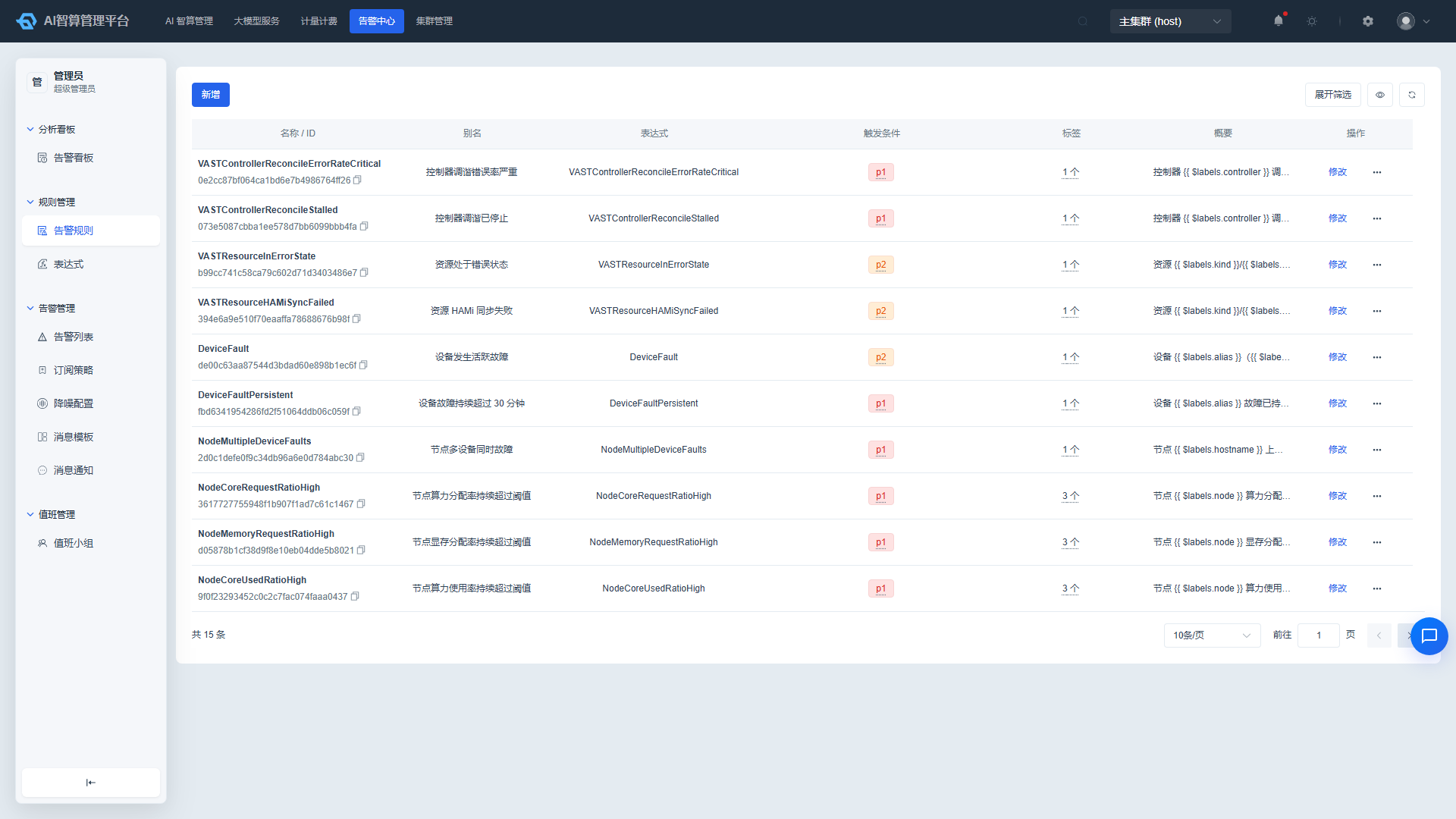
- Locate the target strategy in the subscription strategy list.
- Row actions: Edit, Delete (requires confirmation before deletion).
- The list supports sorting by name and description.
Noise Reduction: Suppress Alert Storms
Noise reduction merges alerts within the same time window and aggregated by the same dimension into a single notification, preventing on-call personnel from being bombarded by numerous duplicate alerts in a short period.
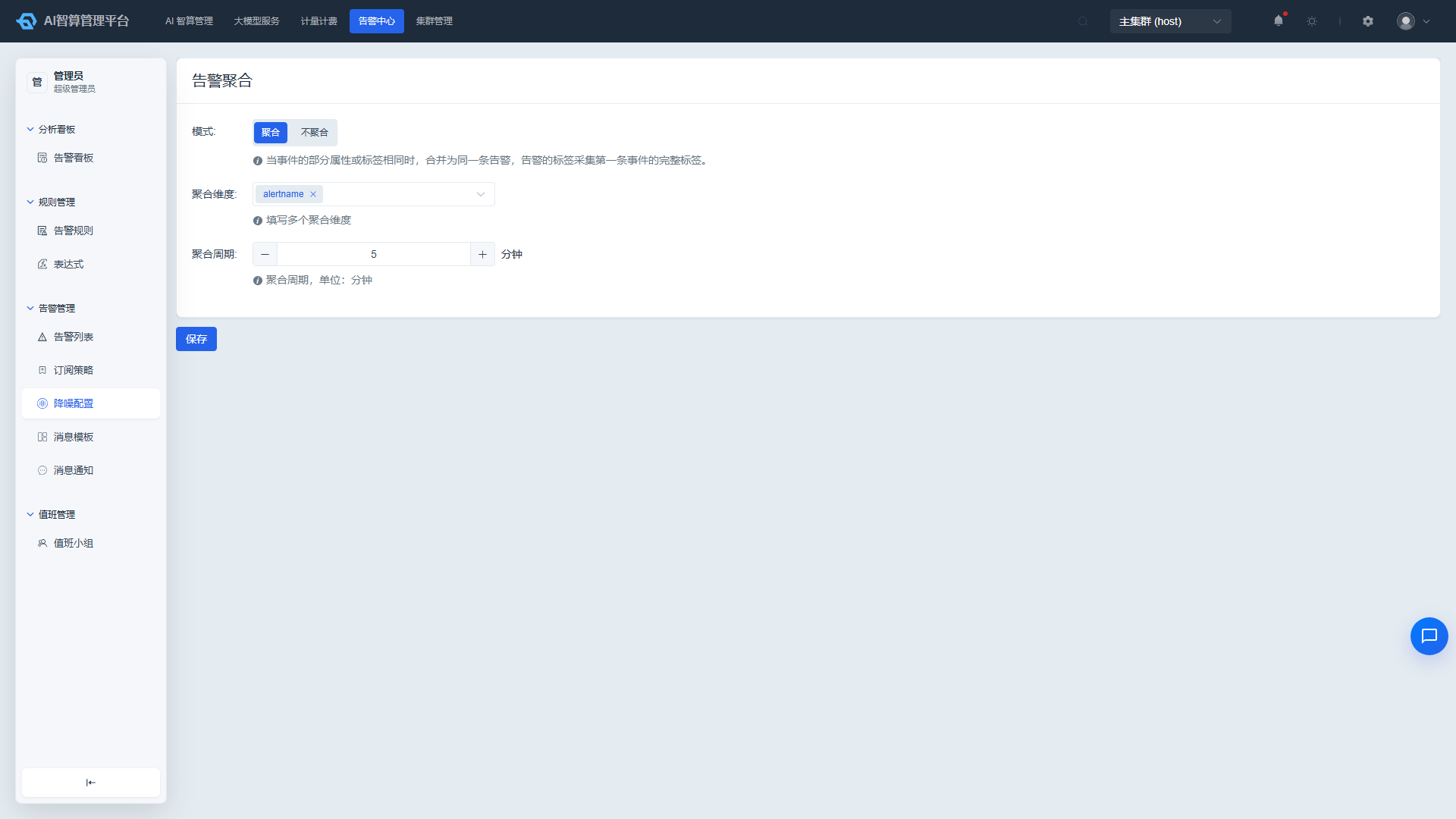
- Navigate to Alert Management > Noise Reduction.
- Select an aggregation mode:
- No Aggregation: Each alert is sent as an individual notification.
- Aggregation: Merged by dimension labels and time window.
- Select Aggregation Dimension Labels:
- Label options are loaded asynchronously from the server.
- Manual input to create custom dimension labels is supported.
- Set the Aggregation Time Window:
1 ~ 1440minutes.- Alerts within the same window and aggregated by the selected dimensions will be merged into a single notification.
- Click "Save".
- After a successful save, the page automatically refreshes the current configuration.
It is recommended to enable aggregation for alerts with the same source and similar severity, such as GPU usage alerts from the same node.
Message Templates: Standardize Notification Format
Message templates are used to define notification content for email, SMS, and DingTalk Robot channels. A single template can be applied to multiple channels simultaneously.
Create a Message Template
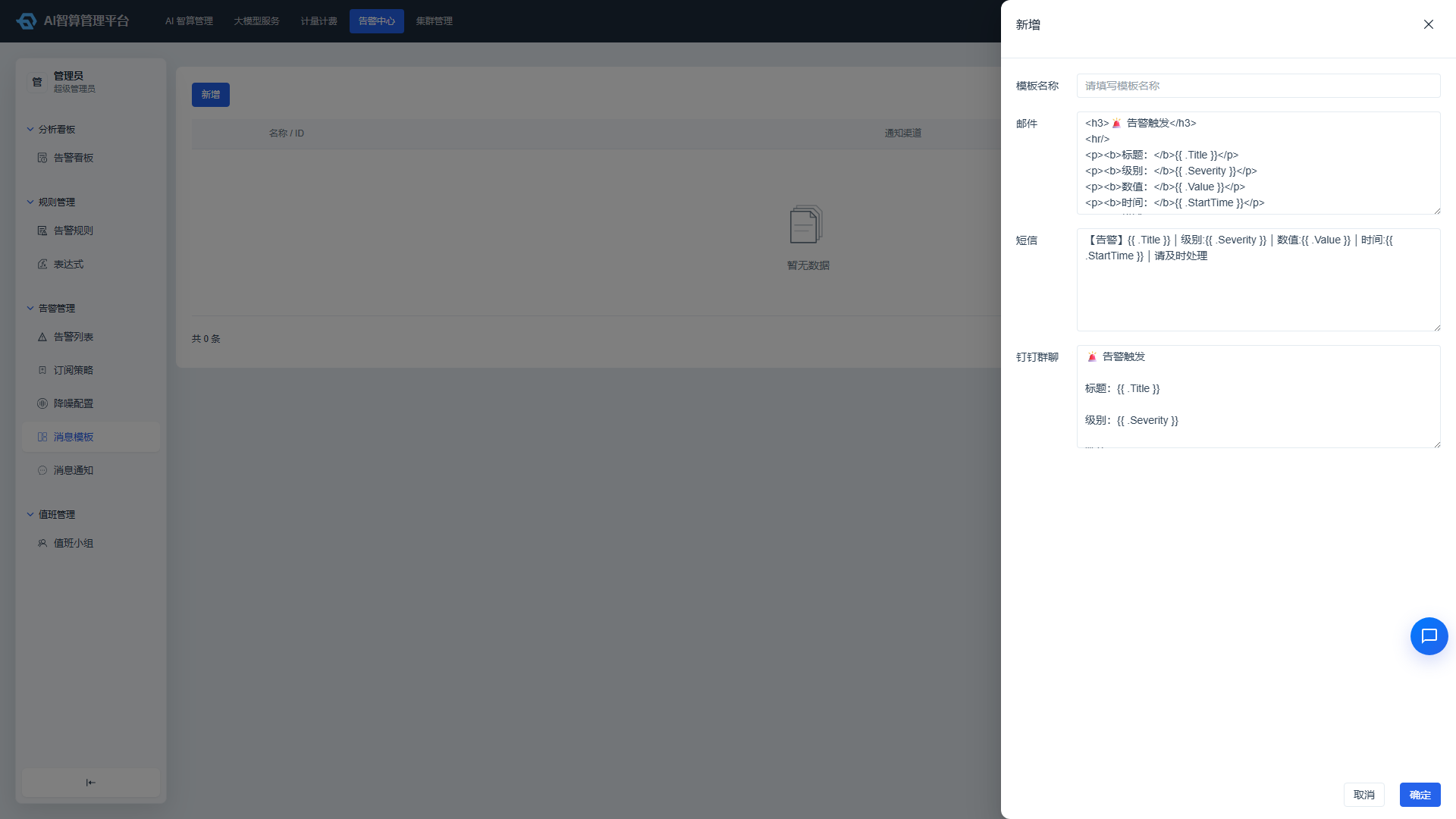
- Navigate to Alert Management > Message Templates.
- Click "New Template".
- Enter a Template Name; the name must be globally unique.
- Configure content for each of the three channels:
- Email: Subject and body.
- SMS: SMS body (note the character limit).
- DingTalk Robot: Markdown or plain text content.
- Click "Confirm".
Edit and Search
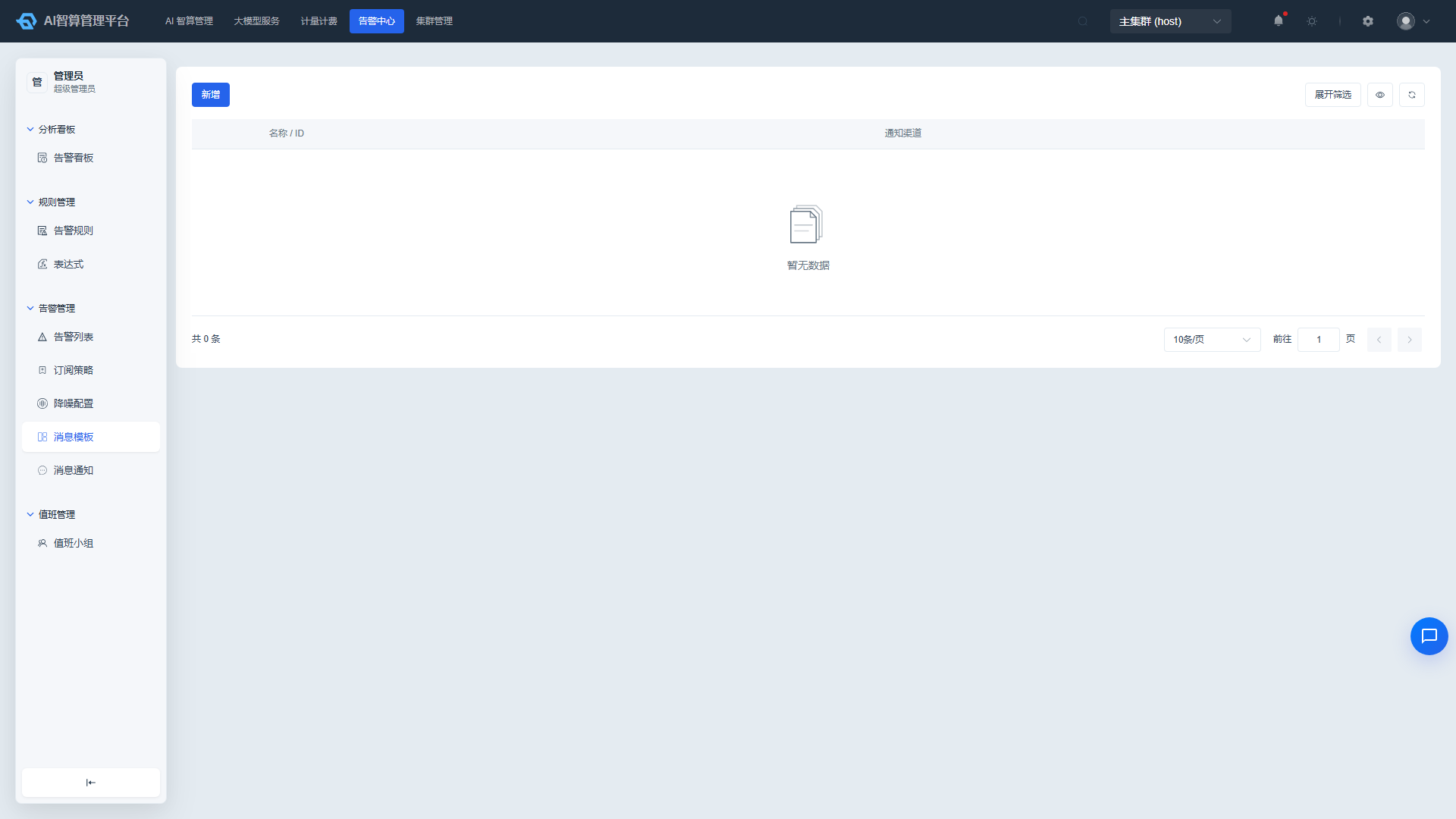
- The list supports fuzzy search by template name.
- Row actions: View, Edit.
When a template referenced by a subscription strategy is modified, subsequent notifications will immediately use the updated content.
Message Notifications: Audit Notification Delivery
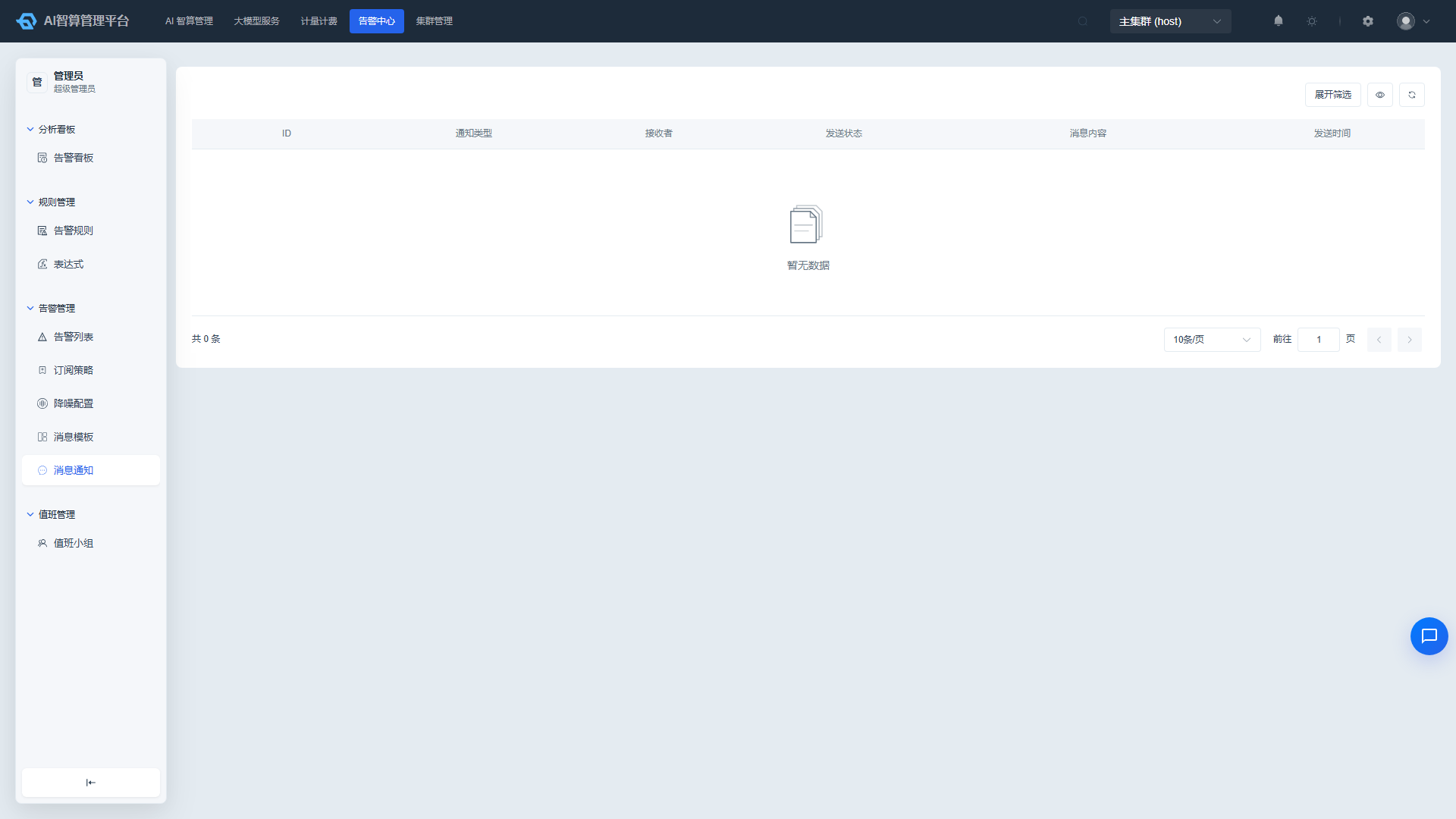
- Navigate to Alert Management > Message Notifications.
- Use the top filters: recipient, notification type, delivery status (success/failed), and time range.
- The list displays: Notification ID (copyable), notification type, recipient, delivery status, message content, and send time.
- Hover over a failed message to view the error reason, enabling quick identification of notification delivery issues.
If on-call personnel report not receiving alerts, check here first to view the delivery status and failure reasons.
FAQ
Q: An alert was triggered but no notification was received. A: Please troubleshoot in the following order:
- Whether the alert rule is enabled.
- Whether a subscription strategy has been created and matches that alert.
- Whether the on-call team/notification channels in the subscription strategy are correctly configured.
- Whether the Message Notifications page shows a delivery failure and the corresponding reason.
- Whether the alert has been silenced or merged by noise reduction.
Q: How do I temporarily suppress a specific alert? A: On the alert details page, click "Silence" and select 2/4/12 hours.
Q: I want P1 alerts to trigger both a phone call and a DingTalk message. A: In the subscription strategy's dispatch stage, select both "Phone" and "DingTalk Robot" for P1 private chat notification channels.
Q: Where can I view alert handling records? A: All handling operations — claiming, silencing, closing, etc. — are recorded in the "Event Tracking" timeline on the alert details page, facilitating auditing and review.
Q: Why aren't historical alerts merged after modifying the noise reduction configuration? A: Noise reduction configuration changes take effect immediately but only affect newly generated alerts. Already sent or generated alerts will not be retroactively merged.
Q: How does the filter condition logic in subscription strategies work? A: Subscription strategies use AND/OR combinations for filter conditions. When configuring, pay attention to the logic within groups (AND) and between groups (OR) to avoid overly restrictive conditions that prevent alerts from matching.