Platform Initialization
After the Rise AI Compute Platform is deployed, administrators need to complete a series of foundational configurations before tenants/users can log in normally and create container instances, submit training jobs, deploy inference services, and more. This article lists the required steps and recommended steps in dependency order.
Target audience: Platform administrators, tenant administrators, operations engineers
Access point:https://<camp-domain>/camp/admin/login
1. Log In to the Admin Console and Verify Cluster Status
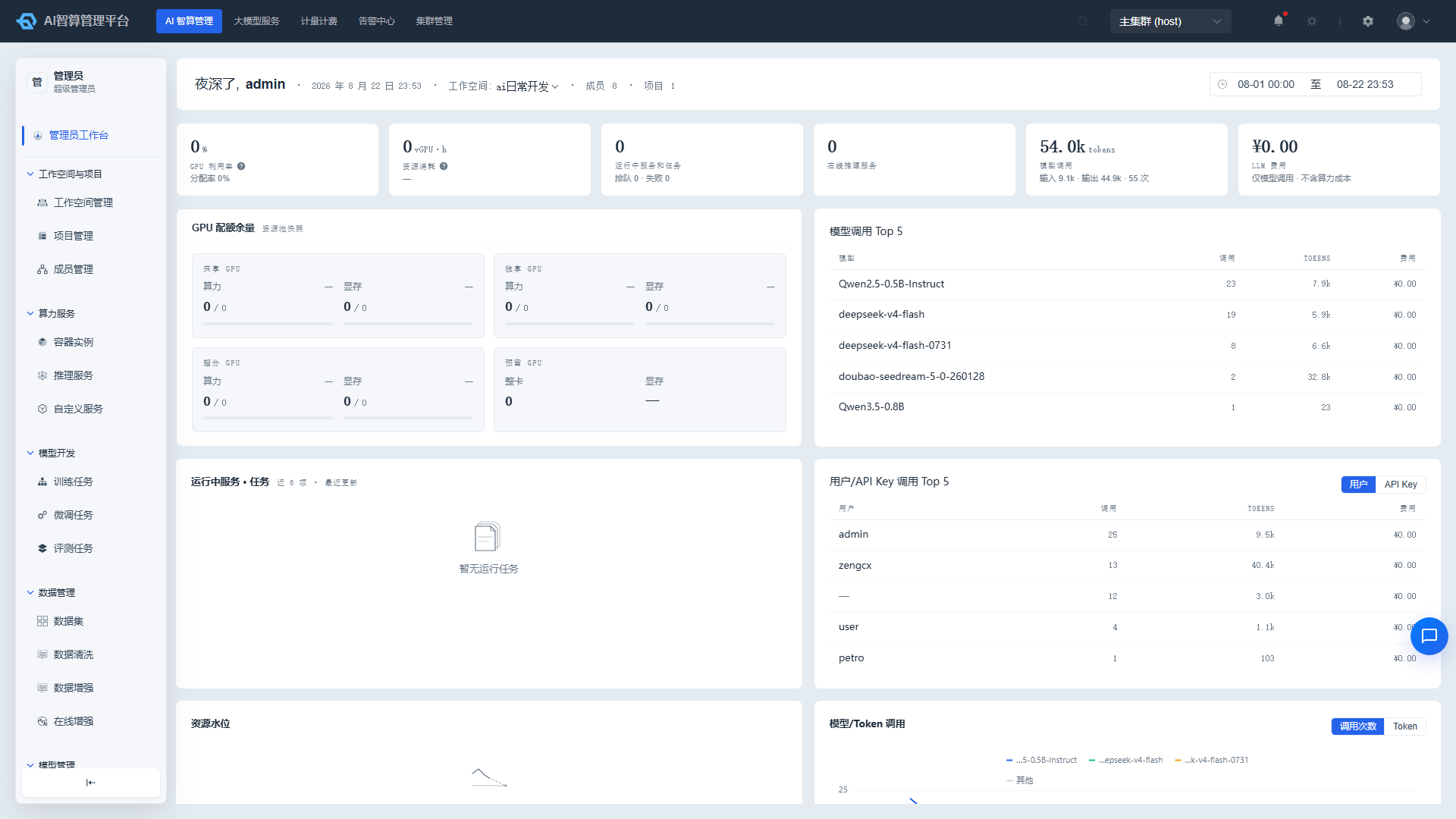
1.1 Log In to the Admin Console
- Log in to
https://<camp-domain>/camp/admin/loginusing the default platform administrator account. - We recommend changing the initial password immediately after first login.
- Verify the current cluster displayed in the top navigation bar; in multi-cluster environments, you can switch clusters from the top bar.
"Platform Management" entry: Platform Management is not in the top navigation bar — click the gear icon in the upper-right corner of the page to access the "Platform Management" view (including Platform & Members, Platform Configuration, etc.).
1.2 Onboard a Kubernetes Cluster
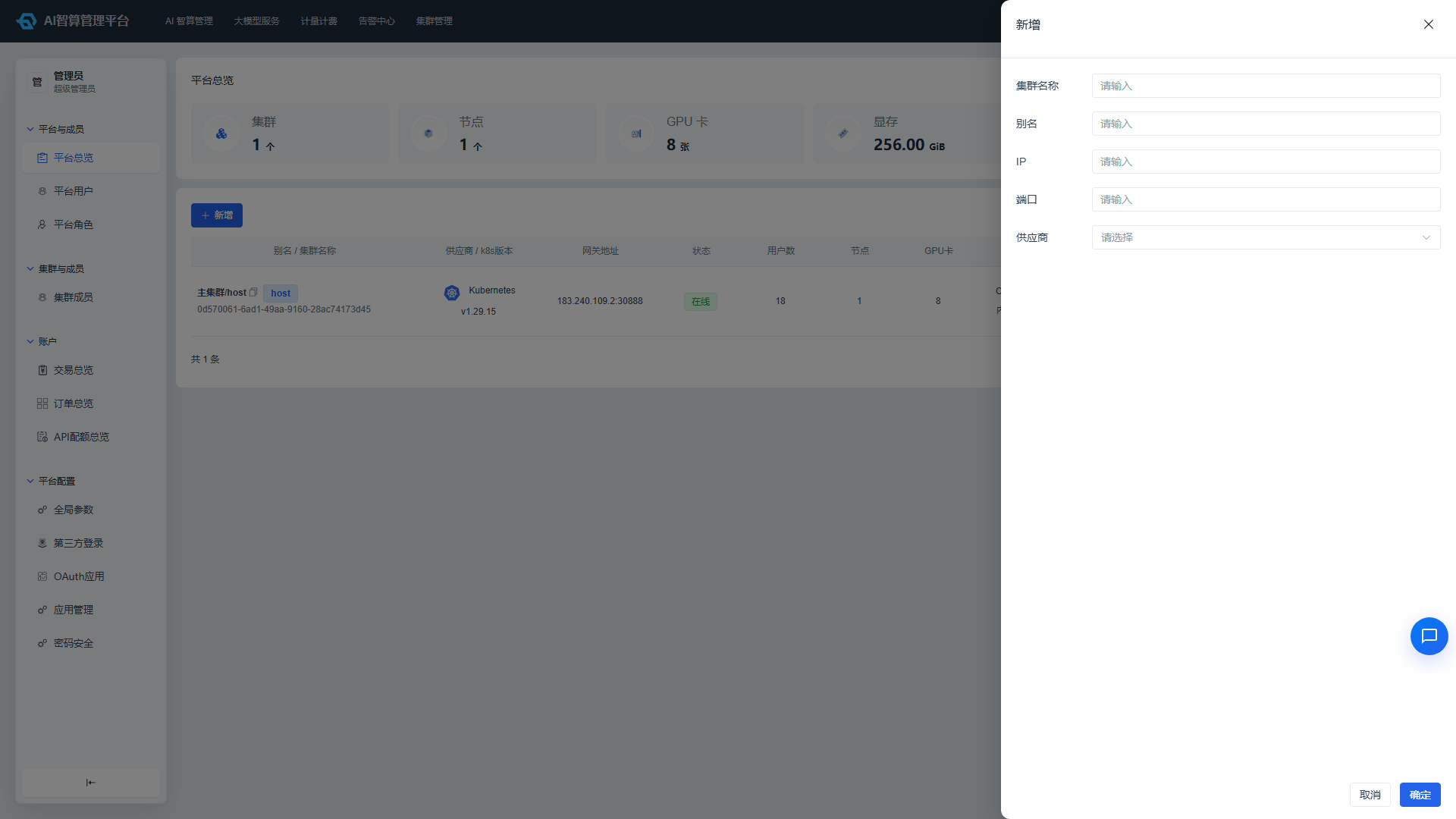
- Navigate to Platform Management > Platform & Members.
- Click "Add Cluster" and fill in the cluster name, KubeConfig, API Server address, and other details.
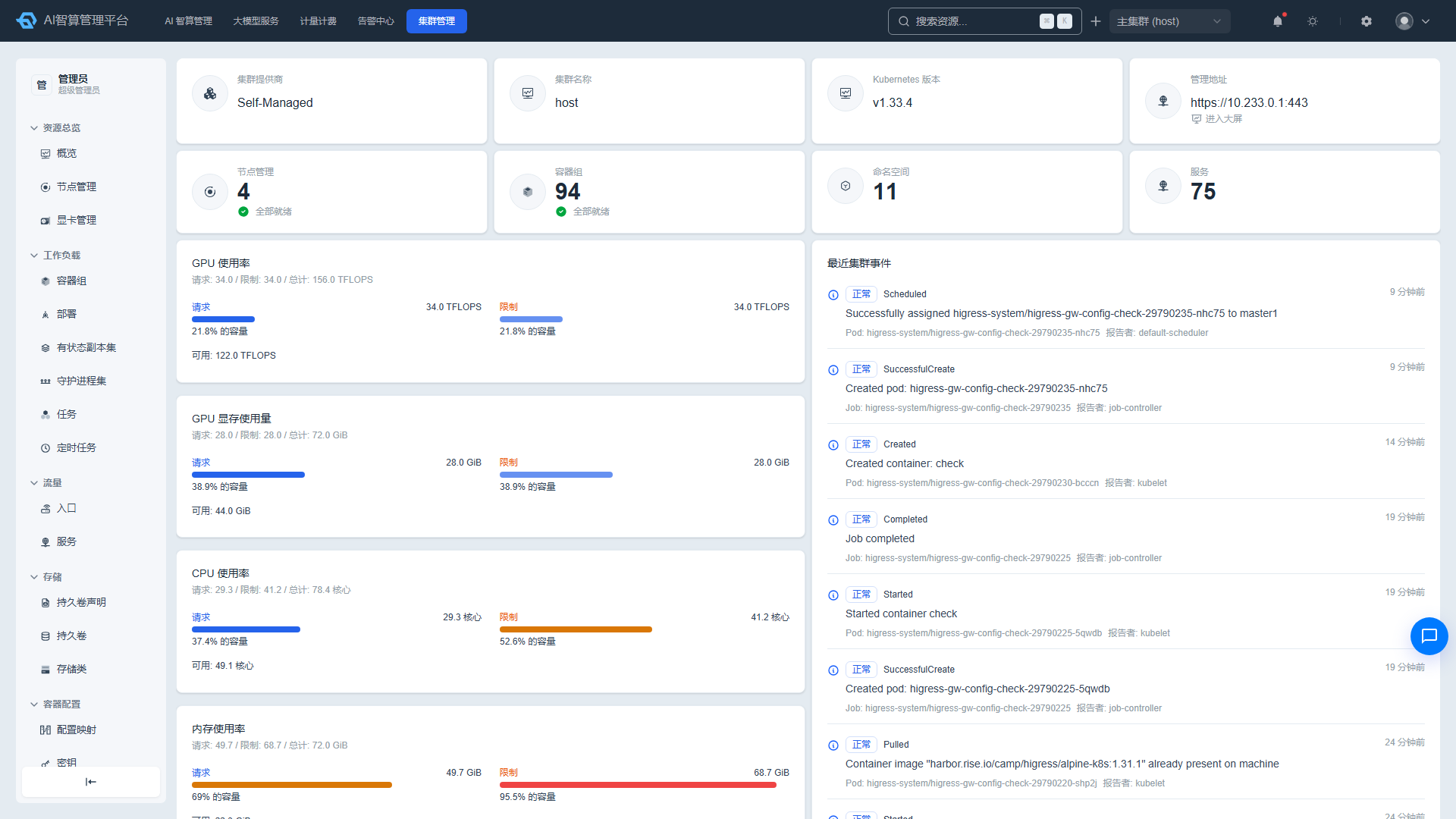
- After saving, go to K8s Cluster Management > Resource Overview and verify the cluster status is "Normal" with nodes, GPUs, and Pod information synced.
If the default cluster was automatically onboarded during deployment, this step can be skipped, but you should still verify the cluster status.
1.3 Multi-Cluster Authentication Sync (Multi-Cluster Scenarios Only)
Single-cluster deployments can skip this section.
When the platform manages multiple K8s clusters, the platform components in each member cluster need to use the same JWT secret as the host cluster; otherwise, user operations on the member cluster will fail due to authentication errors. Sync steps:
- View the JWT secret on the host cluster:bash
kubectl get secrets -n rise-vast-system camp-jwt-secret -oyaml - Edit the same Secret on each member cluster, updating the secret content to match the host cluster:bash
kubectl edit secrets -n rise-vast-system camp-jwt-secret - Restart the platform components on the member cluster to apply the new secret:bash
kubectl rollout restart deploy -n rise-vast-system \ auc nova console-ui vgpu novanotebook-controller-manager - Switch clusters in the admin console top bar and verify that resources and operations work correctly on the member cluster.
2. Obtain a License
The Rise AI Compute Platform typically requires a license to unlock full functionality. After deployment, contact the vendor or operations personnel to apply for a license.
2.1 Retrieve Authorization Information
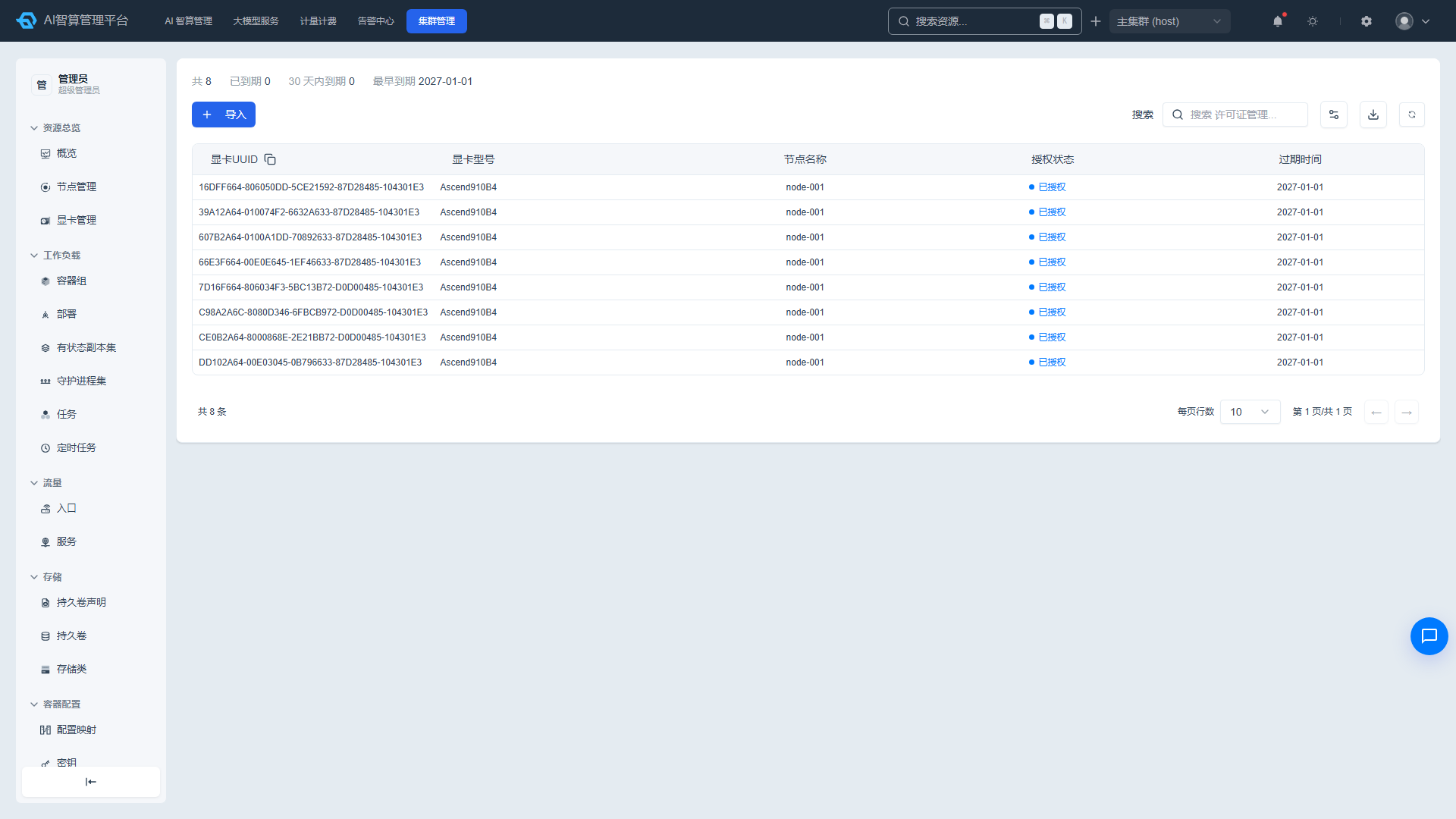
Navigate to Cluster Management > Compute Configuration > Licenses. The page lists the GPU UUID of each compute card on the platform (click the copy icon next to the column header to copy all at once). Submit the GPU UUID list along with the following information to the vendor to apply for a license:
- Cluster UID: Run the following command to obtain:bash
kubectl get namespace kube-system -o jsonpath='{.metadata.uid}' - Node information: The server/cluster hostname or identifier used to deploy the Rise AI Compute Platform.
2.2 Import the License
- After obtaining the license, navigate to Cluster Management > Compute Configuration > Licenses and click "Import."
- Paste the license content into the dialog box and click "Confirm."
- Verify that each GPU card's authorization status in the list shows "Authorized," and review the page statistics (total, expired, expiring within 30 days, earliest expiration date) to confirm the authorized GPU count and expiration date meet your requirements.
If the license expires or authorization is insufficient, the platform may restrict new resource creation or core functionality (GPUs cannot participate in scheduling, new tasks fail to queue). Plan renewals in advance.
3. Configure Platform-Level Parameters
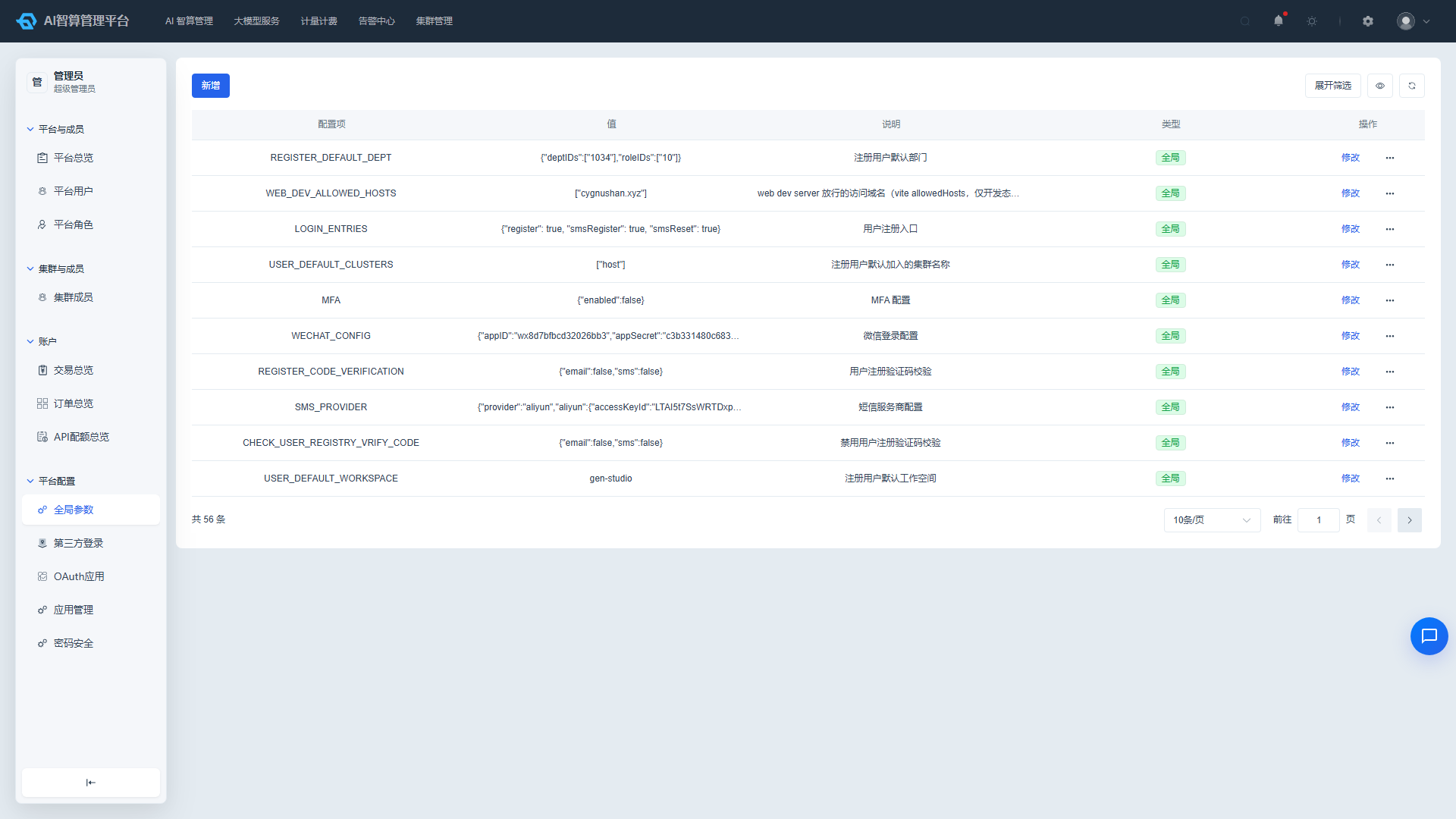
- Navigate to Platform Management > Platform Configuration > Global Parameters (see Section 1.1 for the Platform Management entry via the upper-right gear icon).
- In the parameter list, click "Modify" in the row actions, and adjust the configuration values in the drawer:
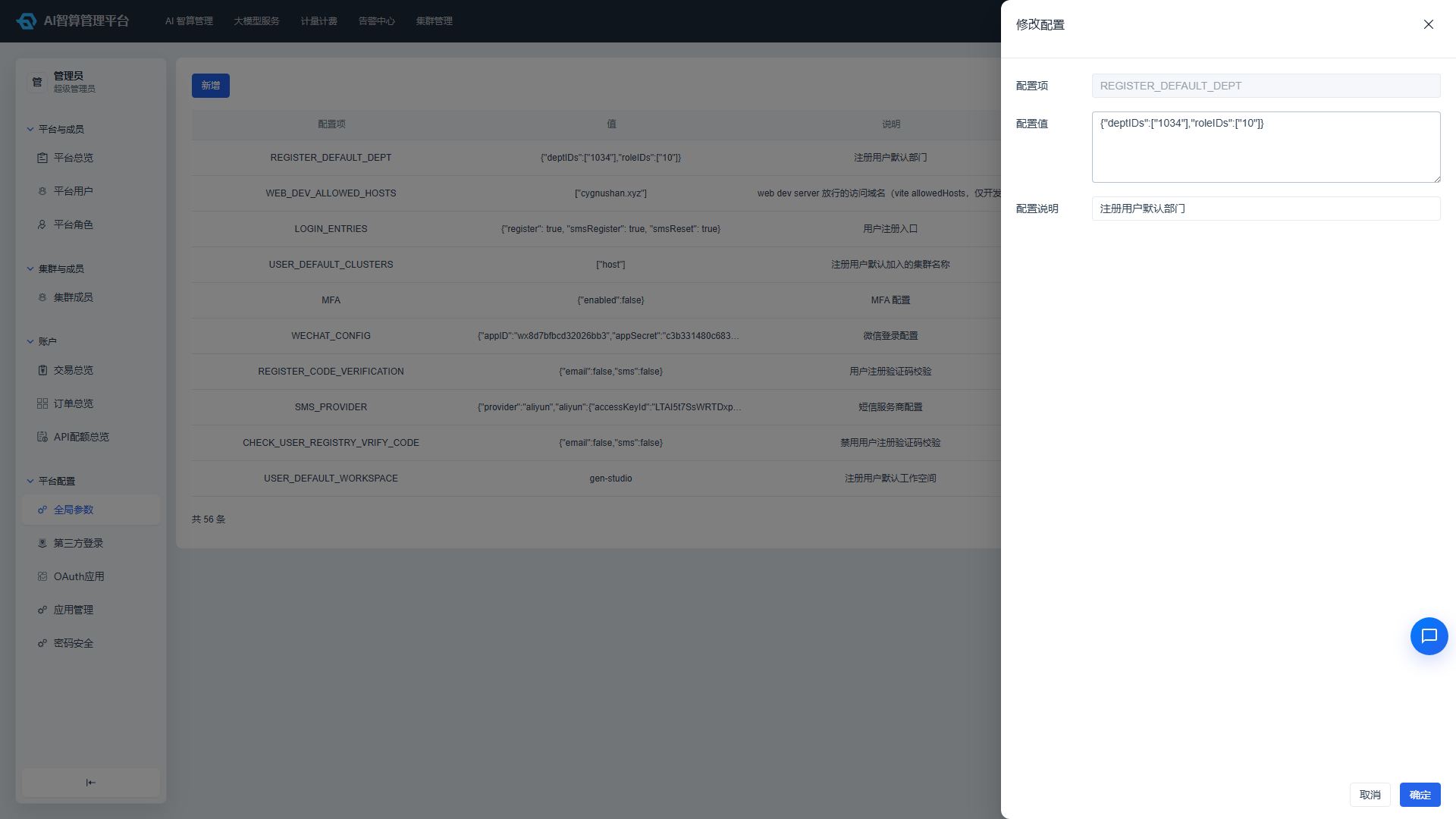
- Configure according to your enterprise environment:
- Platform name, logo, favicon: Modify
TITLE,LOGO,FAVICON. - Theme toggle:
CUSTOM_THEME_ENABLEDcontrols whether the theme settings entry is displayed; when enabled, users can click the theme icon in the top navigation bar to switch between light/dark/system appearance and customize the primary color. - User registration/login policy: Whether registration is open, password complexity, and login failure lockout strategy.
- Resource reclaim default policy, quota overflow policy, global alert notification toggle.
- Platform name, logo, favicon: Modify
- If integrating with an enterprise identity provider, configure SSO under Third-Party Login or OAuth Applications.
3.1 Network and Access Address Parameters (Required After Deployment)
The following three parameters determine whether the various access addresses generated by the platform are correct. If not modified for your actual environment after deployment, container instance WebSSH, online IDE, SFTP, and other entry points will be unreachable. All are modified under Platform Management > Platform Configuration > Global Parameters:
| Parameter | Meaning | Configuration Notes |
|---|---|---|
GATEWAY_ADDR | Gateway address | The gateway IP/domain and port through which the platform provides external services. Access URLs generated for container instances, inference services, etc. are assembled based on this parameter. |
IDE_DOMAIN | Online IDE domain | The access domain for Jupyter / VS Code and other online development tools. Typically set to the platform page's access address (ip:port or domain). |
SFTP_SERVE | SFTP service address | The actual IP of the SFTP Server used for data uploads. The connection address displayed in the user-side "SFTP Configuration" comes from this. |
After making changes, we recommend creating a test container instance on the user side to verify that WebSSH / Jupyter can actually be accessed.
Theme switching in practice: The
CUSTOM_THEME_ENABLEDglobal parameter is simply the master toggle for whether users are allowed to switch themes. Once enabled, end users switch themes via the theme/appearance icon on the right side of the top navigation bar; their preferences are stored in the browser's local storage.
4. Create Platform Users
Platform users fall into two categories:
- Platform-level users: Can log in to the admin console for platform management, tenant administration, and operations.
- Regular users: Log in to the AI Compute Development Platform to create container instances, training jobs, inference services, etc.; they must be added to a specific workspace/project to have operational permissions.
4.1 Create Platform Administrators / Tenant Administrators
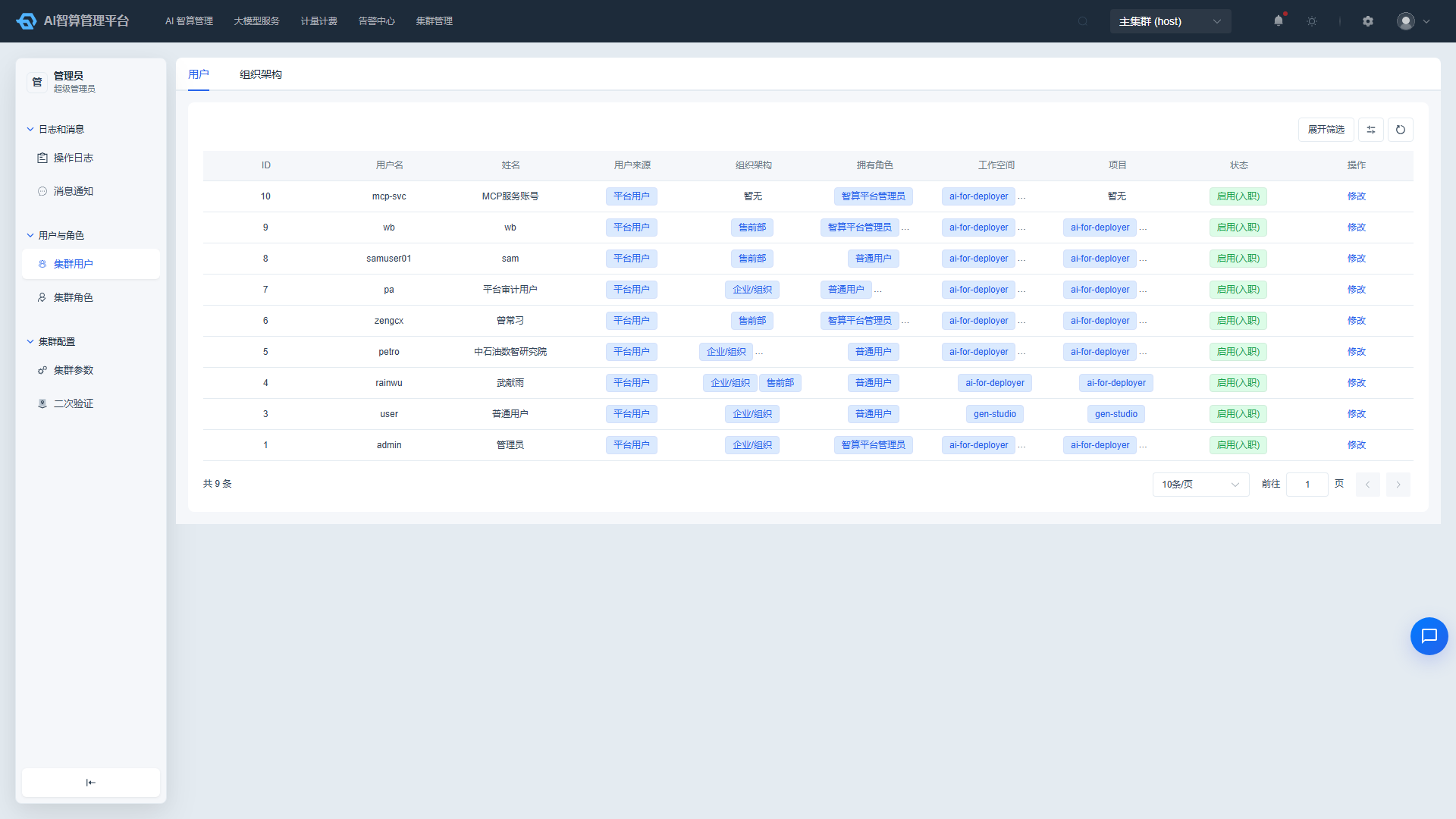
- Navigate to Platform Management > Platform & Members > Platform Users.
- Click "Add."
- Fill in:
- Username: Login account; we recommend using an email prefix or employee ID.
- Real name, email, phone number: Used for notifications, password recovery, and two-factor authentication.
- Organization structure: Select the department(s) (multi-select supported).
- Platform roles: Multi-select supported, e.g., "Super Administrator," "Platform Administrator," etc.; regular users select a regular platform role.
- Click "Confirm" to save.
- In the user list row actions, click "Change Password" to set an initial password for the user and distribute it (users should change it after first login).
4.2 Create Regular Users
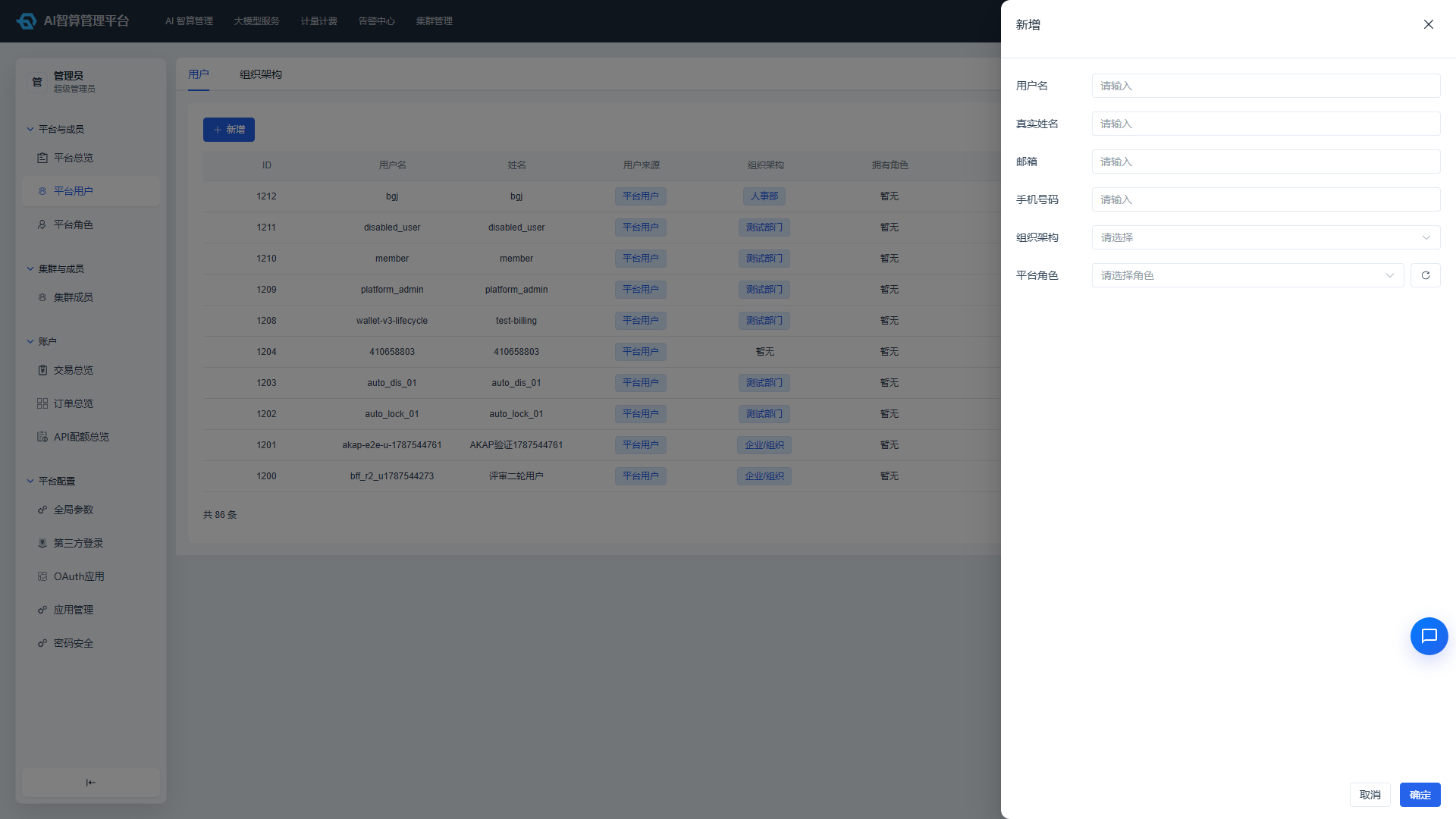
Regular users can access the system through the following two methods:
Method 1: Pre-create by platform administrator (recommended)
- Navigate to Platform Management > Platform & Members > Platform Users, click "Add," and fill in the form per Section 4.1, selecting a regular platform role.
- After creation, manage accounts via the list row actions: "Edit" (adjust name/department/role), "Change Password," "Enable/Disable" (corresponding to onboarding/offboarding status), "Delete."
- Add to tenant and project: Navigate to AI Compute Management > Workspace & Projects > Member Management, click "Add User," bind the user to a workspace or project, and assign roles:
- Workspace-level: Workspace Administrator / Workspace Member;
- Project-level: Project Administrator / Project Member. Regular users are typically assigned "Workspace Member" or "Project Member"; when they need to manage the tenant, assign the corresponding administrator role (Workspace Administrator automatically inherits administrator permissions for all projects under it).
Method 2: Open registration or SSO sync
- Enable user registration under Platform Management > Platform Configuration > Global Parameters (if applicable).
- Or configure DingTalk/Feishu/LDAP SSO under Third-Party Login; users are automatically synced to the platform on their first SSO login.
After a regular user is created, they have no default workspace — you must complete the member binding described in Chapter 7 "Planning Tenants" before they can use compute services.
5. Configure AI Asset Management
AI assets are foundational dependencies for all subsequent compute services, training/inference tasks, and should be configured first.
5.1 Storage Services
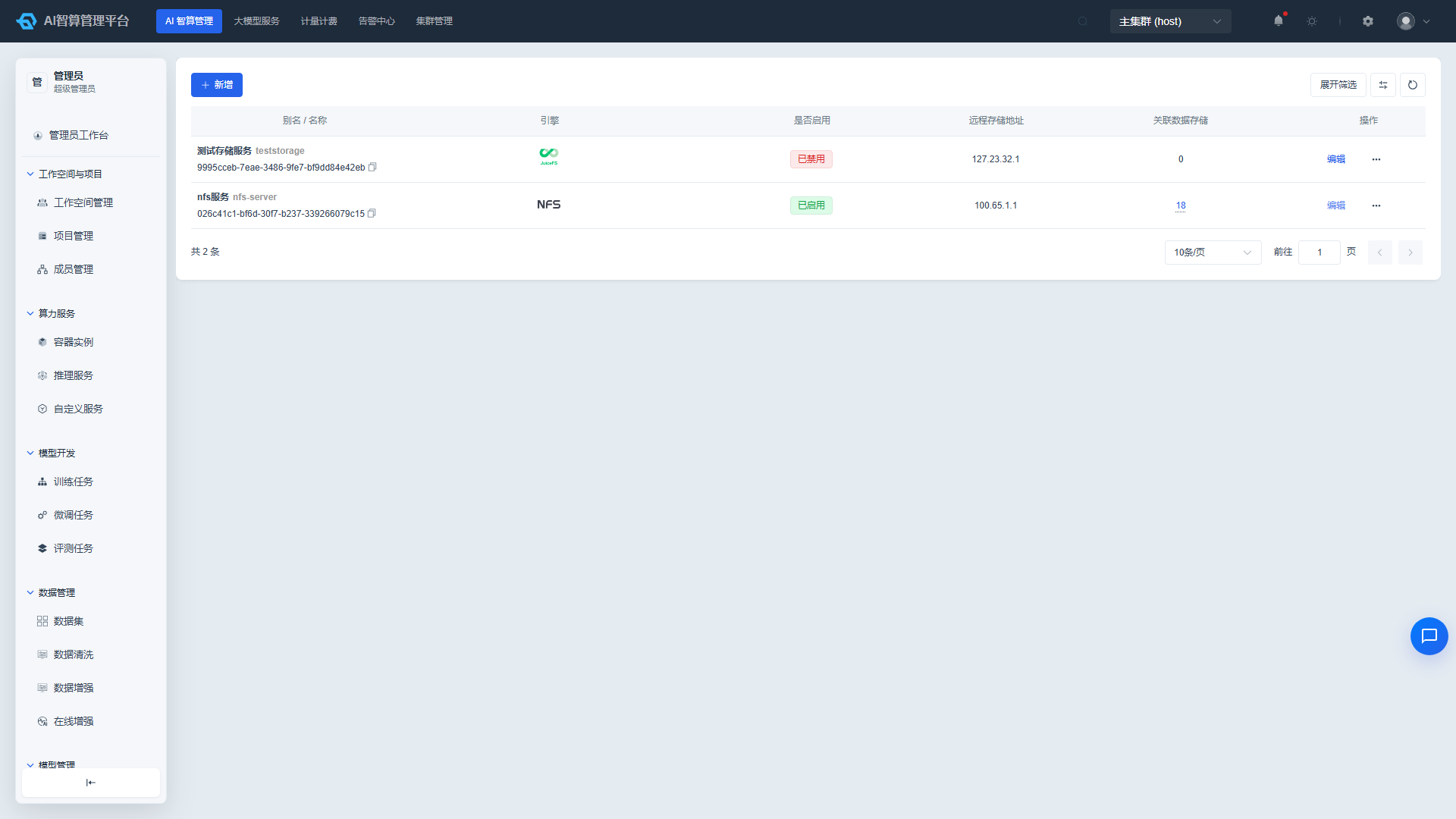
- Navigate to AI Compute Management > AI Asset Management > Storage Services, and add/enable storage backends (NFS, JuiceFS, etc.).
- Navigate to AI Compute Management > AI Asset Management > Storage, create specific storage instances, set access permissions (public/workspace) and mount paths for workspace mounting.
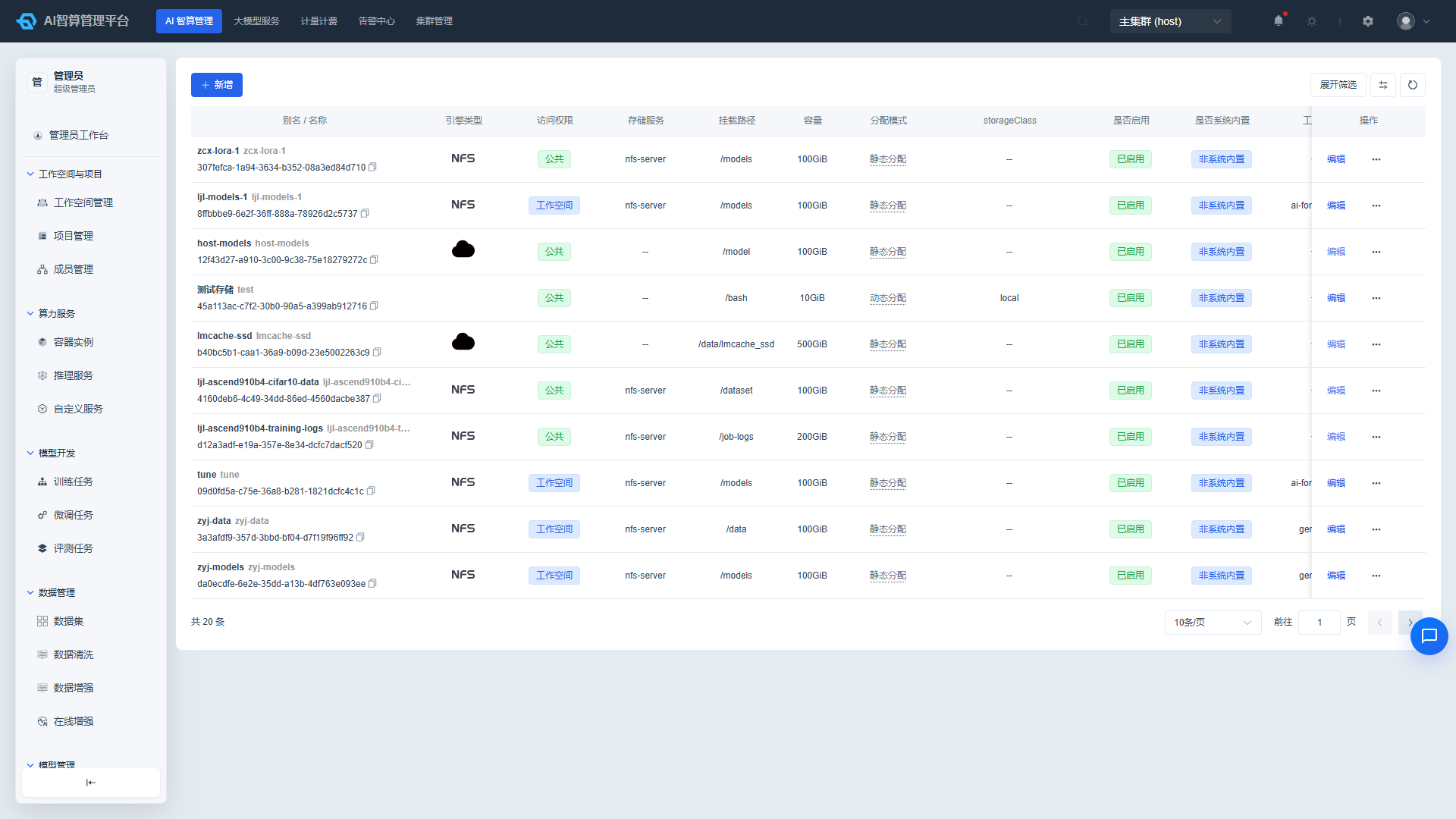
The underlying StorageClass can be verified under Cluster Management > Storage > Storage Classes.
5.2 Image Registry and Image Service
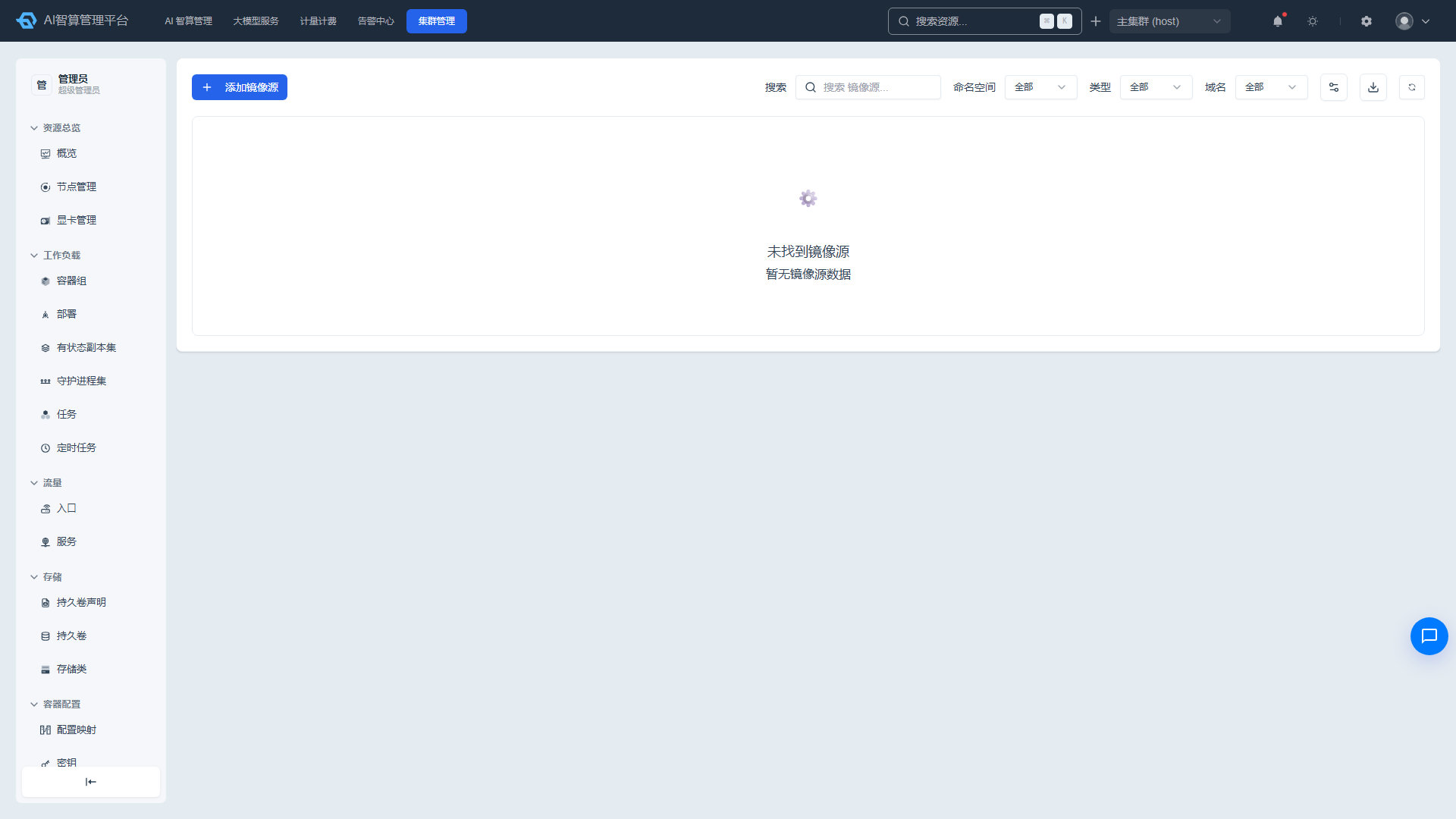
- Navigate to AI Compute Management > AI Asset Management > Image Registry Sources, and add the image registry address and pull credentials.
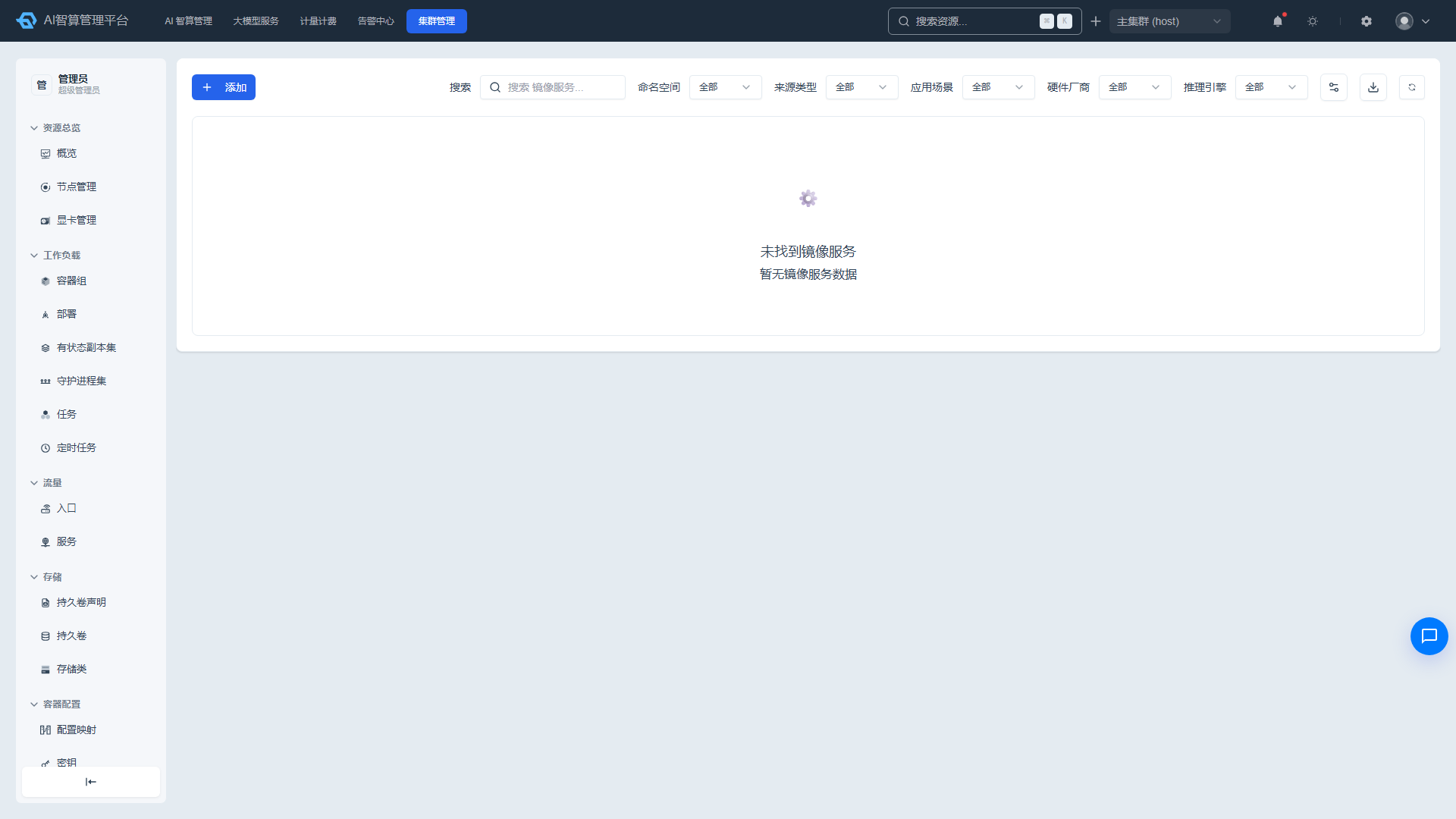
- Navigate to AI Compute Management > AI Asset Management > Image Service, and sync or upload public images (e.g., PyTorch, Jupyter, vLLM). Entering an image's details allows you to configure the image's task scenarios, supported vendors, and development tools (VS Code/Jupyter/SSH, etc.) via "Edit Tags," which determines the capabilities available when users create instances/tasks.
5.3 Compute Flavors
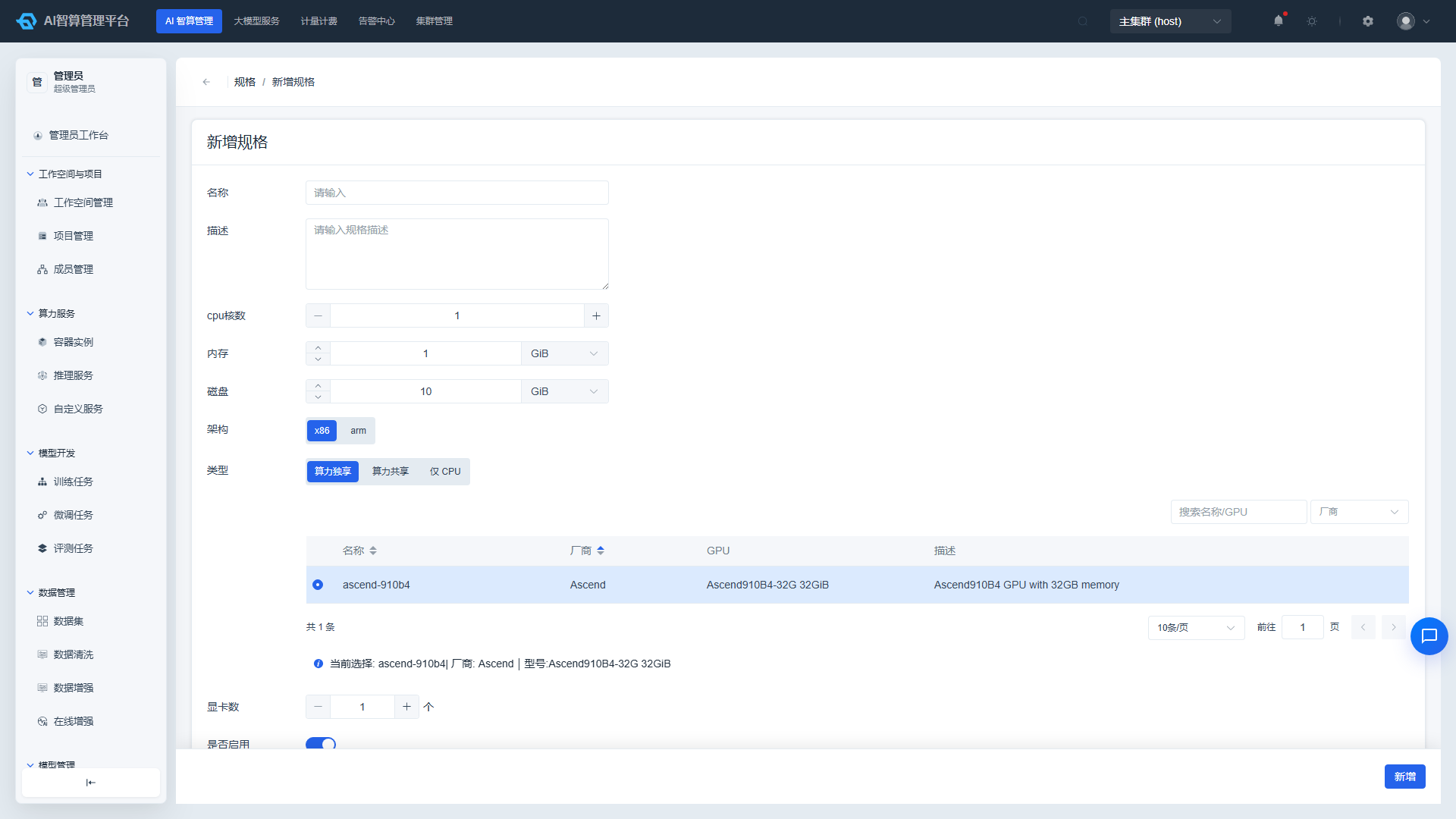
Compute flavors are the "packages" users select when creating container instances, training jobs, and inference services. We recommend planning a naming convention and creating commonly used flavors in advance based on actual hardware after deployment.
- Navigate to AI Compute Management > AI Asset Management > Flavors, and click "Create Flavor."
- Recommended naming convention (examples):
cpu-4c-16g-amd64: Pure CPU flavor, 4 cores / 16 GiB memory, x86 architecture.npu-1-910b4-1: ARM architecture, dedicated 1x 910B NPU.gpu-1-a100: x86 architecture, dedicated 1x A100 GPU.vgpu-1-16g-910b4-1/vnpu-1-16g-910b4-1: Shared compute card, representing 1/4 of a card (16 GiB VRAM).
- Partitioning guidelines:
- Shared compute cards: Partitioned by 1/8, 1/4, 1/2 card (requires GPU virtualization support).
- Dedicated compute cards: Allocated as whole cards in increments of 1, 2, 4, 8.
- CPU / Memory: Adjusted based on actual server hardware, typically a fixed CPU-to-memory ratio per compute card.
- After saving, users can select the corresponding flavor from the dropdown when creating resources.
5.4 Credentials and Secrets
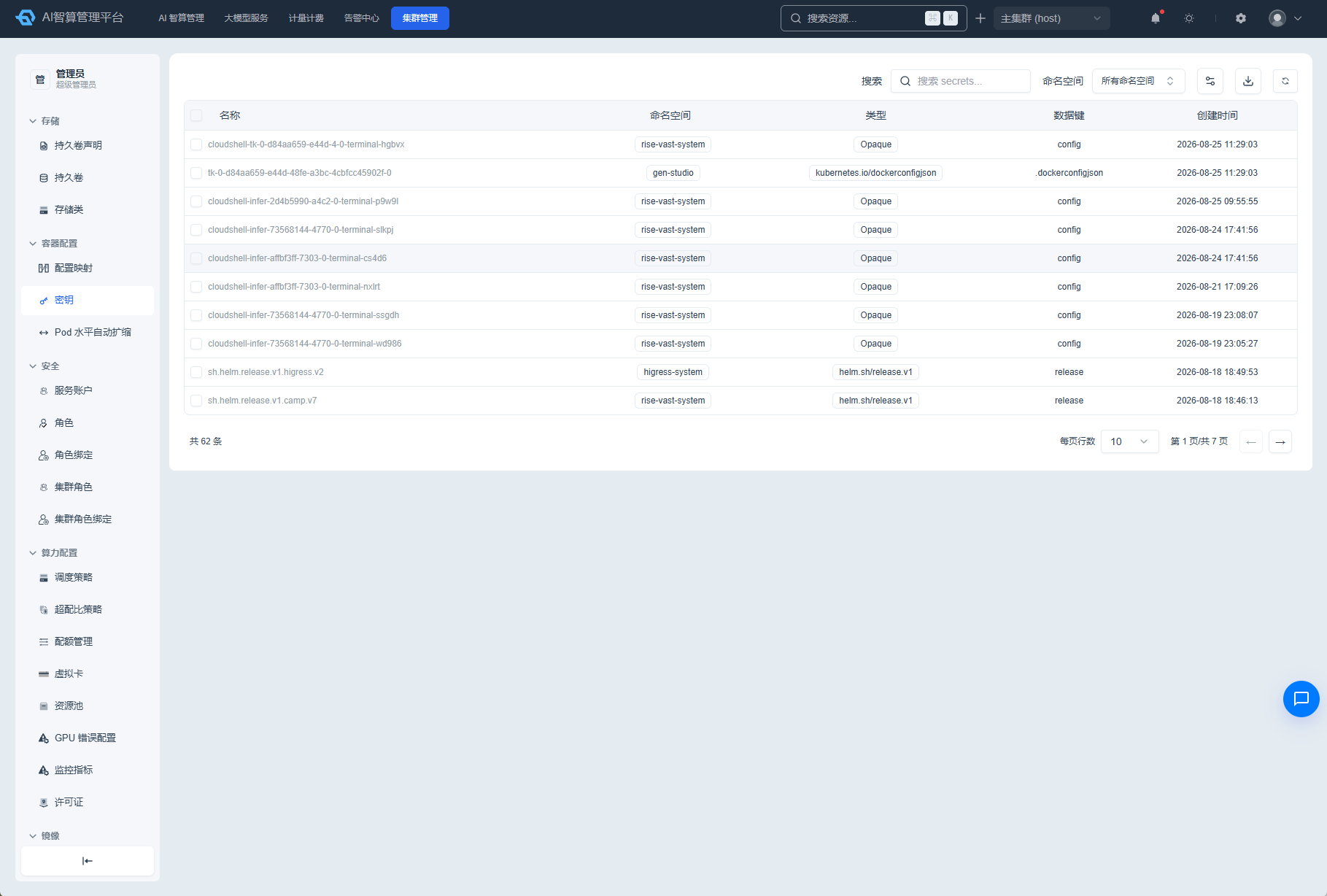
- Navigate to AI Compute Management > AI Asset Management > Credentials & Secrets.
- Add image registry credentials, Git credentials, object storage AK/SK, and other shared resources.
5.5 SFTP Configuration (Optional)
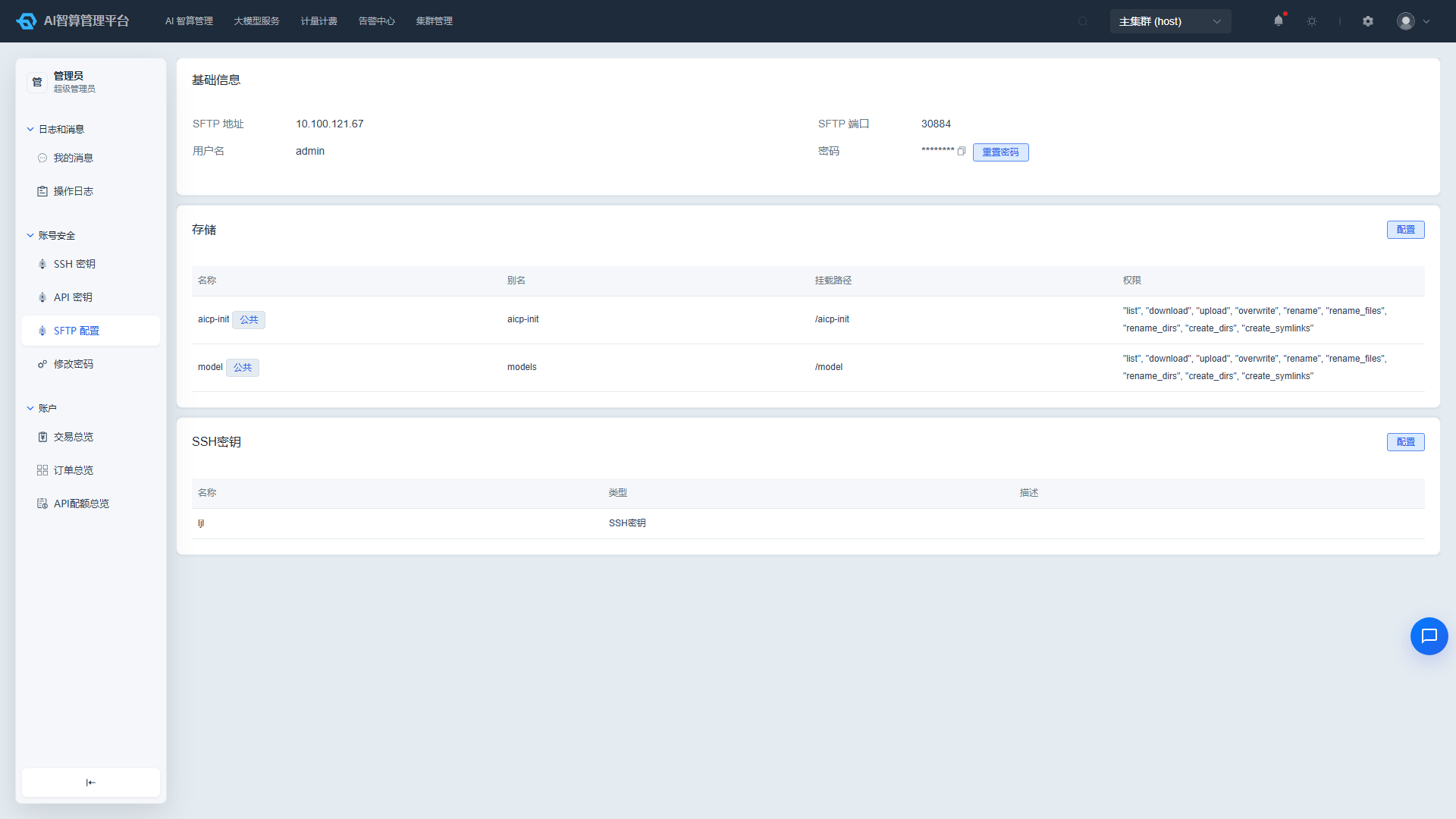
If users need to upload data files to platform storage via an SFTP client (FileZilla, WinSCP, etc.), they must first initialize their SFTP password:
- Click Profile Center > Account Security > SFTP Configuration in the upper-right corner of the admin console or user interface.
- Click "Initialize Password"; the system generates an SFTP login password.
- After associating the storage to upload data to (e.g.,
models), connect and upload using the SFTP client.
The SFTP service address is determined by the global parameter
SFTP_SERVE(see Section 3.1). Ensure this parameter is configured to the SFTP Server's actual IP; otherwise the connection address users receive will be unreachable.
6. Configure GPU and Resource Pools
GPU and resource pools form the platform's core compute foundation, directly determining whether tenants can request GPUs and whether training jobs can be scheduled. The overall flow: Node configuration (Cluster Management) → Assign cards to tenants → Add cards to tenant resource pools (Workspace details) → Users utilize by flavor.
6.1 Verify GPU Scheduling Strategy
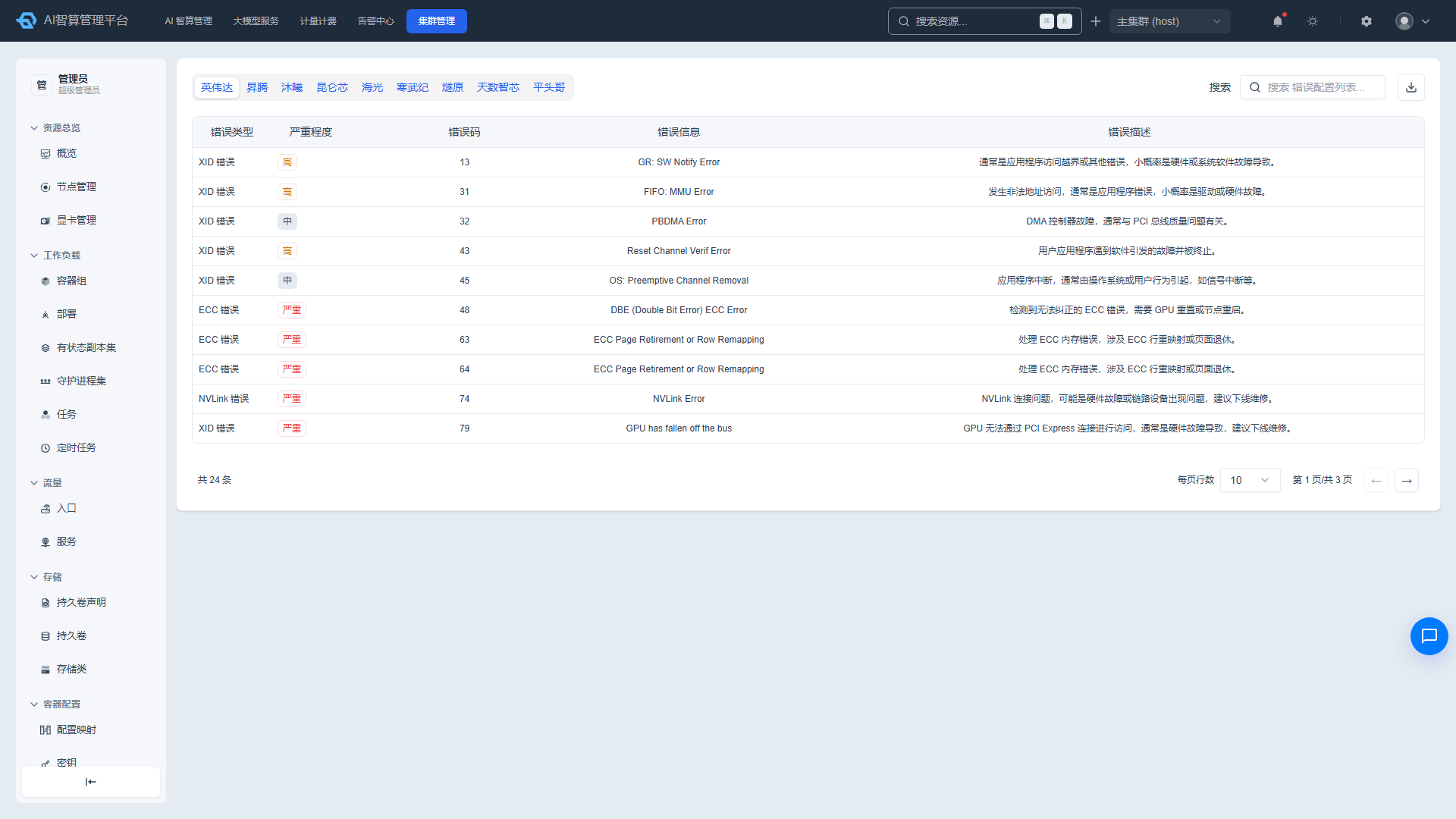
- Navigate to Cluster Management > Compute Configuration > Scheduling Strategy.
- Verify the GPU scheduler is installed and enabled; review the default scheduling strategy (global shared resource pool vs. independent sub-resource-pool scheduling).
- Verify that GPU devices on nodes are correctly recognized:
- In Cluster Management > Resource Overview > Node Management, view nodes and their GPU card lists.
- In Cluster Management > Resource Overview > GPU, view GPU count, VRAM, and status.
- If using GPU virtualization/oversubscription, confirm the relevant Device Plugin and Scheduler Extender are deployed.
6.2 Node Configuration and Card Assignment
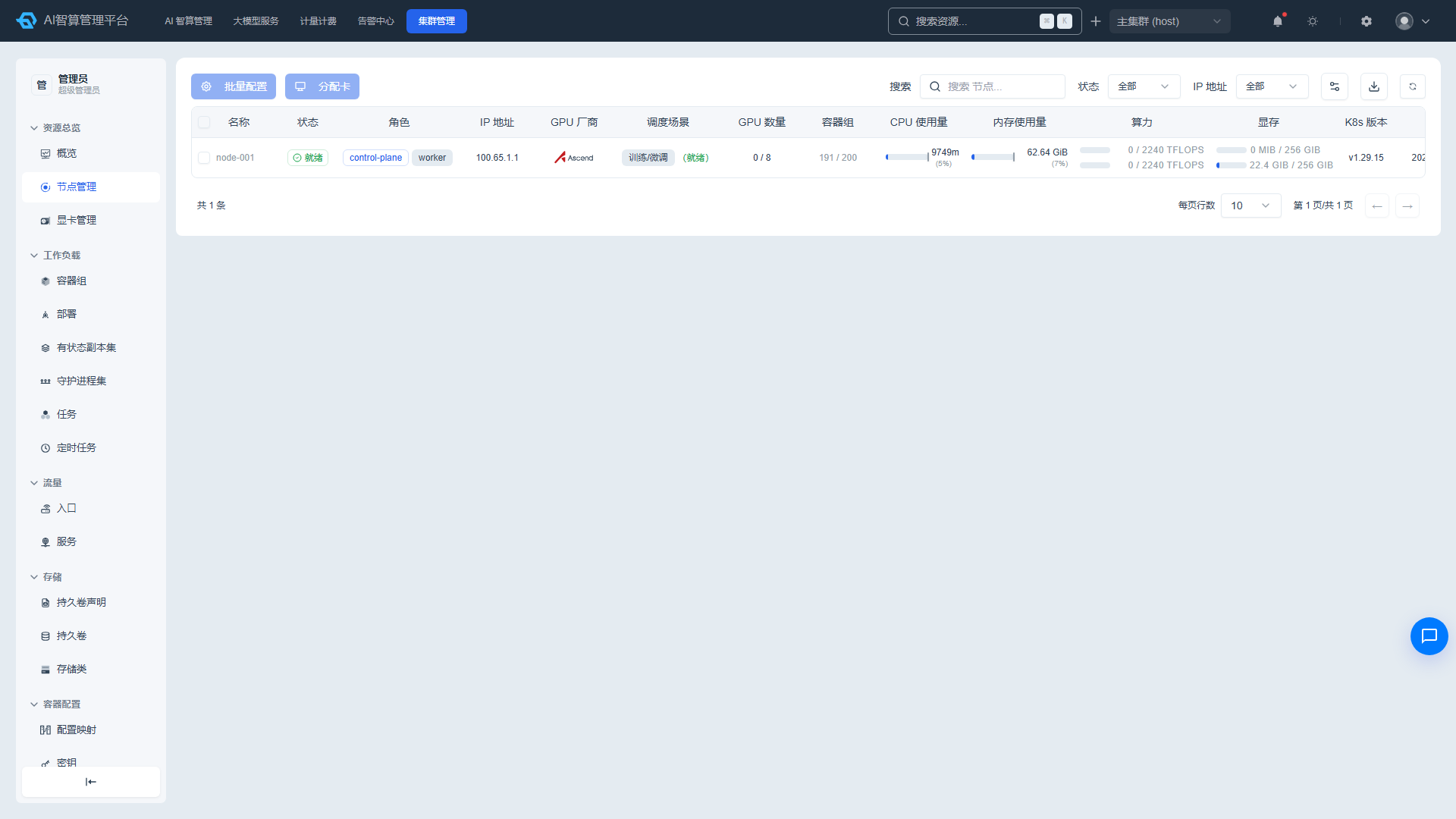
- Navigate to Cluster Management > Resource Overview > Node Management.
- Select the target node and click "Node Configuration" (for multiple nodes, use "Batch Configuration"), setting the scenario (e.g., training/fine-tuning, inference), vendor (e.g., Ascend, NVIDIA), and device plugin; the platform uses these to identify and manage the compute cards on that node.
- After node configuration, select the node(s) and click "Assign Cards" in the toolbar. In the drawer, select the target tenant (workspace) and vendor; after confirming, the compute cards on that node are assigned to the corresponding tenant.
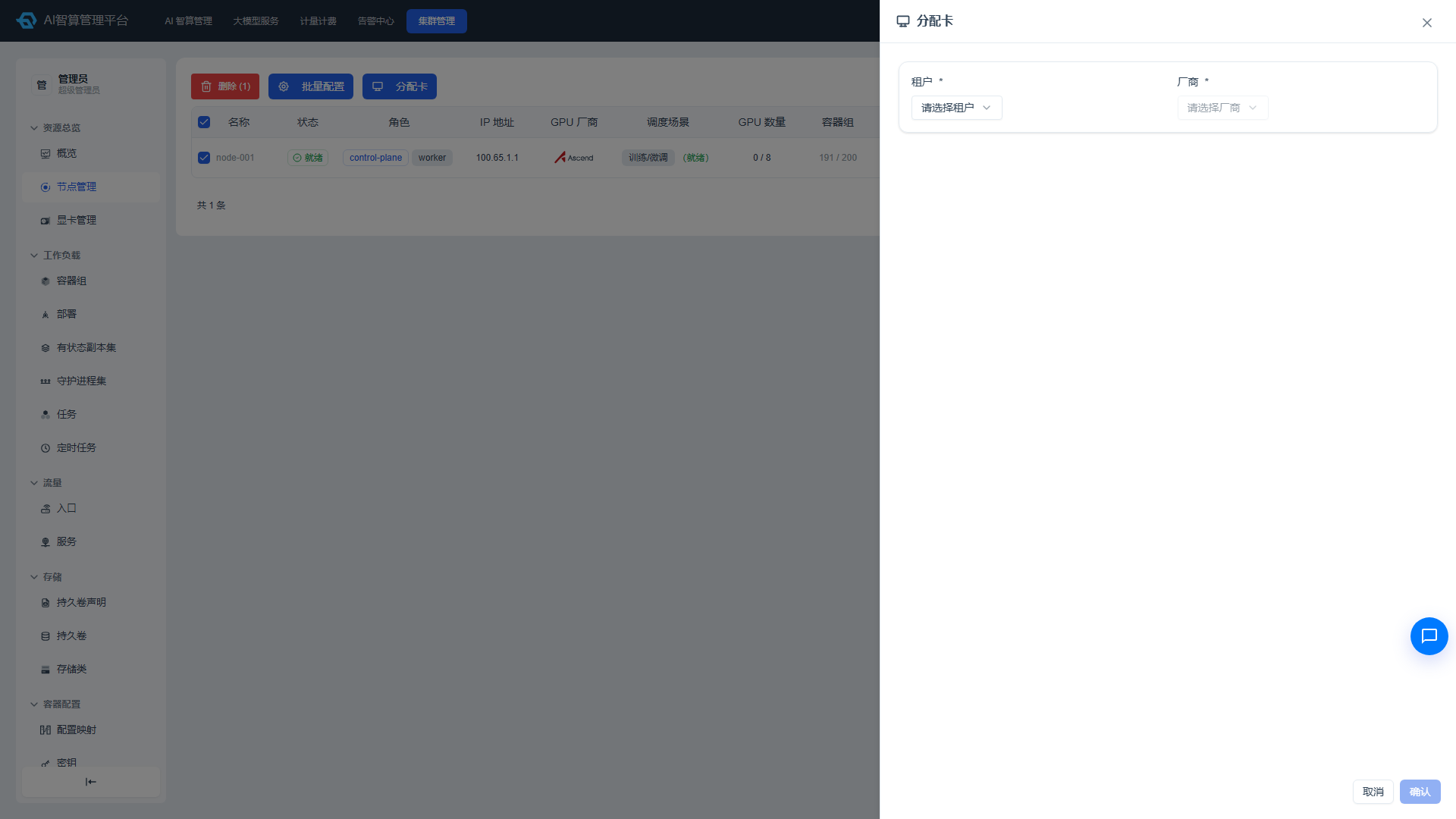
- Assigned cards first appear in the "Unassigned Resource Pool" within that tenant's workspace details (see 6.3).
6.3 Tenant Resource Pools: Adding Cards to Resource Pools
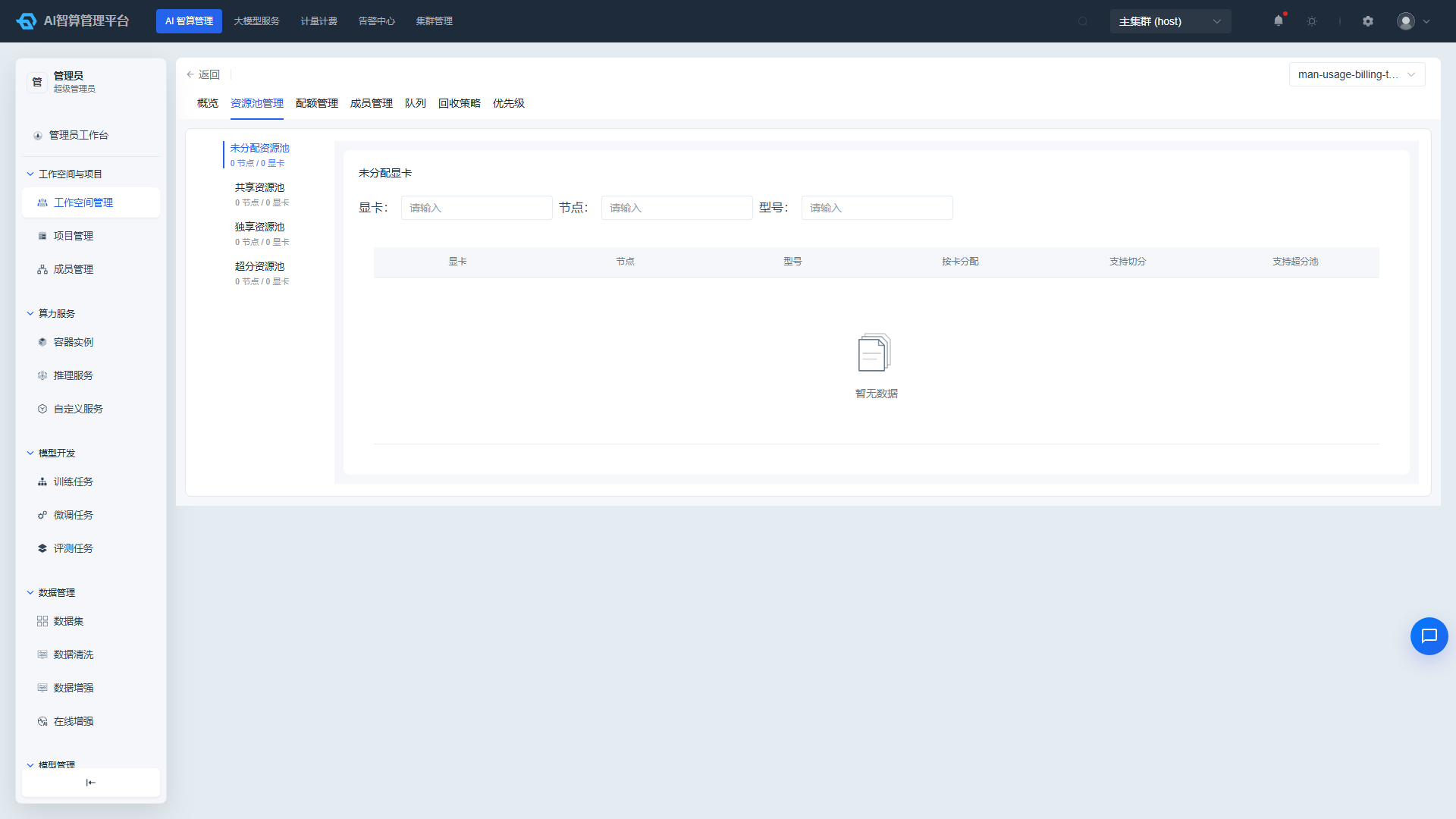
Compute cards assigned to a tenant are not immediately available — you must add the cards to specific resource pools within the workspace:
- Navigate to AI Compute Management > Workspace & Projects > Workspace Management, and open the target workspace's details page.
- Switch to the "Resource Pool Management" tab to see four resource pool sections: Unassigned Resource Pool, Shared Resource Pool, Dedicated Resource Pool, Oversubscription Resource Pool.
- Newly assigned cards default to the "Unassigned Resource Pool."
- In the Shared / Dedicated / Oversubscription Resource Pool sections, click "Add Cards" in the upper-right corner, and select target cards from the unassigned cards to add to that resource pool:
- Dedicated Resource Pool: Whole-card allocation; users use whole-card flavors.
- Shared Resource Pool: Partitioned by VRAM/compute (1/8, 1/4, 1/2 card, etc.) for sharing across multiple tasks.
- Oversubscription Resource Pool: Used with oversubscription policies (see 6.4).
Only after cards are added to a resource pool can users in that workspace select the corresponding GPU flavors when creating container instances, training jobs, or inference services.
If the "Unassigned Resource Pool" is always empty, it usually means node-side assignment hasn't been completed: first verify in Cluster Management > Resource Overview > Node Management that the node has been configured, and the GPU vendor column does not show "Assignment Not Supported" (some scheduling scenarios and vendor combinations don't support card assignment — you need to adjust the node's scheduling scenario), then proceed with "Assign Cards."
Card reclamation order (reverse of assignment — must follow this sequence):
- First release all resources running on the card (stop/delete in-use container instances, training jobs, inference services).
- In the workspace details "Resource Pool Management," remove the card from the resource pool — the card returns to the "Unassigned Resource Pool."
- Return to Cluster Management > Resource Overview > Node Management and use "Assign Cards" to reclaim the card from the tenant side, completing the reclamation.
6.4 Configure GPU Oversubscription and Virtual Cards (Optional)
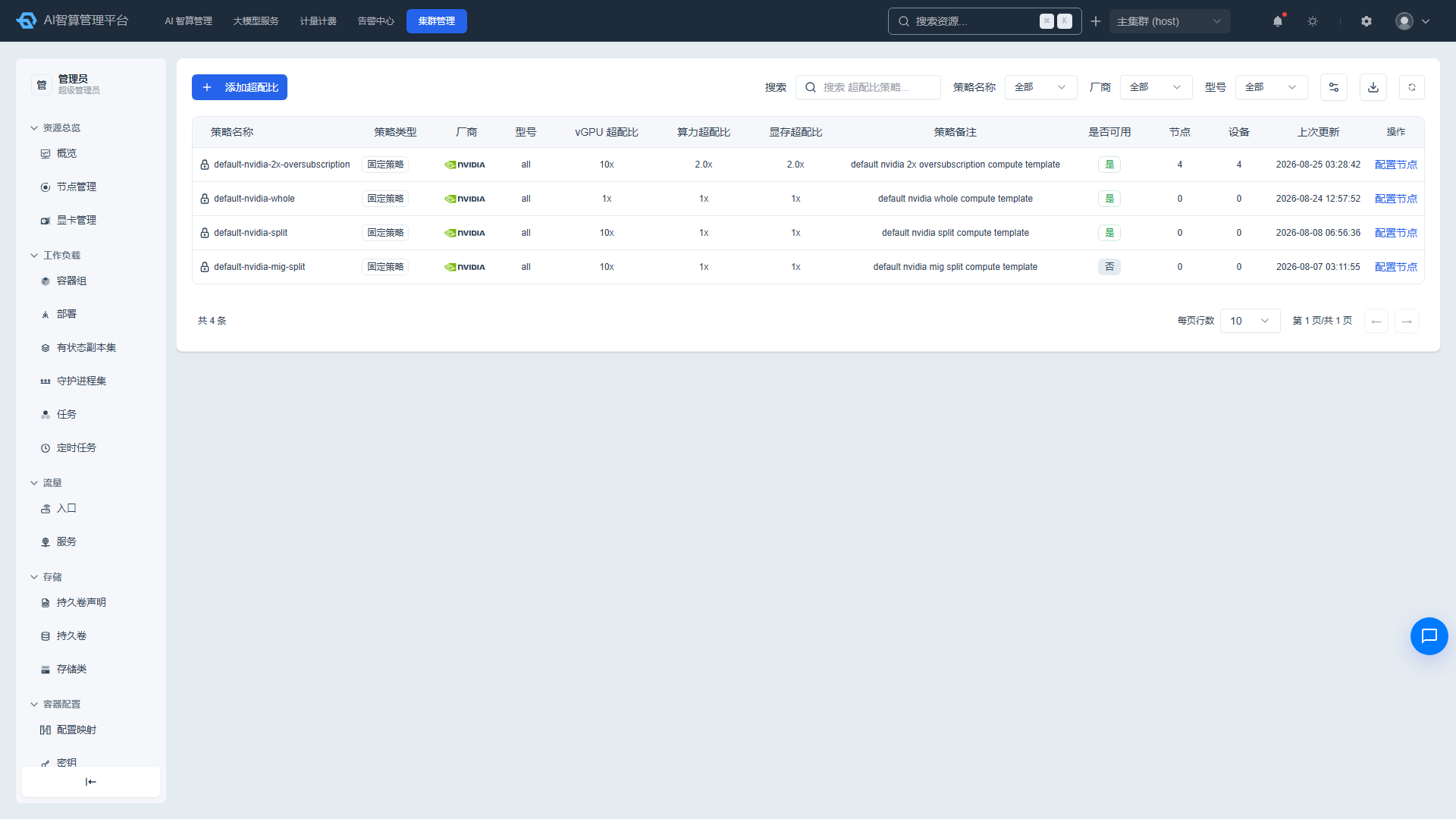
- Navigate to Cluster Management > Compute Configuration > Oversubscription Strategy to set VRAM oversubscription multipliers, etc.
- Navigate to Cluster Management > Compute Configuration > Virtual Cards to configure VRAM partitioning granularity (e.g., 1 GiB, 2 GiB, 4 GiB) and compute ratio limits.
- After saving, add cards to the workspace's "Oversubscription Resource Pool," and users can select vGPU flavors smaller than a whole card when creating resources.
6.5 Cluster-Side Resource Pool View
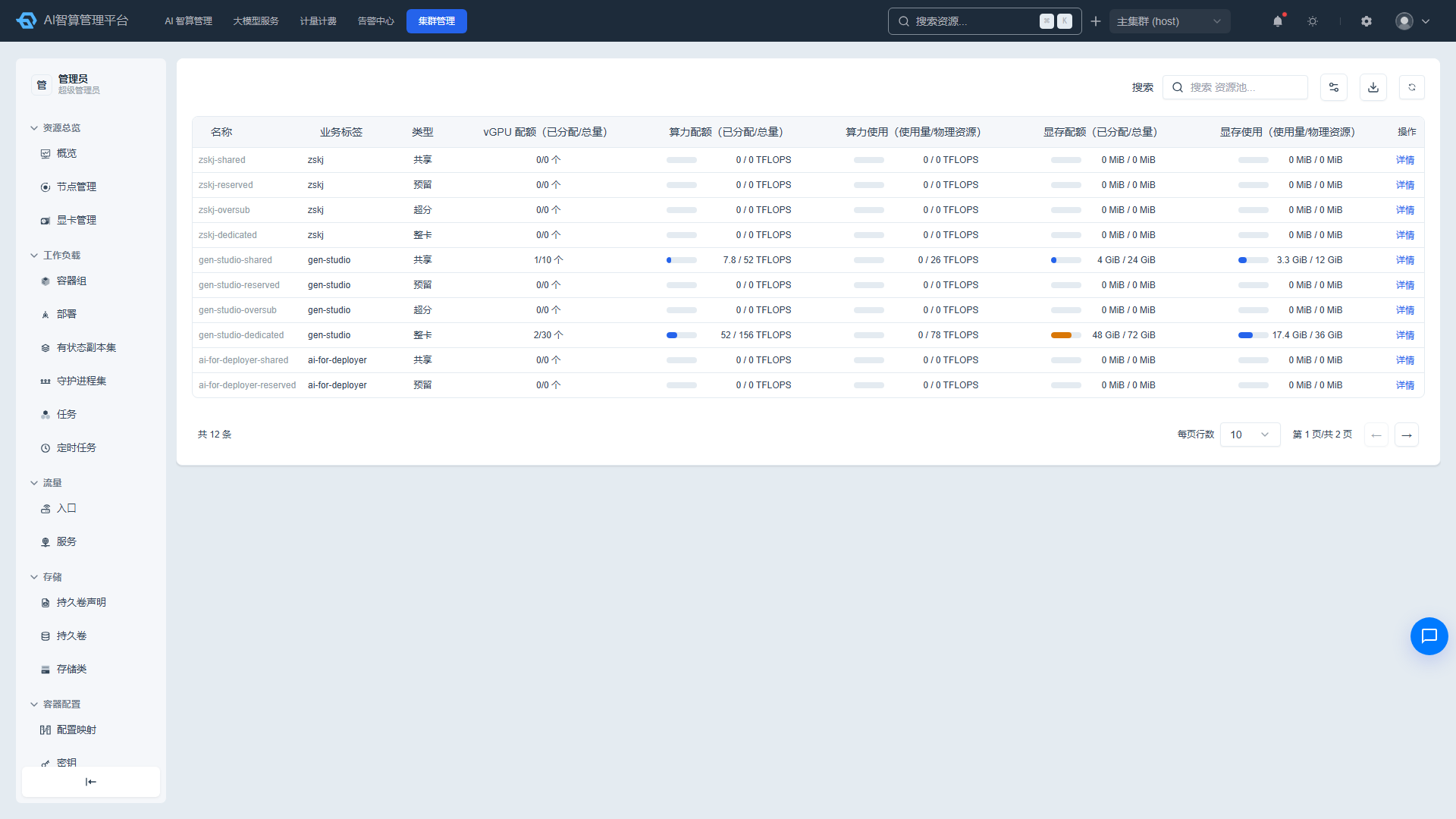
Navigate to Cluster Management > Compute Configuration > Resource Pools to view all resource pools from the cluster perspective, including pool type (shared/whole-card/reserved/oversubscription), vGPU quotas, compute and VRAM allocation/usage rates, and GPU device details within each pool — useful for operations verification.
We recommend planning resource pools by GPU card type (A100, H800, 4090, etc.) or by business use case (training, inference, development) to simplify subsequent quota and billing management.
7. Plan Tenants: Workspaces, Projects, Resource Pools, Quotas
7.1 Create Workspaces
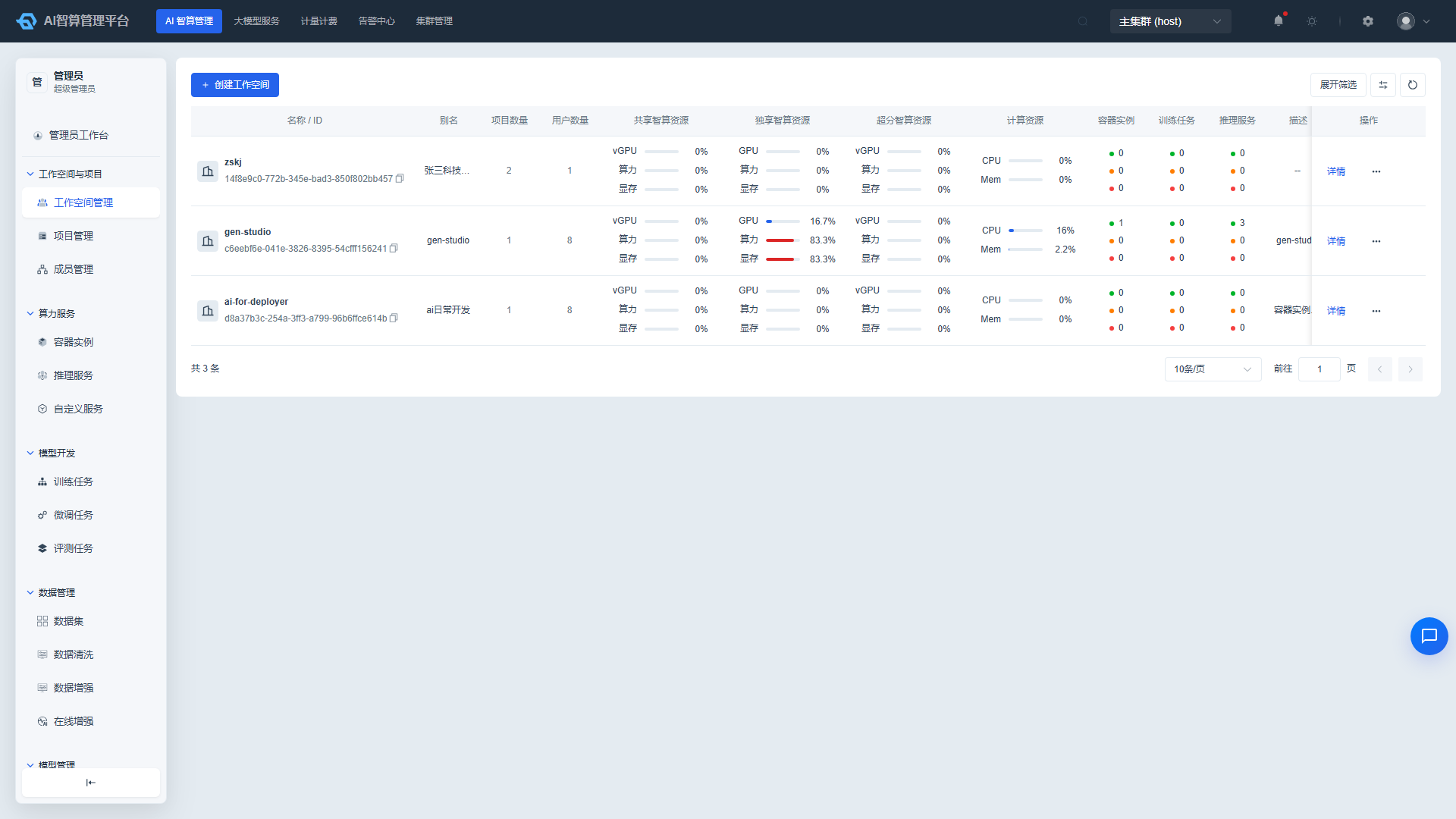
- Navigate to AI Compute Management > Workspace & Projects > Workspace Management.
- Click "Create Workspace" and fill in the name, owner, and description.
- In the workspace details, mount the storage service created in Step 5; compute card resources are injected via the Chapter 6 process (Node card assignment → Resource Pool card addition).
7.2 Create Projects
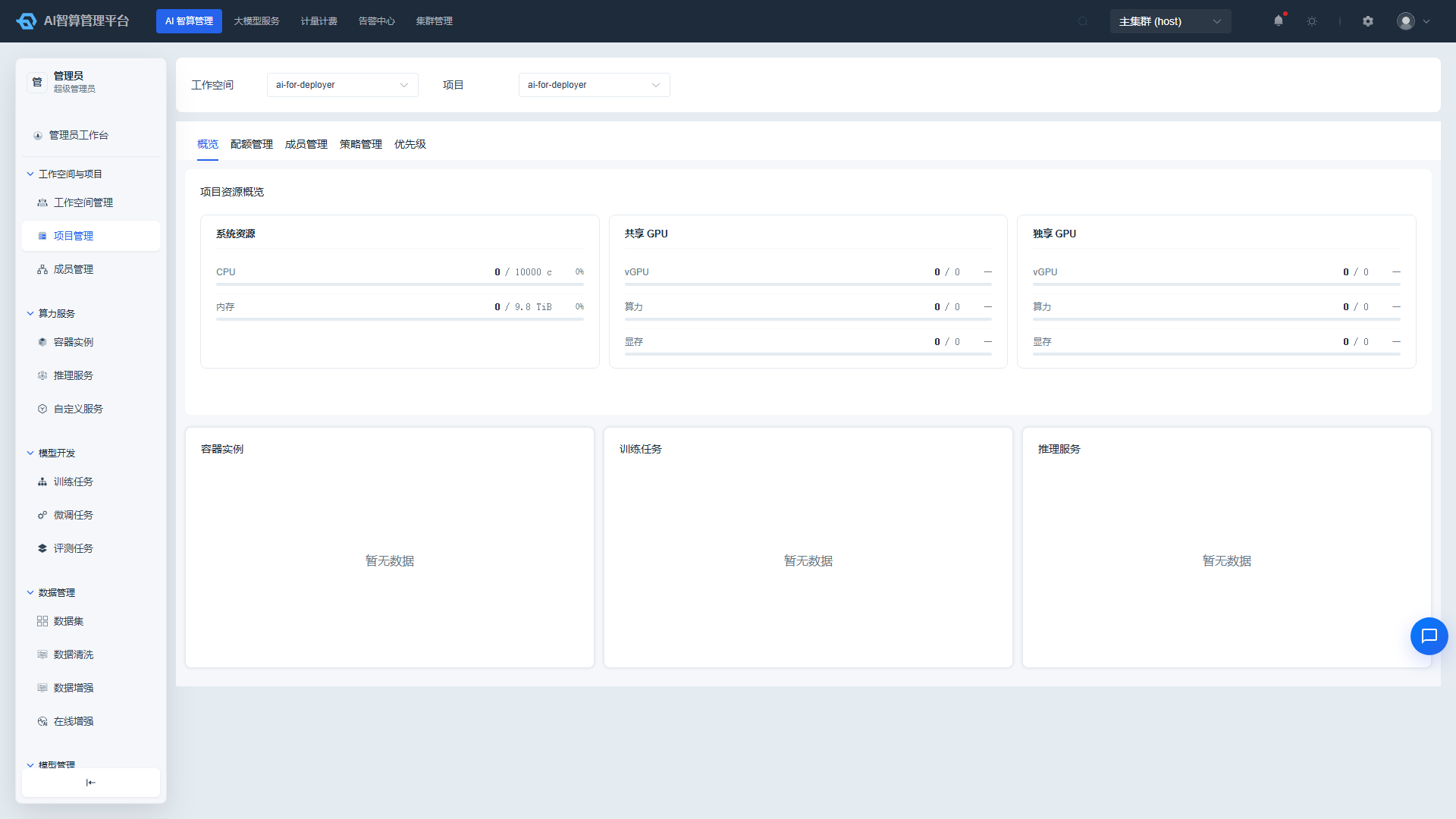
- Navigate to AI Compute Management > Workspace & Projects > Project Management.
- Create a separate project for each business team (mapped to a K8s Namespace).
- Projects automatically inherit the workspace's resource pools but can be individually adjusted.
7.3 Set Quotas
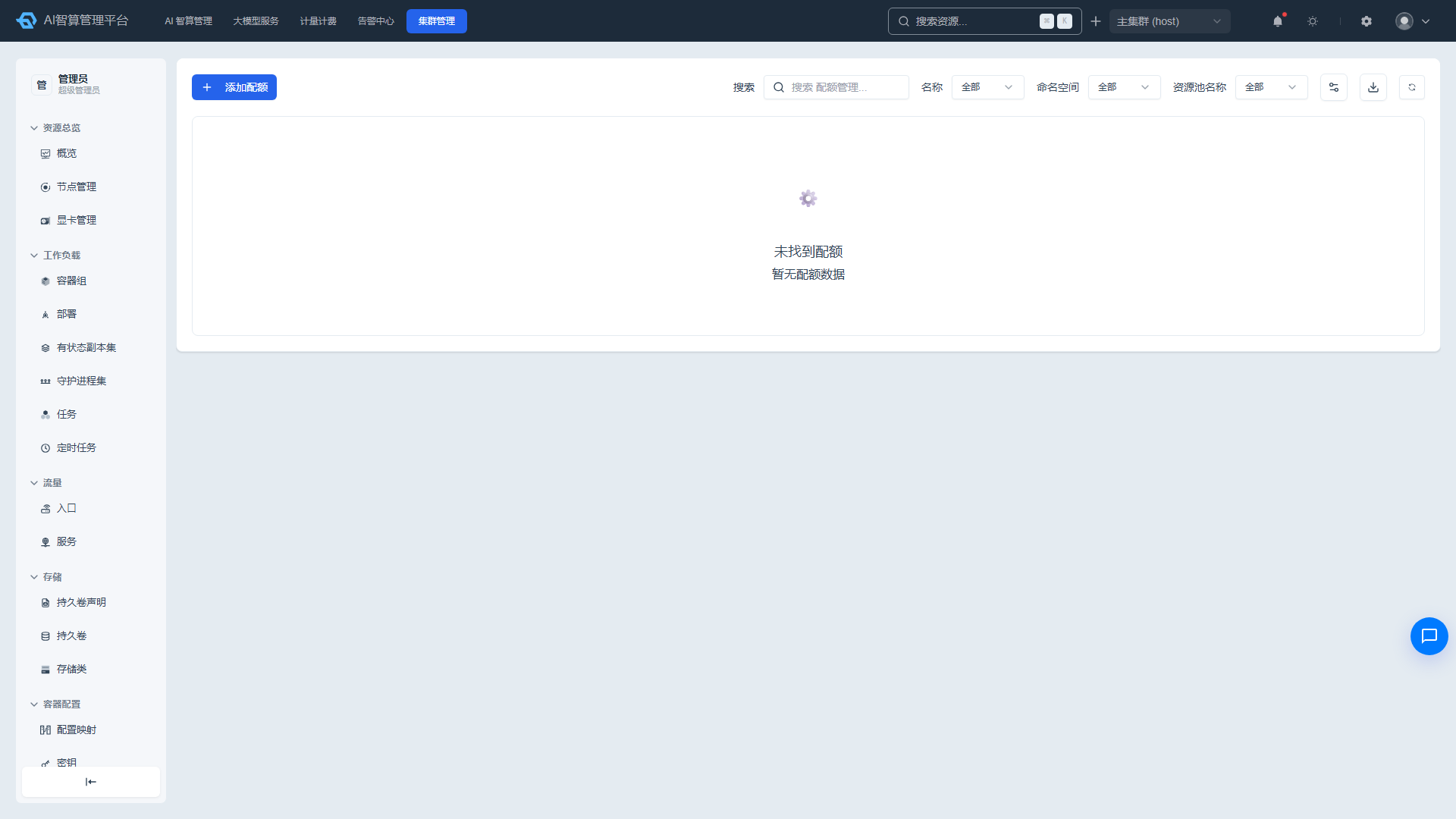
Quotas are configured at two levels:
- Workspace quotas: Navigate to AI Compute Management > Workspace & Projects > Workspace Management, open the workspace details "Quota Management" tab, and adjust CPU, memory quotas, as well as shared/dedicated GPU quotas.
- Cluster/resource pool-level quotas (optional): Navigate to Cluster Management > Compute Configuration > Quota Management to limit namespace resource usage by cluster or resource pool.
7.4 Add Members
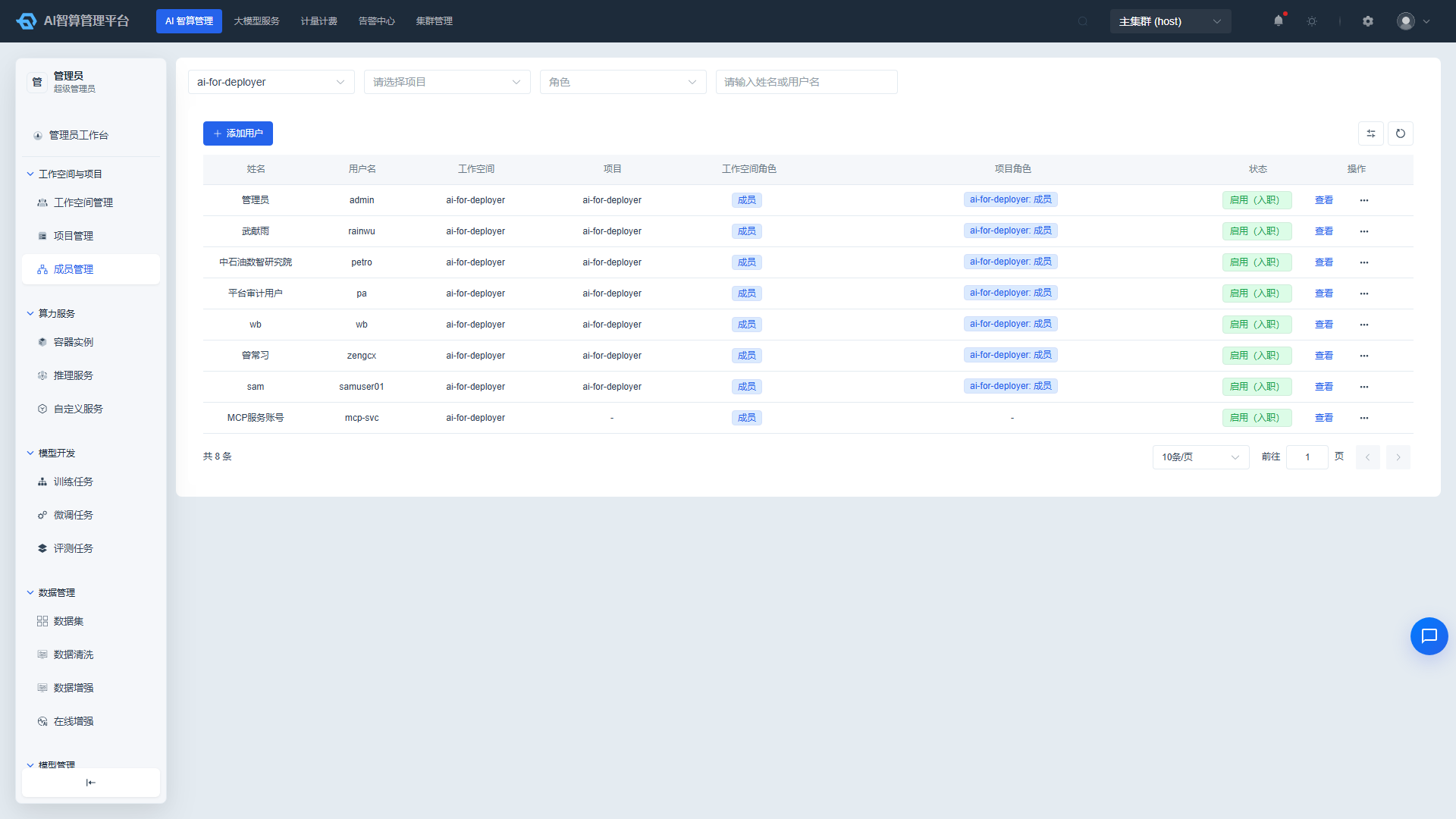
- Navigate to AI Compute Management > Workspace & Projects > Member Management.
- Click "Add User" to add users to workspaces/projects, assigning roles such as Workspace Administrator/Workspace Member, Project Administrator/Project Member.
8. Configure Scheduling and Reclaim Policies
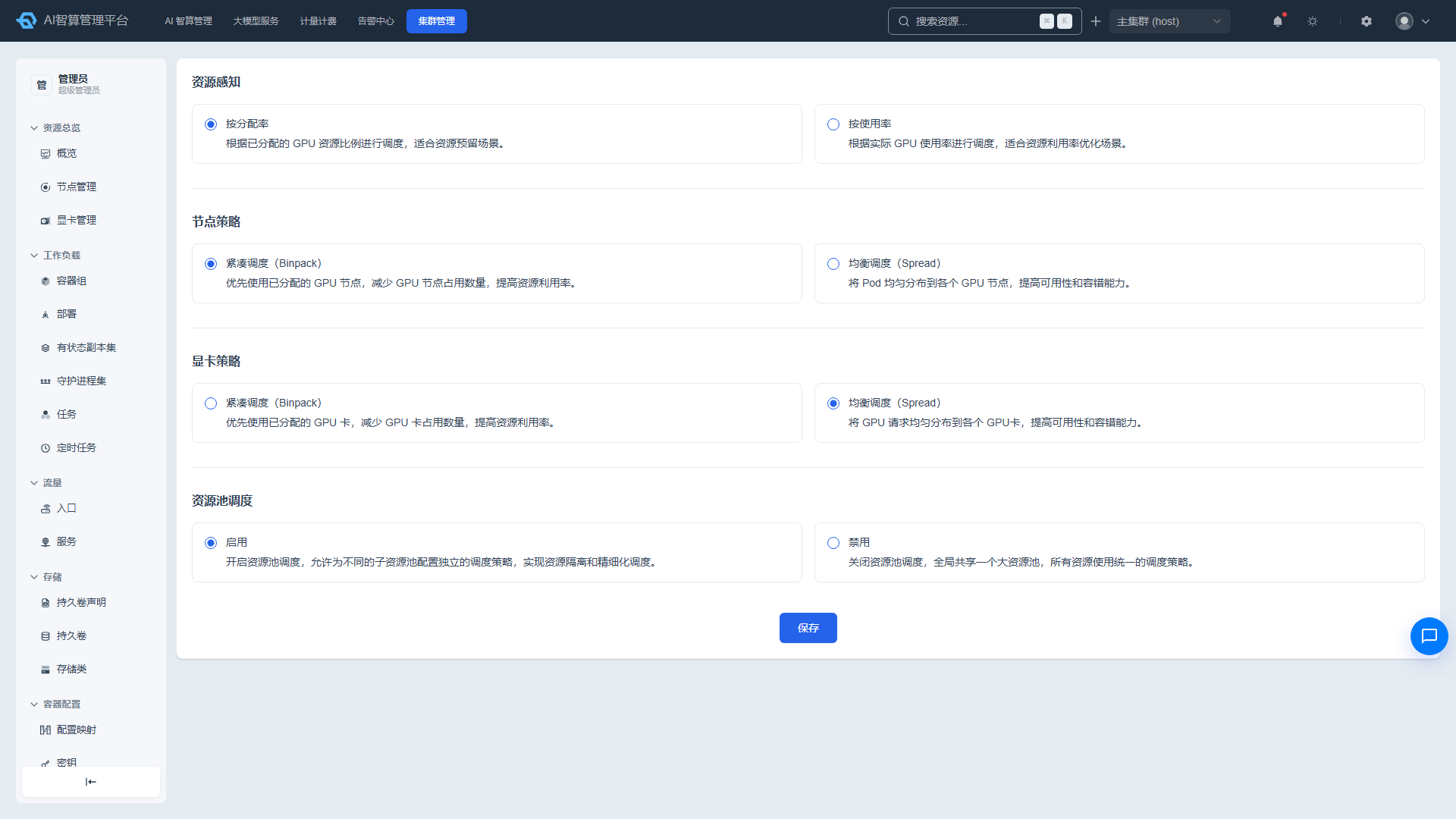
- Navigate to AI Compute Management > Policy Management > Training Scheduling Strategy.
- Configure queues, priorities, and preemption strategies to prevent tasks from queuing indefinitely or resource starvation.
- Navigate to AI Compute Management > Policy Management > Resource Reclaim Strategy.
- Set automatic reclaim times for idle container instances and completed tasks.
- Navigate to AI Compute Management > Policy Management > Priority Strategy (optional).
- Set scheduling weights for different projects or task types.
9. Configure Large Model Services (Optional)
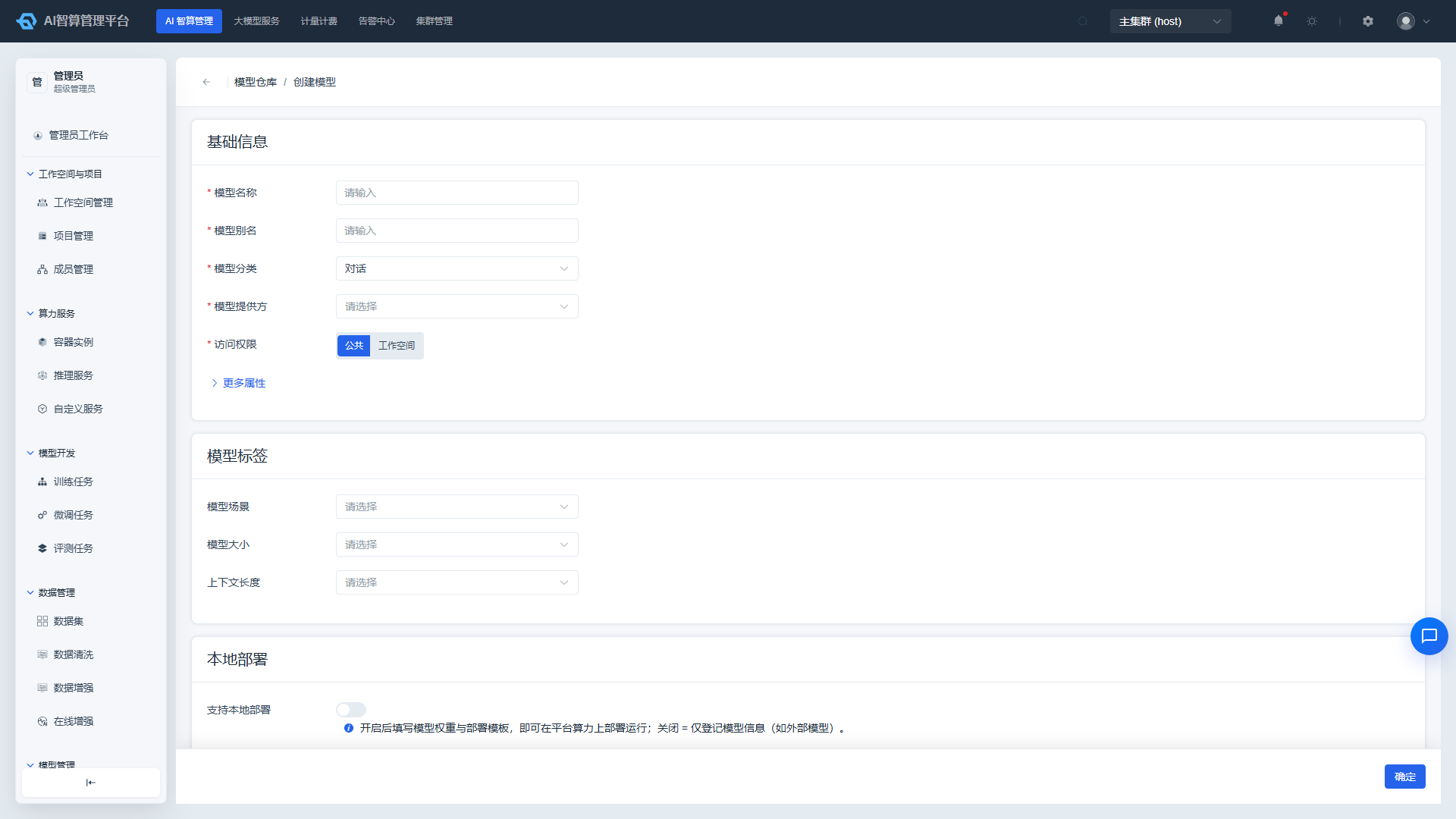
If tenants need to use the model marketplace, online Playground, or model API, administrators must also complete:
- Navigate to AI Compute Management > Model Management, publish models to the model marketplace, and create deployment templates.
- Navigate to AI Compute Management > AI Gateway > Channel Management, and integrate external model channels or internal inference services.
- Navigate to AI Compute Management > AI Gateway > AI Routing, and configure model routing, rate limiting, and degradation policies.
- Navigate to AI Compute Management > AI Gateway > API Key Management, and create platform-level or tenant-level API keys.
10. Configure Alerting and On-Call (Recommended)
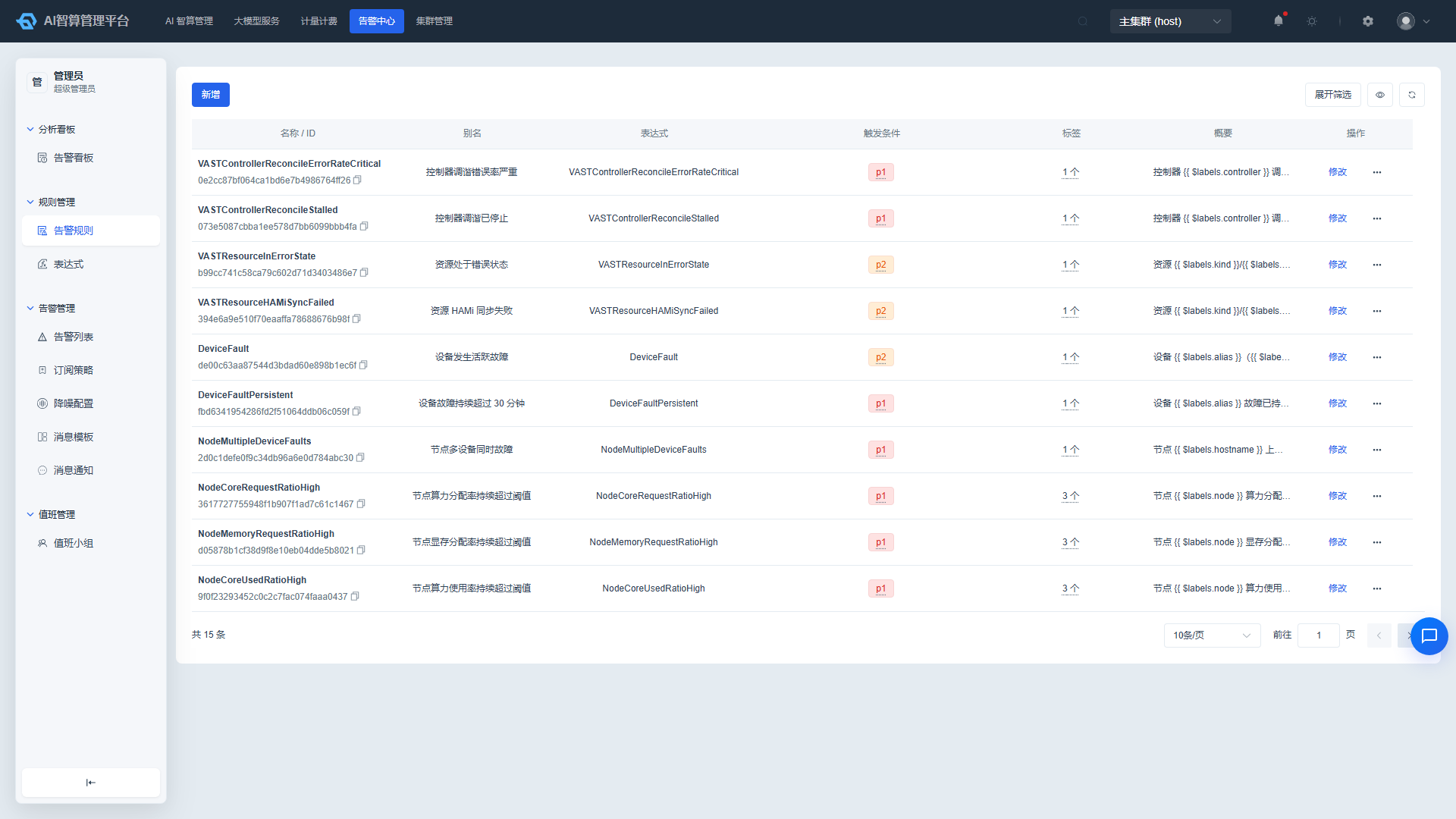
- Navigate to Alert Center > Rule Management and create platform/cluster-level alert rules (GPU faults, node offline, insufficient quota, etc.).
- Navigate to Alert Center > Alert Management > Message Templates and configure notification content.
- Navigate to Alert Center > Alert Management > Subscription Policies and specify alert recipients and channels (email, SMS, DingTalk, Feishu).
- Navigate to Alert Center > Alert Management > Noise Reduction and configure alert suppression to prevent alert storms.
- Navigate to Alert Center > On-Call Management and create on-call teams and shift schedules.
11. Configure Metering and Billing (Optional)
If cost allocation and billing are needed, administrators can configure metering and billing. Platform billing includes three policy types:
11.1 Tenant Resource Billing (Pay-per-use)
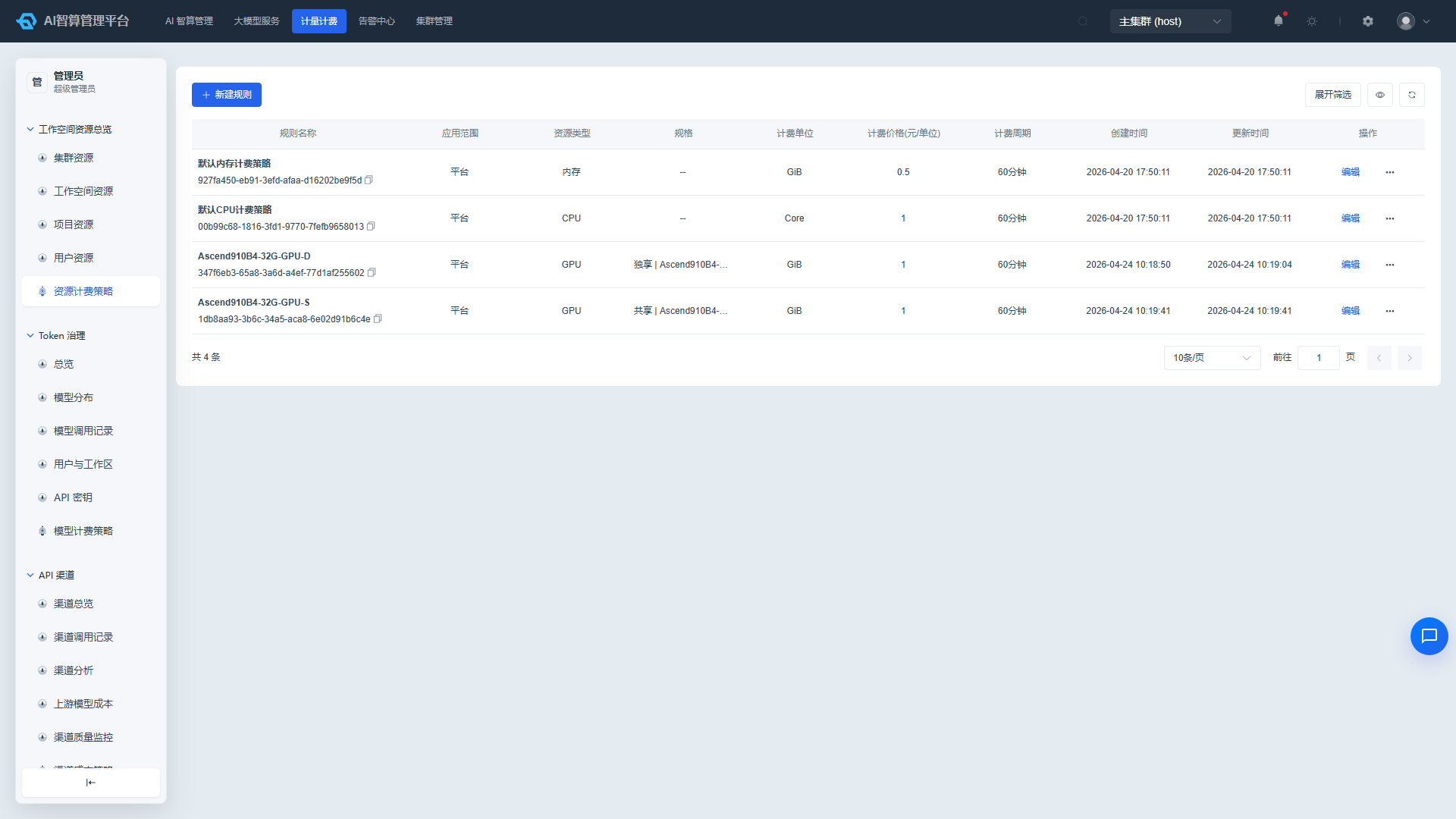
- Navigate to Metering & Billing > Workspace Resource Overview > Resource Billing Policy.
- After deployment, only CPU / Memory billing rules exist by default; Compute card (GPU/NPU) billing rules must be created manually:
- Create separate rules for dedicated compute cards and shared (vGPU/vNPU).
- Shared compute is typically billed at a unit price of 1 GiB VRAM per hour, with the platform calculating costs based on actual usage duration and VRAM.
- Tenant resource billing uses a "pay-per-use" model — charges are only generated when users actually create and run resources.
11.2 Physical Resource Billing (Assign-to-bill)
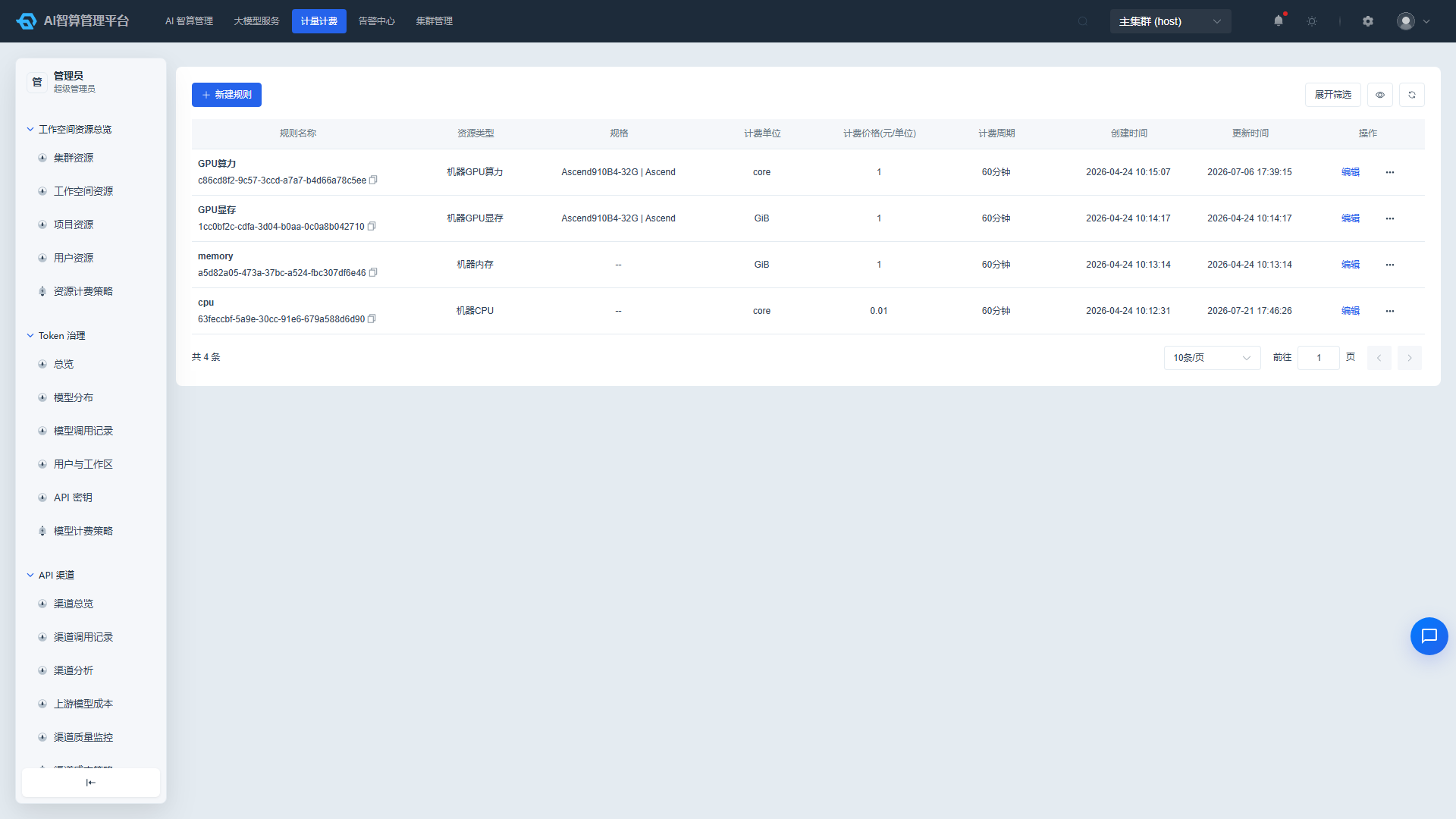
- Navigate to Metering & Billing > Physical Resource Overview > Resource Billing Policy.
- Physical resource billing targets the underlying machine/node level, using an "assign-to-bill" model: billing starts as soon as resources are allocated (provisioned to tenants/resource pools), regardless of actual user utilization.
- Billing dimensions include CPU, memory, VRAM, compute cards, etc., used to calculate underlying hardware costs.
11.3 Model Metering (Token Billing)
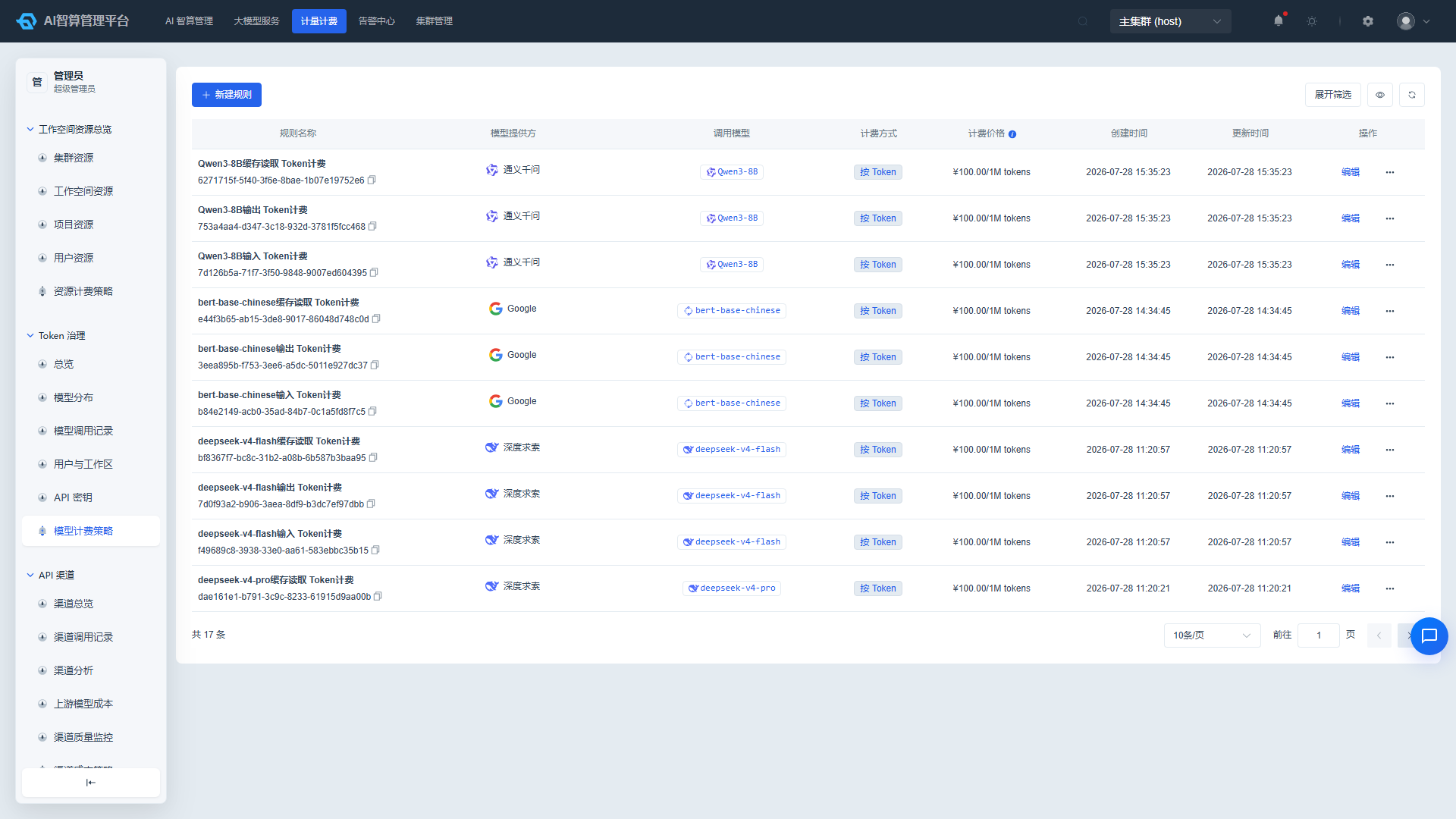
- Navigate to Metering & Billing > Token Governance > Model Billing Strategy.
- Set input and output unit prices per thousand tokens:
- The platform includes a global default policy with editable unit prices.
- You can also create policies at the "model + tenant" granularity for differentiated pricing across tenants/models.
- To account for upstream costs, configure channel procurement costs under Metering & Billing > API Channel > Channel Cost Policy.
For billing details and how to view invoices, see Billing.
12. Verify Tenant User Availability
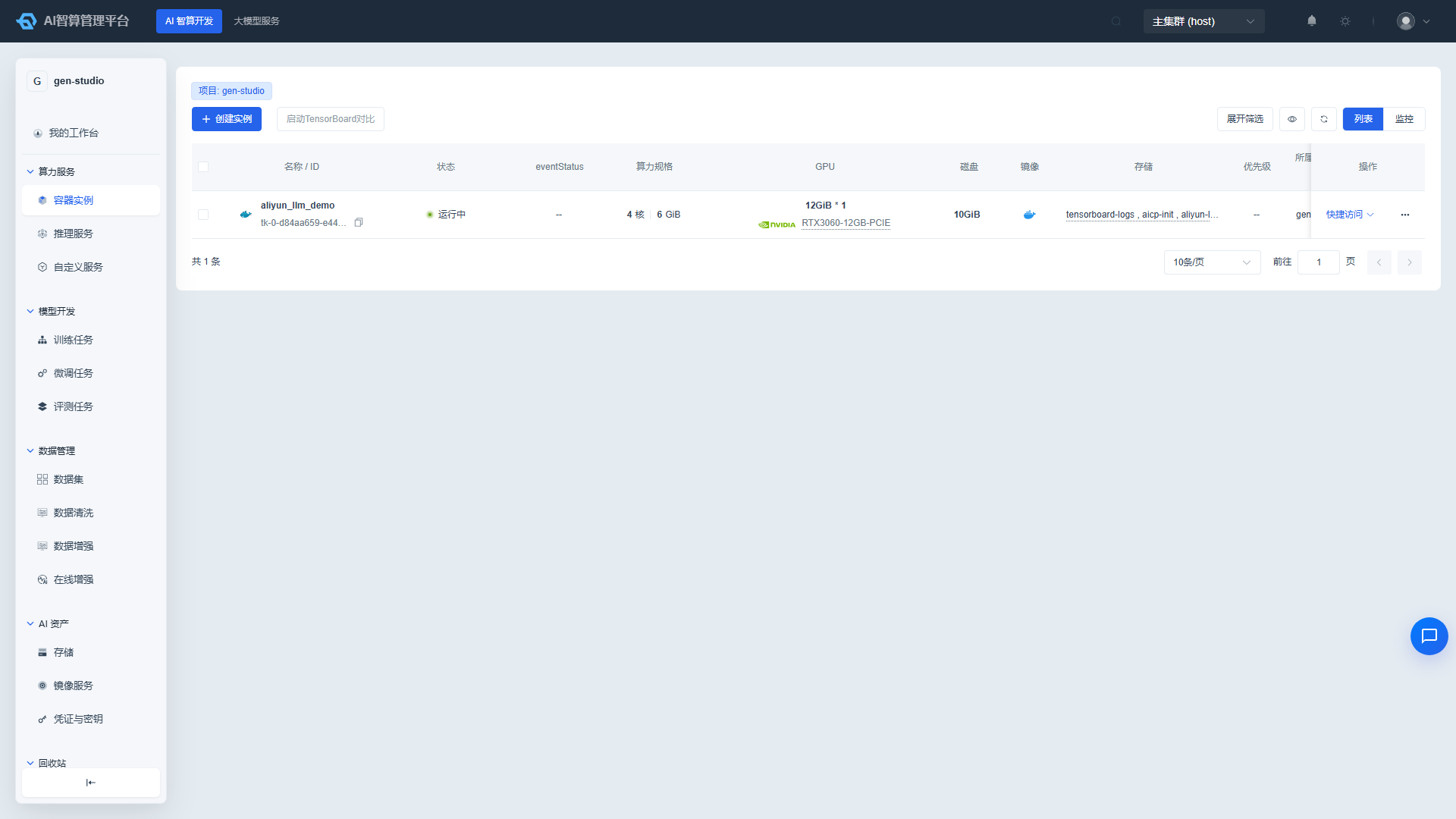
After completing the above configurations, we recommend verifying with the following steps:
- Log in using a regular user account at
https://<camp-domain>/camp/login. - Verify the user can see the correct workspace and project.
- Navigate to AI Compute Development > Compute Services > Container Instances, create a test container instance, and verify it can run and access Jupyter/VS Code.
- Navigate to AI Compute Development > Model Development > Training Jobs, submit a test training job, and verify it can be scheduled and run.
- Navigate to AI Compute Development > Compute Services > Inference Services, deploy a test inference service, and verify you can obtain the invocation address.
Initialization Checklist Quick Reference
| Step | Key Action | Verification Criteria |
|---|---|---|
| 1 | Onboard K8s cluster (multi-cluster requires JWT secret sync) | Cluster status normal, nodes/GPU visible |
| 2 | Obtain and import license | License status "Authorized," authorization meets requirements |
| 3 | Configure global parameters (including GATEWAY_ADDR/IDE_DOMAIN/SFTP_SERVE) | Instance WebSSH, online IDE, SFTP addresses reachable |
| 4 | Create platform users and add to tenants/projects | Admins, tenant admins, regular users can log in |
| 5 | Configure AI assets (storage, images, flavors, credentials, SFTP) | Storage mountable, flavors selectable, images pullable |
| 6 | Node configuration → Card assignment → Resource pool card addition | Tenants can see and use GPU flavors in workspaces |
| 7 | Create workspaces/projects/quotas/members | Regular users belong to projects and have quotas |
| 8 | Configure scheduling and reclaim policies | Training jobs can be scheduled, idle resources can be reclaimed |
| 9 | Configure large model services | Model marketplace / online Playground / API usable |
| 10 | Configure alerting and on-call | Alerts trigger and reach recipients |
| 11 | Configure metering and billing (tenant resources / physical resources / model tokens) | Costs and usage can be tracked |
| 12 | User verification | Container instances, training jobs, inference services all working |
Next Steps
- Administrator daily operations: see Admin Quick Start.
- User onboarding: see User Quick Start.
- Billing details: see Billing.