Admin Quick Start
This guide is intended for project/tenant administrators, platform operations engineers, and platform operators who use the Admin Console. It covers logging in to the admin console, completing the platform's initial configuration, and establishing the full governance chain of workspaces, projects, resource pools, quotas, AI assets, policies, and alerting.
1. Log In to the Admin Console
- Open your browser and navigate to
https://<camp-domain>/camp/admin/login. - Log in with an administrator account.
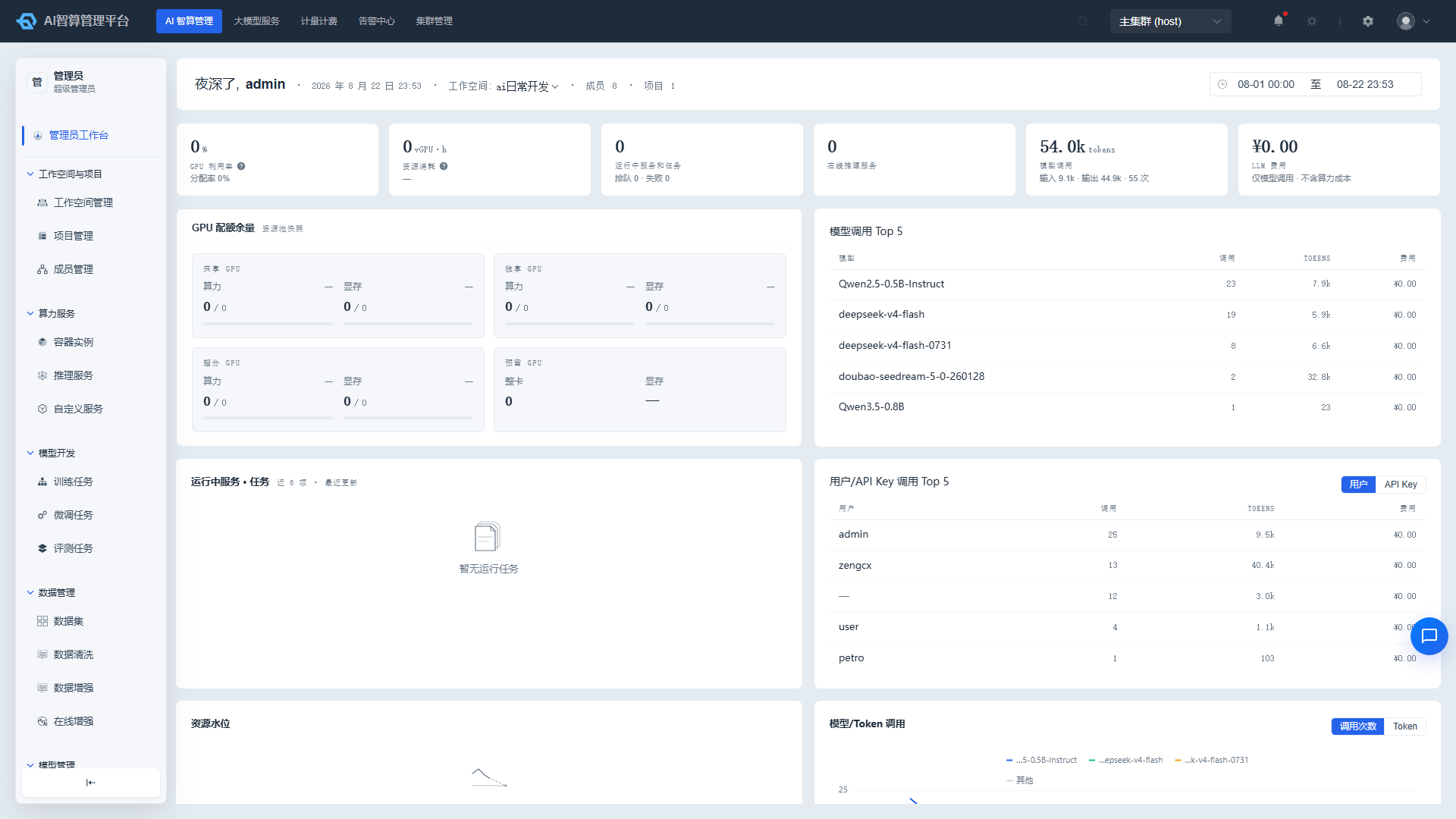
- After login, you are directed to AI Compute Management > Admin Workbench by default.
- The top navigation allows switching between AI Compute Management, Large Model Services, Metering & Billing, Alert Center, Cluster Management; Platform Management and K8s Cluster Management are accessed via their respective menus.
2. Get to Know the Admin Workbench
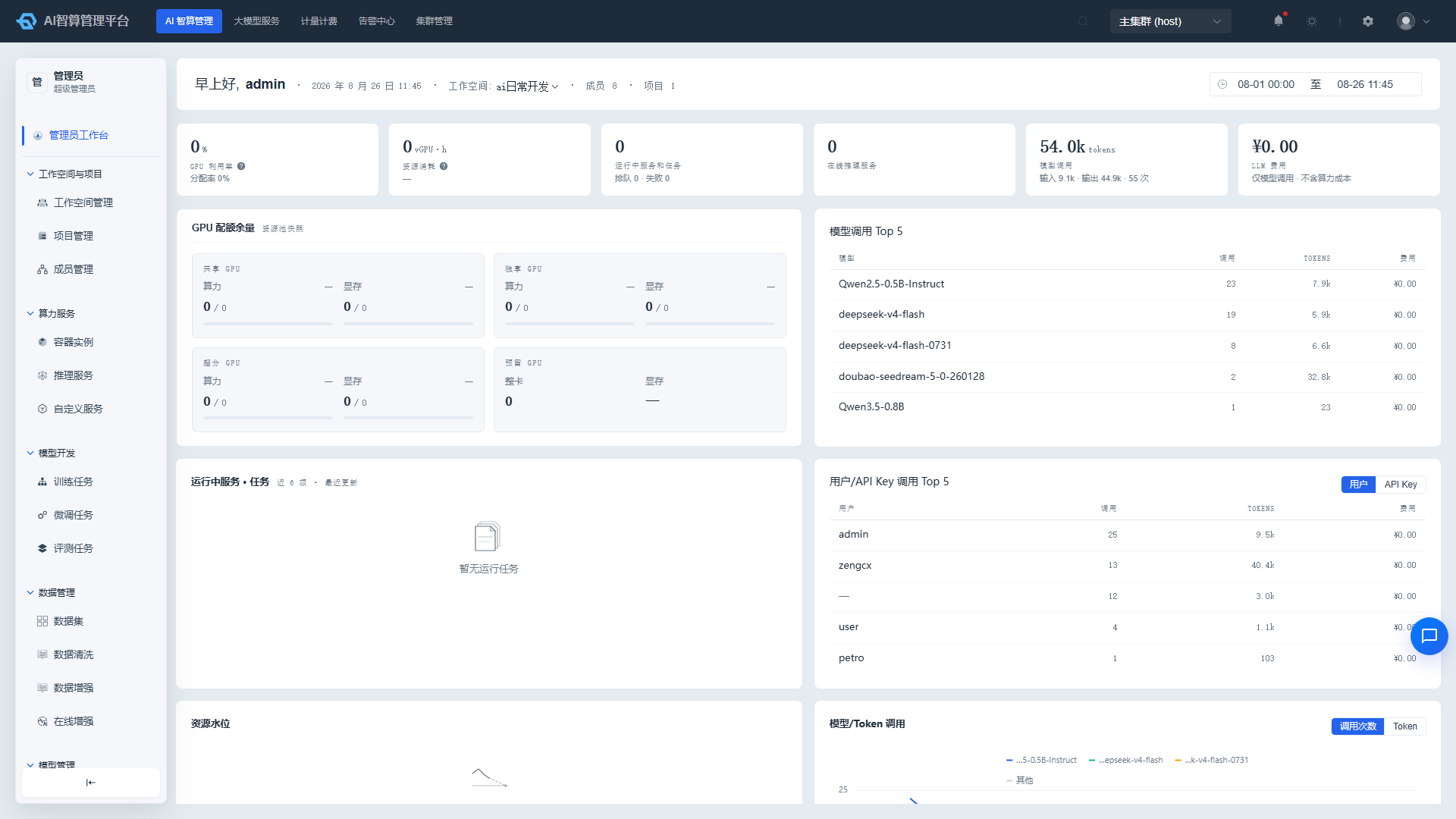
The "Admin Workbench" is the platform operations overview page, displaying:
- Platform core KPIs: total resources, allocated/used quotas, running workloads.
- Resource usage trends: GPU/CPU/memory/VRAM trends over the past 7/30 days.
- Model call Top N rankings: call volume, Token consumption, cost rankings.
- Alerts and notifications: pending alerts, system messages.
Through this page, administrators can quickly assess platform health and resource bottlenecks.
3. Configure AI Asset Management
Before allocating resources to tenants, we recommend configuring shared resources first:
- Navigate to AI Compute Management > AI Asset Management.
- Configure Storage Services: Add shared storage backends for workspace mounting.
- Configure Data Volumes: Create data volumes that can be shared across multiple projects.
- Configure Compute Flavors: Define templates for CPU, memory, GPU card count, VRAM, etc.
- Configure Image Registry / Image Service: Maintain the shared image repository and platform images.
- Configure Credentials & Secrets: Centrally manage image registry, SSH, API, and other sensitive credentials.
- Configure Labels: Tag resources for easier filtering and billing aggregation.
For detailed operations, see AI Compute Management / AI Asset Management.
4. Plan Workspaces and Projects
Workspaces correspond to tenants/teams; projects correspond to K8s Namespaces and form the basis of resource isolation and access control.
- Navigate to AI Compute Management > Workspace & Projects > Workspace Management.
- Click "Create Workspace" and fill in the name, owner, and quota policy.
- In the workspace details, bind a resource pool to the workspace.
- Navigate to Project Management and create a separate project for each business team.
- Navigate to Quota Management and set CPU, memory, GPU, and VRAM limits for workspaces/projects.
- Navigate to Member Management, invite users, and assign project roles.
For detailed operations, see AI Compute Management / Workspace & Projects.
5. Configure Policy Management
To prevent long-term resource hoarding and ensure fair scheduling of training jobs, configure the following policies:
- Navigate to AI Compute Management > Policy Management.
- Configure Training Scheduling Strategy: Set queue priorities, preemption strategies, and gang-scheduling rules.
- Configure Resource Reclaim Strategy: Define auto-reclaim times for idle instances and completed tasks.
- Configure Priority Strategy: Set scheduling weights for different projects or task types.
For detailed operations, see AI Compute Management / Policy Management.
6. Configure Model and AI Gateway
If the platform needs to provide large model services externally, configure in the following order:
- Navigate to AI Compute Management > Model Management, publish models to the model marketplace, and create deployment templates.
- Navigate to AI Compute Management > AI Gateway, and integrate external model channels (OpenAI, Claude, domestic models, etc.).
- Configure AI Routing: Set routing, rate limiting, and degradation policies by model, tenant, and project.
- Configure API Keys & MCP: Manage invocation credentials and Model Context Protocol settings.
For detailed operations, see AI Compute Management / Model Management and AI Compute Management / AI Gateway.
7. Configure Alerting and On-Call
To promptly detect platform anomalies, we recommend configuring the Alert Center:
- Navigate to Alert Center > Rule Management, create alert rules, and define trigger conditions and severity levels.
- Navigate to Alert Center > Alert Management > Message Templates and configure notification content templates.
- Navigate to Alert Center > Alert Management > Subscription Policies and configure alert recipients and notification channels.
- Navigate to Alert Center > Alert Management > Noise Reduction and configure alert suppression strategies to prevent alert storms.
- Navigate to Alert Center > On-Call Management and create on-call teams and shift schedules.
For detailed operations, see Alert Center / Rule Management and Alert Center / Alert Management.
8. Monitor K8s Cluster Status
Platform operations require ongoing attention to cluster health:
- Navigate to K8s Cluster Management > Resource Overview to view overall cluster health and node/GPU status.
- Under Compute Configuration, configure GPU scheduling strategies, oversubscription strategies, and resource pools.
- Under Workloads, troubleshoot Pod, Deployment, and other running states.
- Under Traffic, Storage, Container Configuration, Security, Other, manage Ingress, PVC, ConfigMap, RBAC, Namespace, etc.
For detailed operations, see K8s Cluster Management / Resource Overview.
9. Configure Platform and Cluster Parameters
Finally, configure global parameters according to your enterprise security and compliance requirements:
- Navigate to Platform Management > Platform Configuration to configure global parameters, third-party login, OAuth applications, application management, password security, and navigation sorting.
- Navigate to Platform Management > Platform & Members to manage multi-K8s cluster onboarding, platform users, and roles.
- Navigate to Cluster Management > Cluster Configuration to view cluster parameters and configure secondary verification for sensitive operations.
- Navigate to Cluster Management > Logs & Messages to view operation audit logs and system notifications.
For detailed operations, see Platform Management / Platform Configuration and Cluster Management / Cluster Configuration.
10. Review Metering and Billing
After the platform has been running for some time, you can review costs under Metering & Billing:
- Tenant Resource Overview: View GPU/CPU/memory resource costs by platform/tenant/project/user.
- Token Governance: Track large model call charges by model/API Key/user.
- API Channel: Compare upstream bills with platform records for channel reconciliation.
- Physical Resource Overview: Calculate cluster operating costs by physical node/GPU card.
For detailed operations, see Metering & Billing / Tenant Resource Overview.
Next Steps
- Govern tenants and resources: See AI Compute Management / Workspace & Projects and AI Compute Management / AI Asset Management.
- Ensure platform stability: See K8s Cluster Management / Resource Overview and Alert Center / Rule Management.
- Refine cost accounting: See Metering & Billing / Tenant Resource Overview and Metering & Billing / Token Governance.
- Understand billing details: See Billing.