Container Configuration
Container Configuration provides operations engineers with visual management of ConfigMap, Secret, and HorizontalPodAutoscaler (HPA).
Access path: Left sidebar K8s Cluster Management > Container Configuration.
ConfigMap
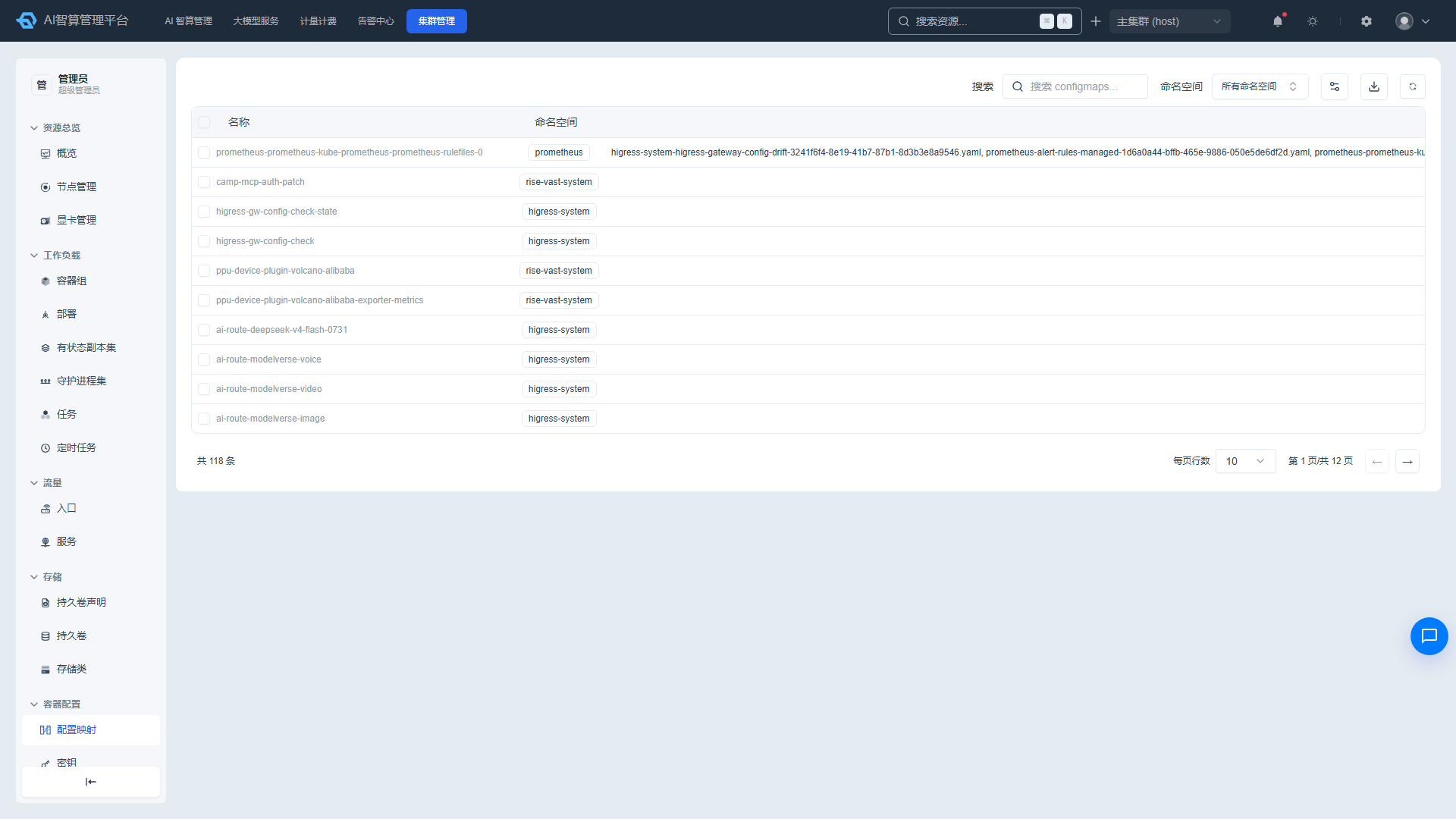
Viewing the ConfigMap List
- Navigate to K8s Cluster Management > Container Configuration > ConfigMap.
- The list displays: name, data keys, and creation time.
- Use the top search box to search by name, namespace, and data key keywords.
ConfigMap Details
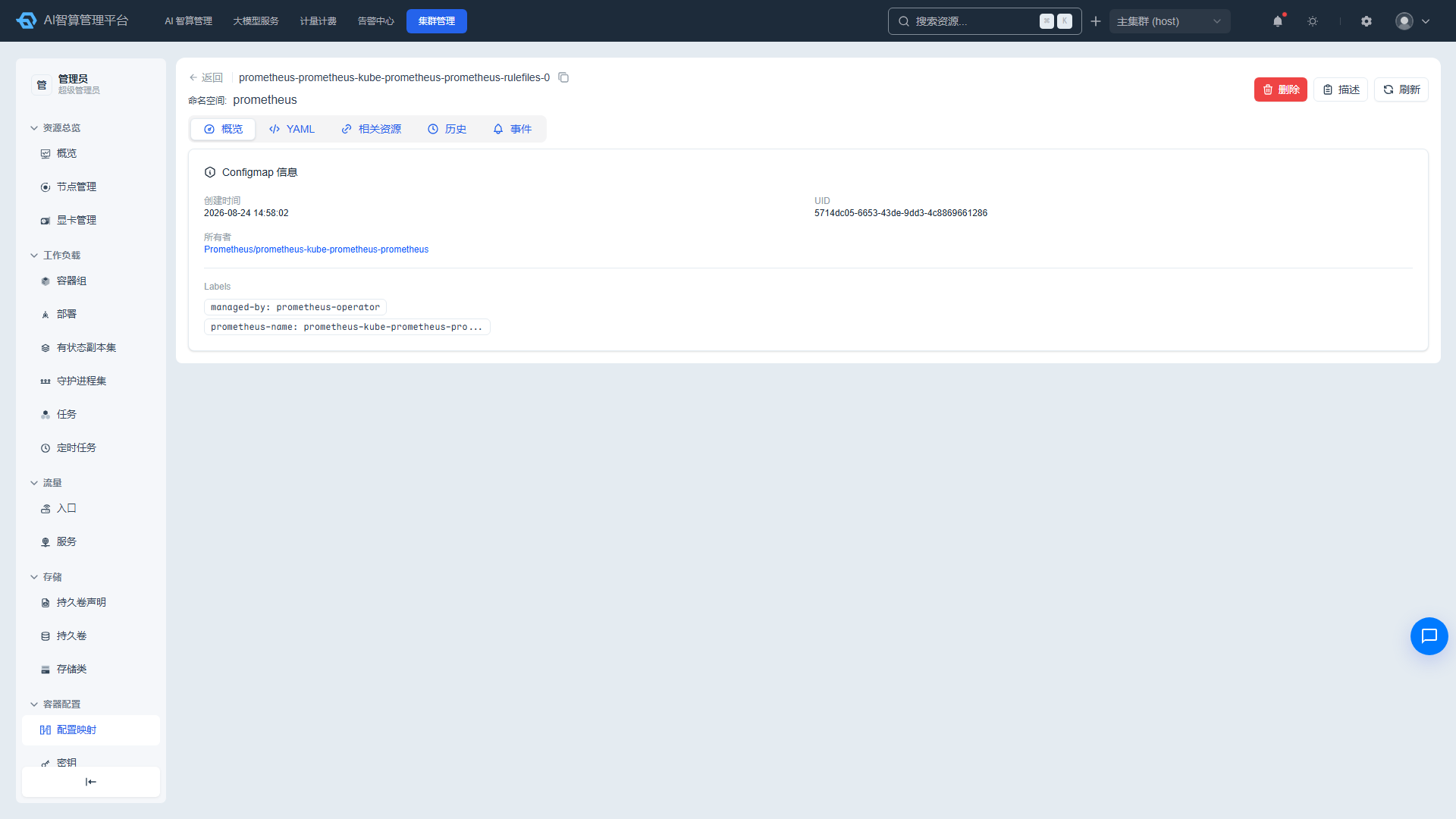
- Click a name to enter the detail page.
- Overview: creation time, UID, owner links, labels/annotations, data key-value pairs.
- YAML: edit online and save.
- Related Resources: Pods, Deployments, and more that reference this ConfigMap.
- History: change records with YAML diff comparison and rollback support.
- Events: related K8s events.
Managing ConfigMaps
- Click "Delete" in the list row or detail page, enter the name to confirm.
- Select multiple rows and click "Batch Delete."
- Supports CSV export, Describe modal, and manual refresh.
Secret
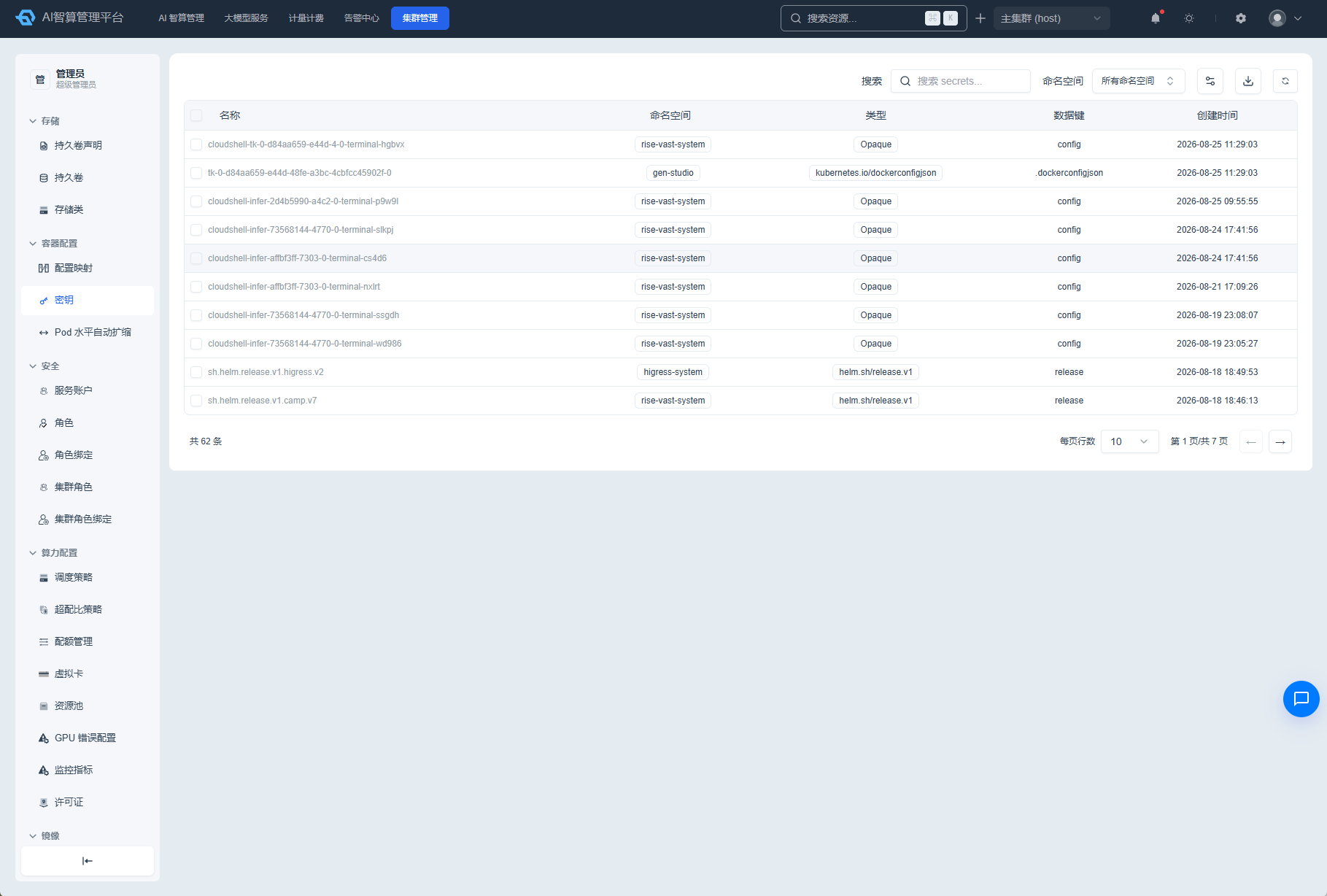
Viewing the Secret List
- Navigate to K8s Cluster Management > Container Configuration > Secret.
- The list displays: name, type, data keys, and creation time.
- Use the top search box to search by name, namespace, and type keywords.
Secret Details
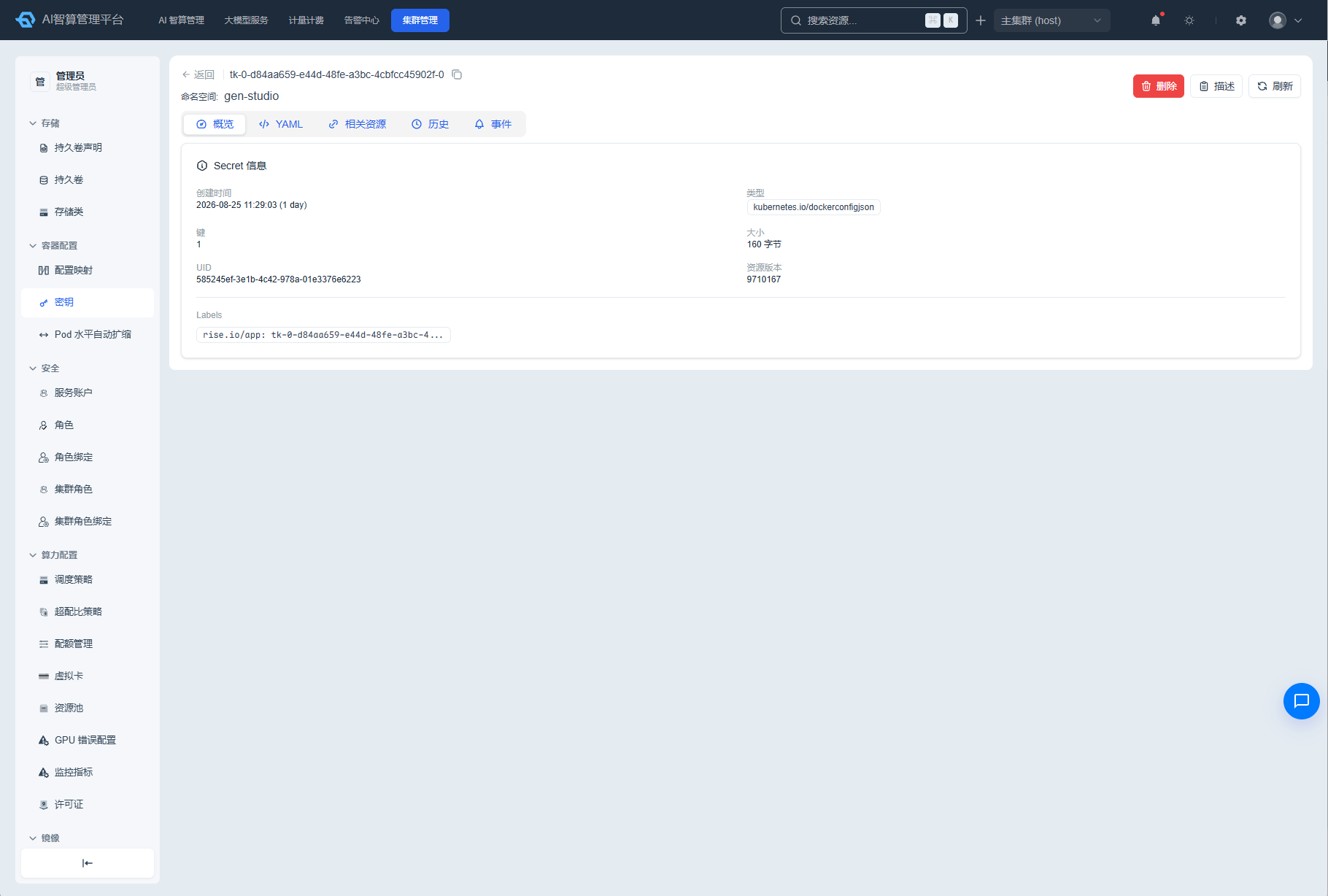
- Click a name to enter the detail page.
- Overview: creation time, UID, type, owner links, labels/annotations.
- YAML: edit online and save; data values are base64-encoded by default.
- Click "Show Plaintext" to toggle viewing the decoded secret data content.
- Related Resources: Pods, ServiceAccounts, and more that reference this Secret.
- Version History: view historical versions with rollback support.
- Events: related K8s events.
Managing Secrets
- Click "Delete" in the list row or detail page, enter the name to confirm.
- Select multiple rows and click "Batch Delete."
- Supports CSV export, Describe modal, and manual refresh.
HorizontalPodAutoscaler (HPA)
Viewing the HPA List
- Navigate to K8s Cluster Management > Container Configuration > HorizontalPodAutoscaler.
- The list displays: name, target, minimum Pod count, maximum Pod count, current Pod count, metrics, and creation time.
- Use the top search box to filter by name and namespace.
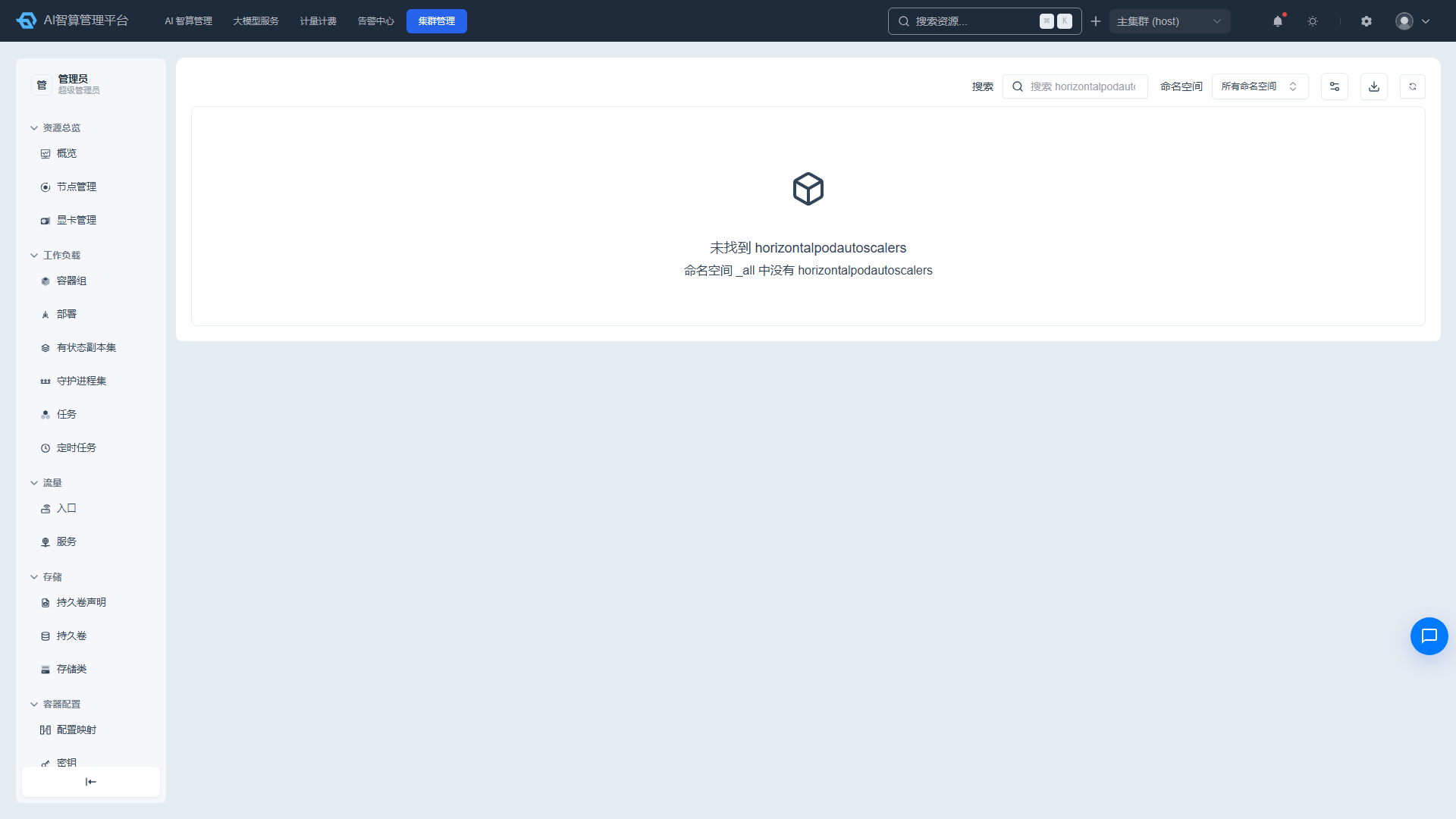
HPA Details
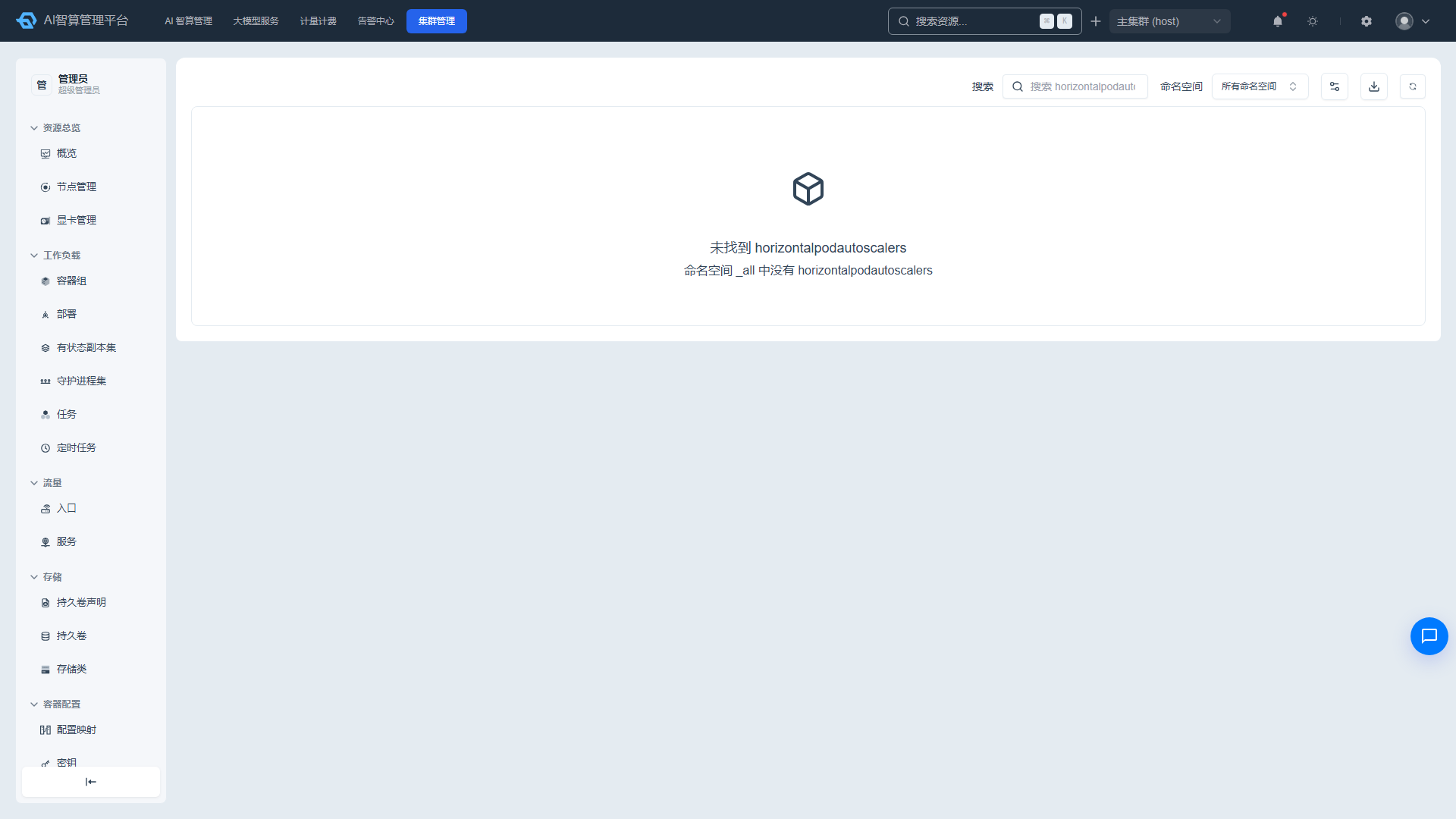
- Click a name to enter the detail page.
- Overview: target reference, min/max Pod count, current Pod count, metric thresholds.
- YAML: edit online and save.
- Related Resources: associated Deployment/StatefulSet, and more.
- History: change records and rollback.
- Events: related K8s events.
Managing HPAs
- Click "Delete" in the list row or detail page.
- Select multiple rows and click "Batch Delete."
- Supports Describe modal, manual refresh, CSV export, and search filtering.
FAQ
Q: After modifying a ConfigMap, will the Pod update automatically? A: No. Pods read ConfigMap content at startup. After modification, you need to restart the Pod or Deployment for changes to take effect.
Q: Will decoded Secret data be logged? A: The page only decodes and displays data temporarily in the frontend; plaintext is not persisted. Avoid displaying decoded secret data on public screens.
Q: HPA is not triggering scaling? A: Check whether the metrics server is running normally, whether the target resource has resource requests configured, and whether the current metric has reached the threshold.