Clusters & Members
"Clusters & Members" is designed for platform administrators to manage users and permission bindings across clusters in a unified manner, including role configuration, workspace/project association, bulk removal, and duplicate-addition protection.
Entry path: Left sidebar menu Platform Management > Clusters & Members, page route
/admin/global/org.
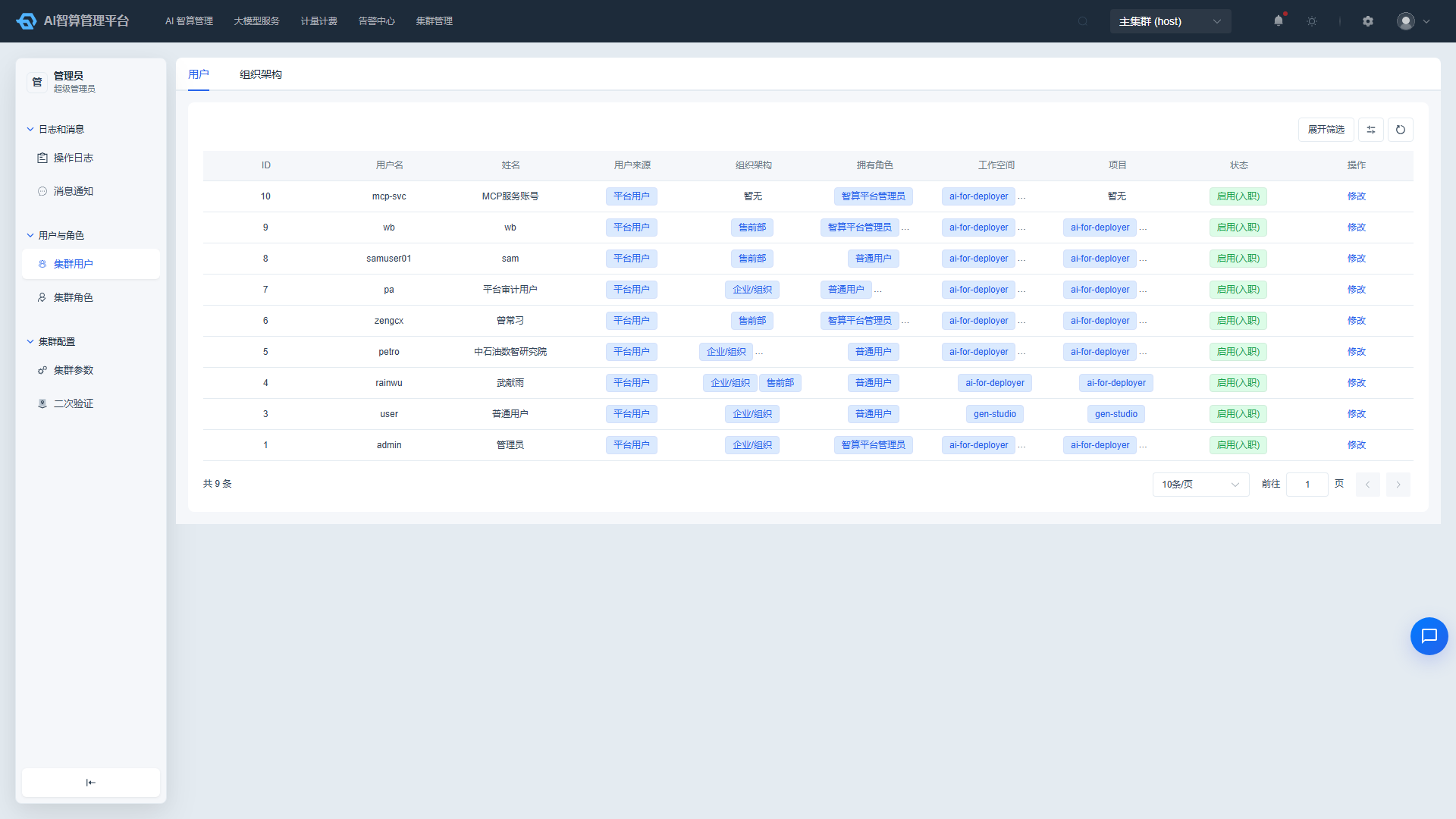
Page Menu
| Page | Route | Description |
|---|---|---|
| Cluster Members | /admin/global/members | Cross-cluster member list and management |
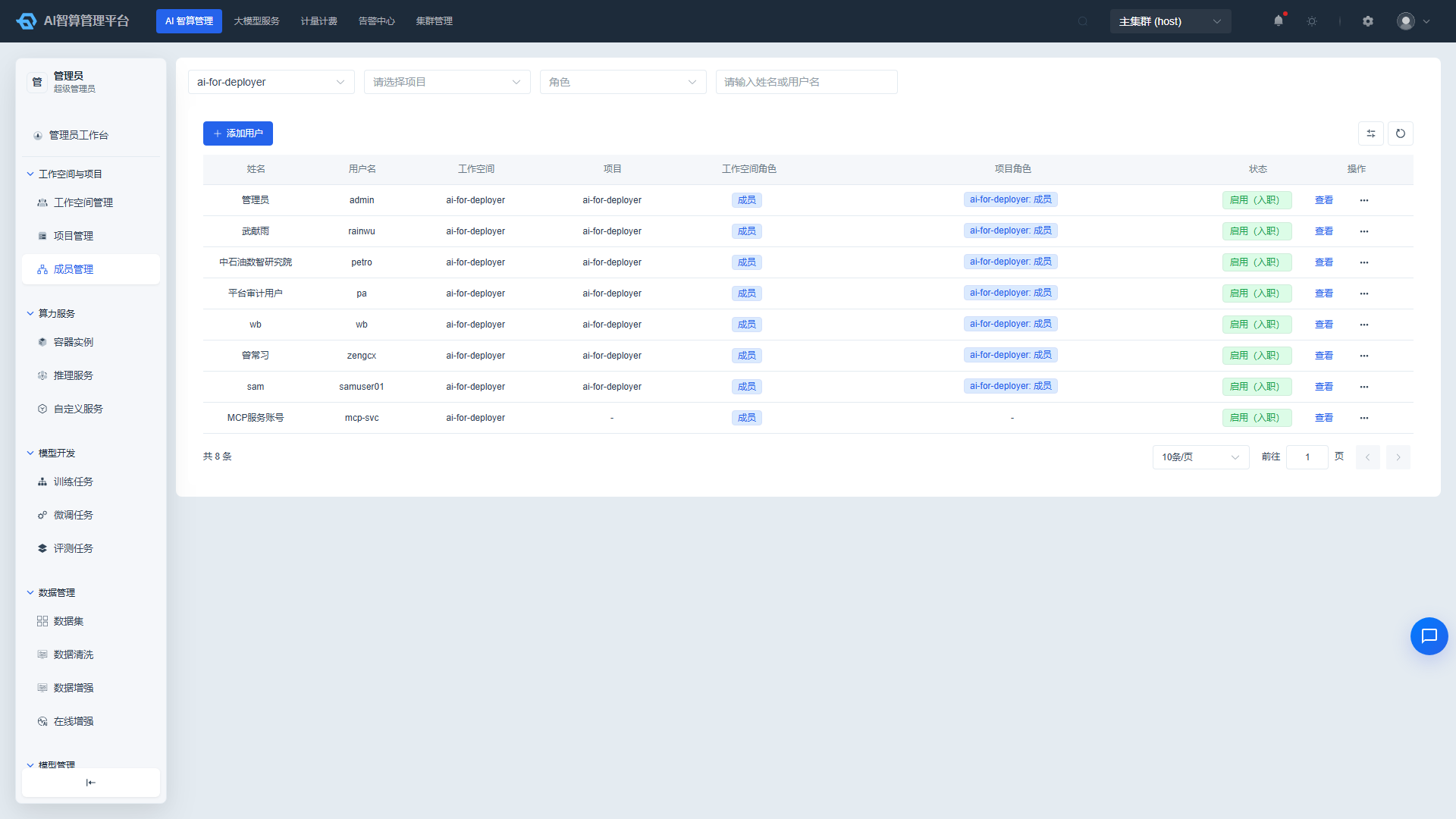
View Cluster Members
- Navigate to Platform Management > Clusters & Members > Cluster Members.
- The list displays: username, full name, user source (Platform Created / Third-party Login tags with distinct colors), cluster role, workspace, project, status (Enabled / Disabled / Pending Activation).
- Select the target cluster from the "Cluster" dropdown at the top; the workspace cascading options will dynamically load after switching.
- Use the top filter bar to search by username and department.
Add Cluster Member
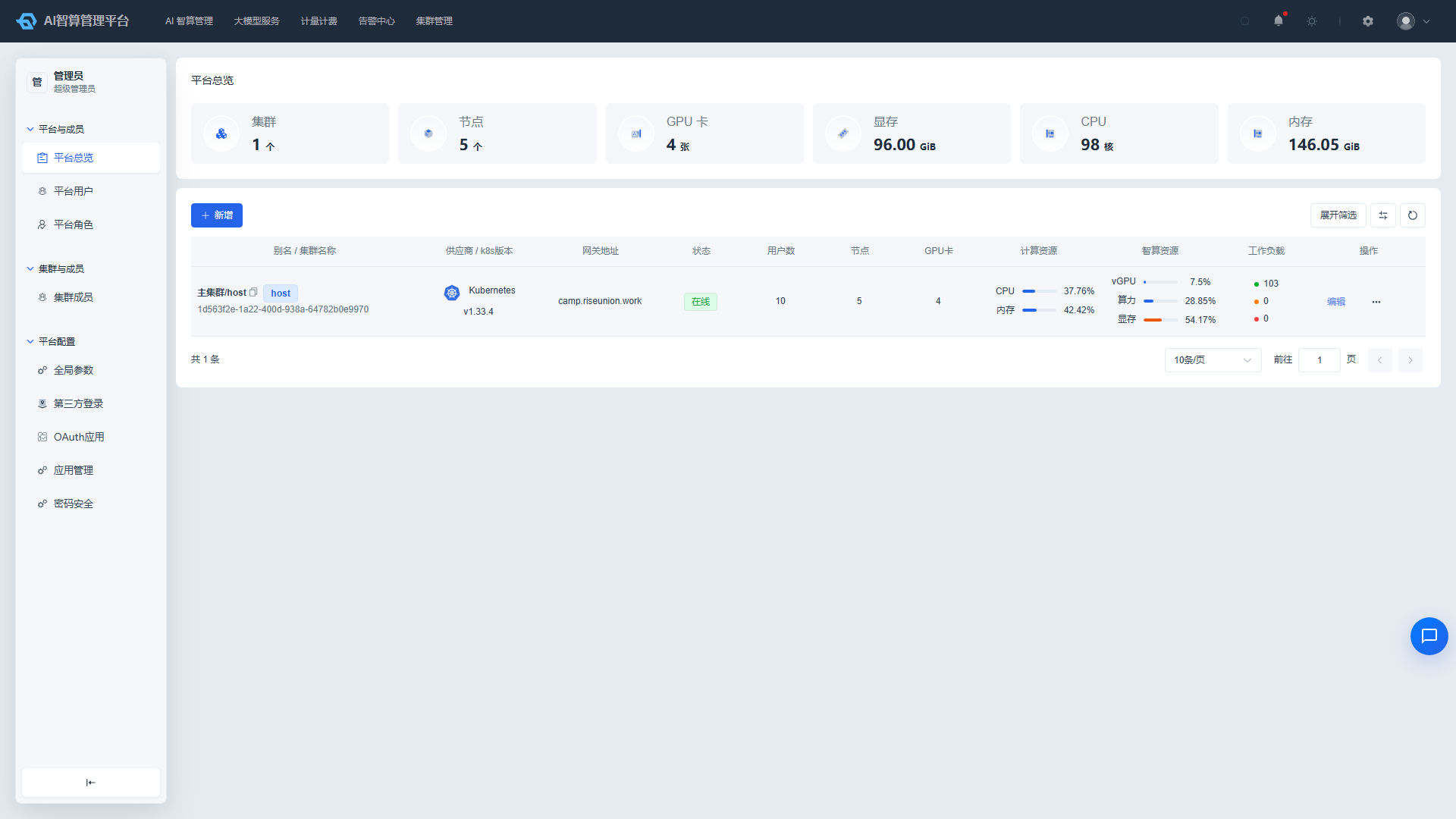
- Click "Add Member" on the Cluster Members list page.
- In the modal, make the following selections in order:
- User: Users already added to the current cluster will be automatically grayed out and sorted to the bottom, and cannot be added again.
- Role: Automatically pre-fills the "Platform Member" role which cannot be removed; you can additionally assign other roles.
- Workspace/Project: Use the cascading selector to configure the tenants and projects this member can access.
- Click "Confirm".
Edit Cluster Member
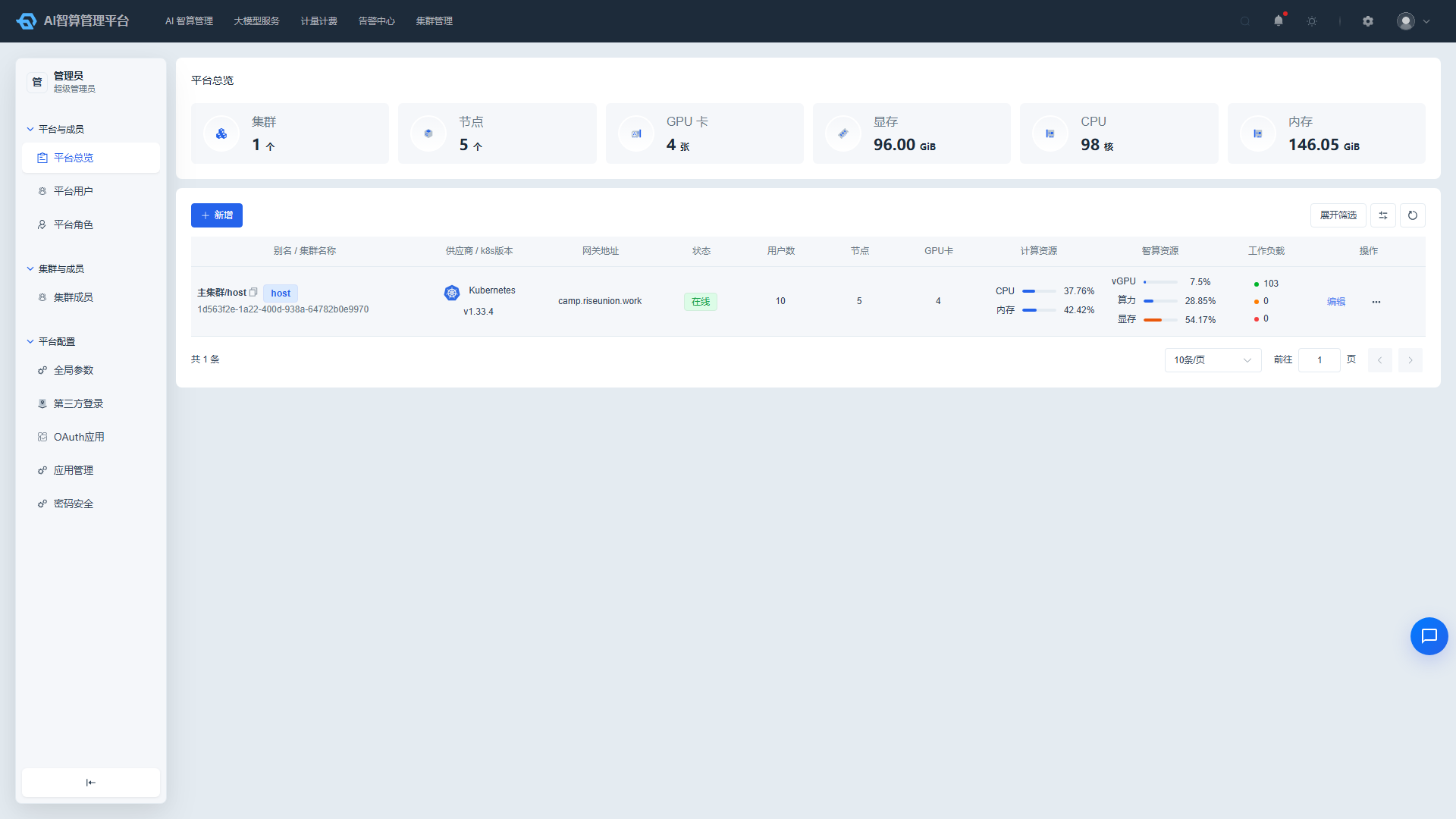
- Click "Edit" in the list row.
- Modify the member's role, workspace/project configuration.
- Read-only roles are protected and cannot be removed; a notification will be displayed.
- Click "Save".
Remove Cluster Member
- Single removal: Click "Remove" in the list row, and confirm in the modal to remove the member.
- Bulk removal: Select multiple members on the left side of the list (up to 10 at a time), click "Bulk Remove" above the list, and confirm in the modal to remove.
FAQ
Q: Why are some users grayed out in the user selection dropdown? A: These users have already been added to the current cluster and are grayed out to prevent duplicate additions. If you need to adjust their permissions, please use the "Edit" function.
Q: What is the maximum number of members for bulk removal? A: A single bulk removal operation supports up to 10 members. For more, please perform multiple operations.
Q: Can a removed member still log in to the platform? A: If the user has been removed from all clusters and has no platform-level role, they can no longer use the platform; however, the platform user account itself is not deleted.