Cluster Configuration
"Cluster Configuration" is designed for cluster administrators to view the parameter configuration of the current cluster and configure two-factor authentication policies for sensitive operations, ensuring the security of critical operations.
Entry path: Left sidebar menu Cluster Management > Cluster Configuration, page route
/admin/settings/manage.
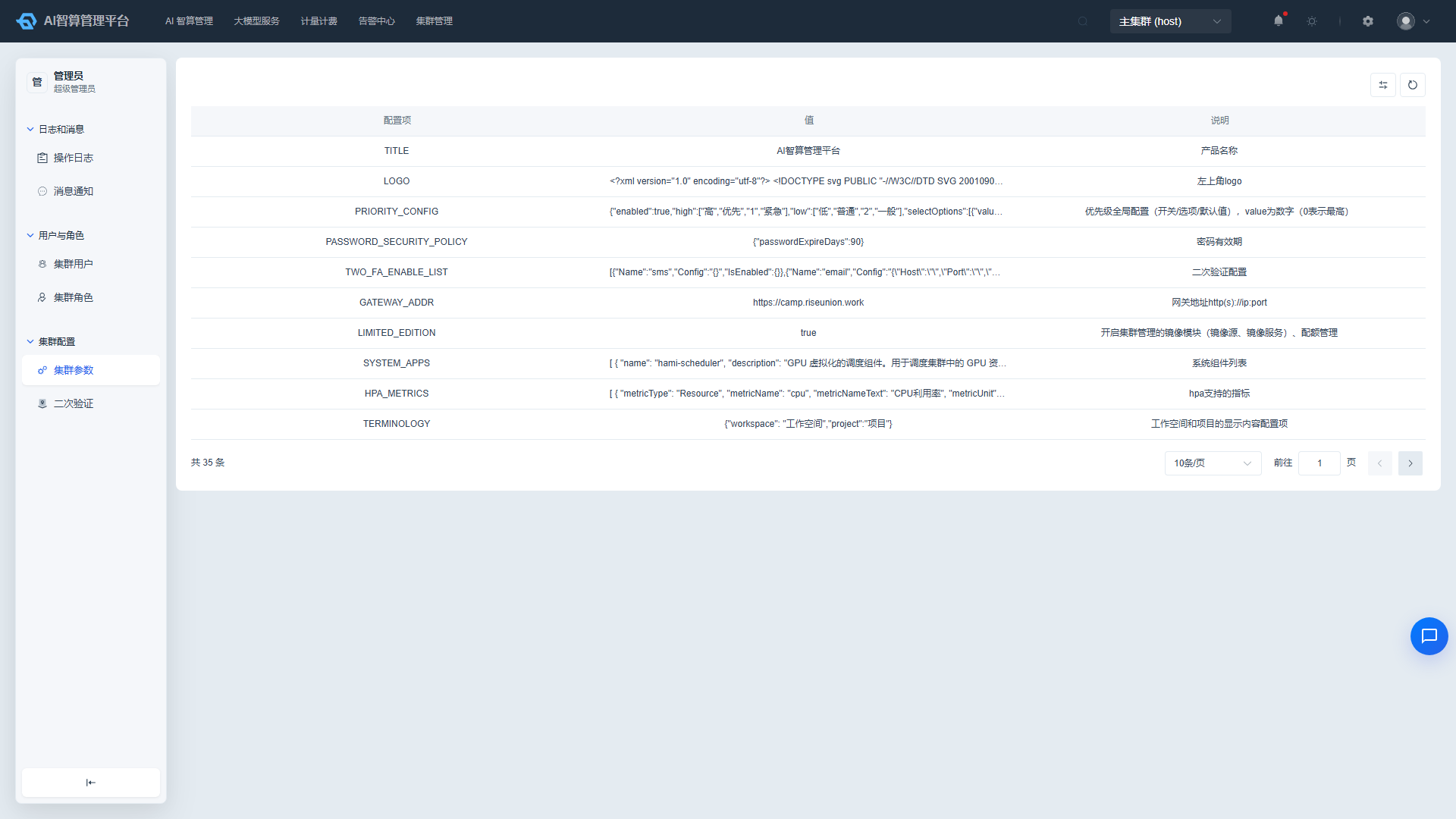
Page Menu
| Page | Route | Description |
|---|---|---|
| Cluster Parameters | /admin/settings/cluster-config-map | Read-only view of current cluster parameters |
| Two-factor Authentication | /admin/settings/verify-config | Two-factor authentication configuration for sensitive operations |
Cluster Parameters
View Cluster Parameters
- Navigate to Cluster Management > Cluster Configuration > Cluster Parameters.
- The list displays: configuration item, value, description.
- Use the top search box to filter by configuration item keyword.
- The list supports pagination, refresh, and column visibility settings.
Export Parameters
- Click "Export CSV" in the top-right corner of the list.
- The system will download the current cluster parameters locally.
Two-factor Authentication
Configure Authentication Methods
- Navigate to Cluster Management > Cluster Configuration > Two-factor Authentication.
- The page displays multiple two-factor authentication methods: MFA, SMS, Email.
- Each method has an independent toggle; enabling it expands the configuration items.
- Fill in the corresponding configuration based on the selected method:
- MFA: Configure the MFA service endpoint or bind a secret key.
- SMS: Configure the SMS service provider API address, AccessKey, template, etc.
- Email: Configure the SMTP server, port, sender account, and password; the system performs front-end validation on the SMTP port number.
- Click "Save".
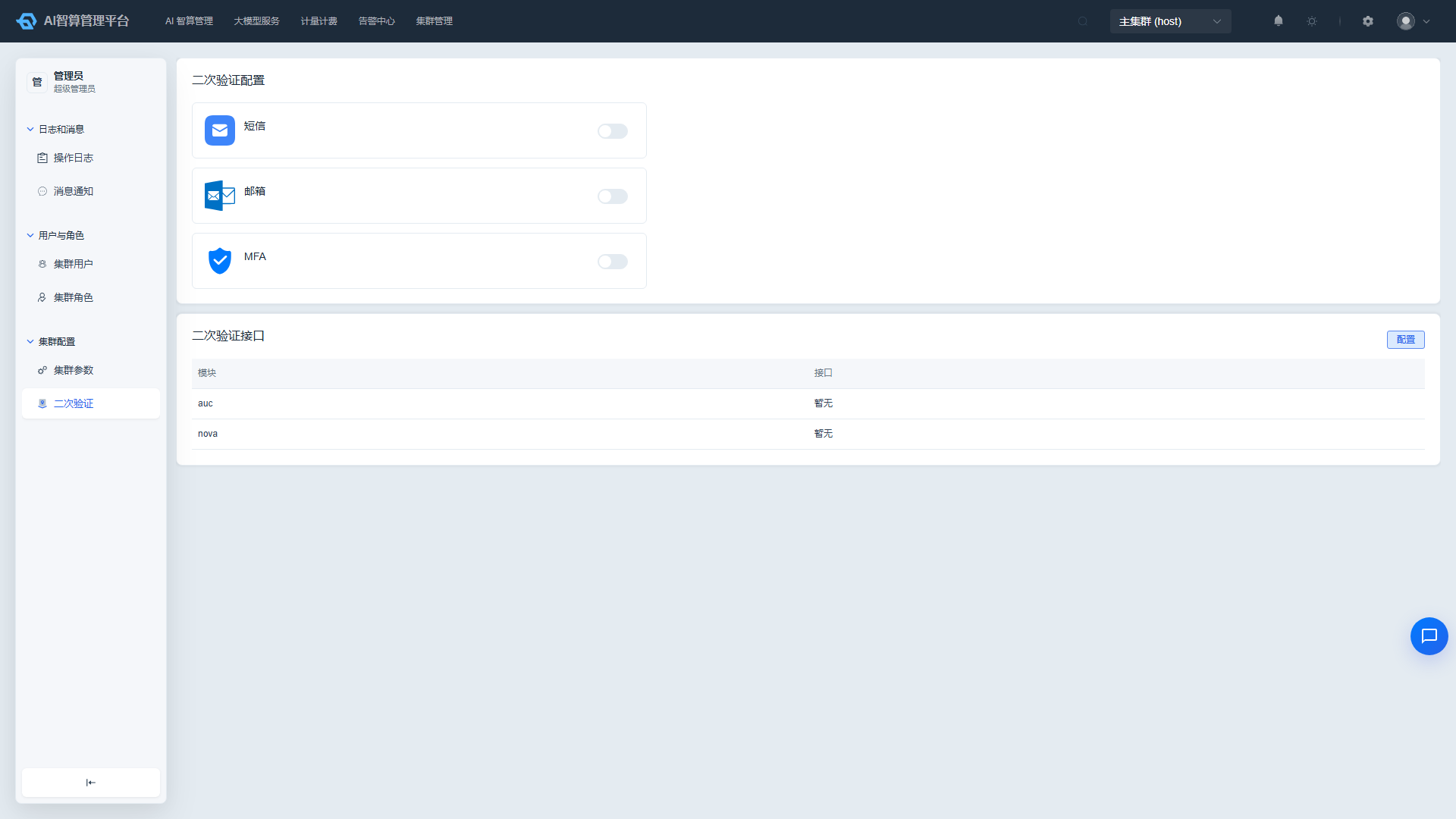
Configure APIs Requiring Two-factor Authentication
- At the bottom of the two-factor authentication page, configure the list of API endpoint addresses requiring two-factor authentication, organized by module (Platform / AI Computing).
- Add or remove endpoint addresses using tag input.
- The table displays the number of configured endpoints for each module.
- Click the count to open a modal showing the complete address list, supporting individual copy and one-click copy all.
Trigger Two-factor Authentication
- When a user performs a sensitive operation configured for two-factor authentication (e.g., deleting resources), the system will open a two-factor authentication window.
- Based on the configured authentication method, enter the MFA dynamic code, SMS verification code, or email verification code.
- The operation will only proceed after successful verification.
FAQ
Q: Why can't I edit cluster parameters? A: The Cluster Parameters page is a read-only view. To make changes, please operate in "Platform Management > Platform Configuration > Global Parameters", or contact the platform administrator.
Q: Two-factor authentication configuration didn't take effect after saving? A: Please confirm that the toggle for the corresponding authentication method is enabled, and that the method has been associated with the specific API endpoints that need protection.
Q: Email two-factor authentication shows an invalid port error? A: Please check that the SMTP port number is a common port (e.g., 25, 465, 587), and confirm that the port is not occupied or restricted.
Q: What if I forgot my MFA secret key? A: Please contact the cluster administrator to reset the MFA binding; after resetting, you will need to bind a new MFA device.