Distributed Training Jobs
Distributed training is built on Volcano scheduling and supports PyTorch / TensorFlow / MPI / DeepSpeed frameworks, suited for multi-GPU and multi-node training scenarios (a minimum of 2 GPUs is required for distributed training). This guide covers the complete workflow from environment preparation to job monitoring. For field-level documentation, see Model Development.
1. Preparation (Administrator)
1.1 Upload the Training Image and Configure Tags
# Example: DeepSpeed training image (replace the registry address as needed)
docker load -i pytorch-deepspeed-demo.v1-80e2097.tar.gz
docker tag lon.io/pytorch-deepspeed-demo:v1-80e2097 harbor.rise.io/camp/pytorch-deepspeed-demo:v1-80e2097
docker push harbor.rise.io/camp/pytorch-deepspeed-demo:v1-80e2097
Then, under AI Computing Management > AI Asset Management > Image Service:
- Sync the image and set the image Classification to PyTorch or TensorFlow (it must be one of these two, otherwise the image cannot be selected when creating training jobs).
- Enter the image detail page, click "Modify Tags," and select the Training Job task scenario.
1.2 Upload Training Files
- On the NFS server, prepare directories such as
cache,checkpoint, andcode, and upload the training code and data. - Navigate to AI Computing Management > AI Asset Management > Storage, add a static storage entry, and fill in the NFS server address and directory path prepared above.
1.3 Create a Training Scheduling Policy
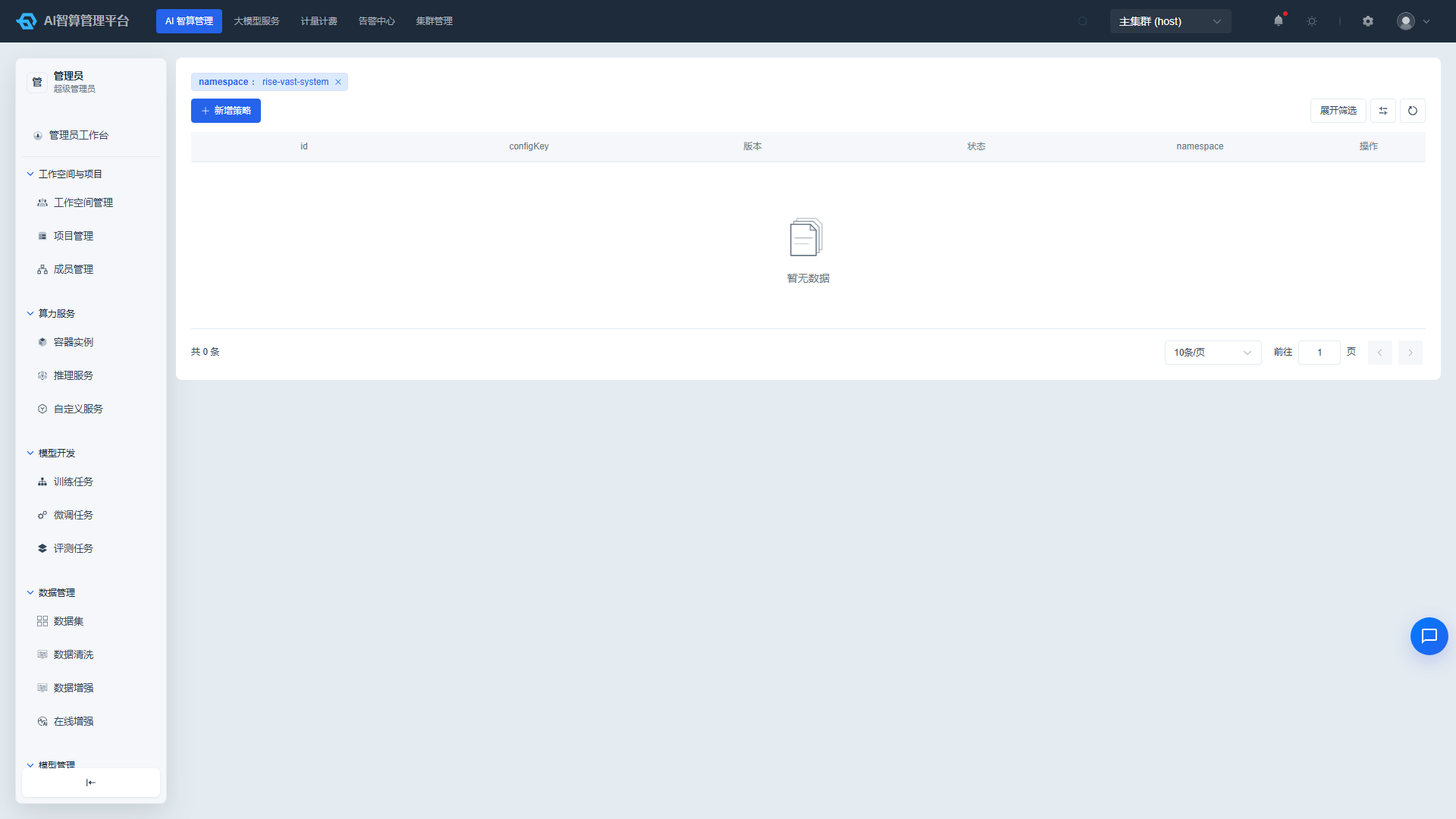
Navigate to AI Computing Management > Policy Management > Training Scheduling Policy, click "Create Training Scheduling Policy," and configure the queue, priority, and resource allocation rules.
1.4 Associate Training Queues with Tenants
Navigate to AI Computing Management > Policy Management > Training Queue Management, edit the target queue (e.g., default), and associate the workspaces/tenants that need to use it. Queues not associated with a tenant are invisible to that tenant when creating jobs.
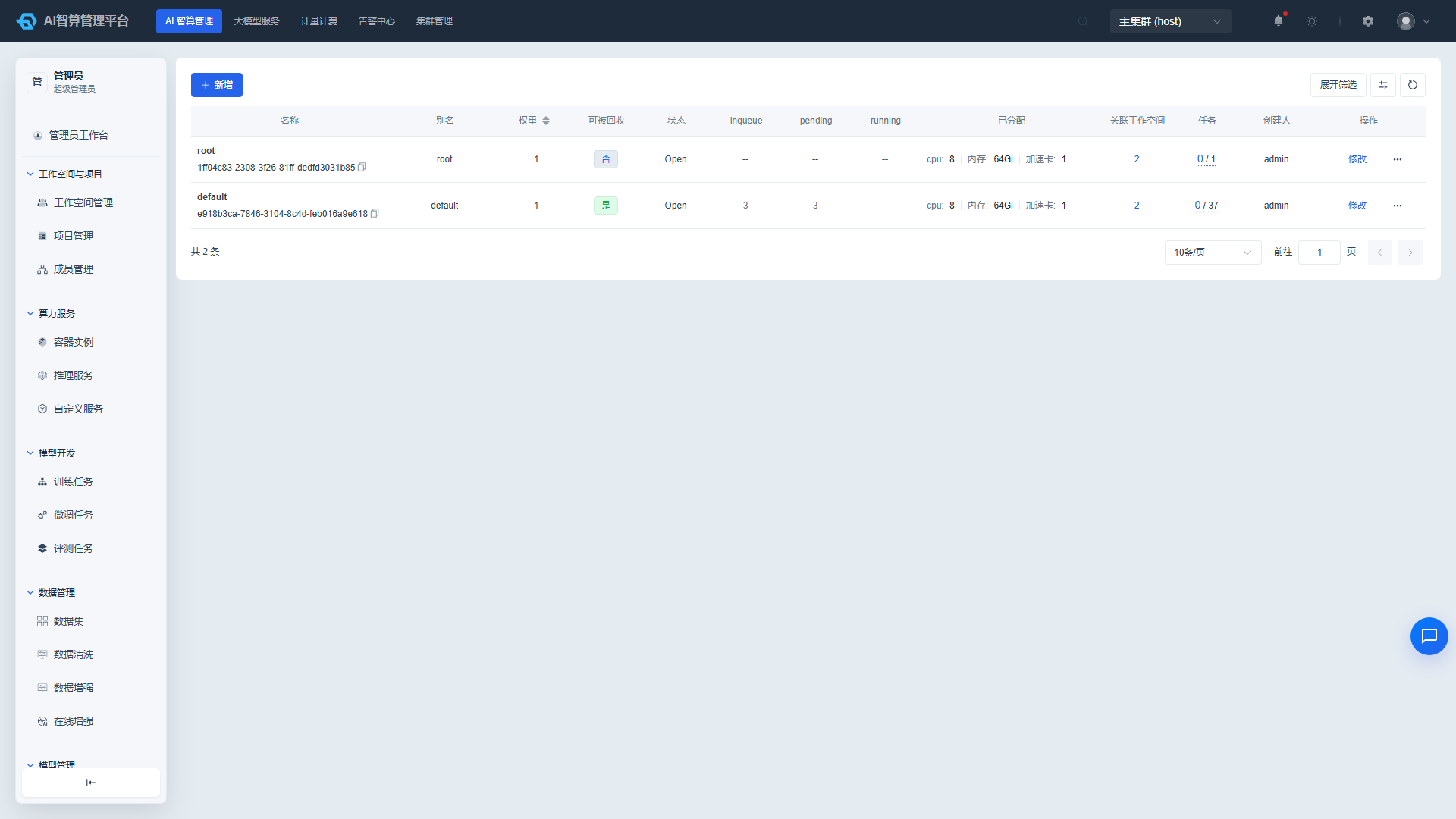
If a node's GPUs have been allocated to other purposes, you need to reclaim the GPUs in Node Management and adjust the node scenario before it can be added to the training resource pool.
2. Create a Training Job (Developer)
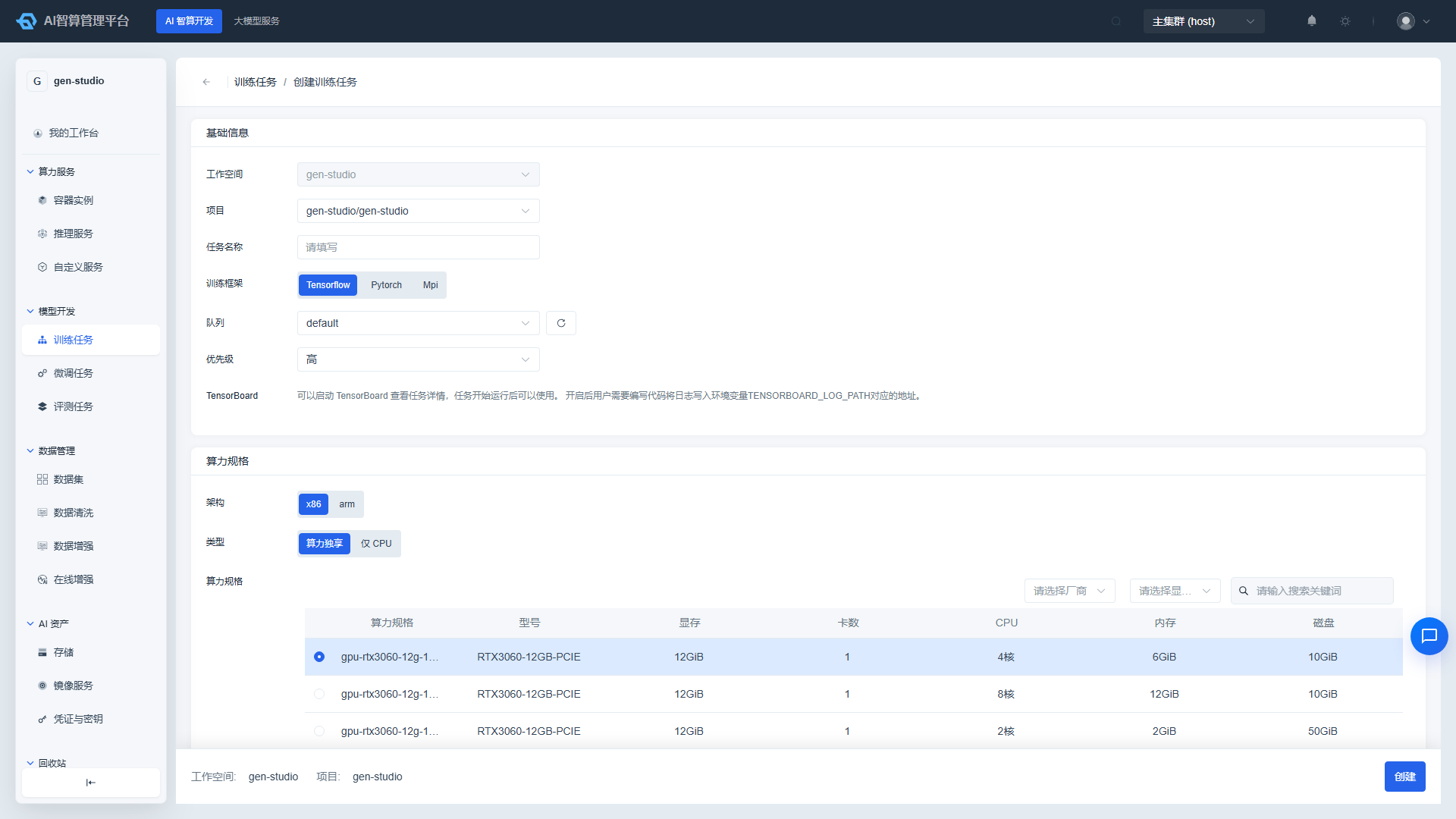
- Navigate to AI Computing Development > Model Development > Training Jobs and click "Create Training Job."
- Key configuration (using PyTorch + DeepSpeed as an example):
| Setting | Example Value |
|---|---|
| Training Framework | PyTorch (options: PyTorch / TensorFlow / MPI / DeepSpeed) |
| Queue | Select the queue associated in the previous step |
| Job Image | PyTorch image with the "Training Job" tag selected |
| Storage | The training storage created in the previous step |
| Spec | Number of GPUs per Master/Worker container |
| Start Command | /bin/bash -c |
| Start Parameters | See the example below |
| Environment Variables | HF_HUB_OFFLINE=1, HF_HOME=/volcano-data/cache |
| Working Directory (workingDir) | /volcano-data |
Start parameter example (torchrun multi-node multi-GPU):
torchrun --nnodes=$WORLD_SIZE --nproc_per_node=1 \
  --node_rank=$RANK --master_addr=$MASTER_ADDR \
  --master_port=$MASTER_PORT /volcano-data/code/train_bert_ds.py \
--checkpoint_dir /volcano-data/checkpoint- Click "Create." When the configuration is correct and resources are sufficient, the list page status will transition from "Queuing" to "Running."
3. Monitor the Training Process
- Web Terminal: Detail page > Pod Groups > select the Pod to inspect > Web Remote Connect. Terminal operations are identical to a standard command line.
- Resource Monitoring: View GPU memory, compute, CPU, memory, and network usage for each pod group.
- Runtime Logs: Real-time refresh of container stdout; switch between different pod group logs.
- TensorBoard: Click the TensorBoard icon on the detail page and wait for a new tab to open (allow browser pop-ups).
4. Job Management
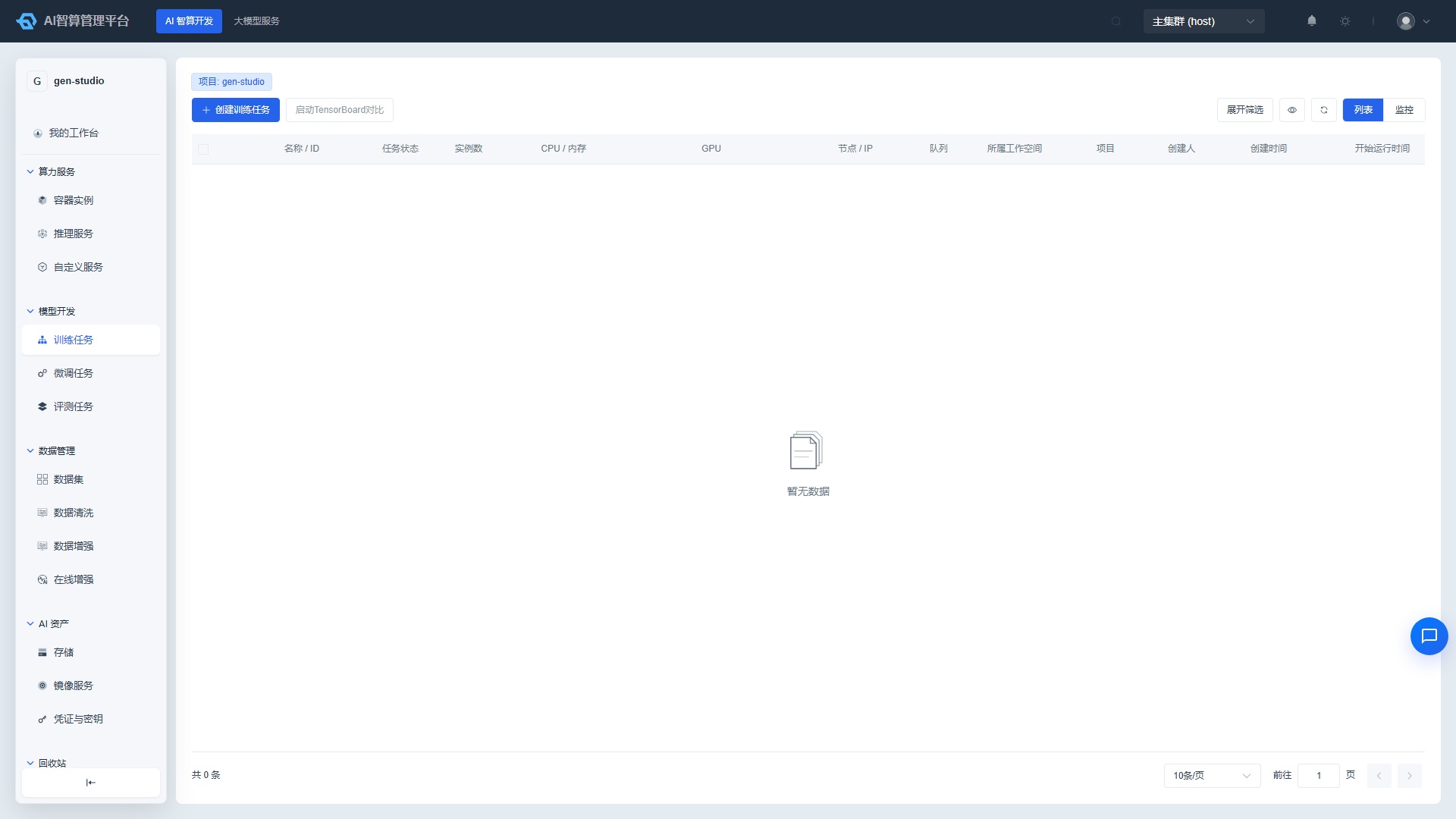
The list page supports quick Stop (halt scheduling and release resources), Resubmit (clone the original configuration and re-run), and Release (requires Stop first). The detail page "Overview" tab lets you review the job spec, image, storage, and advanced configuration; the "Scheduling Process" tab shows per-node scheduling scores and failure reasons — the primary entry point for troubleshooting queuing issues.
FAQ
Q: The job stays in the queuing state? A: Check the detail page "Scheduling Process" and "Events" tabs. Common causes: the queue is not associated with the current tenant, insufficient quota, minimum available instance count set too high, or the node scenario is not configured for training.
Q: Cannot select the training image when creating a job? A: Verify that the image classification is set to PyTorch/TensorFlow and that the "Training Job" tag has been selected. See section 1.1.
Q: Training cannot access code or data? A: Verify that the storage is mounted correctly and that the workingDir and path prefix match the NFS directory structure. Use the web terminal and run ls on the mounted directory to check.